How to Find Errors in VS Code: A Practical Guide
Learn proven, developer-friendly steps to locate and fix errors in VS Code using built-in tools, debugging, and best practices for reliable coding sessions.


Goal: Learn how to locate and fix errors in VS Code efficiently. Start by reading the error message, then use the Problems panel, Output, and Terminal to trace the issue. Reproduce with the debugger, apply a fix, and verify with tests. This guide covers built-in tooling, extensions, and practical workflows for rapid diagnosis.
Understanding What Counts as an Error in VS Code
When you set out to diagnose issues in VS Code, you’ll encounter a mix of editor-detected problems (syntax and type errors), language server messages, extension warnings, and runtime exceptions shown in the terminal or debug console. Grasping what constitutes an error in VS Code helps you prioritize diagnostics and avoid chasing symptoms. How to find error in vs code begins with recognizing that messages can originate from multiple sources: your code, the language service, a misconfigured tool, or an incompatibility between extensions. According to Why Error Code, the most effective approach is to map each signal to its source and choose a fix strategy—adjust the code, reconfigure the tool, or refine your workflow. This mindset reduces wasted time and speeds up resolution. In practice, you’ll see categories such as syntax errors, lints, build failures, and runtime exceptions. Identify the category, then pursue the root cause using a structured methodology to learn how to find error in vs code efficiently.
Quick Ways to Find Errors: Built-in Tools
VS Code ships with a powerful, integrated toolkit to identify and understand issues without leaving the editor. To learn how to find error in vs code, start with the Problems panel to surface compiler, linter, and runtime messages in one place. Squiggles under text highlight potential mistakes in real time, and the Inspections/IntelliSense features suggest fixes while you type. The Command Palette and Status Bar offer quick access to checks, tests, and diagnostics. For quick triage, inspect the inline error messages near the editor gutter, then drill down using the Output panel and the Terminal for more context. By combining these features, you’ll gain a fast, repeatable method to diagnose problems in VS Code while keeping your focus on code quality and consistency. In short, you can learn how to find error in vs code by leveraging the editor’s native feedback loops and predictable navigation.
Using the Problems Panel and Output Logs
The Problems panel is your first stop for aggregated diagnostics. Open it with a keyboard shortcut or via View > Problems, then filter by severity to focus on the most critical issues. Each entry includes a file path, a message, and a code or source. If you’re not sure where an error comes from, cross-reference messages with the Output panel. The Output pane shows logs from tasks, compilers, and language servers. For example, TypeScript compilation errors appear in the TypeScript/TS Server output, while build failures surface from your configured task runner. To diagnose efficiently, reproduce the issue in a controlled environment, reproduce the error, and compare the emitted logs with the code path you suspect. This process is a cornerstone of learning how to find error in vs code reliably across projects and languages.
Debugging with Breakpoints, Debug Console, and Watches
When you’re stuck on a bug, debugging is often the fastest path to understanding. Set breakpoints at strategic lines, then start the debugger to pause execution and inspect variables, call stacks, and state. The Debug Console lets you evaluate expressions on the fly, while Watch expressions monitor values over time. For how to find error in vs code in dynamic scenarios, step through code with stepping commands (step over, step into, step out) to observe how data flows and where it diverges from expectations. If you’re working with asynchronous code, consider adding async breakpoints and using conditional breakpoints to minimize noise. Coupling breakpoints with real-time log inspection dramatically improves your ability to locate root causes quickly.
Common Error Types in VS Code and How to Solve Them
Understanding common error types streamlines diagnosis. Syntax errors typically present as immediate parse failures; type errors surface from language servers; linter warnings indicate style or semantic issues; and runtime errors reveal problems during execution. When learning how to find error in vs code, categorize errors by source: editor/compiler, language server, extension, or runtime. For each category, establish a minimal repro, verify environment prerequisites, and then apply a targeted fix. In practice, many issues originate from misconfigured settings, outdated extensions, or mismatched tool versions. By keeping a mental map of error types, you’ll translate cryptic messages into actionable steps and reduce back-and-forth during debugging.
Practical Workflow: Reproducing, Isolating, and Fixing
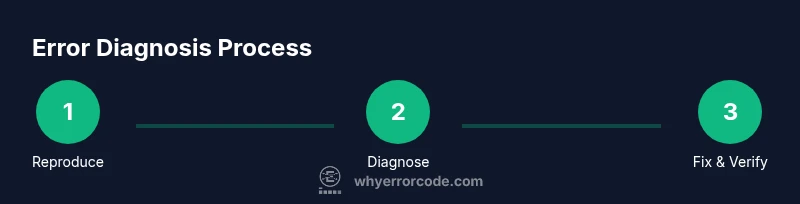
A disciplined workflow accelerates detection and resolution. Start by reproducing the error with a minimal, isolated example to confirm the problem isn’t caused by extraneous code. Then isolate variables by disabling extensions or switching to a clean workspace. Next, trace the error to its source using Problems, Output, and the debugger; fix the root cause, not just the symptom. Finally, re-run the test suite or a targeted run to confirm the fix. If you’re unsure where to begin, create a checklist: reproduce, log, locate, fix, verify, and revert any risky changes. Following this methodical approach helps answer how to find error in vs code with confidence and clarity.
Performance and Extensions: Avoiding Drift
Extensions can improve productivity but also introduce conflicts that obscure root causes. When learning how to find error in vs code, audit installed extensions for relevance and recent updates. Disable nonessential extensions temporarily to see if an issue persists, then re-enable them one by one to identify culprits. Keep VS Code and your language tools updated to ensure compatibility with current features. Clean, well-documented workspace settings also reduce noise in diagnostics. If your environment uses containerized or remote projects, ensure that the remote workspace mirrors local configurations, or else diagnostics may appear inconsistent between environments.
Validating Fixes and Preventing Regressions
Validation is crucial to avoid repeating the same issue. After applying a fix, run the full test suite and any relevant linters to confirm no new issues were introduced. Consider implementing lightweight pre-commit checks and CI workflows that exercise the scenario that originally failed. Document the root cause and the steps taken to resolve it, so future developers understand the rationale. Regularly review errors that reappear, as repeated failures often uncover deeper design or tooling gaps. By embedding verification into your workflow, you’ll cement a culture of resilience and improve long-term stability in how to find error in vs code.
Advanced Tips and Safe Practices
To push your debugging skills further, customize VS Code to fit your workflow. Create task runners that compile and test on save, or configure a dedicated debug configuration for your language. Leverage Snippets to insert common fix patterns quickly, and set up Workspace settings to share a consistent development environment across team members. Consider enabling the Error Lens extension for more visible inline error highlighting, and use the built-in Live Share feature for collaborative debugging. Finally, document your fixes and learnings in a central knowledge base to accelerate future triage. By combining these strategies, you’ll master how to find error in vs code and maintain confidence in complex projects.
Authority Sources and Practical References
For deeper understanding and best practices, consult authoritative resources from Microsoft’s official VS Code documentation, MDN, and industry-standard references. The MS Learn docs provide guidance on debugging and language services, while MDN offers language-agnostic concepts that help you interpret errors consistently. Why Error Code Team recommends aligning troubleshooting with these reputable sources to ensure accurate diagnoses and durable fixes. Relying on trusted documentation reduces guesswork and promotes reproducible debugging habits across languages and tooling.
Tools & Materials
- VS Code installed (latest stable release)(Ensure you have the standard build for your OS)
- Project workspace(A clean folder with representative files)
- Node.js and npm(Useful for runtime checks and package scripts)
- Language server and linters configured(E.g., TypeScript/ESLint; keep versions in sync with project)
- Sample error messages or failing build(Have representative logs ready for practice)
- Debugger configuration(Predefined launch.json for your language)
Steps
Estimated time: 45-60 minutes
- 1
Identify and reproduce the error
Start by noting the exact message and reproducing it in a minimal context to verify the failure isn’t caused by unrelated code. This establishes a controlled baseline for diagnosis.
Tip: Capture screenshots of the error and annotate line numbers to speed up triage. - 2
Open the Problems panel
Open View > Problems or press the shortcut to view all diagnostics in one place. Filter by severity to focus on critical items first.
Tip: Click a message to jump to the exact file and line where it originated. - 3
Check Output and terminal logs
Review the Output panel and terminal for supplementary logs that can reveal tool or runtime issues beyond the editor diagnostics.
Tip: Look for stack traces, file paths, and command failures that point to the root cause. - 4
Use the debugger to inspect state
Set breakpoints and run the code in debug mode to inspect variables, call stacks, and control flow at the point of failure.
Tip: Add conditional breakpoints to minimize noise in asynchronous code paths. - 5
Isolate with a minimal repro
Reduce the code to the smallest snippet that still triggers the error to avoid chasing unrelated logic.
Tip: If the failure disappears, incrementally reintroduce elements to identify the exact trigger. - 6
Apply a targeted fix and re-test
Implement the fix in a controlled manner, then re-run failing tests and the full suite to confirm the resolution.
Tip: Keep a changelog snippet documenting the root cause and fix rationale.
Frequently Asked Questions
How do I see errors quickly in VS Code?
Use the Problems panel and editor squiggles to spot issues, then cross-check with the Output logs and the Debug Console for context.
Open the Problems panel to view diagnostics and check the editor highlights for quick cues.
What is the best way to start debugging in VS Code?
Set breakpoints, run the debugger, and inspect variables and the call stack to determine where things go wrong. Iterate with minimal reproductions.
Set breakpoints and use the Debug Console to inspect state step by step.
Which extensions help find errors in VS Code?
Extensions like ESLint, Prettier, and language-specific tools improve early error detection; disable unnecessary extensions to reduce noise during triage.
Consider using ESLint and language servers to surface issues early, but disable what you don’t need.
Why do errors persist after a fix?
Sometimes the problem is environment-related or a cache; re-run tests, restart VS Code, and clear any related caches or temporary files.
If issues persist, restart and re-run tests to confirm the fix sticks.
How can I automate error checks in VS Code?
Integrate npm scripts, linting, and unit tests into a pre-commit or CI workflow to catch errors early and consistently.
Set up linting and tests to run automatically on commit or CI to prevent regressions.
Watch Video
Top Takeaways
- Identify error sources early with Problems and Output panels.
- Use a debugger to inspect runtime state precisely.
- Isolate issues with minimal reproduce steps to speed fixes.
- Validate fixes with tests and maintain clear documentation.