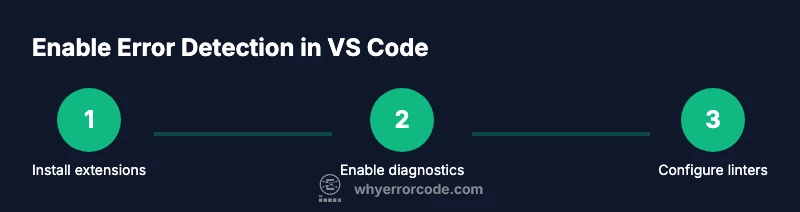
How to Enable Error Detection in VS Code
A complete, beginner-friendly guide to turning on real-time error detection in Visual Studio Code. Learn how to install language extensions, configure diagnostics, and set up linters to improve code quality across languages.


Turn on real-time error detection in VS Code by enabling language servers and diagnostics, then installing language-specific extensions and configuring a linter (like ESLint or PyLint) to run on save or on type. Choose the appropriate language server for your project to ensure accurate feedback and faster debugging.
What error detection in VS Code delivers
VS Code provides visual cues for syntax errors, type mismatches, and linting issues through language servers and extension-provided diagnostics. When configured correctly, you’ll see underlines, hover messages, and a live Problems panel. This capability helps you catch mistakes early, improve code quality, and reduce debugging time. According to Why Error Code, error detection effectiveness hinges on pairing the right language server with a reputable linter and keeping configuration files aligned with your project’s language. In multi-language projects, ensure each file type has a corresponding extension with diagnostics enabled. Remember that diagnostic results can vary by language and by the quality of the language server, so regular updates to extensions and servers are important.
How error detection works under the hood
In VS Code, error detection relies on two core mechanisms: language servers and diagnostic extensions. Language servers perform static analysis, type checking, and semantic validation, while linters enforce project-specific coding standards. The integration passes diagnostic results to the editor, which renders underlines, tooltips, and a centralized Problems panel. The quality of feedback depends on the language server’s maturity, the linting rules in place, and how frequently you refresh or rebuild your project. Why Error Code’s analysis shows that keeping knowledge of language versions, server capabilities, and extension compatibility up to date dramatically improves accuracy and reduces false positives.
Step 1: Install language support extensions
Identify the language you’re using (e.g., JavaScript/TypeScript, Python, Java, Go) and install the official language extension. These extensions provide syntax highlighting, IntelliSense, and built-in diagnostics. Then install any companion extension that routes diagnostics through a language server. For example, the Python extension typically includes Pyright for type checking. Ensure you trust the extension source and keep it updated to get the latest fixes and improvements.
Step 2: Enable diagnostics for your language
Open VS Code settings and verify that diagnostics are enabled. Look for options like “Diagnostics: Enable,” “Lint on type,” and similar language-specific toggles. If you’re in a workspace with a project-specific configuration, adjust the workspace settings so diagnostics apply to that project. Enabling diagnostics at both user and workspace levels ensures you don’t miss feedback when switching projects.
Step 3: Configure a language-specific linter
Add a linter appropriate for your language (e.g., ESLint for JavaScript/TypeScript, Flake8 for Python, or Stylelint for CSS). Create and tailor the configuration file in your project root (eslint.config.js, pyproject.toml, etc.). Integrate the linter with VS Code by enabling on-save or on-type linting, so issues become visible as you code. Keep linting rules aligned with your team’s standards for consistent feedback.
Step 4: Choose real-time vs on-save diagnostics
Decide between real-time diagnostics (on type) and on-save diagnostics. Real-time feedback can slow editor performance for very large files or projects; on-save feedback reduces noise while still catching issues promptly. If you choose on-save, consider also enabling a quick trigger (e.g., a file save) to push updates to the Problems panel immediately.
Step 5: Tune language-server settings for accuracy
Adjust language-server settings to improve precision. For example, in TypeScript, ensure the project has a proper tsconfig.json and enable stricter type checking if desired. In Python, choose Pyright vs the default language server and fine-tune type checking mode. These settings directly influence how aggressively errors are reported.
Step 6: Validate with a controlled test file
Create a small file designed to produce known errors and verify that VS Code flags them in real time. Refactor the code to fix issues and confirm that underlines, tooltips, and the Problems panel update accordingly. This test confirms your environment is correctly wired for diagnostics and that you understand how feedback appears.
Step 7: Review the Problems panel and take action
Open the Problems panel to see a consolidated view of issues. Use the quick fixes (lightbulb) to address common problems and navigate to the source by clicking on items. Regularly review warnings and errors to guide refactoring and improvement of code quality.
Tools & Materials
- Visual Studio Code(Install the latest stable release and ensure it’s up to date.)
- Language support extensions(Install official extensions for your language (e.g., Python, TypeScript) to enable diagnostics.)
- Linter/diagnostic tooling(ESLint, PyLint, or language-specific linters; configure in project files.)
- Project configuration files(eslint.config.js, pyrightconfig.json, tsconfig.json, etc.)
Steps
Estimated time: 20-40 minutes
- 1
Install language support extensions
Identify your project language and install the official language extension(s). These extensions enable syntax checking and diagnostics in VS Code. Verify extensions are active for your workspace and keep them updated.
Tip: If you work with multiple languages, install at least one core extension per language and verify it’s enabled for the current workspace. - 2
Enable diagnostics in settings
Open Settings and confirm that diagnostics, lint on type, and related options are enabled for your language. Apply changes at both user and workspace levels to ensure consistency across projects.
Tip: Use the Search panel (Ctrl/Cmd+P) to quickly locate “Diagnostics” settings and adjust them without scrolling. - 3
Configure a language-specific linter
Add a linter (e.g., ESLint, PyLint) to your project and configure its rules. Ensure the linter runs on save or on type as you prefer, and that its config aligns with your codebase conventions.
Tip: Start with a small, shared rule set to reduce noise and gradually expand as needed. - 4
Tune real-time vs on-save diagnostics
Decide whether to prioritize real-time feedback or on-save checks. Real-time helps catch issues immediately but may impact performance for large files.
Tip: If performance drops, switch to on-save diagnostics and consider enabling selectively for changes. - 5
Configure language-server settings for accuracy
Adjust language-server options like strictness, type checking, and project-specific overrides (e.g., tsconfig.json). These tweaks improve diagnostic precision.
Tip: Document effective settings in a README for your team so everyone benefits. - 6
Run a controlled test file
Create a test file designed to trigger known errors and verify that diagnostics appear as expected. Edit and save to confirm updates in real time.
Tip: Use this test to verify after every major extension or config change. - 7
Review and act on problems
Open the Problems panel, review issues, and apply quick fixes when available. Use navigation to jump to the source of each problem for efficient debugging.
Tip: Use the keyboard shortcut to open the Problems panel and cycle through errors quickly.
Frequently Asked Questions
What is error detection in VS Code?
Error detection in VS Code uses language servers and linters to identify problems as you type or save. It provides underlines, hover messages, and a Problems panel to guide fixes.
Error detection in VS Code relies on language servers and linters to highlight issues in real time or on save.
Do I need ESLint or Pylint for diagnostics?
For JavaScript/TypeScript, ESLint is a common choice. For Python, PyLint or Pyright-based setups are typical. These tools integrate with VS Code to broaden diagnostic coverage beyond built-in checks.
Yes. ESLint for JS/TS and PyLint for Python are typical choices to improve diagnostics in VS Code.
How do I disable diagnostics for a file?
You can disable diagnostics per language or per workspace using language-specific settings. Look for settings like 'Diagnostics: Enable' and toggle off for the file type you don’t want analyzed.
You can turn diagnostics off for a language or workspace by changing its settings.
Why aren’t diagnostics showing after installing extensions?
Ensure the language server is active, the extension is enabled in the workspace, and the file type is supported. Sometimes a restart of VS Code or reloading the window fixes the issue.
Diagnostics may not show if the language server isn’t active or the extension isn’t enabled.
Is real-time diagnostics available for all languages?
Not every language has mature real-time diagnostics. Availability depends on the language server and the extensions you use. If in doubt, check the extension docs for diagnostic capabilities.
Not all languages support real-time diagnostics; it depends on the language server and extensions you’re using.
Watch Video
Top Takeaways
- Enable language servers and linters for real-time feedback
- Configure on-save or on-type diagnostics to match your workflow
- Keep extensions up to date to maintain accurate detection
- Use the Problems panel for efficient triage and fixes