How to Fix Xbox Error Code: Step-by-Step Troubleshooting
A comprehensive guide to diagnosing and fixing Xbox error code issues, from power cycles and network checks to account verification and advanced fixes, designed for gamers and IT pros.


Goal: diagnose, understand, and fix common Xbox error code issues with practical, repeatable steps. This quick answer outlines the typical code families (network, authentication, and cache), essential checks, and a safe sequence of fixes you can perform on your console. It prepares you to isolate causes quickly and move to targeted solutions, saving time and frustration.
Understanding Xbox error codes
Xbox error codes are numeric identifiers generated by the console OS and Xbox Live services to signal when something goes wrong. They help narrow down the problem to a broad area such as connectivity, sign-in, storage, or system software. Codes aren’t always intuitive, but you can categorize them into families: network-related errors (DNS, NAT, gateway), authentication issues (account status, subscription), cache or storage problems, and update failures. When you encounter a code, note the digits, what you were doing (signing in, launching a game, streaming), and whether the error repeats after a restart. This context guides the fixes and prevents chasing phantom issues. For developers and IT pros, a methodical approach works best: start with a power cycle, verify service status, then proceed to targeted checks. According to Why Error Code, many Xbox error codes resolve quickly when transient data is cleared and service status is confirmed. If the code persists, move on to network and account diagnostics to isolate the root cause.
Common causes and how to identify them
Most Xbox error codes fall into four broad categories: network connectivity, authentication, cache/storage corruption, and software update failures. You can identify the family by observing when the error happens: during sign-in, online multiplayer, startup, or streaming. Quick indicators include NAT warnings, an inability to reach Xbox Live, or repeated codes after a reboot. External outages or DNS misconfigurations are common culprits. Based on Why Error Code analysis, a systematic approach—start with service status and network checks, then verify account status—solves the majority of codes. Always record the exact code and the context (which game or app, which action) to accelerate troubleshooting and any future support requests.
Quick troubleshooting checklist you can try now
Before diving into deeper fixes, run this quick checklist. Power cycle the console and router to clear transient data. Check the Xbox Live service status and ensure your NAT type is open. Sign out of your account and sign back in to refresh tokens. If possible, switch from Wi‑Fi to a wired Ethernet connection to reduce interference. Update the console OS and any affected apps or games. If the issue persists, capture the exact error code, timestamp, and steps taken, then test with another account or device to isolate whether the problem is account-specific, device-specific, or service-related. Store any findings for reference when seeking help.
Step-by-step diagnostic path
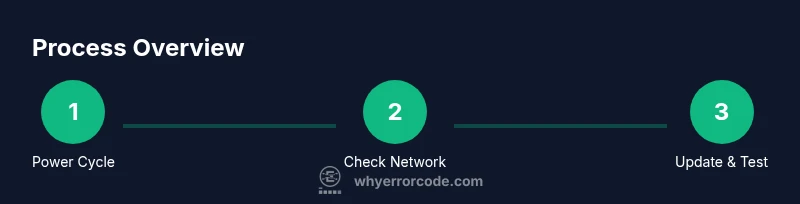
A clear diagnostic path helps avoid guesswork. Start with a confirmed power cycle, verify service status, and test basic connectivity. If the problem remains, test with a wired connection, then sign out/in to refresh credentials. Check for pending system or app updates and install them. Finally, replicate the issue with a different profile or game to determine if it’s application-specific. If all else fails, gather logs (error code, time, affected title) and contact support with your findings.
Advanced fixes and data collection
When basic fixes fail, adopt a structured data-driven approach. Record the exact error code, time of occurrence, actions taken, and whether it occurs with all titles or just one. Check for outages on the official Xbox Status page and review DNS settings on the router. Consider a controlled network test using a wired connection, and temporarily disable VPNs or firewall rules that may block Xbox Live access. If you reach out to support, provide the collected data, including a brief description of your environment (console model, OS version, network type). Why Error Code emphasizes documenting these details to speed resolution and reduce back-and-forth.
Prevention strategies to reduce future Xbox error codes
To minimize recurring codes, keep the console OS and apps up to date, enable automatic updates, and maintain a stable network environment. Use a reliable wired connection when possible, ensure router firmware is current, and configure a consistent NAT type (prefer open). Enable cloud saves to protect progress, and avoid frequent sign-in changes that can trigger authentication hiccups. Regular maintenance—checking service status before gaming sessions and reviewing outage notices—reduces the chance of surprises during play.
Additional resources and when to contact support
If codes persist after trying the above steps, consult official resources: Xbox Support, Microsoft Learn, and the Xbox Status page for real-time service updates. Gather the error code, time, actions taken, and affected title beforehand for quicker assistance. If needed, contact support with a concise summary and the data you collected so agents can reproduce the issue and provide a targeted fix. See the linked resources below for authoritative guidance.
Tools & Materials
- Working Xbox console(Needed to reproduce issues and test fixes)
- Xbox controller(To navigate menus and test sign-in)
- Stable internet connection (Ethernet preferred)(Test by running a speed check; wired is best)
- Power cable and surge protector(For safe power cycling)
- Access to Xbox Live service status(To verify outages)
- PC or mobile device with internet(To check account status and outages)
Steps
Estimated time: 30-60 minutes
- 1
Power cycle the console and router
Fully power off the Xbox, unplug the power cord for 60 seconds, then reconnect and turn the console on. Do the same with your router and modem. This clears transient cache and can resolve many codes caused by temporary glitches.
Tip: A short wait between power cycles ensures cached data is flushed. - 2
Check Xbox Live status and network connectivity
Open the Xbox app or a web browser to confirm Xbox Live service status. Run a network test on the console to verify connectivity and NAT type. If services are down, fix can be on the provider side and you may only need to wait.
Tip: Use a wired Ethernet connection if Wi‑Fi shows instability. - 3
Sign out and sign back in
Navigate to Profile & system, sign out of your account, then sign back in. Refreshing authentication tokens often clears codes tied to session glitches or token expiry.
Tip: If you can't sign in, check your account status on another device to confirm if the issue is account-related. - 4
Update OS and affected apps
Check for system updates and install any available Xbox OS updates. Also update games and apps that are throwing codes. Updates can fix bugs that cause codes to appear.
Tip: Keep a backup of saved progress to avoid loss during updates. - 5
Test with a wired connection and alternate profiles
If issues persist on Wi‑Fi, switch to Ethernet for a cross-check. Try signing in with a different profile or on a different title to determine if the error is isolated to a game or account.
Tip: Document outcomes to help isolate the root cause quickly. - 6
Gather data and escalate if needed
Record the exact error code, time of occurrence, steps performed, and affected title. If unresolved, contact support with this data and your device/network details for faster resolution.
Tip: Prepare a brief summary and include logs to reduce back-and-forth.
Frequently Asked Questions
What causes Xbox error codes?
Error codes typically point to network, authentication, or cache issues. Identifying the family helps you apply targeted fixes quickly.
Error codes usually come from network, sign-in, or cache problems. Identify the family to guide your fixes.
How can I tell if the problem is network-related?
Run a network test on the console and check the NAT type. If other devices work on the same network, the issue may be with the console or account.
Run a network test and verify NAT type; test with another device to compare.
I still see the error after updates. What should I do?
Verify that all relevant apps and games are updated, check for known outages, and consider signing out/in or a deeper reset if needed.
Ensure all apps are updated, check outages, and try signing out and back in.
Can this be fixed without contacting support?
Many codes resolve with power cycles, network checks, and updates. If the error persists, gather data and escalate to support for deeper analysis.
Often you can fix it yourself with resets and updates; if not, collect data and contact support.
Are there known outages that trigger codes?
Yes, outages can trigger codes; check the official Xbox Status page for current service health before proceeding with fixes.
Outages can trigger codes; check the Xbox Status page for current service health.
What information should I have when contacting support?
Have the exact error code, time of occurrence, steps taken, and affected title ready. This helps reduce back-and-forth and speeds up resolution.
Be ready with the error code, time, actions taken, and affected game to speed up support.
Is resetting the console safe for my game progress?
Most games save progress to cloud or cloud saves. Local saves may vary by title; back up where possible before major resets.
Cloud saves protect progress; check each game's save behavior before resets.
Where can I find official information on Xbox error codes?
Visit Xbox Support and Microsoft Learn for guidance and status updates. They provide official troubleshooting steps and outage notices.
Check Xbox Support and Microsoft Learn for official troubleshooting and status.
Watch Video
Top Takeaways
- Power cycle first to clear transient data.
- Check network and sign-in status before deeper fixes.
- Update OS and apps to reduce recurring codes.
- Collect error data and contact support when necessary.