Xbox X Error Code: Immediate Troubleshooting and Fixes
Learn how to diagnose and fix the Xbox Series X error code quickly with practical steps, a diagnostic flow, and safe repair methods to get back to gaming. Explore common causes, quick fixes, and a step-by-step guide for both software and hardware issues.


The xbox x error code signals a fault in the system software, network connectivity, or hardware initialization that blocks startup or proper operation. The quickest fix is a power cycle, followed by testing your network and clearing the system cache. If the issue persists, perform a factory reset as a last resort or seek professional service. Be sure your firmware is up to date and use a wired connection when possible.
What the Xbox Series X error code means
An error code on the Xbox Series X is not a single fault by itself; it's a signal that something in the startup chain is failing. The code can indicate problems in the console's system software, the network path used to sign in or play online, or a hardware initialization step during boot or app launch. In practice, the error often appears when the system cannot load essential services, access Xbox Live, or initialize a game properly. Understanding the code's category helps you choose the right repair path and prevents wasted troubleshooting time. In this guide, we break down the most common patterns you’ll see, what they imply, and how to fix them quickly to restore gaming momentum.
Note: The Xbox X family of error codes usually maps to a handful of broad causes—software instability, network obstacles, or hardware readiness. A systematic approach reduces guesswork and saves time during peak gaming hours.
Common causes of Xbox X error code
The following causes are typical and usually prioritize fixes you can try without specialized tools. Identify which scenario best matches your symptoms, then apply the recommended remedy.
- Network connectivity issues that block sign-in or online services (high)
- Corrupted cache or profile data preventing startup (medium)
- Outdated firmware or system software needing an update (medium)
- Faulty HDMI/HDMI-CEC settings causing miscommunication with the display (low)
- Hardware-level faults such as storage issues or power supply problems (low)
Tip: If you see a specific error code (for example, E102 or 0x87de0000), map that code to the closest category above and follow the corresponding fixes.
Quick fixes you can try now
These quick wins address the most common root causes and can be completed in minutes. They also serve as a sanity check before deeper repairs.
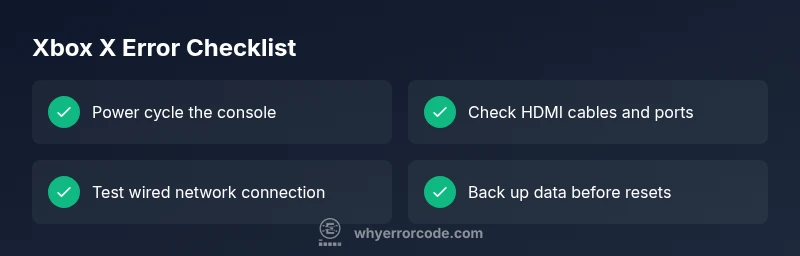
- Power cycle the console: fully shut down, unplug for 60 seconds, then plug back in and boot. This resolves transient software hiccups.
- Check cables and display: reseat the HDMI cable, try another port on your TV/monitor, and verify the correct input is selected.
- Test network settings: if you game online, try a wired Ethernet connection, restart your router, and sign out/in to refresh tokens.
- Clear cache and refresh profile: clear temporary data and, if needed, remove and re-add your Xbox profile.
- Update firmware: ensure your Xbox OS and any linked apps are up to date.
- If it still fails: Consider a factory reset as a last resort (back up data first; this may affect local saves).
Note: If you rely on cloud saves, verify synchronization before a reset.
In-depth diagnostic flow behind the error
When you encounter an error code, a disciplined diagnostic flow helps isolate the most probable cause. Start with a quick mental map: software issues usually present with odd freezes, missing services, or failed updates; network issues appear as sign-in or multiplayer problems; hardware issues typically manifest as boot loops, storage errors, or power instability. By correlating the exact symptoms with the code family, you can order fixes from least to most invasive. Remember to document the error code, timestamp, and steps you already tried to speed up support if you need it.
Prevention and best practices to avoid future Xbox X errors
Proactive maintenance reduces error recurrence. Keep firmware up to date, maintain a stable network, and provide adequate ventilation to prevent thermal throttling. Regularly back up cloud saves to avoid data loss during resets. If you share a console with other users, coordinate sign-ins to minimize token conflicts. Finally, perform periodic full reboots after major updates to ensure a clean startup state.
Steps
Estimated time: 20-45 minutes
- 1
Prepare and verify conditions
Save any cloud-synced progress, close background apps, and ensure the console is in a safe power state before starting repairs.
Tip: Have a stable internet connection and your account login details handy. - 2
Power cycle the console
Fully power down the Xbox, unplug the power cord for at least 60 seconds, then plug back in and boot. This clears transient software issues.
Tip: Avoid turning off from the controller; use the power menu to shut down first. - 3
Check cables and network
Inspect the HDMI cable, reseat it, try a different HDMI port, and verify the display input. If you game online, switch to a wired Ethernet connection and reboot router.
Tip: Use a known-good HDMI cable if available. - 4
Clear cache and refresh sign-in
Go to Settings > System > Storage, clear cache if available, and sign out/in to refresh tokens. This often resolves cached data issues.
Tip: Back up important saves to cloud where possible. - 5
Update firmware or reset, if needed
Check for system updates and install them. If the error persists and you’ve exhausted non-destructive steps, perform a factory reset as a last resort.
Tip: Backup important data before a factory reset.
Diagnosis: Xbox Series X displays an error code during startup or while launching a game
Possible Causes
- highNetwork connectivity issue
- mediumCached data or profile corruption
- lowHardware initialization failure (storage/power)
Fixes
- easyPower cycle the console (60 seconds unplug)
- easyCheck cables and try a wired network connection
- easyClear system cache and refresh profile
- easyUpdate firmware to the latest version
- hardFactory reset as a last resort (backup data first)
Frequently Asked Questions
What does the Xbox X error code mean?
The error code indicates a startup fault in software, network, or hardware. It directs you to a likely cause and a set of fixes, starting with quick resets and moving to more invasive steps if needed.
The Xbox X error code points to a startup fault in software, network, or hardware, and guides you through fixes from quick resets to deeper steps.
Can I fix it without a repair?
Yes. Most common codes resolve with a power cycle, updated firmware, a stable wired network, and clearing caches. These steps cover the majority of everyday errors.
Most Xbox X errors clear up with a power cycle, updated firmware, a solid wired network, and clearing cached data.
Will a factory reset erase my games?
A factory reset can erase locally stored data and apps; cloud saves remain safe if you’ve enabled cloud backup. Back up what you can before proceeding.
A factory reset may delete local data, so back up to the cloud or an external source if possible.
When should I contact support?
If multiple fixes fail, if you see hardware-related error components, or if the console won’t boot after a reset, contact official support with your error code and timestamps.
If nothing works after trying fixes, contact support with your error code and the times you saw it.
How much does repair usually cost?
Costs vary by service, but typical ranges for in-warranty repairs or out-of-warranty service calls are roughly in the low hundreds, depending on parts and labor. Expect consultations to be around $60-$150 before any parts.
Repair costs vary; expect consultation fees around sixty to one hundred fifty dollars, plus parts if needed.
Can HDMI issues cause the error code?
A loose or faulty HDMI connection can create display-related symptoms but usually does not trigger certain startup error codes. It’s still worth ruling out HDMI problems during troubleshooting.
HDMI problems can mimic issues, so check the cable and ports as part of your steps.
Watch Video
Top Takeaways
- Identify whether the issue is software, network, or hardware related.
- Start with quick, non-destructive fixes before deep repairs.
- Back up data before any factory reset or service.
- Update firmware to ensure compatibility with services.
- If the issue persists, escalate to support with error details.