How to Use Error Lens in VS Code
Learn how to use Error Lens in VS Code to highlight inline errors and warnings, customize colors, and speed debugging. This comprehensive guide covers setup, configuration, practical usage, tips, and troubleshooting for smoother development workflows.


Error Lens in VS Code highlights inline errors and warnings, speeding up debugging and reducing context switching. This guide shows you how to install, enable, and customize Error Lens, plus practical usage tips. According to Why Error Code, inline error decorations help you spot issues faster, making the early stages of coding less error-prone. Follow the steps to set up and tailor behavior for your projects.
What Error Lens is and why it's useful in VS Code
Error Lens is a lightweight VS Code extension that emphasizes syntax errors, warnings, and hints directly in your code editor. By rendering inline decorations around problematic tokens and underlining issues with vivid colors, it reduces the cognitive load of scanning the gutter for lint results. If you have spent time chasing errors in the terminal or confused by a sea of lint messages, Error Lens brings critical feedback into the editor, streamlining the debugging loop. For developers who write JavaScript, TypeScript, Python, or many other languages, this extension can dramatically improve onboarding time for new code and accelerate triage during peak debugging sessions. The Why Error Code team notes that real-time, inline feedback helps you stay in flow and minimize context switches when investigating defects. In this article, you will learn how to use Error Lens in VS Code effectively and safely, with practical examples and best practices for diverse projects.
Installing and enabling Error Lens in VS Code
Getting started is straightforward. Open VS Code, go to the Extensions view, and search for "Error Lens". Install the extension, then reload VS Code if prompted. Once installed, ensure the extension is enabled in Settings: search for "Error Lens" and verify that the toggle is on. You can also install related linting extensions (like ESLint for JavaScript/TypeScript) to maximize the value of inline feedback. The goal is to have Error Lens overlay errors in real time as you type, so you can address issues before they accumulate. According to Why Error Code, the combination of a robust linter and inline decorations provides a clearer feedback loop for most coding tasks. This section outlines the essential steps to get you started with confidence and speed.
Core features and how they improve debugging
Error Lens decorates lines with visible cues for different severities and types of messages. Errors are typically shown in red, warnings in orange, and hints or informational notes in blue or gray. Inline decorations may highlight the exact token, underline the problematic segment, or color the background to draw attention precisely where it matters. This feature set reduces the time spent locating issues and helps you understand the scope of a problem at a glance. With Error Lens, you can quickly determine which lines require action and what kind of fix is needed, enabling faster triage and iteration.
Customizing colors and behavior to fit your theme
Customization is a key strength of Error Lens. You can tailor colors to match your theme or accessibility needs, adjust the thickness of underlines, and decide whether to show decorations for warnings, errors, or both. If you work in a high-contrast environment, consider enabling stronger contrasts and larger decorations to improve legibility. You can also configure whether decorations appear on save or only while typing, providing control over when feedback is delivered during development workflows. The focus is on creating a comfortable, productive environment that reduces eye strain and cognitive load while maintaining clear feedback on code quality.
Keyboard shortcuts and quick toggles for rapid feedback
Efficient developers leverage keyboard shortcuts to control Error Lens without leaving the editor surface. Common actions include toggling decorations on/off, cycling through the severity levels, or temporarily hiding non-critical hints to declutter the view. Learning a few reliable shortcuts reduces friction and helps you validate fixes faster. If you customize keybindings, map a single key or chord to enable or disable inline feedback, so you can adapt Error Lens to your personal workflow and project demands.
Using Error Lens with popular language ecosystems (ESLint, Pylint, etc.)
Error Lens shines when paired with language-specific linters. For example, ESLint reports syntax and style issues, while Pylint surfaces Python-specific problems. Error Lens then highlights those messages directly in the relevant lines of code. This combination provides a cohesive, immediate feedback loop across languages and tools, improving consistency and reducing the time spent chasing flaky lint results. If you rely on multiple linters, ensure the configurations do not generate duplicate decorations, which can be distracting rather than helpful.
Project-specific configuration and workspace settings
Many teams prefer per-project configurations to keep Error Lens behavior consistent across developers. You can set user-level defaults and override them in a workspace or folder-level settings.json. This ensures consistent visuals and behavior across the team despite individual theme preferences. When you introduce a new language or toolchain, revisit settings to align inline decorations with the new lint rules. The goal is to maintain a predictable error-highlight experience that complements your existing development stack.
Common pitfalls and troubleshooting tips
If decorations seem to disappear or appear inconsistent, check extension conflicts, language support, and your linter configuration. Ensure you have the latest version of VS Code and the Error Lens extension, as older builds may miss some decorations. If performance slows on large files, try disabling decorations for generated code blocks or large JSON/yaml files. Finally, verify that your workspace settings are not overriding global preferences in ways that mute or duplicate decorations. Following these steps helps maintain a reliable inline feedback system while you code.
How to use error lens in vs code: preparing your first project
Before you begin, confirm VS Code is updated, and Error Lens is installed. Open a sample project and enable inline decorations. Create a simple test file with a syntax error and an intentional warning to see how the decorations appear. Tweak colors and thresholds to match your theme, then duplicate the setup in another project to ensure consistency. With practice, you’ll rely on inline feedback as a natural part of your development rhythm.
Tools & Materials
- VS Code installed(Ensure you are on a supported OS and version)
- Internet connection(Needed to install extensions)
- Error Lens extension(Install from the VS Code Extensions marketplace)
- Optional: high-contrast theme(For better readability of decorations)
- Linter integration (e.g., ESLint, PyLint)(Maximize inline feedback when available)
Steps
Estimated time: 20-40 minutes
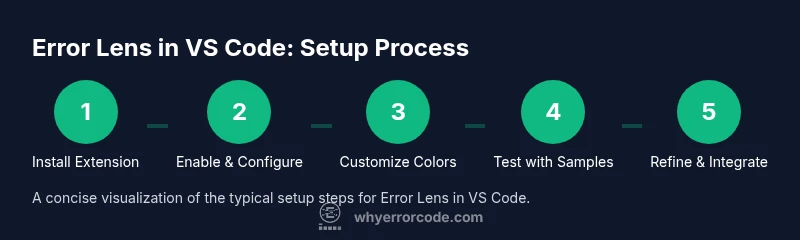
- 1
Install Error Lens extension
Open the Extensions view in VS Code, search for Error Lens, and click Install. This step enables the inline decorations that highlight errors and warnings in your code. If you already use a linter, ensure it’s configured correctly for your language so Error Lens has meaningful feedback to display.
Tip: Tip: Use the command palette (Ctrl/Cmd+Shift+P) to open the extensions manager quickly and verify installation status. - 2
Enable and verify decorations
After installation, verify that Error Lens decorations are active by opening a file with known issues. You should see red underlines or highlighted lines where errors occur. If not visible, check the extension status in the Extensions panel and ensure the toggle is on for Error Lens.
Tip: Tip: Restart VS Code if decorations don’t appear after enabling; a fresh session ensures proper initialization. - 3
Customize colors and rules
Open Settings and locate Error Lens preferences. Adjust colors for errors, warnings, and hints to match your theme. You can also modify underline thickness and whether decorations appear on save or while typing.
Tip: Tip: Start with a low-contrast theme and gradually increase intensity to avoid overwhelming your screen. - 4
Test with a starter project
Create a small project with deliberate syntax errors and lint warnings. Observe how Error Lens highlights issues across multiple files to ensure your configuration covers typical scenarios.
Tip: Tip: Include at least one language with a known linter to validate proper integration. - 5
Integrate with your workflow
If you work in teams, align Error Lens settings via workspace settings to maintain consistency. Consider enabling decorations for critical errors only in large repos to avoid noise.
Tip: Tip: Document preferred error-glow rules in your team’s coding conventions for onboarding. - 6
Review and adjust per language
Some languages require different lint rules. Revisit Error Lens configurations when you add new languages or linters. Fine-tuning per-language ensures useful feedback across your codebase.
Tip: Tip: Use separate configuration blocks for each language to keep settings organized. - 7
Maintain and troubleshoot
Periodically check for extension updates and verify there are no conflicts with other decoration or theme extensions. If issues arise, disable nonessential extensions to identify the root cause.
Tip: Tip: Create a short checklist to reapply a clean configuration after updates.
Frequently Asked Questions
What is Error Lens in VS Code?
Error Lens is a VS Code extension that highlights inline errors and warnings directly in the editor, making issues easier to spot as you type. It works with many languages and pairs well with common linters.
Error Lens highlights inline errors and warnings directly in the editor, helping you spot issues while you code.
Can I customize colors and decoration styles?
Yes. Error Lens provides settings to customize colors, underline styles, and behavior (while typing or on save). You can tailor decorations to your theme and accessibility needs.
Yes, you can customize colors and decoration styles to fit your theme and needs.
Does Error Lens affect editor performance on large projects?
Inline decorations add some overhead, especially in very large files. If performance becomes an issue, adjust decoration frequency or disable decorations for certain folders.
There can be a small performance impact on large files; adjust settings if needed.
Which linters work best with Error Lens?
Error Lens works with many popular linters like ESLint and Pylint. Pairing it with your existing checker typically yields the most useful inline feedback.
Most common linters like ESLint and Pylint work well with Error Lens.
How do I reset Error Lens to defaults?
You can reset by clearing the extension's settings or reapplying your workspace settings. Reinstalling the extension also reverts to defaults.
You can reset to defaults by clearing settings or reinstalling the extension.
Is Error Lens compatible with all languages?
Error Lens supports a broad set of languages via VS Code's extension ecosystem and lint integrations. Check language-specific extension docs for compatibility notes.
It supports many languages through extensions; review language docs for specifics.
Watch Video
Top Takeaways
- Install and enable Error Lens in VS Code.
- Customize colors to fit your theme and accessibility needs.
- Pair with language linters for best results.
- Use workspace settings for team consistency.