How to Enable Error Suggestions in VS Code
Learn how to enable real-time error suggestions in Visual Studio Code with built-in diagnostics, language features, and helpful extensions like ESLint and Pylance. Step-by-step instructions, tips, and best practices for faster debugging.


With VS Code, you can get proactive error guidance by enabling built-in diagnostics and compatible extensions. This guide shows how to turn on real-time error suggestions, improve linting, and surface fixes as you type. You'll learn to configure language features, install essential extensions like ESLint or Pylance, and tailor diagnostics for your project. By the end, expect faster debugging and fewer surprises in code review.
how to enable error suggestion in vs code
In this section we set the stage for how VS Code surfaces errors and why that matters. At its core, error suggestions come from a combination of built-in diagnostics, language servers, and optional extensions. When you type, VS Code can underline problems, propose fixes, and show quick actions in the editor gutter. According to Why Error Code, understanding these sources helps you tune VS Code so the right suggestions appear at the right time. By aligning diagnostics with your project’s language and tooling, you reduce back-and-forth during debugging and improve overall code quality. This section explains the mechanisms behind error suggestions so you can leverage them effectively across languages and workflows.
Why real-time error suggestions matter for developers
Real-time error hints help catch mistakes before you run tests or push code. They also guide you toward the most appropriate fixes, which can save minutes per file when working on large projects. The tips you’ll implement here apply whether you’re writing JavaScript, Python, or other languages supported by VS Code. Early detection reduces context-switching, speeds up code reviews, and makes onboarding easier for new team members. In short, effective error suggestions streamline your development lifecycle and keep you moving quickly through tasks.
Prerequisites and environment setup
To get started with error suggestions, ensure you have a recent VS Code installation and a connected internet source for extensions and updates. You’ll also want a working project with a known language setup (e.g., TypeScript/JavaScript, Python, or another supported language). If you’re part of a team, consider checking in your repository for configuration files like tsconfig.json or .eslintrc.json so language features can align with project rules. The goal is to have a baseline where diagnostics are available from the outset, not after you’ve installed the right tools.
Core VS Code settings to enable error suggestions
The core of error suggestions lies in two families of settings: diagnostics (which report problems) and IntelliSense/language features (which provide suggestions, completions, and quick fixes). Start by ensuring language features are enabled in your editor. Then verify that diagnostics are active for the languages you work with. You can customize when problems are shown (on typing vs. on save) to fit your workflow. Finally, ensure that the Problems panel is visible so you can review issues in bulk.
Extending with ESLint, Pylance, and other diagnostics
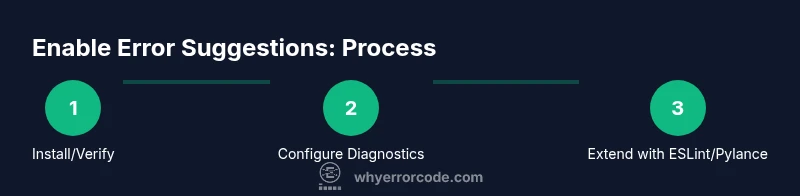
Extensions expand what VS Code can diagnose and what fixes it suggests. ESLint brings JavaScript/TypeScript linting with configurable rules, while Pylance (or the Python extension) enhances Python analysis for faster error detection and more accurate suggestions. Install these extensions and configure project-specific settings so the editor surfaces relevant hints. You can also explore language-specific extensions that provide additional diagnostics and autofix capabilities.
Configuring settings for real-time feedback
Tuning VS Code to deliver useful, non-intrusive feedback is critical. Use settings like editor.
Performance considerations and scalability
As you enable more diagnostics—especially for large codebases—it's important to monitor editor performance. Some extensions can slow down typing or cause lag if they scan every file continuously. If you notice performance issues, consider limiting diagnostics to the files in your workspace or selectively enabling specific language servers. You can also disable nonessential extensions in projects where speed matters most. The goal is to balance insight with responsiveness.
Common traps and how to fix them
A frequent pitfall is having multiple diagnostics sources that contradict each other (e.g., a linter and a language server with different rules). Resolve this by aligning configurations across tools, and consider using per-project linting configs. Another trap is turning off diagnostics entirely for fear of noise; instead, tune their severity levels or scope. Finally, ensure your project includes a proper configuration file so engines know which rules to apply.
Real-world examples: before vs after
Consider a JavaScript file with an undefined variable. Built-in diagnostics may highlight the error, while ESLint flags the rule violation and suggests a fix, such as declaring the variable or importing the correct module. In Python, Pylance can detect unused imports and unnecessary type casts, offering quick fixes. By combining built-in diagnostics with language servers and linters, you create a more proactive editing environment where common mistakes are pointed out as you type.
Best practices and recommended workflow
Adopt a consistent workflow: enable diagnostics for the languages you use, install essential extensions, and customize settings to show helpful hints without overloading the editor. Regularly review the Diagnostics/Problems panel and apply safe fixes with one-click actions. Over time, you’ll develop muscle memory for recognizing common issues and can rely on the editor to guide you to correct patterns and better code design.
Tools & Materials
- VS Code installation(Download from https://code.visualstudio.com)
- Internet access for extensions and updates(Needed to fetch diagnostics and language servers)
- ESLint extension (optional but recommended for JS/TS)(Install from VS Code Marketplace and configure in your project)
- Pylance or Python extension (for Python users)(Improves Python diagnostics and completions)
- Project configuration files (e.g., tsconfig.json, .eslintrc.json)(Helps language features tailor diagnostics to your codebase)
Steps
Estimated time: 25-40 minutes
- 1
Open VS Code settings
Launch VS Code and open the Settings UI (Ctrl/Cmd + ,). Use the search bar to locate diagnostics and IntelliSense options. Ensure that diagnostics are enabled for your languages and that IntelliSense is active so the editor can surface suggestions as you type.
Tip: Use the search box and filter by 'Diagnostics' to quickly reach the right options. - 2
Enable language features (IntelliSense)
Confirm that language features are enabled for the languages you use. This ensures you get completions, hints, and inline fixes. Some languages require a language server; make sure it’s installed and configured for reliable suggestions.
Tip: If a language feels slow, check for a dedicated language server extension and disable nonessential ones. - 3
Install and configure ESLint (for JS/TS)
Install the ESLint extension and add an ESLint configuration file in your project. This provides real-time linting errors and fixes that VS Code can surface as you code. Ensure eslint.validate includes the languages you’re using.
Tip: Keep your lint rules aligned with team conventions to minimize noisy warnings. - 4
Add Pylance or Python extension (for Python)
If you're coding in Python, install Pylance (or the Python extension) to improve diagnostics and type-checking. This will give more accurate error suggestions and quicker fixes, especially in mixed-language projects.
Tip: Reload VS Code after installing new language servers to ensure proper activation. - 5
Configure real-time feedback settings
Adjust settings like editor.quickSuggestions, editor.suggestOnTriggerCharacters, and editor.codeActionsOnSave to tailor when hints appear and whether fixes are applied automatically on save.
Tip: Start with gentle settings and increase strictness as you become comfortable. - 6
Test with known errors
Create small test files that intentionally contain common mistakes. Verify that diagnostics appear promptly and that suggested fixes are actionable.
Tip: Use a minimal snippet first to verify basic behavior before testing complex scenarios.
Frequently Asked Questions
What are error suggestions in VS Code?
Error suggestions are real-time hints, warnings, and potential fixes surfaced by the editor through built-in diagnostics, language servers, and extensions. They help you identify and correct issues as you type.
Error suggestions are real-time hints and fixes shown by VS Code as you work, helping you catch mistakes early.
Do I need ESLint to get error suggestions?
ESLint is not strictly required, but it provides actionable, language-specific linting for JavaScript and TypeScript. It enhances suggestions and enforce team rules when configured in your project.
ESLint isn’t required, but it makes JavaScript/TypeScript linting more powerful and consistent.
How can I customize error suggestions for my project?
Customize through per-language settings, ESLint rules, and the language server configuration. You can control when hints appear, which rules trigger diagnostics, and which fixes are offered.
You customize suggestions by adjusting language settings and linting rules to match your project.
Why aren’t error suggestions appearing after setup?
Check that the appropriate language extension is installed, diagnostics are enabled, and the file you are editing is included in the workspace. Also verify that the language server is running without errors.
If you don’t see hints, ensure the language extension and diagnostics are enabled and that the server is active.
Can I apply fixes automatically on save?
Yes, you can configure editor.codeActionsOnSave to automatically apply safe fixes. This speeds up routine corrections but test changes to avoid unintended edits.
Auto-fix on save can save time, but test changes to avoid unwanted edits.
What should I do if diagnostics conflict between tools?
Align rules across tools by sharing a common configuration file and disabling overlapping checks where necessary. Consistency reduces confusion and improves trust in the suggestions.
If tools disagree, align their rules and use a shared config to reduce confusion.
Watch Video
Top Takeaways
- Enable diagnostics and language features for real-time feedback
- Pair built-in diagnostics with ESLint/Pylance for richer suggestions
- Tune settings to balance speed and visibility of errors
- Use a consistent workflow to maintain high-quality code