javascript error occurred in the main process vs code: VS Code Troubleshooting Guide
Diagnose and fix the javascript error occurred in the main process vs code in VS Code with a practical troubleshooting flow. Step-by-step fixes, tips, and expert guidance from Why Error Code.


Most often, javascript error occurred in the main process vs code is triggered by extension conflicts or corrupted Node modules in VS Code. Begin by disabling recently installed extensions, then reload the editor and clear the extension cache. If needed, update VS Code and Node, or launch with --disable-extensions to isolate the root cause. Why Error Code provides a safe, step-by-step troubleshooting flow.
Understanding the error: javascript error occurred in the main process vs code
When you encounter the phrase javascript error occurred in the main process vs code, you're looking at a failure that disrupts VS Code's core process. The main process is responsible for launching windows, managing extensions, and coordinating system calls; a fault here can crash the entire editor or stall operations like debugging, file I/O, or extension loading. This distinction matters because the root cause and the fix differ from typical renderer errors. In this guide, Why Error Code explains how to reproduce the issue, collect the right signals, and apply safe, incremental fixes without risking data loss. You will learn to separate transient hiccups from deep-rooted configuration problems and increase the likelihood of a clean restart.
In practice, users often report that the error surfaces after a recent extension install, VS Code update, or Node version change. The main-process context is particularly sensitive to mismatches between Electron, Node, and native modules used by some extensions. By following a methodical diagnostic approach, you can confirm whether the problem is environmental, extension-related, or tied to corrupted caches. Throughout, remember to back up relevant settings and profiles before making changes, and proceed with caution if you rely on workspace-specific configurations.
Common causes in VS Code and Node integration
The javascript error occurred in the main process vs code is frequently rooted in extension conflicts, mismatched Node modules, or cached data that persisted across updates. Other typical culprits include outdated VS Code or Node runtimes, permission or antivirus interference, and corrupted user data. When the main process crashes, you may notice sudden restarts, frozen windows, or failed startup prompts. Distinguishing between an extension-induced crash and a core runtime fault requires isolating variables, such as starting VS Code with extensions disabled or resetting the user data directory. This section outlines the main factors and how to spot them in practice, so you can target fixes efficiently.
Quick troubleshooting steps you can perform safely
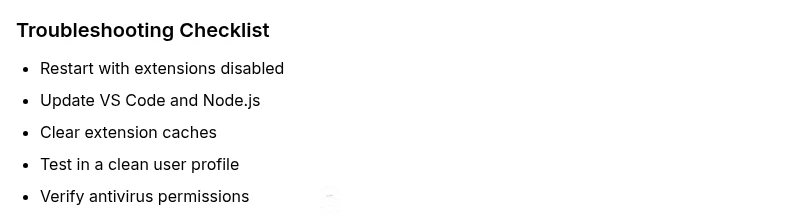
Start with the simplest actions and build up. First, close VS Code completely, then reopen with extensions disabled to see if the issue persists. If the problem goes away, re-enable extensions one by one to identify the culprit. Next, launch VS Code from the terminal with --disable-extensions to isolate whether a specific plugin is at fault. Clear the extension cache by deleting the folder that stores extension binaries and userdata, and reinstall a fresh copy if needed. Ensure your editor and Node runtime are up to date, and verify that antivirus or corporate security software isn’t blocking the main process. Finally, consider a clean reinstall of VS Code if the issue remains after all safer steps.
Diagnostic flow: symptom → diagnosis → solutions
A clear diagnostic path helps prevent wasted time. Start with the symptom: the VS Code main process crashes or stalls with a javascript error. Move to diagnosis: check extensions, caches, and versions. Then apply solutions in a progressive order from least to most disruptive. If the symptom changes or persists after each fix, reassess and loop back to the beginning. This disciplined approach reduces rebuild time and protects your workspace.
Step-by-step fixes for the most common cause
- Disable newly installed extensions and restart VS Code. This often resolves extension-induced main process crashes. 2. Start VS Code with extensions disabled using the command line option and observe whether the issue persists. If solved, reintroduce extensions gradually. 3. Update VS Code and Node.js to the latest stable versions to ensure compatibility with Electron and native modules. 4. Clear the extension cache and reset user data if necessary, then reconfigure settings. 5. Check permissions on the VS Code installation directory and related Node modules; adjust if antivirus or security software blocks access. 6. If nothing works, perform a clean reinstall of VS Code, preserving your user settings if possible.
Prevention tips and safety notes
Regularly update VS Code and its extensions to minimize compatibility issues. Use a separate test workspace when applying major updates to confirm stability before rolling changes into production work. Maintain backups of your settings, key bindings, and extensions list. Be cautious with third-party extensions from unknown sources, and review antivirus settings that might inadvertently block Node processes used by the main process.
Steps
Estimated time: 45-60 minutes
- 1
Open VS Code without extensions
Close all VS Code windows. From a terminal, run code --disable-extensions to start with a clean environment. Use this to determine if the issue is extension-related.
Tip: If the problem disappears, it points to an extension conflict. - 2
Update to the latest versions
Check for VS Code and Node.js updates. Install the latest stable releases to ensure compatibility with Electron and native modules.
Tip: Back up settings before updating. - 3
Clear extension cache and data
Navigate to the extension folder (varies by OS) and delete caches or reinstall extensions. Restart VS Code and re-add extensions one by one.
Tip: Only delete cache folders, not your user settings. - 4
Test with a clean profile
Reset user data or create a new user profile in VS Code to confirm whether the issue stems from configuration.
Tip: If the clean profile works, migrate settings gradually. - 5
Check outside software interference
Temporarily disable antivirus or firewall rules that might block Node-based processes used by VS Code.
Tip: Ensure you restore protection after testing. - 6
Reinstall VS Code if needed
If all else fails, perform a fresh reinstall of VS Code. Keep your settings in sync by exporting/importing them after reinstall.
Tip: This should be a last resort.
Diagnosis: VS Code shows a crash or stalls with a javascript error in the main process
Possible Causes
- highConflicting extensions causing main process crash
- highCorrupted Node modules or extension cache
- mediumOutdated VS Code or Node.js runtime
- lowSystem-level blocks from antivirus or permissions
Fixes
- easyOpen VS Code in Safe Mode (extensions disabled) to test
- easyDisable recently installed extensions and clear extension caches
- mediumUpdate VS Code and Node.js to latest stable versions
- mediumReset user data or reinstall problematic extensions, then test
- easyCheck antivirus/firewall permissions and allow node-related processes
Frequently Asked Questions
What causes the javascript error occurred in the main process vs code in VS Code?
This error is typically caused by extension conflicts or corrupted Node modules. Updating, clearing caches, or running with extensions disabled often resolves the issue. If the problem persists, reassess system permissions and AV interference.
Most times it’s extension conflicts or corrupted Node modules. Start by disabling extensions and updating, then clear caches if needed.
Should I run VS Code with extensions disabled to test?
Yes. Running VS Code with extensions disabled helps determine if a plugin is causing the crash. If the issue disappears, re-enable extensions one by one to identify the culprit.
Absolutely. Disable extensions to test; re-enable gradually to find the faulty one.
How do I clear extension caches safely?
Close VS Code and delete the extension cache folders specific to your operating system. Reopen VS Code to reinstall or re-enable extensions as needed. Always back up settings beforehand.
Close the app, remove the extension cache folders, and restart with a plan for re-enabling extensions.
Can antivirus software cause this issue?
Yes. Some antivirus or security tools can block Node processes used by the VS Code main process. Temporarily adjusting protection or whitelisting VS Code can help identify the cause.
Yes, security software might block Node processes; try whitelisting VS Code during testing.
What if the error appears after a recent update?
Updates can introduce incompatibilities with extensions or Node modules. Reverting a recent update, or updating to a newer patch, can resolve the issue. Verify changelogs for breaking changes.
Updates can cause issues; check for patches or roll back if needed.
Is a full reinstall of VS Code recommended?
A full reinstall is a last resort when all other fixes fail. Ensure you back up your settings and extensions list, then reinstall and restore configurations progressively.
Only do a full reinstall if other fixes fail; back up settings first.
Watch Video
Top Takeaways
- Isolate cause with Safe Mode and extension checks
- Keep VS Code and Node up to date
- Clear caches before reinstalling
- Test in a clean profile to rule out config conflicts
- Escalate to reinstallation only after safer steps