Fix npm error in VS Code: A Practical Troubleshooting Guide
Learn to diagnose and fix npm error in VS Code with a proven troubleshooting flow. Verify Node/npm, PATH, caches, permissions, and scripts with practical steps and safe, proven methods.


Most npm errors in VS Code stem from environment issues or cache problems. Start by confirming Node.js and npm are installed and in your PATH, then restart VS Code and run npm install. If errors persist, clear the npm cache and re-check package.json scripts. This quick sequence resolves the majority of npm error in vs code problems. Also verify you are in the project root and, if you manage versions with nvm, use the correct Node version.
Understanding the landscape of npm errors in vs code
In the Node/npm ecosystem, VS Code is a popular development environment, but it doesn't shield you from routine errors. The phrase npm error in vs code often masks a handful of underlying issues: mismatched Node/npm installations, PATH misconfigurations, stale caches, or corrupted node_modules. According to Why Error Code, debugging these problems starts with confirming your environment and then narrowing down to specific scripts or packages. When you run commands in the VS Code integrated terminal, you’re using your system shell, which must reliably locate Node and npm and access your project files. A calm, methodical approach saves time and reduces frustration, especially for teams relying on consistent development environments.
This guide is designed for developers, IT pros, and everyday users troubleshooting error codes. It leverages a structured troubleshooting workflow: quick checks, a diagnostic flow, a step-by-step fix, practical tips, and preventive practices. By following these steps, you’ll reduce repetitive errors and strengthen your project’s resilience against npm-related hiccups in VS Code.
Common error messages you may encounter
When npm runs inside VS Code, you may see a range of error messages. Common patterns include permission-related errors like EACCES, ENOENT when a file or directory is missing, or ECONNREFUSED when the registry cannot be reached. Occasionally you’ll see code-specific errors such as ERR! code E404 or ERR!cb() never called, which usually indicate a problem with the package.json scripts, registry connectivity, or corrupted node_modules. Understanding the context—whether you’re installing, building, or starting a script—helps you pick the right fix. This section maps typical messages to likely causes and initial checks, so you can quickly triage without jumping to conclusions.
Quick checks to perform before diving deeper
Before diving into deep troubleshooting, perform a quick triage to rule out the simplest causes. Verify that Node.js and npm are installed and accessible from the VS Code terminal by running node -v and npm -v. Ensure that the terminal’s working directory is the project root, not a parent folder. Confirm that your PATH includes the Node.js binary location; on Windows this means the folder containing node.exe and npm.cmd, and on macOS/Linux that npm and node are in a directory listed in PATH. If you use a version manager (like nvm), ensure the terminal session is using the intended Node version. Finally, check that you’re not mixing global and local dependencies in incompatible ways.
Diagnostic flow overview for npm issues in VS Code
A disciplined diagnostic approach helps you isolate the root cause. Start with the symptom, then evaluate the likely causes, and apply targeted fixes in a progressive fashion. The typical flow is: confirm environment basics (Node/npm, PATH, project root), inspect package.json and scripts, examine node_modules and package-lock.json, test with a clean slate (delete node_modules and reinstall), and consider version management implications. This flow reduces guesswork and accelerates resolution, especially when errors recur across projects.
Step-by-step fixes for the most frequent root causes
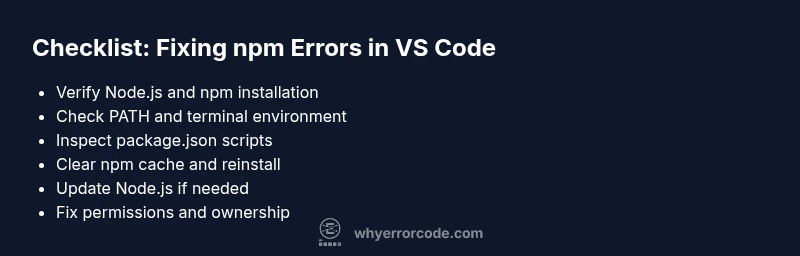
The following steps address the most common root causes of npm errors in VS Code. Step 1 verifies Node/npm installation and PATH. Step 2 ensures you’re in the correct project directory. Step 3 checks package.json scripts for typos or invalid commands. Step 4 clears the npm cache and reinstalls dependencies. Step 5 removes node_modules and package-lock.json before a fresh npm install. Step 6 updates Node/npm to a compatible version if the project requires it. Step 7 corrects permissions and ownership on the project folder. Each fix is designed to be safe and repeatable across environments.
Tips, warnings, and best practices to prevent future problems
Proactively maintaining your environment helps prevent npm errors in VS Code. Keep Node.js and npm up to date with LTS releases, use a consistent version manager (nvm, volta, as applicable), and avoid running commands with elevated privileges unless necessary. Regularly clear and regenerate lockfiles during major updates, and use clean installs in CI to detect mismatch issues early. Document project-specific Node versions and scripts for new team members to reduce onboarding friction.
Real-world troubleshooting checklist and flow
In practice, you’ll often start with a quick check, then perform a couple of targeted fixes before proceeding to more invasive actions. This section presents a practical, project-agnostic flow you can adapt to any npm error in vs code scenario. Begin with Node/npm verification, ensure PATH correctness, inspect scripts, and then choose between cache cleaning, reinstalling dependencies, or upgrading Node. If issues persist, gather logs, reproduce steps, and escalate to teammates or a professional if required.
Steps
Estimated time: 45-60 minutes
- 1
Verify Node.js and npm installation
Open VS Code terminal and run node -v and npm -v to confirm they are installed. If not, install Node.js which includes npm. Ensure the path to node and npm is included in your system PATH.
Tip: If you recently installed Node.js, restart VS Code to refresh the PATH in the terminal. - 2
Check your project directory and environment
Navigate to your project root with cd path/to/project. Confirm you are not in a parent directory. If you use a shell profile or nvm, ensure the session uses the correct Node version.
Tip: Always run npm commands from the project root unless you intend to install globally. - 3
Inspect package.json scripts
Open package.json and verify scripts referenced by npm run <script> exist and have valid commands. Typos or invalid scripts commonly cause failures during npm install or npm start.
Tip: Avoid complex shell commands in scripts; use cross-platform utilities when possible. - 4
Clear cache and reinstall dependencies
Run npm cache clean --force, delete node_modules and package-lock.json, then run npm install. This clears cache corruption and reinstalls a clean set of dependencies.
Tip: If you use a package manager lockfile, keep it in sync with package.json to prevent drift. - 5
Update Node.js/npm to a compatible version
If the project declares engines or requires newer features, update Node.js and npm to a supported LTS version. Use a version manager to avoid disrupting other projects.
Tip: Test in a separate terminal profile to verify compatibility before changing your global setup. - 6
Check permissions and ownership
Ensure you have read/write permissions for the project folder and that files aren’t locked by another process. Avoid running npm with elevated permissions unless explicitly needed.
Tip: On Unix-like systems, use chown/chmod to correct permissions if needed. - 7
Run with verbose logging if needed
If errors persist, run npm install --verbose to capture detailed logs. Look for failing packages, registry access issues, or network timeouts.
Tip: Collect logs and share them with teammates for faster triage.
Diagnosis: NPM errors encountered when running commands in VS Code integrated terminal
Possible Causes
- highNode.js or npm not installed or not in PATH
- highPATH environment variable misconfiguration or VS Code not recognizing PATH changes
- mediumnpm cache corruption or broken node_modules
- mediumIncompatible Node version for the project or mismatched engines field
- lowPermissions issues on project folder or npm global install conflicts
Fixes
- easyVerify Node.js and npm installation and ensure they are in PATH; reinstall if necessary
- easyAdd Node.js to PATH or restart VS Code after PATH changes; verify with node -v and npm -v
- easyClear npm cache and reinstall dependencies: npm cache clean --force; delete node_modules and package-lock.json; run npm install
- easyDelete node_modules and package-lock.json, then run npm install to refresh dependencies
- easyUse a Node version manager (e.g., nvm) to switch to a compatible Node version for the project
- easyCheck and fix permissions on the project folder; avoid running npm with elevated rights unless needed
Frequently Asked Questions
What is typically causing npm errors in VS Code?
NPM errors in VS Code are usually caused by environment issues like PATH misconfigurations, Node/npm installation problems, cache corruption, or mismatched project dependencies. Reviewing the environment setup often reveals the root cause without needing deep debugging.
NPM errors in VS Code are usually environment-related. Start by checking Node and npm installation, PATH, and caches to identify the root cause.
Why do I see EACCES or EPERM errors in VS Code?
EACCES and EPERM indicate permission problems accessing files or directories. This often happens when the project folder has restricted ownership or when npm tries to write to a protected location. Fix by adjusting permissions or avoiding elevated privileges.
EACCES and EPERM mean a permissions issue. Check folder ownership and avoid running as administrator unless needed.
How can PATH issues cause npm failures in VS Code?
If VS Code’s terminal cannot locate node or npm due to PATH misconfiguration, commands fail immediately. Reboot VS Code after updating PATH and verify with node -v and npm -v.
PATH problems stop Node and npm from being found. Update PATH and restart VS Code, then verify the versions.
Should I always delete node_modules when facing an error?
Deleting node_modules and package-lock.json is a common recovery step when dependencies get tangled. It forces a clean install and can resolve many silent or hard errors.
Sometimes you need to remove node_modules and reinstall to fix tangled dependencies.
Can I fix npm errors without updating Node.js?
Yes, many issues can be resolved by cache cleaning or reinstalling dependencies without updating Node. Only upgrade Node if your project engines require it or you know compatibility is maintained.
You can often fix errors without updating Node, but upgrade if your project requires it.
Is this problem specific to VS Code, or can it occur in other terminals?
NPM errors can occur in any terminal, but VS Code’s integrated terminal inherits your system shell settings. If issues persist in VS Code, test in an external terminal to isolate IDE-specific factors.
The issue can happen in any terminal; test outside VS Code to isolate IDE-specific causes.
Watch Video
Top Takeaways
- Verify Node.js and npm installation first
- Ensure PATH and project root correctness
- Clear cache and reinstall dependencies
- Use a compatible Node version
- Fix permissions and avoid elevated rights unless necessary