Launch JSON Error in VS Code: Troubleshooting Guide
Resolve launch json error in vs code quickly with practical checks, syntax validation, and a proven troubleshooting flow. Learn steps to fix debugging configurations and prevent future issues.


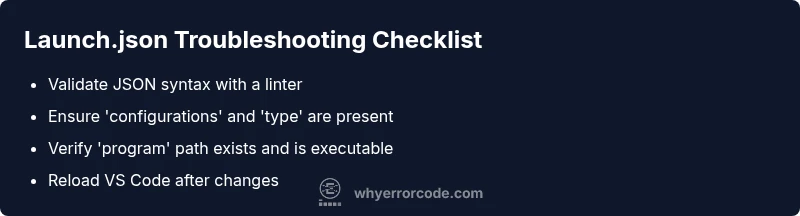
Launch.json errors in VS Code are usually caused by a malformed launch.json or a misconfigured debugger. Quick fix: open the .vscode/launch.json file, validate the JSON syntax with a linter, and verify essential fields like 'configurations' and 'type' are present. If the error persists, rebuild the file from a fresh template and re-run the debugger.
What causes a launch.json error in VS Code
A launch.json defines how a debugger starts your program. In practice, even small typos, missing commas, or incorrect property names can trigger a failure to launch. According to Why Error Code, the most frequent sources of a launch json error in vs code are syntax mistakes, wrong path references, and incompatible configurations for the chosen debugger type. The file sits in the .vscode folder of your workspace, and there can be multiple launch.json files if you use a multi-root workspace. When VS Code can't parse the file or cannot locate the script to run, it emits a clear error message in the Debug Console, and the Run and Debug pane may show a red error badge. It’s common to see messages like "Cannot find module" or "Could not resolve path" which usually point back to an incorrect 'program' path or 'args' array. Being systematic about checks helps you avoid repeating the same mistake in future projects and reduces debugging time.
Common mistakes in launch.json
Even seasoned developers copy-paste templates and forget to adapt them to their project. Common mistakes include leaving trailing commas after the last item, omitting required fields like 'configurations' or 'type', mixing debugger types, or using absolute paths that don't exist on every machine. Another frequent error is referencing a non-existent program, script, or module in 'program' or 'args'. In some cases, different extensions insert comments into JSON; since JSON does not support comments, those lines cause parse errors. When you see a syntax error, VS Code's JSON language service will usually highlight the offending line, but the underlying problem is often the content rather than the syntax itself. Understanding these patterns helps you spot issues quickly before running a debug session.
Check syntax and environment
Always start by validating the syntax of launch.json with a JSON validator or the built-in VS Code formatter. Look for common culprits like missing braces, trailing commas, or mismatched quotes. Verify that the path specified in 'program' exists on your machine and that the environment (like Node, Python, or .NET) is correctly installed and accessible from your shell. If you’re using workbench tasks or compound configurations, ensure there’s no conflict between different configurations in the same file. Remember to check the Debug Console for the exact line and context of the error, which often points to the root cause.
Rebuild from a template and verify debugger compatibility
If you’re unsure of the current launch.json, rebuild a clean, minimal template for your project and compare it with your existing file. Use the standard debugger type (e.g., 'type': 'node' for Node.js, 'type': 'chrome' for browser debugging) and ensure required fields are present. Avoid custom fields unless you know they’re supported by your debugging extension. After applying a fresh template, reload VS Code and attempt the debug session again to verify the fix.
Paths and workspace context in multi-root projects
In multi-root workspaces, each root can have its own launch.json, or a shared one can live at the workspace level. A common pitfall is pointing to a script relative to the wrong root, which results in a launch failure even though the file itself is valid JSON. Double-check relative paths against the correct workspace root and consider switching to absolute paths during troubleshooting. If you’re using symlinks or linked folders, verify their targets exist and aren’t stale.
Platform-specific considerations and permissions
Windows, macOS, and Linux handle paths and executables differently. A path that works on one platform may fail on another due to case sensitivity, separators, or permissions. Ensure you’re using correct path separators for your OS and that the file permissions allow execution. If you’re debugging in a container or WSL, ensure the container or subsystem has access to the referenced files. These subtle platform differences are a frequent source of launch.json errors in VS Code.
Best practices to prevent launch.json errors
Adopt a consistent template system and keep your launch.json under version control. Validate syntax after every edit, and use smaller, modular configurations rather than one giant configuration. Document each field’s purpose and maintain a changelog for debugging configurations. Regularly review your configuration against the official documentation for your language and debugger extension to prevent drift.
When to seek help and how to verify fixes
If the error persists after following best practices, reach out to teammates or consult official extension repositories for guidance. Create a minimal reproducible case and share it with colleagues or in issue trackers to get targeted assistance. After applying fixes, rerun the debugging session in a clean workspace or new project to confirm the issue is resolved and no regression was introduced.
Steps
Estimated time: 25-40 minutes
- 1
Open launch.json
Navigate to .vscode/launch.json and open it in the editor to inspect its structure. Look for obvious syntax issues and verify the overall layout matches your language and debugger expectations.
Tip: Use split view to compare with a working template side-by-side. - 2
Validate JSON syntax
Run a JSON validator or use VS Code's built-in formatting to ensure there are no missing braces or trailing commas. Resolve any highlighted errors before proceeding.
Tip: Ignore JSON comments; remove them if present. - 3
Check required fields
Confirm that each configuration in 'configurations' includes mandatory keys such as 'type', 'request', and 'program' (or equivalent for your debugger).
Tip: Refer to the official debugger docs for the exact required fields. - 4
Verify the 'program' path
Validate that the path in 'program' points to an existing script or executable. Use absolute paths if possible to avoid workspace-relative issues.
Tip: Test the path in the terminal to ensure accessibility. - 5
Check environment and dependencies
Ensure the runtime and dependencies (node, Python, Java, etc.) are installed and accessible from VS Code. PATH issues are a common cause of launch failures.
Tip: Restart VS Code after installing dependencies. - 6
Review workspace context
If you’re in a multi-root workspace, verify you are editing the correct launch.json (root vs. specific project). Mismatches are a frequent pitfall.
Tip: Switch to a single-root workspace to test quickly. - 7
Regenerate a clean template
Create a new minimal configuration for your project and gradually add settings to identify the exact trigger for the error.
Tip: Keep a changelog of each modification. - 8
Reload and test
Reload the window or restart VS Code, then run the debug configuration to confirm the issue is resolved and no new errors appear.
Tip: If it still fails, attempt a clean reinstall of the debugger extension.
Diagnosis: VS Code reports a launch.json error when starting a debugging session.
Possible Causes
- highSyntax error or trailing comma in launch.json
- mediumIncorrect 'program' path or missing executable
- lowWrong debugger type or incompatible configuration
Fixes
- easyValidate JSON syntax with a linter and fix missing braces or commas
- easyEnsure 'configurations' contains valid objects and required keys like 'type' and 'program'
- easyCheck that the path in 'program' exists on the machine and is executable
- mediumRegenerate launch.json from a fresh template matching your debugger and language
Frequently Asked Questions
What is launch.json used for in VS Code?
launch.json defines how a debugger should start and attach to your program. It specifies the configuration, the runtime, and the target script or module. Misconfigurations can prevent debugging from launching correctly.
In VS Code, launch.json tells the debugger what to run and how to run it, so mismatches can stop debugging before it starts.
Why does VS Code say 'Cannot find launch configuration'?
This message usually indicates that launch.json is missing, incomplete, or the active workspace context does not include the configuration. Check the file paths, the 'configurations' array, and try reloading VS Code.
That error often means the debugger cannot locate a valid configuration in launch.json or the workspace you’re in.
How do I reset launch.json to default?
Create a new launch.json by using the Run and Debug pane, or copy a fresh template from the official docs and replace the contents. Then customize only the needed fields for your project.
You can generate a fresh template from VS Code and adapt it for your project.
Can launch.json be generated automatically?
Yes. Use the Run and Debug UI to create a new configuration, or rely on language-specific extensions that offer guided setup. You’ll then refine paths and options as needed.
Some extensions guide you through automatic launch.json creation; customize afterward.
Is launch.json unique per workspace?
Launch.json can exist per workspace or per project within a multi-root workspace. Ensure you edit the correct file and confirm that it applies to the right debug target.
In multi-root setups, double-check which workspace root owns the config.
What should I do if the error persists after fixes?
If issues persist, isolate the problem using a clean project, check extensions for conflicts, and consider using a different debugger configuration to verify behavior.
If it still fails, test in a new project to isolate the problem.
Watch Video
Top Takeaways
- Validate syntax before deep debugging.
- Always confirm paths and fields in launch.json.
- Use fresh templates to avoid drift.
- Test in a clean workspace to isolate issues.