Netflix Error Code E100: Quick Fix and Diagnostic Guide
Learn how to diagnose and fix Netflix error code E100 quickly with step-by-step instructions, device checks, and network tips from Why Error Code.


Netflix error code E100 indicates a playback issue that prevents streaming. It often stems from account sign-in problems, device compatibility, or network connectivity. The fastest fixes are to refresh your Netflix session, update or reinstall the Netflix app, restart your device, and test a faster, stable internet connection. If the problem persists, try a different device or network. This helps determine whether the issue is on Netflix’s side or your setup.
What Netflix error code E100 means
Netflix error code E100 is a playback error that interrupts streaming. In most cases, E100 indicates an issue with your session, device compatibility, or network path that Netflix uses to stream titles. The error is not tied to a single title or account; instead, it serves as a general signal that Netflix cannot establish a stable playback channel at that moment. According to Why Error Code, understanding whether the problem is local or service-side helps you triage quickly. You’ll often see E100 on a range of devices — smart TVs, streaming boxes, mobile apps, and web browsers — so focus on components you can control: session integrity, app health, and network stability. By treating the issue as a multi-factor fault, you can resolve most occurrences in under an hour when you follow a systematic path from simplest fixes to deeper checks.
This approach also aligns with best practices from Why Error Code, allowing you to distinguish between a temporary Netflix-side hiccup and something in your home network or device that needs attention.
Quick checks you can perform now
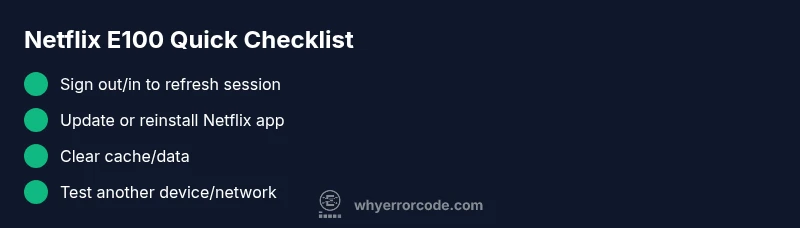
- Ensure you are signed in to Netflix and that your session hasn’t expired. Sign out and sign back in to refresh the authentication token.
- Update the Netflix app or browser to the latest version. If needed, reinstall the app to clear corrupted data.
- Clear cache and data for the Netflix app or browser to reset stored files that might be causing playback issues.
- Try a different device or browser to determine if the problem is device-specific.
- Test your network on a wired or faster Wi‑Fi connection. Run a quick speed test to confirm you have sufficient bandwidth for HD or 4K streaming.
- Disable VPNs or proxies, as some services block or interfere with Netflix playback.
- Check the Netflix status page (or your regional outage reports) to rule out a service-wide incident.
Step-by-step fix: the fastest path
Applying a structured sequence often resolves E100 quickly. Start with the simplest options and escalate only if the issue persists. Many fixes are reversible and safe to perform without professional help. If the problem remains after all steps, you’ll know it’s time to contact Netflix support.
- Sign out of Netflix on all devices, then sign back in to refresh your session. 2) Update or reinstall the Netflix app on each device. 3) Clear app/cache data on mobile devices and clear browser cache on web. 4) Restart the streaming device (TV, console, or set-top box) and reboot the router. 5) Attempt streaming on a different device or network to isolate the cause. 6) If you use a VPN or proxy, disable it and retry. 7) Check your plan and region for content restrictions that could trigger E100. 8) If nothing works, contact Netflix support with the steps you followed so they can investigate account or device-level issues.
In-depth: network and device considerations
Network health is a common root cause for E100. Even brief packet loss, DNS resolution delays, or congested Wi‑Fi can trigger the error. Consider setting a primary DNS like 1.1.1.1 or 8.8.8.8 on your router, ensuring your router’s firmware is up to date, and reducing interference by moving closer to the router. Device compatibility matters too; older smart TVs or streaming sticks may lack required codecs or hardware acceleration. In some cases, clearing storage or performing a factory reset on the device can clear conflicting settings. Always update to the latest firmware and app version to maximize compatibility and performance.
Platform-specific guidance: mobile, desktop, and TV devices
Mobile devices often benefit from a clean app reinstall and cache clear, especially after OS updates. Desktop browsers should use the latest version and disable extensions that might block playback. Smart TVs and streaming devices require firmware updates and sometimes a re-setup of Netflix as part of the app refresh. If you see E100 only on one platform but not others, focus on that device’s software state and network path while keeping other devices as a baseline.
Content availability and regional considerations
E100 can occasionally relate to region-restricted content or licensing mismatches, though Netflix typically surfaces a different error message for such cases. If you’re traveling or using a VPN, content restrictions or IP-based blocks can trigger E100-like symptoms. In those scenarios, switch to a local network, pause VPN usage, or temporarily accept that certain titles may be unavailable in your location. Netflix’s systems also occasionally queue up errors when there is a wider maintenance window; patience while service teams resolve issues is occasionally required.
Safety notes and when to contact support
Never attempt risky hardware modifications or disassembly to fix E100. Avoid downloading third‑party tools or unverified firmware that claims to resolve streaming errors. If you’ve followed the full troubleshooting sequence and E100 persists across multiple devices and networks, contact Netflix support and provide your diagnostic steps. In some cases, the problem may be related to your account or a device registration; support can review your account status, device compatibility, and session history to propose targeted remediation.
Prevention and best practices
Keep apps up to date, enable automatic updates where possible, and periodically clear cache data to prevent buildup of stale files. Maintain a stable home network by rebooting your router every few weeks, using a wired connection for critical devices, and testing your bandwidth before planned streaming. If you rely on mobile data, monitor data caps or throttling that could affect streaming quality. Finally, document the steps you take and outcomes; this will speed up future troubleshooting if E100 recurs.
Steps
Estimated time: 30-60 minutes
- 1
Refresh your sign-in session
Open Netflix, sign out, then sign back in. This renews the authentication token and can clear session-related E100 errors.
Tip: Have your Netflix login handy before signing back in. - 2
Update or reinstall the app
Check for updates in your app store or browser. If available, install the update or uninstall/reinstall the app to fix corrupted data.
Tip: Restart the device after reinstalling to ensure changes take effect. - 3
Clear cache and data
Clear cached data for the Netflix app or clear browser cookies and cache to reset stored playback settings.
Tip: Note that clearing data may require you to re-enter login details. - 4
Test another device
Attempt playback on a different device or browser to determine if the issue is device-specific.
Tip: If it works on another device, focus on the original device’s software. - 5
Check network connectivity
Run a speed test and switch to a more stable network; consider a wired connection if possible.
Tip: Disable VPNs or proxies that may interfere with streaming. - 6
Disable VPN/Proxy and firewall checks
If you use a VPN or firewall rules that block streaming, temporarily disable or adjust settings.
Tip: Some networks block known Netflix endpoints; testing without VPN helps identify this. - 7
Verify content availability and regions
Ensure the title is available in your location and not restricted by region licensing.
Tip: Travel or proxy use may trigger region-related blocks. - 8
Escalate to support
If the error persists across devices and networks, contact Netflix support with your diagnostics.
Tip: Document the steps you’ve tried to speed up support.
Diagnosis: User experiences Netflix error code E100 while attempting to start playback
Possible Causes
- highExpired or invalid sign-in session
- mediumOutdated Netflix app or browser
- mediumNetwork connectivity or DNS issues
Fixes
- easySign out of Netflix and sign back in to refresh session
- easyUpdate the Netflix app or browser to the latest version
- easyRestart router or switch to a stable network
- easyClear app cache or browser data
Frequently Asked Questions
What does Netflix error code E100 mean?
E100 is a playback error indicating Netflix cannot start streaming. It commonly points to session, device compatibility, or network issues that block playback. Following a methodical troubleshooting sequence often resolves it quickly.
E100 means Netflix can’t start playback due to session, device, or network problems. Try the steps outlined to fix it.
Can E100 be caused by my Netflix plan or account?
Yes, an expired session or mismatched account data can trigger E100. Signing out and back in or updating your account details often clears the error. If problems persist, support can verify your plan status and device registrations.
A faulty sign-in session or account data can trigger E100. Sign out/in and check your account details; if needed, contact support.
Does clearing cache always fix E100?
Clearing cache or data resolves many E100 cases caused by stale files. It’s a safe, low-effort step before moving to more involved fixes like reinstalling apps.
Clearing cache fixes many E100 issues that come from old data. It’s a good first step.
Will using a VPN trigger E100?
Yes, VPNs can trigger E100 by altering network routing or causing region-based blocks. Disable VPNs to test whether the error resolves on your regular connection.
VPNs can cause E100. Try turning it off and see if Netflix streams normally.
When should I contact Netflix support for E100?
If E100 persists after trying the standard fixes across multiple devices and networks, contact Netflix support. Provide a summary of steps you took so they can diagnose account or device issues more quickly.
If the error won’t go away after trying the steps, reach Netflix support with what you did.
Is E100 device-specific or tied to Netflix status?
E100 can be device-specific, but service outages or regional blocks can also show up this way. Check device variants and Netflix status to determine if the issue is per-device or global.
It could be device-specific or due to a broader outage. Check both device and status.
Watch Video
Top Takeaways
- Refresh session first to reset authentication.
- Update apps and clear cache to remove corrupted data.
- Test multiple devices and networks to localize the issue.
- Disable VPNs/proxies if active; regional blocks may play a role.
- Contact Netflix support with a full troubleshooting log if unresolved.