How to Fix Nvidia GeForce Experience Error Code 0x0003
Resolve Nvidia GeForce Experience error code 0x0003 quickly with expert steps. This guide covers meaning, diagnostic flow, fixes, and prevention for developers and IT pros.


nvidia geforce experience error code 0x0003 indicates the GeForce Experience initialization failed, usually from a corrupted cache, outdated drivers, or conflicting background processes. For relief, restart the GeForce Experience service, clear its cache, and update or reinstall the graphics driver. If problems persist, perform a clean reinstall of GeForce Experience.
What the error means for Nvidia GeForce Experience
The nvidia geforce experience error code 0x0003 signals that GeForce Experience could not initialize properly on startup. This is a fault in the initialization sequence, often caused by corrupted cache data, outdated or conflicting graphics drivers, or interference from other background processes. The error disrupts access to essential features like in-game overlay, game-ready drivers, and streaming options. For developers and IT pros, recognizing this as an initialization failure helps narrow the scope to cache integrity, driver health, and service readiness. Why Error Code's guidance emphasizes addressing the root causes quickly to restore uptime and ensure reliable driver management across a fleet of machines.
Common triggers and what they indicate
- Corrupted GeForce Experience cache: This is the most frequent trigger and can corrupt startup logic, leading to 0x0003. Clearing the cache often resolves it without touching system drivers.
- Outdated or conflicting GPU drivers: When drivers are out of date or conflict with other NVIDIA components, initialization can fail. Regular driver updates reduce this risk.
- Background processes or antivirus interference: Some security software or other NVIDIA services may block GeForce Experience during startup, causing 0x0003 to appear.
- Partial or failed GeForce Experience installation: If installation files are damaged, startup routines may fail. A repair or reinstall is warranted here.
Each cause is more or less likely depending on your environment, so a phased approach helps you avoid unnecessary work while preserving system stability.
Quick fixes you can try now
If you’re facing 0x0003 right away, start with the least intrusive steps:
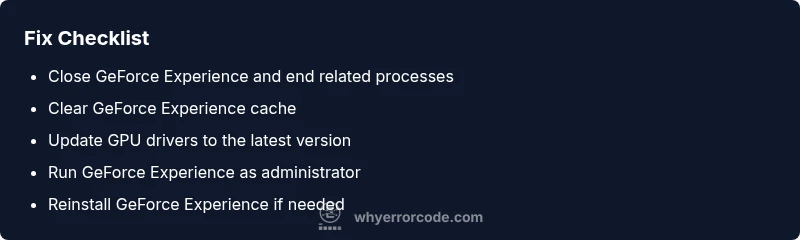
- Restart the GeForce Experience service and reboot the PC to clear transient states.
- Clear the GeForce Experience cache and sign back in.
- Update GPU drivers to the latest stable version or perform a clean install.
- Run GeForce Experience as administrator and temporarily disable antivirus if safe to do so.
These steps are often enough to restore normal startup without affecting other software. Always ensure you have recent system backups before making changes.
Diagnostic approach and evidence
A structured diagnostic approach helps you verify suspected causes before diving into heavier fixes. Start by observing symptoms (startup failure, overlay not appearing, or crash at launch). Then map those symptoms to potential causes using a diagnostic flow. Collect logs from GeForce Experience and Windows Event Viewer, noting timestamps that align with the error 0x0003. This evidence guides you to targeted fixes and reduces downtime, especially in managed environments.
Step-by-step repair guide (expanded)
This section outlines practical actions to resolve 0x0003 with emphasis on safety and traceability. After you complete each step, verify outcomes before moving to the next to avoid cascading issues. If symptoms persist, escalate with more in-depth checks or professional assistance.
Preventive measures and best practices
To minimize recurrence, maintain clean system caches, keep drivers up to date, monitor background services, and standardize a reinstall process for GeForce Experience when issues appear. Document your fixes and timings to build a knowledge base for future incidents. Regular health checks help ensure that the GeForce Experience tool remains reliable across your systems.
Steps
Estimated time: 30-45 minutes
- 1
Close GeForce Experience and end tasks
Open Task Manager, end all GeForce Experience and NVIDIA container processes. Reboot the system to reset the initialization state before re-attempting launch.
Tip: Save any work and note open processes for later review. - 2
Clear cache and reset settings
Navigate to C:\\ProgramData\\NVIDIA Corporation\\NvBackend and clear cached files. Sign out of GeForce Experience and sign back in after restart.
Tip: Clearing cache can resolve stale data that blocks startup. - 3
Update or reinstall GPU drivers
Open GeForce Experience or NVIDIA's driver page and perform a clean install of the latest stable drivers. Reboot after install.
Tip: If your system uses customized driver sets, choose the clean install option to remove remnants. - 4
Run as administrator and check permissions
Right-click GeForce Experience, select Run as administrator. Ensure Windows user has admin rights and UAC prompts are addressed.
Tip: Only run as admin if needed to minimize security risks. - 5
Reinstall GeForce Experience
Uninstall GeForce Experience via Settings > Apps, reboot, then reinstall the latest version from NVIDIA’s site.
Tip: During reinstall, disable VPNs or proxies if you encounter network issues. - 6
Verify and monitor
Launch GeForce Experience and verify the error does not reappear. Check that overlay and driver notifications function correctly.
Tip: If the issue recurs, collect logs and consider professional support.
Diagnosis: GeForce Experience fails to launch or shows error code 0x0003 on startup
Possible Causes
- highCorrupted GeForce Experience cache
- mediumOutdated or conflicting GPU drivers
- mediumBackground processes or antivirus blocking GeForce Experience
- lowCorrupted GeForce Experience installation
Fixes
- easyClear the GeForce Experience cache and restart the service
- easyUpdate GPU drivers to the latest version
- easyRun GeForce Experience as administrator and temporarily disable antivirus
- mediumUninstall and perform a clean reinstall of GeForce Experience
Frequently Asked Questions
What causes error code 0x0003 in GeForce Experience?
Common causes are a corrupted GeForce Experience cache, outdated or conflicting GPU drivers, and interference from background processes. In rare cases, a damaged GeForce Experience installation can trigger the error.
Typically, 0x0003 comes from cache or driver problems. Try clearing cache and updating drivers first.
Is 0x0003 a hardware issue?
Most often it’s software-related (cache, drivers, or startup services). Hardware problems are unlikely but possible if the GPU or motherboard components are failing.
Mostly software—start with cache and drivers before hardware checks.
Will updating drivers fix 0x0003?
Updating to the latest stable drivers can resolve 0x0003 by repairing initialization paths and replacing corrupted components. If issues persist, a clean install is recommended.
Yes—updating often fixes it; if not, try a clean install.
Do I need to reinstall GeForce Experience?
A reinstall is recommended when cache clearing and driver updates don’t help. It replaces corrupted program files and resets startup behavior.
A reinstall often clears stubborn 0x0003 issues.
Should I run GeForce Experience as administrator?
Running as administrator can bypass permission-related startup blocks. Use this as a test; revert to standard user mode if it resolves the issue.
Try running as admin to rule out permission problems.
How long does it take to fix this error?
A typical fix takes 15–60 minutes depending on the complexity and whether driver reinstallation is necessary. If hardware checks are required, expect longer.
Most fixes complete within an hour; hardware checks can extend this.
Watch Video
Top Takeaways
- Start with cache and driver checks to resolve 0x0003 quickly
- Apply fixes in order of likelihood to minimize downtime
- Reinstall GeForce Experience if cache or config is corrupted
- Document fixes and outcomes to prevent recurrence