What is error code 0x0003 GeForce Experience and how to fix it
Learn what error code 0x0003 in GeForce Experience means, its common causes, and proven steps to fix quickly. This urgent, expert guide from Why Error Code walks you through diagnostics, quick fixes, a step-by-step repair, and prevention tips.


Error code 0x0003 in GeForce Experience typically indicates a startup or initialization failure. It’s often caused by driver conflicts, corrupted app data, or NVIDIA services not running. Start with quick fixes: restart GeForce Experience, sign out and back in, update your NVIDIA drivers, and run the app as administrator before diving into deeper repairs.
what is error code 0x0003 geforce experience and why it appears
When GeForce Experience reports 0x0003, it signals a problem starting the software, not a failure of your game or driver in general. In practical terms, the app cannot initialize its components, services, or overlays at launch. According to Why Error Code, this pattern is commonly tied to driver conflicts, corrupted local data, or blocked NVIDIA services that prevent the application from finishing its startup sequence. Understanding this context helps you target the right layer first—software configuration and service status—before deeper hardware checks.
Common symptoms to expect with 0x0003
Users may see GeForce Experience fail to launch, a blank or frozen overlay, error popups on startup, or the app closing immediately after opening. Other indicators include inconsistent driver update prompts, failures to save settings, and temporary graphics overlays that disappear during gameplay. If you notice these symptoms alongside 0x0003, you’re likely facing one of the frequent root causes such as service interruptions, corrupted caches, or misconfigured permissions. Documenting the exact moment of failure helps differentiate whether the issue is system-wide or isolated to GeForce Experience.
Most likely causes (ranked by likelihood)
- Driver conflicts or outdated GPU drivers (high): Incompatibilities between the NVIDIA graphics driver and GeForce Experience frequently trigger initialization errors. A dirty upgrade path or partial installations can leave residual files that disrupt startup.
- Corrupted GeForce Experience data or cache (high): Cached settings, local databases, or corrupted config files can prevent the app from launching properly.
- NVIDIA services not running or blocked by security software (medium): Key services like the NVIDIA Display Container LS or Telemetry services must be active for GeForce Experience to load.
- System permissions or OS integrity issues (low): Improper permissions or minor OS corruptions can also contribute, though these are less common than driver or service problems.
Quick fixes you can try now
- Restart GeForce Experience and your PC. A simple reboot often clears transient service glitches.
- Sign out of GeForce Experience and sign back in. This refreshes tokens and local session data.
- Update or perform a clean reinstall of NVIDIA graphics drivers. Consider a clean install to remove older traces that interfere with the new version.
- Run GeForce Experience as an administrator to bypass potential permission barriers.
- Temporarily disable third-party antivirus or security software to test if they are blocking the app, then re-enable after testing.
- If the error persists, proceed with the step-by-step repair below for a deeper clean.
In-depth step-by-step repair approach (most common fix)
In many cases, the most reliable route is a clean driver reinstallation followed by a GeForce Experience reset. Start with driver cleanup, then revalidate the GeForce Experience installation. This sequence resolves many conflicts that trigger 0x0003 and prepares your system for a stable startup after troubleshooting.
- After performing a clean driver install, launch GeForce Experience and verify it opens without error. If it still fails, move to the next steps which address data corruption and service configuration.
- Clearing caches and temporarily resetting app data helps rule out local corruption as the root cause while preserving your profile settings where possible.
- If you continue to see 0x0003, restarting NVIDIA services and ensuring they start automatically on boot will close persistence gaps that simple restarts miss.
Other causes and advanced troubleshooting
Beyond the obvious driver and service issues, several less common culprits can trigger 0x0003. These include corrupted Windows user profiles, misconfigured environment variables related to NVIDIA paths, and restrictive group policies in managed corporate environments. In such cases, confirm user permissions, test with a new Windows user profile, and check event logs for NVIDIA-related errors. Advanced users may also review Windows Event Viewer for service startup errors that reference NVIDIA modules.
Safety, backups, and when to call a pro
Always back up critical data before making major driver changes or reinstallations. If you’re unsure about system-level changes, or if the PC is a mission-critical workstation, consider consulting a professional. When professional help is warranted, gather your system specs, a screen recording of the error, and a list of steps you’ve already tried to streamline the support process.
Prevention tips to avoid 0x0003 in the future
- Keep GeForce Experience and NVIDIA drivers up to date with regular clean installs when upgrading.
- Periodically clear cache and verify service health to prevent buildup of corrupted data.
- Run a routine OS health check (SFC/DISM) to maintain a stable environment for graphics software.
- Maintain a controlled security posture, ensuring antivirus rules don’t block NVIDIA services during startup.
Steps
Estimated time: 45-75 minutes
- 1
Back up and prepare
Close all programs, save work, and create a system restore point if available. This gives you a safe rollback if anything goes wrong during driver changes.
Tip: Document current driver version and GeForce Experience settings before proceeding. - 2
Update or clean-install NVIDIA drivers
Open GeForce Experience or use the NVIDIA driver download page to check for updates. Choose a clean install to remove remnants of older drivers that can cause conflicts.
Tip: Prefer a clean install option to ensure old files don’t linger. - 3
Reset GeForce Experience data/cache
Clear GeForce Experience cache and reset the app’s settings to defaults. Sign out, then sign back in after the reset.
Tip: Terminate the process in Task Manager before clearing caches. - 4
Restart NVIDIA services
Open services.msc and restart services like NVIDIA Display Container LS and NVIDIA Telemetry. Verify they are set to automatic startup.
Tip: If a service won’t start, check event logs for clues. - 5
Reinstall GeForce Experience
Uninstall GeForce Experience, reboot, then reinstall the latest version from NVIDIA’s site or GeForce Experience installer.
Tip: Avoid partial uninstall paths that leave behind config files. - 6
Test and validate
Launch GeForce Experience. Check that you can access the overlay and that no 0x0003 error appears. Run a simple game overlay test if possible.
Tip: If the error persists, proceed to OS health checks and professional help if needed.
Diagnosis: GeForce Experience shows error 0x0003 during startup or launch
Possible Causes
- highDriver conflicts or outdated GPU drivers
- highCorrupted GeForce Experience data/cache
- mediumNVIDIA services not running
- lowSecurity software blocking startup
Fixes
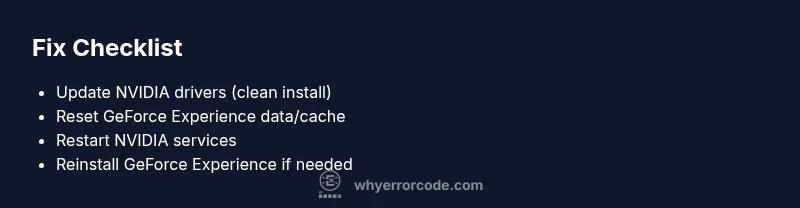
- easyUpdate GPU drivers with a clean reinstall
- easyReset GeForce Experience data/cache and re-sign in
- easyRestart NVIDIA services (Display Container LS, Telemetry, etc.)
- mediumReinstall GeForce Experience
Frequently Asked Questions
What does error code 0x0003 mean in GeForce Experience?
0x0003 usually signals a startup/initialization failure in GeForce Experience, often caused by driver conflicts or service issues. The fix path starts with quick resets and driver updates, then progresses to deeper repairs if needed.
0x0003 means GeForce Experience couldn't start properly, commonly due to driver or service problems.
Can updating GPU drivers fix 0x0003?
Yes. Updating or performing a clean reinstall of NVIDIA drivers resolves many conflicts that trigger 0x0003, especially after a software upgrade or OS update.
Updating or clean-installing the drivers often fixes 0x0003.
Is a full GeForce Experience reinstall always required?
Not always, but it’s commonly needed if cache corruption or corrupted app data is the root cause. Start with lighter fixes and escalate to reinstall if the problem persists.
A reinstall is often necessary if data is corrupted.
Should antivirus software be disabled to fix this?
Temporarily disabling antivirus can help determine if it’s blocking GeForce Experience. Re-enable protection promptly after testing and adjust exclusions if needed.
Temporarily disable AV to test, then re-enable with exclusions if needed.
Will Windows updates help with 0x0003?
Occasionally. Keeping Windows up to date improves system stability and driver compatibility, reducing the likelihood of startup errors.
Windows updates can help, but aren’t a guaranteed fix.
When should I contact NVIDIA support?
If you exhaust driver reinstalls, service restarts, and app resets without resolving 0x0003, contact NVIDIA support or Why Error Code for advanced diagnostics and tailored guidance.
If all else fails, seek NVIDIA support.
Watch Video
Top Takeaways
- Identify whether the issue is driver, service, or data-related.
- Start with quick fixes before deeper system changes.
- A clean driver reinstall + GeForce Experience reset resolves most 0x0003 cases.
- Always test after each fix to isolate the effective step.