Resolver Error: Failed to Download VS Code Server
Urgent troubleshooting guide for resolver error when downloading the VS Code Server. Learn quick fixes, diagnostics, and prevention tips for developers and IT pros.


The resolver error when downloading the VS Code Server usually means the download traffic is being blocked or misrouted by your network. Start with quick checks: confirm Internet access, test on a direct network, and verify proxies or VPNs. If the issue persists, apply the step-by-step network/configuration fixes to restore the VS Code remote experience.
Why the resolver error occurs when downloading VS Code Server
The message resolver error error failed to download vs code server indicates that the VS Code server component cannot be retrieved from the remote host. In practical terms, this usually means your environment is blocking or misrouting the download request. It can stem from DNS resolution failures, VPN or proxy misconfigurations, or security software intercepting TLS connections. In many cases, a simple network reconfiguration or a known-good proxy setting clears the issue. The Why Error Code team has observed that this problem is highly influenced by network posture and security policies, not by the VS Code binary itself. If you see this error in a corporate environment, you may need to coordinate with your network or IT admins to whitelist the download URL and ensure TLS traffic is allowed. The resolver error error failed to download vs code server should be treated as a network and trust-store issue first, before diving into deeper code changes.
Common causes of the resolver error error failed to download vs code server
Several factors commonly trigger this error:
- DNS resolution failures or ISP DNS blocks, which prevent the host from resolving the VS Code server URL.
- Corporate proxies or firewalls that block or rewrite download traffic to the VS Code server endpoint.
- TLS interception or SSL inspection by security software or VPNs, which can break certificate validation during the download.
- Outdated CA certificates or an invalid trust store on the client machine, causing the TLS handshake to fail.
- Misconfigured environment variables (HTTP_PROXY/HTTPS_PROXY) or VS Code proxy settings that point to a dead or blocked proxy.
- Temporary outages on the VS Code server delivery network, though this is less common than local network issues.
In practice, start by checking your network and proxy settings, then validate DNS resolution for the server URL. If you are in a controlled network, confirm with admins whether TLS inspection is active and whether the domain is whitelisted.
Quick checks you can do before diving deeper
Before you modify code or settings, perform a quick sanity pass:
- Confirm basic connectivity by pinging a reliable host and attempting to fetch a simple URL from the browser of the same machine.
- Try a different network (mobile hotspot, a different Wi-Fi network, or a VPN-free tunnel) to determine if the problem is network-wide.
- Check your DNS settings and consider switching to a trusted resolver (e.g., 8.8.8.8 / 8.8.4.4) temporarily to isolate DNS issues.
- Review any active proxies or VPNs. If you must use a proxy, ensure VS Code is configured to use it via http.proxy in settings or the environment variables HTTP_PROXY/HTTPS_PROXY are properly defined.
- Inspect security software for TLS interception or SSL inspection rules that could block the download URL and temporarily disable them for the test (re-enable after testing).
These quick checks often reveal the root cause and save you from deeper troubleshooting.
Diagnostic path: from symptom to fix
Here is a practical path to diagnose and fix the resolver error error failed to download vs code server:
- Symptom verification: Confirm exactly when and where the failure occurs (during download, while resolving DNS, or during TLS handshake).
- Hypothesis tests: Test DNS resolution, proxy behavior, and TLS trust independently to isolate the faulty layer.
- Progressive fixes: Apply the least invasive changes first (DNS switch, proxy config) before touching security software or CA roots.
- Verification: After each fix, retry the download to confirm progress. If the error persists, escalate to a network-admin level check to verify firewall rules and VPN/TLS interception configurations.
Step-by-step: fix the most common cause
This section expands on the most frequent culprit—proxy or firewall misconfiguration blocking the download URL. Use the checklist below to recover quickly and safely. Always back up configuration before making changes.
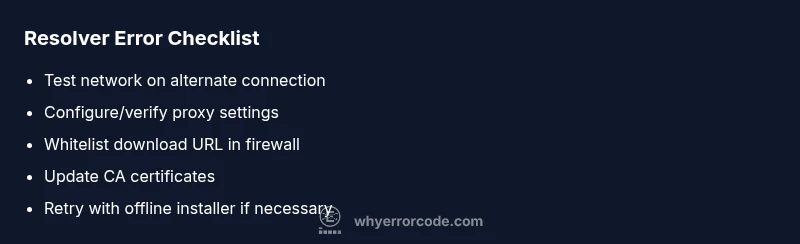
- Verify network connectivity and DNS resolution to the VS Code server host. Ensure the domain resolves and the IP is reachable from the client machine.
- If a proxy is required, configure VS Code to use a proxy. Set http.proxy (and https.proxy if necessary) in VS Code settings and export HTTP_PROXY/HTTPS_PROXY in your shell.
- If you are behind a corporate firewall or VPN, request that the VS Code server URL be whitelisted. Confirm that TLS interception is disabled for this domain if possible.
- Update CA certificates on the client. Ensure your trust store includes the CA that signed the VS Code server certificate and that your system time is accurate.
- Retry the download in a clean environment, ideally on a different network without VPNs or proxies, to confirm the issue is resolved.
- If all else fails, consider an offline installer or alternate download method provided by the official documentation and reattempt the setup.
If the issue persists after these steps, consult your IT team or reach out to Why Error Code for deeper analysis and tailored remediation.
Prevention and best practices to avoid resolver errors
Adopt a proactive approach to minimize recurrence:
- Standardize a trusted DNS resolver across development machines and CI pipelines.
- Centralize proxy/vpn configuration with version control or a reproducible script to ensure consistency.
- Maintain updated CA certificates and monitor TLS-related logs for suspicious changes.
- Document network policies and whitelists for development tools like VS Code Server to prevent sudden access blocks.
- Regularly test downloads in a controlled environment to catch changes in network posture early.
By following these practices, you reduce the odds of encountering resolver errors during future VS Code Server downloads.
Steps
Estimated time: 30-60 minutes
- 1
Validate network and DNS
Ping the server URL and perform a DNS lookup to confirm the domain resolves correctly. If resolution fails, switch to a reliable DNS server and retry.
Tip: Use nslookup or dig to verify DNS results. - 2
Configure proxy settings
If you must use a proxy, set VS Code to use it and ensure environment variables are exported. Reopen VS Code after making changes.
Tip: Apply settings via user and workspace scope for consistency. - 3
Check firewall and VPN rules
Ask your admin to whitelist the download URL and verify VPN TLS interception isn't breaking cert validation.
Tip: Test with VPN paused to isolate the cause. - 4
Update TLS trust store
Update CA certificates on the client OS and, if applicable, browser trust stores used by VS Code components.
Tip: Verify system time is correct; TLS certs require accurate clocks. - 5
Retry download in clean env
Attempt the download on a different network without proxies/VPN to confirm environmental blockers are removed.
Tip: Capture logs to compare before/after states. - 6
Consider offline/install alternatives
If online downloads fail consistently, use the official offline installer or CLI-based install path as a workaround.
Tip: Document the workaround for future incidents.
Diagnosis: Machine reports 'resolver error' during VS Code Server download
Possible Causes
- highDNS resolution issues or DNS-based blocking
- highProxy or firewall blocking the download URL
- mediumTLS interception / SSL inspection by security software
- lowOutdated CA certificates or trust store
Fixes
- easyTest on an alternate network to confirm if the issue is network-wide
- easyConfigure or bypass a proxy by setting HTTP_PROXY/HTTPS_PROXY or VS Code proxy settings
- mediumWhitelist the VS Code server domain in corporate firewall or VPN rules
- mediumUpdate CA certificates on the client machine and ensure TLS trust for the download host
- mediumTemporarily disable TLS interception or adjust security software during download
- easyRetry with official offline installer or alternate download method when supported
Frequently Asked Questions
What does resolver error mean when downloading the VS Code Server?
A resolver error means the client cannot resolve or reach the VS Code Server URL. This is typically caused by DNS, proxy, firewall, or TLS-related issues rather than a bug in VS Code itself. Follow a network-focused troubleshooting path to resolve it.
A resolver error means the URL can't be reached due to DNS or network restrictions. Start by checking DNS, proxies, and TLS configurations.
How can I verify if the issue is DNS-related?
Test DNS resolution for the server URL using command-line tools like nslookup or dig. If resolution fails, switch DNS providers temporarily and reattempt the download.
Check DNS resolution with nslookup or dig. If it doesn’t resolve, try another DNS provider and retry.
Should I disable my VPN or security software to fix this?
Temporarily disable VPN or TLS interception to test, but re-enable it after testing. If the issue goes away, coordinate with security admins to find a compliant configuration.
Temporarily disable VPN or TLS inspection to test; don’t leave them off long-term.
Is an offline installer a viable workaround?
Yes, using an official offline installer or alternate download method can bypass network blocks. Use this only when online downloads consistently fail and you have trusted sources.
Offline installers can bypass network issues, but confirm integrity and compatibility first.
When should I contact admin or Why Error Code for help?
Escalate when you cannot identify a network root cause after a thorough diagnostic flow. Provide logs, proxy rules, and CA trust details to expedite resolution.
If you’re stuck after trying the flow, contact admins or Why Error Code with logs and network details.
Watch Video
Top Takeaways
- Verify DNS and network first to rule out connectivity issues
- Configure and test proxies correctly before deeper fixes
- Whitelist download URL and review TLS/CA trust stores
- Use offline install options if online downloads continue to fail