How to Fix Teams Install Error 0x80073cf9
Diagnose and fix the Teams install error 0x80073cf9 quickly with a practical diagnostic flow, step-by-step repair instructions, safety tips, and guidance on when to call a pro.


Teams install error code 0x80073cf9 usually means the Microsoft Store components or dependencies failed to install the Teams app. Quick fixes include: run Windows Update, reset the Microsoft Store cache, re-register Store apps, free disk space, and retry the install. If the error persists, follow the diagnostic flow below to pinpoint the exact cause.
Understanding the 0x80073cf9 Error and What It Means for Teams
The error code 0x80073cf9 is raised when the Windows Store package manager cannot complete the installation of an app—in this case, Microsoft Teams. In practice, the issue is usually due to Store component corruption, missing or mismatched dependencies, or a misconfigured Windows environment. According to Why Error Code Team, the root cause is rarely a single misstep; more often, it’s a cascade of small issues that prevent an AppX package from being registered correctly. When you see 0x80073cf9, you’re looking at a symptom of an underlying problem in the Windows app installation stack, not a problem with Teams itself. This means a systematic approach—checking the Store, the OS, and network settings—will help you recover quickly without guessing.
Key takeaway: treat this as a store/OS health issue rather than a Teams-specific fault. Starting with broad, low-risk fixes helps preserve time and reduces the chance of introducing new problems.
Symptoms and Triggers You Might See
Common symptoms include a generic installation failure dialog with 0x80073cf9, a stalled download in the Microsoft Store, or Teams failing to appear in the Start menu after a successful download. Triggers often include Windows updates that didn’t finish, corrupted Store data, or recent security software changes. You may also encounter this error if your system date/time are off, your DNS is misconfigured, or there is insufficient disk space for the app package. In managed environments, group policy or endpoint protection settings can also block the Store from delivering the package.
Be mindful that intermittent connectivity, VPNs, or corporate proxies can intermittently block the Store from validating purchases or downloads, causing 0x80073cf9 even if other apps install fine.
Diagnostic Flow: Symptom → Causes → Fixes (Overview)
The diagnostic process typically starts with the symptom of a failed Teams install and moves through a prioritized list of causes. The most likely causes are: (1) Store cache or data corruption, (2) missing or corrupted dependencies, and (3) OS or Store component misconfiguration. Less common but important causes include date/time skew, DNS/proxy issues, and antivirus interference. For each cause, there is a defined fix, from quick cache resets to more involved system repairs. This section aligns with the diagnostic flow data that guides step-by-step actions to avoid blind tinkering.
If the quick fixes fail, you’ll proceed to targeted repairs (e.g., DISM/SFC) that address deeper system integrity issues, while ensuring you don’t jeopardize user data or security.
Step-by-Step Fix: Quick and Safe Remedies
Successful resolution starts with simple, non-destructive steps, then moves to targeted repairs if needed. Below is a sequence designed to minimize risk while maximizing the chance of a clean install. Each step includes a practical action, why it helps, and a safety-conscious tip to avoid common mistakes.
-
Check Windows Update status and install pending updates. Regular patching fixes many Store and app install problems by refreshing system components and libraries. Tip: Schedule updates during off-hours to minimize disruption.
-
Reset the Microsoft Store cache and reset app data. This clears corrupted cache that can block new package installs. Tip: You can run wsreset.exe from the Run dialog, then reopen the Store.
-
Re-register Windows Store apps via PowerShell. This re-anchors Store components to the system and often resolves 0x80073cf9 without touching personal files. Tip: Run PowerShell as Administrator to ensure permissions are set.
-
Ensure date/time and region are correct. A skewed clock can invalidate digital signatures and cause install failures. Tip: Enable automatic time sync for reliability.
-
Verify disk space and run a quick cleanup. Low space on the system drive can cause partial installs or failed registrations. Tip: Use Disk Cleanup and consider moving large files to an external drive temporarily.
-
Temporarily disable third-party antivirus/firewall, then retry the Teams install. Some security tools block Store communications or package verification. Tip: Re-enable protection immediately after testing; never leave protection disabled longer than necessary.
-
If the problem persists, run a system health check (DISM/SFC) to repair damaged Windows images. This step addresses deeper integrity issues that can block app deployment. Tip: Run these commands from an elevated command prompt and reboot after each step.
-
Re-attempt the Teams installation from the Microsoft Store or official Teams download page. If it still fails, capture the error logs for analysis and escalate to IT support. Tip: Keep a record of error messages and timestamps for faster troubleshooting.
Other Possible Causes and Advanced Fixes
While the above fixes address the majority of 0x80073cf9 cases, some scenarios require deeper investigation. Network-level issues—such as DNS cache anomalies or proxy/VPN misconfigurations—can prevent the Store from validating package sources. Group Policy restrictions or MDM configurations can block Store traffic, especially on corporate devices. If these settings exist, coordinate with your IT admin to adjust only the minimum necessary policies. Hardware constraints, like SSD health or memory pressure, can also manifest as install failures when Windows cannot allocate the required resources for a new app package. In rare cases, re-imaging the device or performing a clean Windows reinstall may be warranted, but only after exhausting all less invasive options.
Pro tips: document all applied changes, revert non-destructive tweaks if they don’t help, and always verify you’re downloading genuine Teams from official channels to avoid tampered installers. When in doubt, perform a controlled test on a non-production device to validate fixes before rolling them out widely.
Safety, Costs, and When to Call a Pro
All troubleshooting steps described here are non-destructive or safely reversible when followed carefully. If you are operating on a managed corporate device, consult your IT department before making changes that could violate policy. Cost considerations for fixes are typically low-to-none when performed by the user (free troubleshooting steps, no hardware replacement). If you involve a professional, expect varying charges depending on the complexity and geographic region, but you should avoid excessive repair fees by clearly matching the scope of work to the symptoms and validating the fix with a test install.
When to call a professional: if the error persists after a full diagnostic flow, if you suspect a system-wide corruption that requires imaging, or if there are potential network or policy violations that require an enterprise admin. A pro can help you interpret logs, verify policies, and implement remediation without risking data integrity.
Prevention and Best Practices to Avoid 0x80073cf9
Proactive maintenance reduces recurrence. Regularly install Windows updates, keep Store and Office components current, and maintain disk space. Use a standard user account for routine activity and install Apps from official stores only. Schedule periodic health checks (DISM/SFC) to catch corruption early and enable System Restore points for quick rollbacks if installation issues arise again. Finally, document known-good configurations for your environment so future troubleshooting is faster and less error-prone.
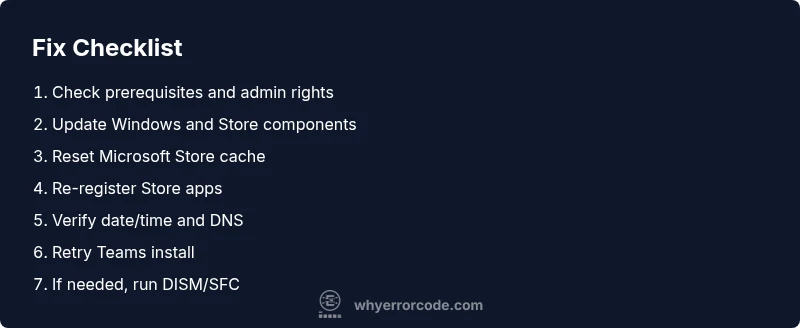
Steps
Estimated time: 60-90 minutes
- 1
Check prerequisites and admin rights
Confirm you’re signed in with an administrator account and that Windows is at an up-to-date build. This prevents permission and component mismatch issues during installation.
Tip: If you’re on a shared device, request temporary admin access or coordinate with IT. - 2
Update Windows and Store components
Open Settings > Windows Update and install any pending updates. After updating, restart and verify the Microsoft Store is also up to date.
Tip: Turn on automatic updates to reduce future problems. - 3
Reset the Microsoft Store cache
Run wsreset.exe to clear store cache without affecting installed apps. Reopen Store and try the Teams install again.
Tip: Close all Store-related processes before running wsreset. - 4
Re-register Store apps
Launch PowerShell as Administrator and run commands to re-register Store apps. This rebuilds Store-related COM registrations that can block installs.
Tip: Copy-paste commands exactly to avoid typos. - 5
Verify date/time and DNS settings
Ensure system clock is accurate and switch to a reliable DNS (e.g., Google DNS) if your network shows resolution issues.
Tip: Incorrect time can invalidate digital signatures and block downloads. - 6
Retry Teams installation and monitor logs
Attempt the Teams install again. If it fails, collect error details and consider temporarily disabling antivirus or firewall for testing (re-enable afterward).
Tip: Keep a note of the exact error message and timestamp.
Diagnosis: Teams install fails with error 0x80073cf9 during app installation
Possible Causes
- highClogged or corrupted Microsoft Store cache/data
- highMissing or corrupted dependencies for the Teams package
- mediumOutdated Windows components or Store services
- lowAntivirus/Firewall or network proxy blocking install
Fixes
- easyReset Microsoft Store cache and re-register Store
- easyRun Windows Update and install all pending patches
- mediumRe-register Store apps via PowerShell
- hardRepair Windows image with DISM/SFC and retry
Frequently Asked Questions
What does error 0x80073cf9 mean when installing Teams?
The error usually indicates the Windows Store or its dependencies failed to install the Teams app. It’s often caused by store data corruption, missing dependencies, or environment misconfigurations, not a Teams defect. Follow the diagnostic steps to confirm the exact cause.
0x80073cf9 means the Store or its components couldn’t complete the Teams install. Start with store resets and updates, then move to deeper repairs if needed.
Can I fix this without reinstalling Windows?
Yes. Most users fix the issue with store resets, Windows updates, and re-registering store apps. Only in rare cases would a clean Windows reinstall be considered after other fixes fail.
Usually you can fix it without a Windows reinstall by following the diagnostic steps and store repairs.
Should I disable antivirus to fix the error?
Temporarily disabling antivirus or firewall can help determine if they’re blocking the store install. Re-enable protection as soon as you finish testing to avoid exposure to threats.
Temporarily disabling security software can help test the install, but re-enable it right away after testing.
Does this error affect other Microsoft Store apps?
If the root cause is store data or OS component corruption, other Store apps may exhibit similar issues. Addressing store health and system integrity usually resolves multiple app installations.
If the Store is corrupted, other apps may fail too; fix the store health and OS components.
When is professional help recommended?
If multiple fixes fail, if you suspect network policy blocks, or if enterprise configurations require policy adjustments, a professional IT responder is recommended to prevent data loss and policy violations.
Call a pro if the problem persists after the standard fixes or if you’re in a managed environment.
Watch Video
Top Takeaways
- Follow the diagnostic flow to identify exact cause
- Reset Store and ensure Windows updates before deeper fixes
- Use DISM/SFC only if simpler steps fail
- Call a pro if the issue persists after all steps