How to Fix Microsoft Store Error 0x80073cf3
Urgent guide to resolve Microsoft Store error 0x80073cf3. Learn causes, quick fixes, and a step-by-step repair path for a clean, reliable Store experience on Windows 10/11.


According to Why Error Code, Microsoft Store error 0x80073cf3 usually signals a corrupted Store cache or damaged app packages that block installation or updates. This guide outlines the most reliable fixes in a practical, risk-aware order, so you can get back to downloading apps quickly.
What the error code 0x80073cf3 means and where it shows up
The error 0x80073cf3 appears when the Windows Store cannot complete an installation or update of an app. It’s typically shown as a fail state during a download, a stuck installation, or when attempting to open a Store-installed app. In practice, this means the package installation data, the Store cache, or the appx registration on your system is not in a healthy state. The impact is not limited to a single app; you may see repeated failures across multiple Store acquisitions until the underlying issue is repaired. Understanding this helps you choose the right repair path rather than trying random fixes.
Common symptoms include
- The Store shows a failure dialog with 0x80073cf3 during install/update
- Apps fail to install or update, or launch errors occur after installation
- Windows Update or Store services appear unresponsive
If you see multiple error codes that reference Store components, the root cause is often cache corruption or a corrupted package cache that affects the Windows AppX pipeline. This makes it important to start with non-destructive, reversible steps before deeper repairs.
Quick fixes you can try before deep repairs
- Sign out of the Microsoft Store and sign back in with your Microsoft account to refresh licenses and entitlement data.
- Run Windows Update and restart to ensure the Store and all dependencies have the latest security and feature updates.
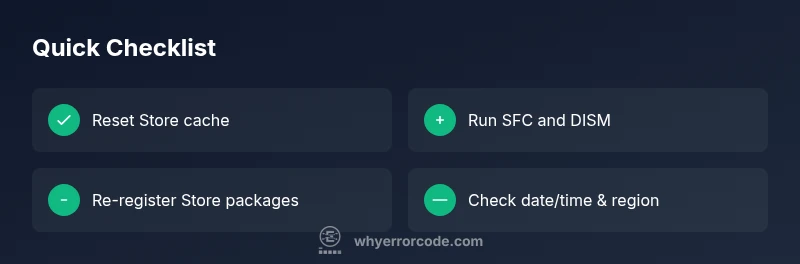
- Reset the Microsoft Store cache to clear stale data that can block installs. This is a quick, low-risk step that fixes many 0x80073cf3 scenarios.
- Re-register the Store from an elevated PowerShell session to repair the AppX registration without wiping your apps.
- If the issue persists, perform a system file check and health scan to repair corrupted Windows system files that support AppX services.
Step-by-step repairs tailored to the most common cause
This section dives into a structured sequence to repair the most frequent root cause: corrupted Microsoft Store cache and app packages. Each step is designed to be safe, with an option to skip if a prior step already resolved the issue. Follow these steps in order for best results and to minimize risk of data loss.
Safety notes and when to call in professional support
If you rely on Windows in a business environment or cannot access administrative rights, consider contacting your IT department or a certified technician. In some cases, deeper system repair or a clean Windows reinstall may be necessary, which could affect installed apps and personal data. Always back up critical data before performing invasive repairs.
Steps
Estimated time: 60-120 minutes
- 1
Check for Windows updates and restart
Open Settings > Update & Security > Windows Update, check for updates, and install all available items. A fresh OS baseline can remove compatibility blockers and refresh Store components. Restart afterward to ensure changes take effect.
Tip: If updates fail, run the Windows Update Troubleshooter from Settings > Troubleshoot > Additional troubleshooters. - 2
Reset the Microsoft Store
Navigate to Settings > Apps > Apps & features > Microsoft Store > Advanced options, then click Reset. This clears data that could be causing 0x80073cf3 without removing your installed apps.
Tip: If you can’t reach Advanced options, run the WSReset command from the Run dialog. - 3
Clear cache with WSReset and sign back in
Run WSReset.exe from the Start menu. After the reset, sign back into the Microsoft Store and verify if a new cache is created for installations.
Tip: Always sign back in with the correct Microsoft account to restore app licenses. - 4
Re-register Windows Store packages
Open PowerShell as administrator and run: Get-AppXPackage -AllUsers | Foreach-Object {Add-AppxPackage -DisableDevelopmentMode -Register "$($_.InstallLocation)\AppxManifest.xml"} This rebinds Store components without deleting user data.
Tip: If PowerShell prompts for permission, approve with Yes and ensure you copy exact commands to avoid syntax errors. - 5
Run SFC and DISM health checks
Open an elevated Command Prompt or PowerShell and run: sfc /scannow followed by DISM /Online /Cleanup-Image /RestoreHealth. These steps repair corrupted system files that support Store operations.
Tip: If SFC reports repairs, rerun SFC until it shows no integrity violations. - 6
Verify date, time, and region settings
Incorrect clock/time or regional settings can affect Store entitlement verification. Set time automatically, adjust the time zone, and confirm the region aligns with your account.
Tip: Synchronize time with an internet time server to prevent drift during repairs. - 7
Consider an in-place Windows repair if necessary
If the error persists after all prior steps, perform an in-place repair (in-place upgrade) to repair Windows without removing apps and data. This should be considered a last resort before a clean install.
Tip: Back up critical data before proceeding with in-place repairs.
Diagnosis: Microsoft Store error 0x80073cf3 prevents app installation or updates
Possible Causes
- highCorrupted Microsoft Store cache or app package data
- mediumOutdated Windows version or missing prerequisites
- lowDamaged system files or Windows Component Store corruption
Fixes
- easyReset the Microsoft Store cache and re-register the Store
- easyInstall pending Windows updates and restart the PC
- mediumRun SFC and DISM to repair system files
- mediumRe-register or repair AppX packages for Windows Store
- hardPerform an in-place upgrade repair if issues persist
Frequently Asked Questions
What does error 0x80073cf3 indicate in the Microsoft Store?
This error typically signals a problem with the Store cache or damaged appx packages that block installation or updates. It can also stem from outdated Windows components or corrupted system files. Addressing cache and package integrity usually resolves the issue.
That error usually means the Store cache or app packages are corrupted, blocking installs. Start by cleaning the cache and repairing package data.
Should I install Windows updates to fix this error?
Yes. Installing pending Windows updates often resolves compatibility issues and replaces corrupted system components that support the Microsoft Store. Always restart after updates to apply changes.
Yes—update Windows and restart to apply fixes that often resolve Store errors.
Is it safe to run PowerShell commands to re-register Store?
When run with administrative privileges and exact syntax, re-registering Store components is a safe, common repair. Ensure you copy commands correctly and avoid modifying unrelated packages.
Re-registering Store with careful PowerShell commands is a standard repair, just follow the exact steps.
What if the error persists after all fixes?
If the error remains, consider an in-place upgrade repair to fix deeper OS-level issues while preserving your data. This should be scheduled if backups exist and you are comfortable performing system-level repairs.
If it still fails, an in-place repair is a viable next step, after backing up important data.
Can this error affect other apps installed from outside the Store?
Usually no. 0x80073cf3 is Store-specific, but some system-wide repair steps can temporarily affect non-Store apps. It’s advisable to create a system restore point before major changes.
No, it mostly affects Store-installed apps, but some repairs can touch system components.
Watch Video
Top Takeaways
- Start with non-destructive steps: reset and re-register Store first.
- Cache corruption and outdated OS are the most common causes.
- Use SFC/DISM to repair system files if the Store remains blocked.
- If needed, perform an in-place repair as a last resort.