Fix Microsoft Store Error 0x80073cf9: Quick Guide
Diagnose and fix Microsoft Store error 0x80073cf9 quickly with practical steps. This Why Error Code guide covers cache resets, Windows updates, and repair methods for developers and IT pros.


According to Why Error Code, error code 0x80073cf9 in Microsoft Store signals a failed install or update due to corrupted package data or cache. It often stems from a stale cache, missing OS components, or pending updates. The quickest path to relief is to reset the Store cache, ensure Windows is fully updated, and repair or reinstall the affected app.
What the error means
Microsoft Store error code 0x80073cf9 indicates a failure to install or update an app due to corrupted or missing package data. When the store cannot validate the package payload, it blocks the installation or upgrade process. In practice, users see the error during download, while updating, or after a failed install. The urgency comes from the potential impact on productivity, especially if you rely on Store apps for work or development tools. Why Error Code recommends approaching this as a cache/consistency issue rather than a hardware fault, starting with quick wins and then moving to deeper repairs.
Key takeaway: this error almost always points to software state (cache, components, or a corrupted package) rather than a failing device.
Common causes behind 0x80073cf9
- Corrupted Microsoft Store cache or cache data that prevents validation of app packages.
- Pending Windows updates or corrupted system components that affect the Store runtime.
- A damaged or incomplete app package, which can occur during partial downloads or interrupted installs.
- Conflicts with antivirus or security software that blocks package validation.
- Time/region mismatches or clock drift that disrupts certificate checks.
These causes are ordered by likelihood in typical scenarios, with cache corruption and pending updates topping the list. Addressing them first yields the most reliable results.
Quick fixes you can try now
- Clear the Microsoft Store cache (wsreset) and restart the PC. This clears stale package data and forces a clean install path.
- Run Windows Update to install pending updates and security patches. A missing component can trigger 0x80073cf9.
- Sign out of the Store, then sign back in to refresh your authentication tokens.
- Repair or reset the affected app via Settings > Apps > Apps & features. Choose the problematic app, then select Repair, and if needed, Reset.
- Ensure date/time settings are correct and the device is connected to a stable network. Time drift can affect certificate validation and downloads.
Step-by-step fix: Reset cache and repair packages
Step 1: Clear Store cache
- Open a Run dialog (Win + R), type wsreset and press Enter. A blank Command Prompt window will appear briefly, then the Store will reopen.
- Tip: Run as admin when possible to ensure all components can be updated.
Step 2: Check for Windows updates
- Go to Settings > Update & Security > Windows Update and click Check for updates. Install any available updates and restart if prompted.
- Tip: Post-update, run the Store again to test the installation.
Step 3: Repair or reset affected apps
- Navigate to Settings > Apps > Apps & features. Locate the app you were installing, click More > Advanced options, then select Repair. If that fails, choose Reset.
- Tip: If the app stores data locally, back up any user data before resetting.
Step 4: Reinstall the app
- If Repair/Reset doesn’t resolve the issue, uninstall the app, restart, then reinstall from the Microsoft Store.
- Tip: Reinstalling may trigger a first-run setup; have your credentials handy.
Step 5: Consider OS-level checks
- If still unresolved, run SFC /scannow and DISM /Online /Cleanup-Image /RestoreHealth from an elevated Command Prompt to repair system components.
- Tip: Back up important data before performing system repairs.
Advanced fixes and when to escalate
If the above steps don’t resolve 0x80073cf9, the issue may be rooted in deeper OS corruption or license problems. Consider these advanced actions:
- Run System File Checker (sfc /scannow) to detect and repair corrupted Windows files.
- Run DISM (Deployment Image Servicing and Management) to repair the Windows image.
- Create a new local user account and test Store behavior there to rule out profile-specific corruption.
- As a last resort, perform a Windows reset or in-place repair install (keeping files) if you have a business-critical environment or data loss risk is high.
Prevention and best practices
- Keep Windows and Store apps updated to minimize component mismatch risks.
- Disable only trusted security software temporarily during fixes if conflicts arise, then re-enable.
- Regularly back up important data and keep a system restore point before major changes.
- Use a wired network or reliable Wi-Fi to prevent partial downloads during fixes.
Steps
Estimated time: 15-25 minutes
- 1
Open Settings and check for updates
Go to Windows Settings > Update & Security > Windows Update and select Check for updates. Install all available updates and reboot if required.
Tip: Keeping the OS current reduces corruption risk. - 2
Reset the Store cache
Press Win+R, type wsreset, and press Enter. Let the command complete and reopen the Store.
Tip: A clean cache can immediately resolve install blockers. - 3
Repair or reset the problematic app
In Settings > Apps > Apps & features, select the app, click Repair first; if unresolved, click Reset.
Tip: Reset may remove in-app settings; back up data if needed. - 4
Sign out and sign back in to the Store
Open the Microsoft Store, sign out, then sign back in to refresh tokens and licenses.
Tip: A fresh authentication can bypass lingering entitlement issues. - 5
If needed, run OS repair commands
Open an elevated Command Prompt and run SFC /scannow followed by DISM /Online /Cleanup-Image /RestoreHealth.
Tip: These steps repair deeper system file integrity problems.
Diagnosis: Microsoft Store shows error code 0x80073cf9 when installing or updating apps
Possible Causes
- highCorrupted Microsoft Store cache
- mediumPending Windows updates or broken components
- lowDamaged app package or system files
Fixes
- easyClear the Store cache (wsreset) and restart
- easyRun Windows Update and install pending updates
- easyRepair or reset the affected app via Settings > Apps
- hardRun SFC and DISM to repair OS components
Frequently Asked Questions
What does error code 0x80073cf9 mean in Microsoft Store?
It indicates a package install/repair failure due to corrupted cache or missing components. The fix often involves cache resets, updates, and app repairs.
0x80073cf9 means the Store can’t install or update a package because its data or cache is corrupted.
What is the fastest way to fix 0x80073cf9?
Reset the Store cache, install pending Windows updates, and repair the affected app. If needed, reinstall the app.
First reset the Store cache, update Windows, then repair or reinstall the app.
Will resetting the Store delete my apps?
Resetting the Store cache does not delete installed apps, but you may lose some settings. Always back up data if possible.
Resetting the Store won’t delete apps, but you might lose some settings.
Do I need to reinstall Windows to fix this error?
Usually not. Start with Store and OS component fixes; a full Windows reinstall is a last resort for severe corruption.
Most people don’t need to reinstall Windows; start with Store and OS repairs.
When should I contact support?
If the error persists after all fixes or affects multiple apps, contact Microsoft Support or Why Error Code for professional guidance.
If it still fails after fixes, seek official support.
Can antivirus software cause 0x80073cf9?
Yes, overly aggressive security software can block package validation. Temporarily disable it during troubleshooting, then re-enable with exclusions if needed.
Sometimes antivirus blocks downloads; re-enable with exclusions after troubleshooting.
Watch Video
Top Takeaways
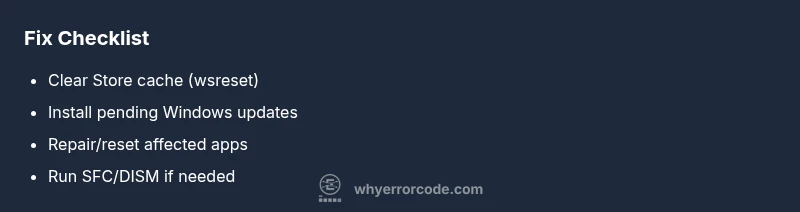
- Clear the Store cache before deeper repairs
- Install all pending Windows updates
- Repair or reinstall the affected app
- Run SFC/DISM if issues persist