What is error code 0x80073d23 and how to fix it
Learn what 0x80073d23 means, common causes, and practical fixes for Windows app installation errors. This urgent guide provides diagnostics, safe, staged steps, and when to seek professional help.


Error code 0x80073d23 means a Windows app installation or update failed due to package conflicts, cache problems, or permission issues. The quickest fixes: reset the Windows Store cache, re-register app packages, and verify system time/services. If problems persist, broader repairs or a professional diagnosis may be required. This guide walks you through a clear diagnostic flow and safe, staged fixes.
What 0x80073d23 means in Windows context
In Windows error nomenclature, 0x80073d23 is commonly reported during app installation or updates. While users see it as a failed package install, the underlying signal is that the system couldn't complete the Appx packaging workflow for the target application. Several layers can cause this, including conflicts with an existing package, a corrupted or partially installed appx, and cache or service issues in the Microsoft Store ecosystem. The error is not specific to a single app; it tends to appear whenever the OS cannot reconcile a new package with what remains on disk, or when the app container cannot be created or registered successfully. Understanding this helps you target the most effective fixes without guessing. For developers and IT pros, the error is a reminder to verify that the app package is clean, signed correctly, and that the Windows Store and related services have a healthy state. The goal is to restore a clean installation path that the OS can reliably reuse for the next attempt.
Common scenarios where this error appears
This error often shows up when users try to install new software from the Microsoft Store, update existing apps, or when a Windows feature relies on a packaged app. Symptoms include a halted install, a failed update, or a partially completed rollback. In many environments, corporate policy, antivirus interference, or regional settings can contribute. Additionally, corrupted Appx packages or orphaned files from prior installs can trigger 0x80073d23 even if the system otherwise seems healthy. Developers may encounter this during CI builds when packaging tests fail, highlighting the same root causes: storage conflicts and registry state that no longer matches the intended package. By mapping symptoms to likely culprits, you can choose the most efficient fixes rather than attempting random remedies.
Quick fixes you can try now
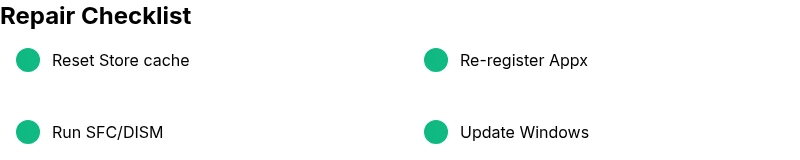
Before diving deeper, try these safe, fast actions:
- Restart the computer to clear transient states.
- Reset the Windows Store cache with wsreset or via Settings > Apps > Apps & features > Microsoft Store > Advanced options > Reset.
- Re-register the app packages: open an elevated PowerShell and run:
- Get-AppXPackage -AllUsers | Remove-AppXPackage
- Get-AppXPackage -AllUsers | Foreach {Add-AppxPackage -DisableDevelopmentMode -Register "$($($_.InstallLocation)\AppXManifest.xml)"}
- Check date/time and regional settings; ensure the system clock is accurate.
- Run Windows Update to install missing OS components that apps depend on.
- If you suspect a corrupted app package, try uninstalling and reinstalling the problematic app. If these steps resolve the issue, you’re done. If not, proceed to deeper diagnostics.
Steps
Estimated time: 45-60 minutes
- 1
Prepare and backup
Before starting, save any work you may have open and back up important data. Creating a system restore point gives you a safety net if more invasive repairs are needed.
Tip: A quick system restore point can save hours if something goes wrong. - 2
Reset Windows Store cache
Close all Store-related apps, then run wsreset or use Settings to clear cache. This removes stale package data that can block new installs.
Tip: A fresh cache often resolves the majority of 0x80073d23 occurrences. - 3
Re-register Appx packages for all users
Open an elevated PowerShell window and run the package re-registration commands to rebuild the Appx state.
Tip: Ensure you copy commands correctly; a small typo can hamper the re-registration. - 4
Verify system time and region settings
Check that the date/time are correct and that the regional settings align with your locale. Mismatched settings can cause signature checks to fail.
Tip: Even a few minutes of drift can trigger install failures. - 5
Run SFC and DISM to repair OS files
Use System File Checker and DISM to repair corrupted OS components related to app installation.
Tip: Run these from an elevated prompt and reboot after completion. - 6
Attempt reinstall and test
Try reinstalling the app from the Store or from the app’s official installer. If it fails again, collect logs for deeper analysis.
Tip: If the problem persists, capture error logs and consider a repair install or professional help.
Diagnosis: You see 0x80073d23 when attempting to install or update an app
Possible Causes
- highCorrupted Appx package cache or orphaned package from prior install
- highWindows Store cache corruption or service issues
- mediumOutdated OS components or missing prerequisite features
- lowDamaged user profile or permissions restriction in System32
Fixes
- easyReset Windows Store cache and re-register apps
- easyRepair or re-install the app package
- mediumRun SFC and DISM to repair system files
- hardUpdate Windows and reset user profile if needed
Frequently Asked Questions
What does error code 0x80073d23 mean?
It generally indicates a failure to install or update a Windows app due to package conflicts, cache problems, or permissions. The issue is often resolved by clearing store cache and re-registering app packages.
0x80073d23 means a Windows app install failed due to a package or cache issue. Clearing the store cache and re-registering apps usually fixes it.
Is 0x80073d23 a Store issue or a system issue?
It’s usually a Store or Appx package issue—cache corruption, orphaned packages, or sign-in problems. System files can contribute if OS components are out of date or corrupted.
Most often it's a store or package issue rather than a core OS problem.
Can I fix this without admin rights?
Some quick fixes can be done by a standard user, like clearing store cache. Re-registering packages and system repairs typically require administrator access.
Some fixes don’t need admin rights, but a few steps do, like re-registering apps.
Will fixing 0x80073d23 affect my data?
Most repairs focus on app packages and store components and should not erase personal files. Always back up before significant OS repairs.
Usually your files stay intact, but back up first just in case.
When should I reset Windows or contact support?
If repeated self-help fixes fail or you’re on a managed device with policies, a full reset or professional support may be necessary.
If fixes fail multiple times or policies prevent changes, seek professional help.
How can I prevent this error in the future?
Keep Windows and apps updated, clear conflicts by avoiding untrusted installers, and ensure your device isn’t blocked by security software during installations.
Stay updated and avoid risky installers to prevent this error.
Watch Video
Top Takeaways
- Identify root cause before fixes
- Start with quick, safe fixes
- Keep Windows updated and components healthy
- Seek professional help if devices are managed or actions fail