This Video Is Unavailable Error Code 4: Quick Fix Guide
Urgent, step-by-step troubleshooting for the 'this video is unavailable error code 4' across devices. Learn common causes, fast checks, and safe fixes to restore access or determine if the video is permanently blocked.


This video is unavailable error code 4 indicates YouTube cannot load the video for your device or account. Common causes include regional or age restrictions, the video being removed, or copyright blocks. Quick fixes: check your internet connection, refresh the page, try a different device or network, sign in, and disable any VPN or proxies. If the issue persists, the video may be blocked by the uploader.
What this error means for you
The phrase "this video is unavailable error code 4" isn’t just a generic message; it signals a access issue that prevents playback on your current setup. The root cause could be regional restrictions tied to licensing, age-based access rules, a video that has been removed or set to private, or a copyright block applied by the content owner. In many cases, simply changing networks or signing in can reveal whether the block is account-related or device-specific. For developers troubleshooting integrations with video platforms, this error commonly maps to an access-denied state returned by the platform’s API, signaling a permission problem rather than a broken stream. According to Why Error Code, these blocks are often geographic or policy-driven rather than a technical fault in your device.
This distinction matters: if it’s a regional restriction, there’s little you can do locally beyond confirming the video’s availability in other regions. If it’s a removal or private setting, there’s no repair on the viewer side; the video must be updated by the uploader or re-authorized by the platform. The Why Error Code Team emphasizes that understanding the exact block type helps you decide between a quick workaround and a longer-term solution.
Quick checks you can run now
Before diving into deeper fixes, perform these fast checks to isolate the cause:
- Verify your internet connection is stable and not experiencing intermittent drops.
- Refresh the page and try a hard reload (Ctrl/Cmd + Shift + R).
- Open the video on a different device or network to see if access changes.
- Sign in to your account on YouTube or the hosting platform to rule out account-specific restrictions.
- If you’re using a VPN, proxy, or corporate firewall, disable it temporarily to test plain access.
- Clear browser cache or app data and restart the app or browser.
- Check if the video is available on the creator’s official channel page or social posts.
Most common causes in order of likelihood
- Regional or age-based restrictions (high). Some videos are blocked in certain countries or for certain age groups due to licensing. If you travel or use a VPN, you may encounter this block even if the video is available elsewhere.
- Video removed or made private by the uploader (high). If the video has been taken down or set to private, access will be blocked for all users.
- Copyright or policy blocks (medium). Content owners can apply blocks that restrict playback in some regions or contexts.
- Account-related restrictions (medium). If your account has a learning, age, or policy limitation, playback can be restricted.
- Browser/app or device issues (low). Outdated apps or corrupted cache can produce misleading errors that resemble access blocks.
Step-by-step fix: the fast track
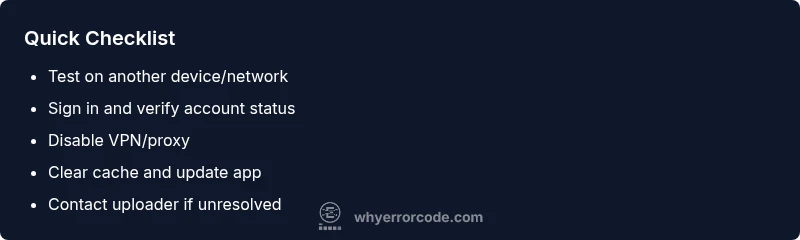
- Check video availability outside your country: try a different network or ask a friend in another region to open the video.
- Sign in with the correct account: ensure you’re logged into the account you normally use for YouTube and that there are no age or policy restrictions pending on that account.
- Disable VPN/proxy: if you’re using a VPN or proxy, turn it off and reload the video to confirm if the block was region-based.
- Test on another device or browser: if it works on a different device, the issue is likely device-specific cache or app-related.
- Clear cache and update: clear your browser’s cache or the YouTube app data, then update to the latest version and retry.
- Contact the uploader or platform support: if none of the above works, the block is likely intentional or permanent; request confirmation from the content owner.
Deep dive: other causes and checks
If the fast-track fixes fail, consider deeper causes that require a closer look:
- Lizenz/licensing blocks: some videos carry regional licenses that cannot be transcoded for all locales. Even if you switch devices, the block persists due to license constraints.
- Age and policy gating: certain content is restricted to specific age groups or requires verification. If your account lacks verification, playback can be blocked.
- Channel settings and privacy changes: creators can restrict playback by removing public access or marking videos as unlisted, which may still show a notice but differ per viewer.
- Platform-wide outages or policy changes: occasionally, platform policy updates flash a temporary error as systems re-validate permissions. In such cases, waiting a few hours and retrying is prudent.
Safety, privacy, and when to seek help
Always exercise caution when sharing credentials or signing in on shared devices. Never disclose passwords in public spaces, and ensure you’re on a trusted network. If you rely on work-issued devices or school networks, consult your IT admin before toggling on/off VPNs or changing firewall rules. If the problem persists after all standard fixes, contacting the platform’s support or the video uploader is recommended to determine whether the issue is permanent or requires a policy change.
Prevention tips to avoid this error in the future
- Check video availability notes on the uploader’s page or channel description before widespread distribution.
- Keep your apps and browsers up-to-date to minimize cache-related misinterpretations.
- If you often travel across regions, consider having a local account and verifying regional access permissions in advance.
- Regularly review connected devices and blockers (VPNs, proxies) to ensure they don’t unintentionally trigger blocks when accessing videos.
Steps
Estimated time: 45-90 minutes
- 1
Confirm video availability
Check if the video plays on a different device or network. If it plays elsewhere, the issue is likely regional or device-specific. If it does not play anywhere, move to the next steps.
Tip: Use a friend’s device or a public network to test accessibility. - 2
Sign in and verify account status
Log into the account used to access video content and verify there are no age or policy restrictions that would block playback.
Tip: If you don’t have a verified account, complete verification steps first. - 3
Disable VPN/proxy and test again
Turn off any VPNs or proxies to determine if regional blocks are triggering the error.
Tip: After testing, re-enable VPNs only if you need region-specific access. - 4
Clear cache and update software
Clear the browser or app cache and ensure you’re running the latest version of the platform to avoid stale data issues.
Tip: Restart the device after clearing cache for best results. - 5
Try an alternative access path
Open the video on a different browser, incognito/private mode, or a different device to rule out local configuration issues.
Tip: Incognito mode prevents saved cookies from affecting playback. - 6
Reach out for confirmation
If the video remains blocked, contact the uploader or platform support to confirm whether access is intentionally restricted.
Tip: Document the exact error message and steps you used when contacting support.
Diagnosis: Video displays 'This video is unavailable' with error code 4 on multiple devices
Possible Causes
- highRegional/age restrictions
- highVideo removed or set to private
- mediumCopyright or policy blocks
- mediumAccount-related restrictions
- lowOutdated app/browser or corrupted cache
Fixes
- easyTest access on another network or device
- easySign in to the account that normally accesses YouTube
- easyDisable VPN/proxy and clear browser/app cache
- easyUpdate the app or browser to the latest version
- mediumContact uploader or platform support for confirmation
Frequently Asked Questions
What does the error message 'this video is unavailable' mean in error code 4?
It usually indicates the video cannot be loaded due to access restrictions, removal, or policy blocks. It is not a generic streaming error; it reflects a permission issue on the viewer’s side or uploader’s settings.
Error 4 means the video access is blocked or the video has been removed. Check your region, account, and network settings.
Can I fix error code 4 by changing my network or device?
Yes. Testing on another device or network helps determine if the block is regional or device-specific. If the issue disappears on a different network, it’s likely region-based.
Trying another network or device can reveal whether the block is regional or device-specific.
If I’m sure the video should be accessible, what should I do?
Check if the uploader set the video to private or if copyright blocks are in place. If unclear, reach out to the uploader or platform support for confirmation.
If you think the video should be accessible, contact the uploader or platform support for confirmation.
Does clearing cache help with error code 4?
Clearing cache can resolve stale data issues that resemble access blocks. It’s a quick first-step fix before deeper troubleshooting.
Clearing cache is a quick fix that often resolves misread errors.
When should I involve professional support?
If the problem persists after all standard checks, contact platform support or the uploader. Some blocks require policy actions beyond user-side fixes.
If it persists after basic checks, contact support or the uploader for a definitive answer.
Watch Video
Top Takeaways
- Verify if the block is regional or removal-based
- Sign in and test across devices/networks
- Disable VPNs/proxies to rule out access blocks
- Clear cache and update software for clean playback
- If unresolved, contact uploader or platform support