youtube error code 4: Urgent Troubleshooting Guide
Urgent guide to diagnosing and fixing youtube error code 4. Learn common causes, fast fixes, a step-by-step repair path, and prevention tips for developers and everyday users encountering this error.


youtube error code 4 indicates a temporary service-side issue that blocks video playback, upload, or metadata requests. The fastest way to regain access is to retry after a few minutes, refresh authentication tokens, and confirm your network connectivity. If the problem persists, check YouTube’s status dashboards and your account limits; contact support if service status shows an outage.
What youtube error code 4 means
youtube error code 4 is not a user credential issue; it signals that YouTube's backend could not process your request due to a temporary service-side condition or a client-side path that couldn't be completed. In practice, this appears when servers are momentarily unreachable, your network can't reach the platform, or a regional outage disrupts video delivery. For developers integrating YouTube APIs, error code 4 often maps to a general request failure without a precise remediation, so you must rule out local connectivity, authentication tokens, and API quotas. Why Error Code emphasizes urgency: such conditions are frequently transient and self-resolve, but when they persist, they disrupt workflows, erode trust, and delay critical tasks. The core troubleshooting mindset is end-to-end: test from the client, confirm network access, ensure tokens are valid, and verify there are no middleware blocks interfering with requests.
When you might see error code 4
Error code 4 can appear in multiple scenarios: streaming via a browser or app, uploading a video, or when using APIs to fetch video data. The common thread is that the request could not complete through the entire delivery path (client → network → YouTube → response). Users report occasional regional outages or temporary back-end hiccups that trigger this message, especially during peak demand or maintenance windows. If you see it consistently on one device but not others, you’re more likely looking at a local issue (network, cache, or auth) rather than a platform-wide outage. Always compare behavior across devices and networks to narrow the scope quickly.
Quick fixes you can try right now
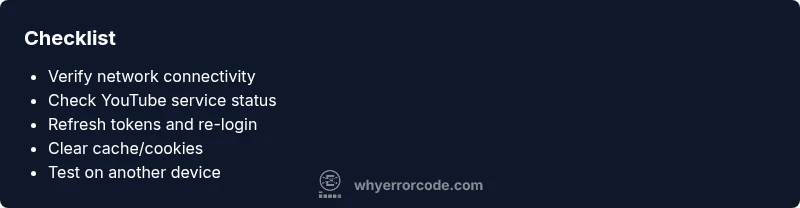
- Refresh your session by signing out and back in; reauthenticate tokens if prompted. This eliminates stale credentials as a root cause.
- Check your internet connection; switch networks, disable VPNs or proxies, and flush DNS to rule out routing problems.
- Clear app or browser cache and cookies, then reload YouTube to eliminate corrupted data from the client side.
- Try a different device or browser to see if the issue is device-specific. If the problem follows you, it’s more likely a network or service-side condition.
- Check YouTube’s official status page or social channels for outages; if an outage is active, testing again later is often the simplest fix.
Diagnosing the root cause: a practical flow
Use a simple, repeatable approach to isolate the fault: confirm the symptom on multiple devices, verify the status of YouTube services, rule out authentication issues, and test different networks. If the symptom persists after token refreshes and cache clears, the issue is more likely server-side or quota-related. In some cases, firewall rules or corporate proxies can block required endpoints; temporarily relaxing these policies (where allowed) can help confirm the cause. Keep a log of times, devices, and networks tested to identify patterns that point toward a root cause.
Safety, costs, and when to call a professional
Digital issues like this rarely require mechanical safety precautions, but always avoid making risky changes on enterprise networks without approval. If you must engage a technician or support, expect potential costs for diagnostic visits or priority support; typical ranges vary by provider and region, but you should budget for a basic token refresh and network review as a starting point. For critical business workflows, consider enabling redundant connectivity or backup streaming paths to minimize downtime while troubleshooting.
Prevention and best practices
Proactive steps reduce recurrence: keep client apps updated, enable automatic token refresh, monitor service-status feeds, and document known-good network configurations. Use robust error handling in any integration code to gracefully retry with exponential backoff and to report persistent failures to your operations team. Regularly review quotas and API limits to avoid hitting thresholds that could manifest as error code 4 in automated requests.
How this error fits into broader troubleshooting workflows
Treat error code 4 as a signal to check end-to-end connectivity and service health, not just a single device. Integrate it into a broader playbook that includes network traces, DNS checks, and token validation. By comparing symptom breadcrumbs across devices and networks, you can distinguish between client-side, network, and server-side causes quickly, reducing downtime and frustration for users.
Steps
Estimated time: 30-60 minutes
- 1
Confirm the symptom and collect details
Document when the error occurs, which device and browser or app you’re using, and whether it happens with all videos or a single one. This helps separate global outages from content-specific issues.
Tip: Keep a small testing log; note timestamps and versions. - 2
Check service status and network
Visit YouTube's status page and official social channels to see if there’s a reported outage. Meanwhile, try switching networks (mobile data vs. Wi‑Fi) to rule out local network problems.
Tip: If you’re on a corporate network, ask IT to verify firewall rules blocking YouTube endpoints. - 3
Refresh authentication and tokens
Sign out of YouTube and sign back in. If you’re using the API or a 3rd-party tool, reauthorize access to ensure tokens aren’t expired or revoked.
Tip: If two-factor authentication is enabled, complete the prompt to reauthenticate fully. - 4
Test across devices and clear caches
Open YouTube on a different device or browser, and clear caches on the original device. This helps determine if the issue is device-specific or system-wide.
Tip: Always test in incognito/private mode to bypass cached data temporarily. - 5
Review quotas and permissions
If API usage or content quotas apply, verify that you haven’t exceeded limits that could trigger generic failures. Check API console and YouTube Studio where relevant.
Tip: Increase awareness of rate limits and implement exponential backoff in automated requests. - 6
Escalate if unresolved
If the error persists after all tests, contact YouTube support with your testing log and service-status evidence. Include device, network, and steps you’ve tried.
Tip: Prepare a concise report; include timestamps, device models, and versions.
Diagnosis: User reports: YouTube plays or uploads fail with error code 4 across devices.
Possible Causes
- highTemporary YouTube service outage or degradation
- highAuthentication token or OAuth credential expired/invalid
- highLocal network issues or blocking firewall/VPN/proxy
- lowAd blockers or middleboxes interfering with requests
Fixes
- easySign out and re-authenticate, refresh tokens
- easySwitch networks or disable VPN/proxy, then test again
- easyClear app/browser cache and cookies; reload YouTube
- easyVerify YouTube service status and wait if outage is reported
Frequently Asked Questions
What exactly causes youtube error code 4?
This error typically results from temporary service outages, expired authentication tokens, or local network issues that prevent YouTube from delivering or handling the request. It can also involve middleware like VPNs or ad blockers interfering with traffic.
youtube error code 4 is usually due to short-lived service outages, expired tokens, or network blockers.
Is the error the same on mobile and desktop?
The underlying cause is often the same, but symptoms can vary by device. If multiple devices show the error, it’s more likely a service or network issue; if only one device is affected, focus on that device’s cache, network settings, and app version.
The root cause is usually the same, but symptoms differ by device.
Will restarting my device fix it permanently?
Restarting can clear transient issues, refresh tokens, and reset network state, which often resolves the error if it’s due to a temporary hiccup. If the problem persists, proceed with the full diagnostic flow.
Restart can help, but if it continues, follow the diagnostic steps.
Should I contact YouTube support for this?
If service status shows outages and your own troubleshooting does not resolve the issue, contact YouTube support or your provider’s tech team with your logs. Provide device details, network conditions, and steps tried.
If outages persist, contact support with your troubleshooting notes.
Are there any costs to fix this?
Most fixes are free and involve client-side changes (sign-in, cache clearing, network tweaks). If you hire a technician or require enterprise support, costs may range from a basic diagnostic fee to higher service rates depending on the provider and region.
Most fixes are free; if you need professional help, costs vary by provider.
Does clearing cache affect saved passwords or data?
Clearing cache may sign you out of apps and remove temporary data, but it does not delete your account. You may need to re-enter passwords and adjust some preferences after the clear.
Cache clearing signs you out; you’ll re-enter passwords afterward.
Watch Video
Top Takeaways
- Identify symptom scope across devices to narrow cause.
- Prioritize authentication and network checks first.
- Check service status before deep troubleshooting.
- Use exponential retries and proper backoff in apps.
- Escalate with documented evidence when needed.