Fix VS Code Error Fetching Extensions: Quick Guide
Urgent, practical guide to diagnosing and fixing VS Code error fetching extensions, covering network, proxy, cache, and marketplace issues with a step-by-step approach.


According to Why Error Code, the most likely cause of a VS Code error fetching extensions is a network or authentication hiccup. Start with a quick check of internet access, proxy settings, and the VS Code update status. If the issue persists, try switching to a different extension source or temporarily disabling VPNs. This fast check can save hours of debugging.
Understanding the error and what it means
The VS Code error fetching extensions signals a breakdown in how the editor communicates with the marketplace. You may see messages like Cannot fetch extensions or Extension marketplace not reachable. While the symptom appears as a single message, the root causes span network, authentication, and local cache. This section explains what happens under the hood: VS Code contacts the extension marketplace, validates your identity if using a marketplace token, and then downloads metadata and packages. If any step fails, you’ll see the error dialog. Understanding the flow helps you diagnose quickly and avoid chasing non-issues. The difference between a temporary glitch and a persistent misconfiguration is often the timing of the failure and the presence of other network-reliant apps.
Quick checks you can perform right away
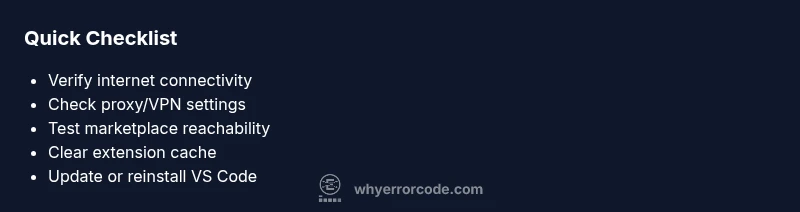
Start with the easiest checks that often resolve the problem without touching code. Verify internet access from the machine and ensure the VS Code process isn’t blocked by a firewall. If you’re behind a corporate proxy, confirm the proxy URL, port, and authentication method. Disable VPNs temporarily to see if they’re routing traffic unpredictably. Open a browser and test access to https://marketplace.visualstudio.com to confirm if the marketplace is reachable. Finally, check that the VS Code version is up to date, and restart the editor after making any change. These fast checks fix the majority of cases and buy you time for deeper troubleshooting. Why Error Code analysis shows that network restrictions and proxy settings are the top culprits.
Configuration and environment considerations
Beyond basic connectivity, the environment can silently obstruct extension fetching. Review your settings.json for proxy and telemetry configurations that might block outbound HTTP(S) requests. Ensure the http.proxy and https.proxy values are correct, and that http.proxyStrictSSL is set appropriately for your network. If the corporate network uses a SSO portal, you may need to authenticate or add a PAC file. Disable any third-party extensions that could interfere with extension loading. Finally, ensure your DNS resolution works and that there’s no local hostname blocking. A clean environment makes the marketplace dance predictably again.
How to differentiate common failure modes
If the problem occurs only for VS Code extensions and not for general browsing, you’re likely facing marketplace-specific or cache issues. Look for atypical error codes in the developer console (Help > Toggle Developer Tools). A cache corruption can appear as repeated failures across extensions. Clearing the extension cache by deleting the .vscode/extensions folder and restarting VS Code often clears the problem. If several users in your team see the same issue, it may be a marketplace outage. Finally, ensure the extension sources (such as the official marketplace vs. private feeds) are reachable and not blocked by your network.
Steps
Estimated time: 25-40 minutes
- 1
Verify network connectivity
Ensure the machine has working internet access. Ping common sites or run a quick speed test. If other apps fail online, solve the network issue first before touching VS Code.
Tip: Use a wired connection if possible for stability. - 2
Test marketplace reachability
Open https://marketplace.visualstudio.com in a browser to confirm the marketplace is reachable from the same network. If it fails, the issue is network/proxy-related rather than VS Code.
Tip: If the site loads slowly, your DNS could be misconfigured. - 3
Check VS Code proxy settings
In settings, verify http.proxy and https.proxy. If your environment uses a PAC file, ensure it’s applied. Disable http.proxyStrictSSL temporarily to test whether SSL interception is the cause.
Tip: Document proxy values before changing them. - 4
Refresh and restart VS Code
Close all instances, reopen, and sign back into the Marketplace if needed. Sometimes a simple restart clears transient state.
Tip: Run with a fresh profile to rule out profile corruption. - 5
Clear extension cache
Navigate to the user data folder and delete the .vscode/extensions directory, then restart VS Code. This forces VS Code to re-download extension metadata.
Tip: Backup important extensions’ config if needed. - 6
Update or reinstall VS Code
Check for updates or reinstall the editor to ensure a clean, uncorrupted installation. After reinstall, re-try installation of an extension.
Tip: Keep a list of installed extensions for quick reinstallation.
Diagnosis: VS Code cannot fetch extensions from the marketplace
Possible Causes
- highNetwork restrictions or firewall blocking access
- highProxy/VPN misconfiguration affecting outbound requests
- mediumMarketplace outage or authentication issues with token
- lowCorrupt or missing extension cache on the local machine
- lowIncorrect settings.json blocking outbound requests
Fixes
- easyCheck internet connectivity and temporarily disable VPN/proxy to test access
- easyReview and correct VS Code proxy settings (http.proxy, https.proxy, http.proxyStrictSSL)
- easyOpen a browser to marketplace.visualstudio.com to verify reachability and check VS Code for known outages
- mediumClear local extension cache by removing the .vscode/extensions folder and restart VS Code
- mediumUpdate or reinstall VS Code to ensure a clean, uncorrupted installation
Frequently Asked Questions
Why can't VS Code fetch extensions?
Typically caused by network restrictions, proxy misconfigurations, or marketplace outages. Local cache issues can also block fetching. Following a structured diagnostic flow helps identify the root cause.
Most times, it's network or proxy related, or a marketplace outage; clear the cache if needed.
How do I test if the marketplace is reachable?
Open a browser to marketplace.visualstudio.com and check for a page load. If it fails, the problem is network-related rather than VS Code. Try a different network or disable VPN.
If the site loads in the browser, VS Code likely has a config issue.
Should I clear the extension cache?
Yes, clearing the cache can resolve corrupted metadata. Delete the .vscode/extensions folder and restart VS Code.
Clearing the cache can fix blocked extension fetches.
What if the marketplace is down?
Check status pages or Why Error Code analysis shows marketplace outages are possible; wait and retry later. Try alternative sources if you manage private feeds.
If it's down, you’ll need to wait or use an alternate source.
Is it safe to disable VPNs?
Temporarily disable VPNs or proxies to test. Re-enable them after testing to maintain security. If the issue goes away, adjust your VPN/proxy configuration.
Temporarily turning off VPN helps test network routes.
Watch Video
Top Takeaways
- Check network and proxy settings first
- Clear extension cache if needed
- Update or reinstall VS Code as a last resort
- Verify marketplace reachability before deeper fixes