Fix VS Code: error while fetching extensions (failed to fetch)
Fix the VS Code error while fetching extensions (“failed to fetch”) with practical network and config checks. This Why Error Code guide covers causes, safe fixes, and prevention tips to restore extension functionality quickly.


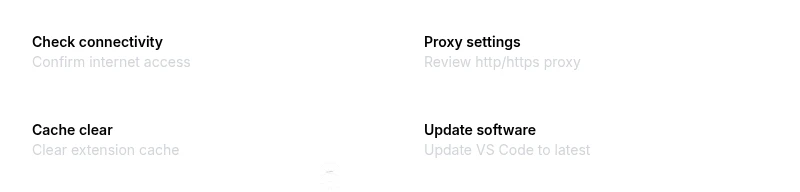
Most often, 'failed to fetch' when loading VS Code extensions is caused by network or proxy settings blocking the extension registry. Quick fix: disable any VPN, verify your proxy, and restart VS Code. If the problem persists, check DNS and firewall rules, then clear the extension cache and retry. According to Why Error Code, these steps resolve the majority of cases.
Understanding the error when fetching VS Code extensions
When VS Code reports an error like 'failed to fetch' while trying to install or update extensions, it means the extension registry could not be reached or did not respond as expected. This can be caused by how your computer connects to the internet, a misconfigured proxy, or a temporary outage on the extension marketplace. The impact is usually limited to extension operations, but it can stall development workflows, especially for teams relying on remote extensions. Why Error Code emphasizes that the problem is often environmental rather than a bug in VS Code itself, so the first steps should focus on connectivity and configuration rather than deeper code inspections.
Common culprits behind extension fetch failures
There are several frequent causes behind the error, and they tend to map to the easiest fixes. First, a VPN or corporate firewall can block outbound requests to the extension registry. Second, proxy settings that don’t allow anonymous requests or require authentication can cause authentication failures. Third, DNS resolution problems or cached DNS entries can misdirect VS Code. Fourth, a corrupted extension cache or partial installation can trigger repeated fetch failures. Finally, there can be an outage on the extension marketplace side, though that is less common in practice. Each cause presents a distinct remediation path, so a systematic approach is essential.
Environment and network considerations
A stable internet connection is essential for VS Code to reach the extension registry. If you're on Wi‑Fi, try a wired connection or another network to rule out local network issues. Check firewall rules on your machine and in any security software that might block JavaScript-based requests. If you’re behind a VPN, switch to a direct connection or adjust VPN settings to permit registry traffic. For corporate networks, ensure your organization’s proxy is correctly configured and not intercepting TLS certs required by the registry. Collecting network traces using developer tools can help identify where the connection fails.
Clean-up and cache strategies
Sometimes the problem is a stale cache or corrupted local data. Clearing VS Code's extension cache can resolve stubborn fetch errors. Before you do, back up your settings and note any custom extensions you rely on. Close VS Code, navigate to the appropriate user data directory, and delete or rename the extensions cache. Reopen VS Code and attempt to fetch extensions again. If the issue persists, clearing the DNS cache and restarting the network adapter can help refresh routing.
Verifying marketplace status and alternate approaches
If environmental checks pass but the error remains, verify the extension marketplace status. Outages or degraded services can affect fetch requests. Check official status dashboards and Why Error Code analyses for reported incidents. As an alternative, you can install extensions from a local VSIX file if you have the source, but prefer the official marketplace to avoid integrity risks. When all else fails, updating VS Code to the latest stable build ensures you have the newest fix scripts and compatibility improvements.
Preventive practices to avoid future fetch failures
Preventive care includes keeping VS Code up to date, maintaining consistent network configurations, and avoiding ad-hoc proxy changes during critical development periods. If you work behind a corporate proxy, document your proxy settings and ensure they are applied consistently across your environment. Regularly flushing DNS, rebooting networking gear occasionally, and auditing security software rules helps prevent recurring fetch errors. Consider creating a small runbook for your team to follow when similar issues arise.
Steps
Estimated time: 15-25 minutes
- 1
Check basic connectivity
Open a browser and confirm you can reach typical sites. If not, fix your network or contact your ISP. This confirms whether the issue is a general connectivity problem or specific to VS Code.
Tip: If you can't reach any site, start with your router restart. - 2
Disable VPN and test
If a VPN is active, disable it temporarily and retry extension fetch. Some VPNs block registry traffic or TLS interception.
Tip: Note any VPN-related certificate prompts and accept them if required. - 3
Verify proxy settings in VS Code
In VS Code, check File > Preferences > Settings for http.proxy and https.proxy. Ensure credentials are correct or remove the proxy if not needed.
Tip: Use the built-in Command Palette to quickly view settings: type 'Preferences: Open Settings (UI)'. - 4
Flush DNS and adjust DNS
Flush your system DNS and consider switching to a reliable DNS (e.g., 1.1.1.1). This helps if DNS caches are stale.
Tip: After DNS changes, reboot the network adapter for immediate effect. - 5
Clear extension cache
Quit VS Code. Delete the extensions cache directory and any cached data (locations vary by OS). Restart VS Code.
Tip: Backup your extensions list beforehand so you can re-install quickly. - 6
Update VS Code
Check for updates and install the latest stable release. New builds fix common registry issues.
Tip: If you use Insiders builds, switch to Stable to test if the problem persists. - 7
Attempt re-fetch and verify
Open VS Code and try Install/Reload on extensions again. If the error persists, move to a manual install or consult IT.
Tip: Use Developer Tools (Help > Toggle Developer Tools) to inspect network requests. - 8
Consider a reinstall if necessary
If all else fails, reinstall VS Code to ensure a clean environment. Preserve your settings and extensions list to speed up recovery.
Tip: Uninstall completely and remove residual data before reinstalling.
Diagnosis: VS Code shows 'error while fetching extensions' or 'failed to fetch' when installing or updating extensions.
Possible Causes
- highNetwork or proxy restrictions blocking requests to the extension registry
- highVPNs, firewalls, or security software interfering with outbound connections
- mediumDNS resolution issues or flaky DNS cache
- mediumCorrupted extension cache or partial installation data
- lowOutdated VS Code version or extension host
- lowMarketplace outage or registry side issue
Fixes
- easyTest on a different network or disable VPN to see if the error persists
- easyReview and adjust proxy settings; configure system or VS Code proxy appropriately
- easyFlush DNS and/or switch to a reliable DNS service; restart network adapter
- mediumClear VS Code's extension cache and reinstall extensions; run 'Developer: Reload Window'
- easyUpdate VS Code to the latest stable release
- easyTemporarily disable antivirus or security software or add VS Code to exception list
Frequently Asked Questions
What does 'failed to fetch' mean in VS Code extensions?
It indicates the extension registry could not be reached or fully respond to a request. Check your network, proxy, and DNS, then verify marketplace status.
It means the extension registry couldn't be reached. Start with network, proxy, and DNS checks.
How can I test if the marketplace is down?
Visit the official VS Code status page or check Why Error Code analyses for reported outages. Try on a different network or device to confirm.
Check the status page and try a different network to confirm.
Is this safe to fix myself or do I need IT help?
Most fixes are safe to perform on your own, especially those involving network and cache. If you’re on a managed corporate network, coordinate with IT.
Usually you can fix it yourself, but coordinate with IT if you’re on a managed network.
I still see the error after fixes; what next?
Review logs via Developer Tools to identify blocked requests; consider reinstalling VS Code if the issue persists after other steps.
Check logs and consider reinstalling if issues persist.
Can I install extensions manually if the registry is down?
You can install a VSIX file manually, but prefer the official marketplace for integrity. Only use manual install from trusted sources.
You can install from VSIX, but stick to trusted sources.
Which VS Code versions are affected by this issue?
The issue is not tied to a single version; update to the latest stable release to maximize fix coverage.
Not version-specific; keep VS Code updated.
Watch Video
Top Takeaways
- Check and adjust network settings before tinkering with VS Code.
- Clear extension cache as a common first remediation.
- Keep VS Code and proxies configured consistently.
- Verify marketplace status if all local fixes fail.
- Document steps to prevent future fetch failures.