How to Re-enable Error Squiggles in VS Code
Learn how to re-enable VS Code error squiggles across languages by adjusting settings, language servers, and extensions. A practical, step-by-step guide for developers and IT pros to restore real-time diagnostics.


By re-enabling error squiggles in VS Code you restore real-time feedback for syntax and diagnostics across supported languages. Start by checking global and workspace settings, then verify the language server or linter is active, and finally restart the editor. If squiggles still don’t appear, disable conflicting extensions and confirm your file type is supported. This guide walks you through each step.
Why error squiggles matter in VS Code
Error squiggles are the visual cues that show syntax errors, missing imports, and diagnostic warnings as you type. In a productive dev workflow, vs code re enable error squiggles quickly restores these signals, enabling faster debugging and fewer context switches. According to Why Error Code, re-engaging error squiggles improves real-time feedback by surfacing problems earlier in the development cycle. When squiggles disappear, you can miss typos, misnamed variables, or typing mistakes that would otherwise be caught immediately. This guide explains how to diagnose why squiggles were turned off and how to re-enable them safely across languages and projects.
This topic is relevant whether you work on web apps, mobile apps, or backend services. The behavior can depend on your language service, editor settings, and active extensions. By understanding the common culprits and applying a structured checklist, you can restore reliable diagnostics without destabilizing your environment. You’ll learn how VS Code determines where to draw squiggles, why some languages rely on a separate language server, and how workspace configurations can override global preferences. The goal is to give you a repeatable process that leaves you with accurate, helpful follow-up cues as you type.
Common causes of missing squiggles
There are several reasons why error squiggles might stop appearing. A common cause is a global or workspace setting that disables diagnostics for a language. Another frequent culprit is a failed or slow language server, which prevents the editor from receiving real-time feedback. Extensions that modify linting, formatting, or code intelligence can also mask squiggles or generate conflicting signals. Finally, mismatched file associations or corrupted cache data can make the editor apply the wrong language service to a file.
In some cases, updates to VS Code or language packs can reset preferences or retire older flags. If you recently installed or updated an extension, the new behavior might suppress squiggles for specific languages. If you are working with monorepos or multi-root workspaces, per-workspace settings can override global options and hide diagnostics in some folders. Recognizing these patterns helps you target the right fix rather than guessing through trial and error.
Quick diagnostic checklist
Use this fast checklist to determine why squiggles are missing and what to change first. Begin with the simplest, least invasive steps and progress to more advanced remedies.
- Verify you are editing a file type that your language service supports. Some languages require separate extensions or servers to provide diagnostic signals.
- Open Settings (global and workspace) and search for terms like “diagnostics”, “squiggles”, or “linting.” Confirm that there is no toggle turned off for the active language.
- Check the Extensions view for any linting or language-server extensions that might be disabled, conflicting, or set to run only on demand. Disable or adjust any that could suppress squiggles and reload VS Code.
- Look for workspace-specific settings in .vscode/settings.json that override global ones. If present, review or temporarily rename them to test whether squiggles return.
- Ensure the language server is running. In some setups you can trigger a restart of the server from the Command Palette by selecting language-specific restart actions.
- Finally, refresh the editor window (Reload Window) and edit a known error to confirm that squiggles reappear.
How to re-enable squiggles: practical steps overview
The steps below translate the diagnostic concepts into actionable actions you can perform in your environment. The emphasis is on safety and reversibility, so you can undo changes if something breaks. The process applies to many languages but may vary slightly depending on the language server in use. Expect to repeat certain checks when switching between projects or teams that rely on distinct configurations. The core idea is to ensure diagnostics are enabled at both the global and workspace levels, that the correct language service is active, and that no conflicting extension is masking errors. After performing these steps, you should observe red, underlined errors and warning badges reappearing as you type.
Language-server and extension considerations
Different languages rely on different mechanisms to produce squiggles. For JavaScript and TypeScript, the built-in TypeScript server (tsserver) often provides diagnostics, but many users add ESLint or TSLint to enforce rules and improve feedback. For Python, Pyright or the official language server deliver squiggles, while C/C++ relies on the Microsoft C/C++ extension. If you notice squiggles for some languages but not others, inspect the extensions and ensure that the languages are configured to use the correct servers. Disable extensions that may globally override your settings or override diagnostics in a way that hides errors. Remember that extensions can be disabled per workspace to test whether they’re the cause.
Performance considerations and workspace-specific quirks
Re-enabling squiggles should not degrade editor performance in a noticeable way, but certain workflows can create strain. Large workspaces, heavy language analysis, or remote development setups might slow diagnostics. In such cases, you can selectively enable squiggles for critical languages or adjust the diagnostic level. If you use remote development, verify that the remote server has enough resources and that the connection remains stable. Workspace-specific quirks can include per-folder settings that override global preferences, or diagnostics that are disabled in nested folders. The key is to be methodical: test changes in a small project, then apply them to broader workspaces once you confirm behavior.
Final checks and next steps
As a final step, validate the success of re-enabling error squiggles by editing known-invalid code and observing the expected underlines and error markers. If squiggles remain absent, consider resetting VS Code to defaults or creating a clean profile as a last resort. Document any changes you make for future troubleshooting and share your configuration with teammates when appropriate. The goal is to have reliable, immediate feedback that speeds up debugging and reduces guesswork. If you still encounter trouble after these steps, consulting the VS Code community or support channels can provide targeted guidance based on your exact language and environment.
Tools & Materials
- Computer with VS Code installed(Ensure VS Code is up to date.)
- Active internet connection(Needed to install extensions and update language servers.)
- Access to global and workspace settings(Settings can be edited in UI or via settings.json.)
- Backup of settings.json and workspace settings(Before making changes, back up current configurations.)
- Optional: list of extensions that affect diagnostics(e.g., ESLint, Pyright, tsserver variants; useful for troubleshooting.)
Steps
Estimated time: 25-40 minutes
- 1
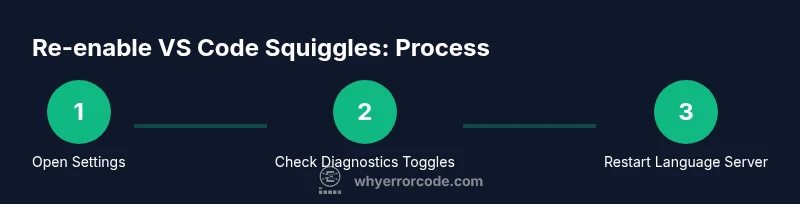
Open Settings
Open Settings from the gear menu or press Ctrl+,. Locate the Diagnostics or Squiggles sections. If you don’t see an explicit option, proceed to the next steps and inspect both global and workspace scopes.
Tip: Use the search bar to quickly locate relevant options. - 2
Search for diagnostic options
In the Settings search, type keywords like 'diagnostics', 'squiggles', or 'linting'. Surface any toggles that disable diagnostics for the active language and note their scope (global vs. workspace).
Tip: If you find language-specific toggles, review both global and workspace scopes. - 3
Enable the global diagnostics toggle
Toggle the global option that enables editor diagnostics for the languages you use. This may appear as 'Diagnostics: Enable' or a similar label depending on your version.
Tip: If the toggle is missing, skip to language-specific settings to avoid false negatives. - 4
Check language-specific settings
Open per-language settings (for example, JavaScript/TypeScript, Python) and confirm diagnostics are enabled. Some language servers require explicit enabling to provide squiggles.
Tip: Save changes and reload Window to apply new values. - 5
Restart language server or VS Code
If available, restart the language server for the affected language or use Reload Window to refresh diagnostics.
Tip: This action often resolves transient issues without broader changes. - 6
Disable conflicting extensions
Temporarily disable extensions that handle linting or diagnostics and recheck squiggles. If they return, enable them one by one to identify the culprit.
Tip: Document which extension caused the change to avoid future conflicts. - 7
Verify with a known error
Edit a file with a known syntax or semantic error to confirm squiggles appear. This controlled test confirms the feature is active again.
Tip: Use a small, repeatable error to validate feedback quickly. - 8
Backup, then reset settings if needed
If squiggles still do not appear, back up current settings and reset to defaults or reinstall VS Code as a last resort.
Tip: Document changes for future troubleshooting and share configurations with teammates.
Frequently Asked Questions
What are error squiggles in VS Code?
Error squiggles are underlines and markers that indicate syntax errors, lint violations, and diagnostic warnings in real time as you edit code.
Error squiggles are underlines and markers that show syntax errors as you type.
Why did my squiggles disappear after updating VS Code?
Updates can reset or modify settings, disable languages, or affect language servers. Review global and workspace settings and check extensions.
Updates can reset settings or disable language services, so check your settings and extensions.
Will re-enabling squiggles affect performance?
Enabling diagnostics generally has minimal impact, but very large workspaces or heavy language servers can increase resource use.
Usually minimal impact, but large projects can strain language servers.
How do I know which extension is masking squiggles?
Disable extensions related to linting or language services one by one to identify the culprit; re-check squiggles after each change.
Turn off linting or language-server extensions one at a time to find the culprit.
What should I do if none of the steps work?
Reset VS Code settings to default, or reinstall after backing up guidelines; consult the community for targeted help.
If nothing works, reset settings or reinstall, and ask the community.
Do workspace settings override global ones for squiggles?
Yes, workspace settings can override global settings, so check both levels when diagnosing missing squiggles.
Workspace settings can override global ones, so review both.
Watch Video
Top Takeaways
- Enable diagnostics at global and workspace levels
- Restart language servers to apply changes
- Check for conflicting extensions and per-workspace overrides
- Test with known errors to confirm visual feedback
- Document changes for future troubleshooting