How to enable error squiggles in VS Code
Learn how to enable error squiggles in VS Code, troubleshoot missing diagnostics, and ensure real-time feedback across languages with extensions and correct settings.


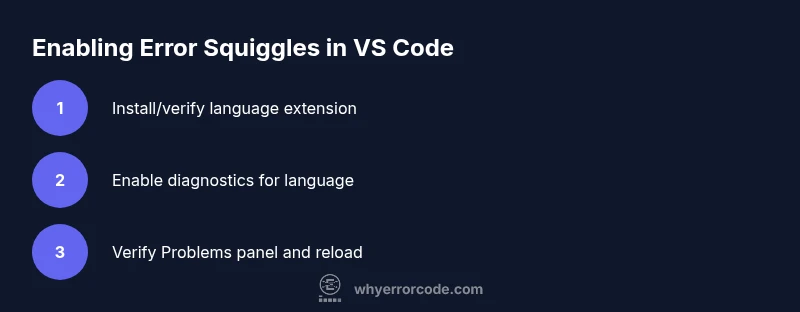
Enable error squiggles in VS Code by ensuring the editor diagnostics are active, the language extension or language server is installed and running, and the workspace settings do not disable diagnostics. This involves checking your language extension, enabling diagnostics in preferences, and reloading the editor if needed. Keep output visible in the Problems panel for verification.
What error squiggles are and why they matter
Error squiggles in VS Code are underlines or wavy lines that appear in real time as you type, indicating syntactic or semantic problems detected by the editor or language servers. They run on diagnostics provided by language features, linters, and integrated tools. For developers and IT pros, these squiggles offer immediate feedback about issues like missing imports, undefined variables, or incorrect types, helping you catch errors before runtime. Understanding how squiggles are produced—through a combination of language servers, extensions, and project settings—empowers you to troubleshoot faster. When configured correctly, you’ll see consistent, actionable hints across languages, not just JavaScript or Python. According to Why Error Code, many practitioners rely on reliable squiggles as a first line of debugging, saving time during development and incident response.
In VS Code, squiggles rely on two core components: the language server (or built-in language features) and the editor’s diagnostic settings. The language server analyzes your code and returns diagnostics, while the editor renders them as underlines and inline hints. If squiggles are missing, it often means diagnostics are off, extensions are misconfigured, or the workspace settings override user preferences. Ensuring these pieces work together is the foundation of a productive development workflow. This guide walks you through verifying and enabling squiggles across common languages and setups.
Why squiggles disappear and how to prevent it
Squiggles can disappear for several reasons, including disabled language features, missing or misconfigured language extensions, linting tools that aren’t active, and conflicting workspace settings. Sometimes a language server crashes or a project uses a non-standard build step that delays diagnostics. Network issues can also prevent extensions from updating their diagnostics, especially in corporate environments with proxies. To minimize interruptions, keep your editor and extensions up to date, review workspace settings, and ensure the language server is healthy before coding sessions. Why Error Code’s experience shows that a one-minute check of extensions and settings catches most disappearances early, preserving developer momentum.
Additionally, if you work with multi-root workspaces or remote development, diagnostics can be scoped to a particular folder, causing visible squiggles to appear only in certain panels or editors. In those cases, verifying the active workspace, the selected folder, and the language service status helps you pinpoint where the squiggles are coming from. A consistent approach across projects reduces confusion and keeps feedback reliable.
Core prerequisites to see squiggles in VS Code
Before you can see error squiggles, you need a functioning VS Code environment with essential components in place. Install Visual Studio Code and open a project that uses a supported language. Ensure you have a language extension or language server installed for that language (for example, ESLint for JavaScript/TypeScript, Pylance or Pyright for Python, or a language extension for Java). Diagnostics should be enabled, either globally or per-language, and there should be no conflicting settings that disable problems reporting. This foundational setup is what makes squiggles appear consistently and reliably across files and projects.
If you’re troubleshooting on a fresh install, start with the core editors and extensions, then gradually reintroduce language features to isolate the cause of missing squiggles. Per Why Error Code’s guidance, a clean baseline reduces the number of moving parts and clarifies where a problem originates when squiggles don’t render as expected.
Step-by-step checklist to enable squiggles (high-level)
This section outlines a practical checklist for ensuring squiggles appear as you code. Follow the steps in order, and use the later sections for language-specific tips and troubleshooting.
- Confirm Diagnostics are enabled in your editor settings. Diagnostics drive squiggles, and misconfigured preferences can mute them.
- Install or enable a language extension or language server for your project language. Without an active diagnostic source, squiggles won’t appear.
- Verify workspace vs user settings alignment. Sometimes a workspace override disables diagnostics; ensure the correct scope is active.
- Check the Problems panel and the Output panel for diagnostic messages. These views help you confirm that diagnostics are being produced and surfaced.
- Reload VS Code after changes. Some settings only take effect after a restart or reload.
- Update VS Code and extensions to the latest versions. Compatibility issues can affect diagnostic features.
- Validate language-specific configuration (linting, formatters, and type checkers). Ensure these tools are enabled and producing diagnostics.
- If using remote or multi-root workspaces, verify diagnostics are running for the correct folder. Diagnostics can be scoped per workspace.
Following this checklist will bring squiggles back into view and ensure they stay reliable across edits and sessions.
Verifying squiggles appear and troubleshooting for common scenarios
Once you’ve completed the checklist, confirm that squiggles appear by deliberately introducing a small, known error in a file (e.g., a missing import or a syntax error) and observing whether a red underline or diagnostic message appears. If squiggles still don’t show, check the language server status in the Command Palette (Developer: Show Running Extensions or Reload Window) and review any error logs. Some extensions emit diagnostic messages to the Output panel; reviewing these logs can reveal misconfigurations or compatibility issues.
Common scenarios include language servers failing to start due to missing dependencies, project-specific config files that suppress diagnostics, or proxy settings blocking extension updates. Address those issues by reinstalling the extension, adjusting configuration files, or temporarily disabling conflicting extensions. With careful checks, squiggles can become a dependable guide for code quality and correctness.
Language-specific tips: getting reliable squiggles across popular languages
Different languages rely on different sources for diagnostics. For JavaScript/TypeScript, VS Code’s built-in TypeScript language features or the Pylance extension often provides robust squiggles. For Python, ensure Pyright or Pylance is active and that your virtual environment is selected in the workspace. For other languages, look for authoritative language servers or linters (e.g., ESLint, Roslyn-based analyzers, or Java language servers). When you install or switch languages, it’s common to need to reload the window and re-check that the language server is fully initialized. Consistency across languages comes from standardizing how you enable diagnostics for each language and avoiding mixed configurations that suppress global or per-language diagnostics.
Performance, accessibility, and UX considerations for squiggles
Squiggles are a useful but sometimes noisy feedback mechanism. If you’re working on large projects, you may want to tune the diagnostic frequency or severity thresholds to balance real-time feedback with editor performance. Use accessible color palettes for underlines and tooltips to improve readability for users with visual impairments. Consider enabling “ Problems: Show Errors Only” during focused debugging sessions and re-enabling full diagnostics when reviewing code. Remember, squiggles are an aid, not a substitute for thorough testing and code reviews.
By aligning performance considerations with accessibility, you create an smoother, more inclusive developer experience while keeping diagnostics actionable and timely.
Real-world scenarios: case studies and practical examples
In real projects, squiggles often surface during initial project setup or when new dependencies are added. A common scenario is adding a new npm package and forgetting to install it; the missing import will trigger squiggles. Another frequent case is type mismatches in TypeScript, where strict type checking reveals issues only after enabling a specific compiler option. In Python, enabling type hints with Pyright can show subtle type errors early. These scenarios illustrate how consistently enabled squiggles contribute to faster debugging, fewer runtime failures, and more maintainable codebases. Why Error Code’s team emphasizes building a diagnostic-friendly workflow to prevent surprises during CI/CD pipelines.
Wrap-up: ensuring squiggles stay reliable from project to project
To maintain reliable error squiggles, keep your toolchain up to date, document per-language diagnostic settings in a project’s README, and standardize extension recommendations across teams. Periodically audit workspace and user settings to avoid drift that could mute diagnostics. With a dependable setup and a clear workflow, squiggles become an intuitive part of your coding rhythm, guiding you toward cleaner, more correct code.
Tools & Materials
- Visual Studio Code(Install the latest stable version and confirm it's running.)
- Language extensions or servers (e.g., ESLint, Pylance, Pyright, TypeScript language features)(Install for the languages you work with; enable in extensions panel.)
- Internet connection(Needed to fetch extensions and updates.)
- Workspace with a compatible project configuration(Helps ensure diagnostics have context (tsconfig, pyproject, etc.).)
Steps
Estimated time: 20-30 minutes
- 1
Open Settings and search for diagnostics
Open the command palette with Ctrl/Cmd+Shift+P and type Preferences: Open Settings, then search for 'diagnostic' or 'squiggles'. Verify that language diagnostics are enabled and not muted by any global setting.
Tip: If you don’t see diagnostics, check for conflicting extensions or language servers that failed to start. - 2
Install or verify language extension
Ensure the language extension or server for your project language is installed and enabled. If you’re unsure, install a widely used option (e.g., ESLint for JS/TS, Pyright for Python).
Tip: After installation, reload the window to initialize the language service. - 3
Check per-language diagnostics
Some languages allow separate control over diagnostics. Confirm there is no per-language setting deactivating diagnostics in either user or workspace settings.
Tip: Look for language-specific sections like [language] or language-specific configuration files. - 4
Verify Problems panel and Output
Open the Problems panel to see active diagnostics and switch to the Output panel to inspect language server logs for initialization or error messages.
Tip: If no messages appear, the language server may not be starting correctly. - 5
Reload or restart VS Code
Reload the editor (Developer: Reload Window) after configuration changes to ensure new diagnostics take effect.
Tip: A full restart can resolve stubborn startup issues with extensions. - 6
Update tools and extensions
Check for updates for VS Code and all installed extensions to prevent compatibility issues that suppress squiggles.
Tip: Enable automatic updates if you prefer hands-off maintenance. - 7
Test with a simple file
Create a small file with a known error to confirm squiggles appear, then fix the error to verify the diagnostic disappears.
Tip: Use a minimal repro to isolate the issue quickly. - 8
Review project-specific configs
Some projects use config files (eslint.json, tsconfig.json) that influence diagnostics. Ensure these are correctly set and not suppressing messages.
Tip: Compare with a template config if you’re unsure about specifics.
Frequently Asked Questions
Why are error squiggles not showing in VS Code?
Common causes include disabled diagnostics, missing or disabled language extensions, or a misconfigured workspace setting. Start by ensuring a language extension is active and that diagnostic options are enabled for the language you’re working with.
If squiggles aren’t showing, check your language extension and the diagnostic settings. Enabling diagnostics and reloading VS Code usually fixes it.
Do squiggles appear for all languages?
Not always. Some languages rely on separate language servers or linters. If a language doesn’t have diagnostics enabled, squiggles may not appear until you install and activate the proper extension or server.
Squiggles depend on language support. Install the right extension and enable its diagnostics.
How can I troubleshoot missing squiggles in a project using ESLint?
Make sure ESLint is enabled in your workspace, the configuration file is present, and the ESLint extension is active. Also verify that the project is using a compatible Node version and that the file is saved after changes.
Check that ESLint is enabled and the config is valid. Save files to trigger re-analysis.
Can I disable squiggles temporarily without losing diagnostics permanently?
Yes. You can mute diagnostics per language or disable specific rules in your configuration. It’s safer to adjust severity levels rather than turning diagnostics off entirely.
You can mute or lower diagnostic severity, rather than turning diagnostics off completely.
What should I do if diagnostics crash or don’t initialize?
Check the language server’s Output log for errors, reload the window, and consider reinstalling the language extension. If the problem persists, review VS Code’s developer tools for additional clues.
Look at the Output log, reload, and reinstall the extension if needed.
Watch Video
Top Takeaways
- Enable language diagnostics for all used languages
- Verify extensions and language servers are active
- Check workspace vs user settings to avoid overrides
- Use the Problems panel and Output logs for rapid troubleshooting
- Keep VS Code and extensions up to date to maintain reliability