Error code is 0x80073cfa: Urgent Troubleshooting Guide
Urgent guide to fix error code is 0x80073cfa: fast fixes, root causes, and step-by-step instructions for resolving Windows Store installation conflicts.


error code is 0x80073cfa indicates a package installation conflict or corruption in Windows app deployment. It most often appears when the Microsoft Store cannot install or update a package because it already exists or a conflicting package is present. The quickest path to relief is to reset Store state, verify the system clock, and reattempt installation. If the issue persists, follow the diagnostic flow below.
What this error means in practice
The error code is 0x80073cfa signals a conflict or corruption in the Windows app packaging system. In practical terms, it means Windows cannot complete an app installation or update because the target package either already exists in the app store cache or a conflicting package blocks the operation. The impact can range from a single failed app install to broader store inconsistencies that hinder enterprise deployments. According to Why Error Code, this kind of conflict is often fixable with a focused sequence of checks and repairs that preserve user data while restoring normal app delivery. By understanding the core meaning of 0x80073cfa, you can prioritize steps that address both cache health and package registration without unnecessary remediation. The following sections provide a practical, risk-conscious flow to diagnose and repair the issue, especially for developers, IT pros, and everyday users who rely on reliable app deployment.
Where this error appears and why it matters
You’re most likely to encounter 0x80073cfa during Windows Store app installations, updates, or sideload attempts. It can surface on consumer machines, small offices, or managed devices via Intune or other enterprise tools. Because the error is tied to the store’s package registration state, it often correlates with cache corruption, incomplete updates, or recently installed conflicting apps. From a developer or IT perspective, a failing install can stall release cycles or disrupt testing pipelines. Treat this as an actionable failure with a clear remediation path rather than a mystery fault. The Why Error Code approach emphasizes a repeatable process that isolates the store layer from the OS, ensuring you can re‑deploy cleanly after fixes.
Quick fixes you can try now
- Restart the computer and sign out/in of the Microsoft Store. A fresh session can clear transient conflicts. This is a quick, risk-free step that often resolves 0x80073cfa.
- Reset the Microsoft Store state through Settings > Apps > Microsoft Store > Advanced options > Reset. This option clears cache and resets store components without affecting personal files.
- Clear the store cache with wsreset. A short command or a run prompt can purge stale data that triggers 0x80073cfa.
- Verify system time and date, as skewed clocks can break certificate checks and package validation. Fixing time settings is typically fast and non-intrusive.
- Run the built-in Windows Troubleshooter for Windows Update and Store issues. These tools identify common misconfigurations that lead to 0x80073cfa.
- Check for conflicting apps or previously installed packages that may block a new install. If you identify a culprit, uninstall or pause it before retrying the installation.
Deep dive into root causes and how to verify
Root causes for the error code is 0x80073cfa commonly include store cache corruption, incomplete previous updates, or a conflicting package registry entry. In some cases, a corrupted AppxManifest or registration data can trigger the error during install. Verifying these causes involves reviewing event logs, checking store component status, and confirming that the target app isn’t present in a partially installed state. Why Error Code’s analysis emphasizes a structured verification approach: isolate the store layer, then validate the integrity of the package cache and registration entries before attempting a reinstall.
Step-by-step fix: the most common scenario (detailed guidance)
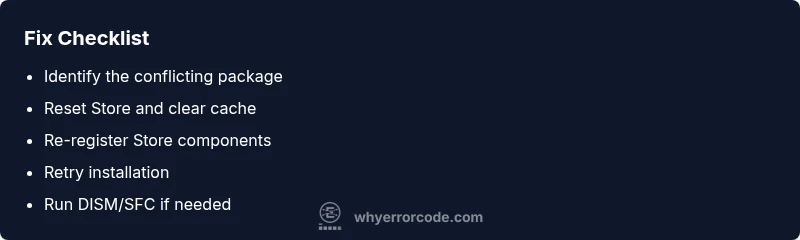
- Capture a clean restart: Save work and reboot to ensure all pending changes are applied. This reduces the chance of a locked file interfering with the install. Tip: Schedule maintenance window if this is a shared device.
- Clear store cache and reset store state: Use Settings to reset, and run wsreset to clear residual data. Tip: If you use enterprise deployment, ensure policy caches won’t reintroduce the conflict.
- Re-register Windows Store and app packages: Open PowerShell as administrator and execute commands to re-register the store and related packages. Tip: Back up critical data before running scripts.
- Re-run the installation or update: Attempt installation again from the Store or via the target installer. Tip: If the package is sideloaded, disable any conflicting enterprise deployment rules temporarily.
- If the issue persists, run DISM and SFC scans: These checks repair corrupted system files that may affect app deployment. Tip: Schedule a maintenance window because scans can take time.
- Consider a clean user profile or system refresh as a last resort: If 0x80073cfa recurs, a new user profile or a repair install can resolve deep registration issues. Tip: Always back up your data before major changes.
Alternative causes and targeted fixes
- Store cache is corrupted: Focus on wsreset and store reset; ensure no residual items remain in the cache.
- Conflicting package exists: Identify and remove duplicate or conflicting packages, especially after a program rewrite or enterprise deployment.
- Date/time drift or certificate issues: Correct time settings and verify trusted certificates; a mismatch can cause validation failures for package installs.
- Pending OS updates: Install outstanding Windows updates to bring the system to a supported state for app deployment. After updates, retry installation.
- App registration corruption: Re-register AppX packages to restore valid entries in the registry. This often resolves 0x80073cfa without a full OS reinstall.
Safety, backups, and when to call a professional
- Always back up personal data and critical apps before making changes that affect system files or store data. Safety first.
- If you rely on enterprise tooling for deployment, coordinate with your IT team to avoid policy conflicts or rollback issues. Some fixes may require policy adjustments.
- If the error persists after the recommended steps, consider professional help from a Windows expert or your organization’s IT support. Cost ranges for professional repairs typically start at a basic diagnostic and can scale to more extensive recovery depending on the scope of the issue.
- For home users, many 0x80073cfa scenarios can be resolved without cost by following the steps above; if not, service costs vary by region and need.
Prevention tips: keeping 0x80073cfa at bay
- Regularly clear store cache and keep Windows Update enabled. Proactively maintaining the store reduces corruption risk.
- Avoid multiple, conflicting installation methods for the same app and ensure enterprise deployment tools don’t inject conflicting packages.
- Run periodic system health checks and DISM/SFC scans to spot and repair file corruption before it affects app deployment. Regular health checks minimize downtime.
What to monitor after applying fixes
- Reattempted installs should proceed without 0x80073cfa; monitor logs if issues reappear. If repeated failures occur, inspect event viewer entries for store, appx, and system events.
- Verify that other Store-based installations run smoothly post-fix and that no new conflicts arise from subsequent installs.
- Document the steps you took, noting which fixes resolved the issue in your environment, to accelerate future troubleshooting and create a reproducible process for your team.
Steps
Estimated time: 45-90 minutes
- 1
Prepare and restart
Close all apps, save work, and reboot the device to ensure clean state. A fresh start often clears transient conflicts that trigger 0x80073cfa.
Tip: If you’re on a managed device, note any pending policies that might reintroduce conflicts after restart. - 2
Reset Store and clear cache
In Settings, reset the Microsoft Store. Then run wsreset in Run or Command Prompt to purge residual cache data that could block installation.
Tip: A clean cache is more effective when performed with a system restart afterward. - 3
Re-register Store components
Open an elevated PowerShell and execute re-registration commands for AppX packages and the Windows Store. This rebuilds the registration database for store-based packages.
Tip: Back up important data before running scripts; prefer official Microsoft guidance for commands. - 4
Retry installation
Attempt the installation or update again from the Store or the app package you’re deploying; ensure no conflicting policies or apps are blocking the install.
Tip: If sideloading, temporarily disable conflicting enterprise rules. - 5
Run system integrity checks
Run DISM and SFC to repair corrupted system files that could affect package deployment. Allow scans to complete fully before retrying.
Tip: Schedule this step if you expect it to take a while; long scans can be interrupted by user activity. - 6
Consider an OS repair option
If 0x80073cfa recurs, you may consider a repair install or a clean profile test to isolate OS-level store behavior from user data.
Tip: Perform a full backup before more invasive repairs.
Diagnosis: Error code is 0x80073cfa appears during Windows Store package installation or update
Possible Causes
- highStore cache corruption
- mediumConflicting or duplicate package
- lowRegistration or manifest corruption
Fixes
- easyReset Microsoft Store and clear its cache
- easyVerify system date/time and rectify if needed
- mediumRe-register Windows Store components and repair package registration
Frequently Asked Questions
What does error code 0x80073cfa mean in Windows?
This error usually signals a conflict or corruption in Windows Store package installation. It often arises when a package already exists in the cache or a conflicting app blocks installation. Following a structured troubleshooting flow typically resolves it without a full OS reinstall.
0x80073cfa usually means a store package conflict or cache corruption. A structured troubleshooting flow resolves it in most cases.
Is 0x80073cfa tied to a specific app or Windows Store?
The error commonly affects Windows Store installations for various apps, but it can also appear when sideloading or updating a single package. It often involves the store’s cache or a conflicting registry entry.
It often involves the Store cache or a conflicting package, not just one app.
Can resetting the Store fix 0x80073cfa?
Yes. Resetting the Store clears cache and reset components can eliminate many causes of 0x80073cfa. If the problem persists, proceed with re-registration and integrity checks.
Resetting the Store can fix many cases; if not, try the deeper steps.
Do I need to reinstall Windows to fix this?
A full OS reinstall is rarely required. Most users fix 0x80073cfa with store resets, cache clearance, and package re-registration. Only persistent, systemic failures may require more invasive repairs.
Usually not; try the standard fixes first and only consider reinstall if everything else fails.
Will other apps be affected after applying fixes?
Most fixes target the Windows Store and package registrations, so other apps should remain unaffected. Always back up data in case a broader repair is attempted.
Generally no impact to unrelated apps; back up data before broader repairs.
When should I call a professional?
If the error recurs after all recommended steps, or if you’re in a business environment with policy controls, professional support is advised. They can perform deeper diagnostics and remediation.
Call a pro if it keeps happening after all fixes or in a managed environment.
Watch Video
Top Takeaways
- Identify whether the issue is store cache or package registration related
- Start with safe, low-risk fixes before advanced repairs
- Back up data and document results for future tasks
- Escalate to pro help when the issue persists after the recommended steps