What Does Error Code 0x80072f8f Mean? Urgent Fix Guide
Urgent guide to the meaning of 0x80072f8f, its certificate trust roots, and rapid fixes for Windows Update and HTTPS connections.


0x80072f8f is a certificate trust error that interrupts secure connections to Windows Update and other HTTPS services, typically caused by an incorrect system clock, expired or untrusted certificates, or a security tool blocking certificate validation. Quick fixes include correcting the device time, syncing with a reliable time source, and retrying the update or secure connection.
What 0x80072f8f Means in Practice
When you encounter 0x80072f8f, you’re dealing with a certificate trust failure during a secure connection to Microsoft servers or other HTTPS endpoints. In practical terms, the TLS/SSL handshake cannot verify the server’s certificate, so the connection is aborted to protect data. This is usually not a bug in Windows Update itself but a trust chain problem on the client side or an interruption in certificate validation along the network path. The most common culprits are an incorrect system clock, expired certificates in the chain, or security software that blocks certificate checks. According to Why Error Code, most users resolve this quickly by simple, targeted fixes rather than sweeping system changes. This means you can restore secure access and resume updates without reconfiguring your entire device.
Why the error matters and what it protects
The error is fundamentally about trust: the client must be sure the server is who it says it is, and that the data remains untampered in transit. When the trust check fails, sensitive operations like Windows Update cannot proceed, leaving your device out of date and potentially vulnerable. For IT pros, this often signals an upstream issue such as an older root certificate store or a network appliance intercepting TLS traffic. The key takeaway is to distinguish between a client-side clock or certificate issue and a network or server-side trust problem, then address it with the least invasive steps first.
Steps
Estimated time: 30-60 minutes
- 1
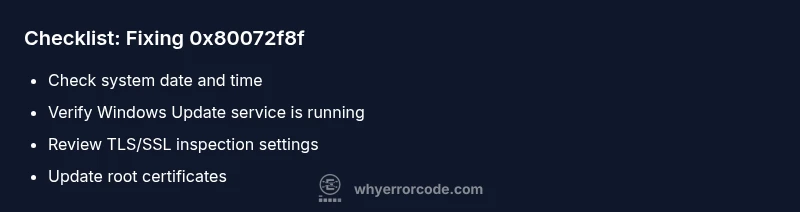
Check date, time, and time zone
Open Settings > Time & language, confirm Set time automatically is on, and verify the correct time zone. A drift of even a few minutes can make certificates appear invalid.
Tip: After adjusting time, restart the affected service or try the update again to verify TLS handshakes succeed. - 2
Force time synchronization
Trigger a manual time sync and allow the system to refresh its certificate cache. This can clear a stale certificate state that triggers 0x80072f8f.
Tip: Check Event Viewer for certificate errors during the sync to identify persistent issues. - 3
Update root certificates
Ensure the device has current root CA certificates; run Windows Update or OS-specific certificate updates to refresh the trust store.
Tip: Do this on a trusted network to avoid interruptions from network filters. - 4
Test TLS settings and disable SSL scanning temporarily
Enable TLS 1.2/1.3 in the browser or OS, and temporarily disable antivirus/firewall SSL scanning to determine if a security tool is interfering with certificate validation.
Tip: If SSL scanning is the issue, add trusted sites to the exception list rather than leaving protection off. - 5
Retry and isolate
Retry the update or secure connection. If the issue recurs only on a specific network, isolate it by switching networks; if not, focus on the device configuration or certificate store.
Tip: Document the network conditions and dates of attempts to help IT support reproduce the problem.
Diagnosis: Error code 0x80072f8f appears during Windows Update or when establishing secure HTTPS connections
Possible Causes
- highSystem clock is incorrect or out of sync
- highExpired or untrusted SSL certificate in the trust chain
- mediumTLS/SSL inspection by security software or corporate proxies
- lowOutdated root certificate store on the device
Fixes
- easyVerify and correct system date/time and time zone; enable automatic time sync
- mediumUpdate root certificates and ensure CA stores are current
- mediumTemporarily disable SSL inspection or security software that blocks certificate validation
- easyTest on a different network (e.g., mobile hotspot) to rule out corporate network effects
Frequently Asked Questions
What does error code 0x80072f8f mean?
0x80072f8f indicates a certificate trust failure during a secure connection, commonly caused by clock drift or certificate issues. The error blocks updates and secured pages until trust is restored.
It means your device can’t verify a certificate, so your updates stop until you fix the clock or certificates.
Is 0x80072f8f Windows-specific?
Primarily seen on Windows during Windows Update or TLS-based connections, but certificate trust failures can affect other platforms when evaluating certificate validity.
Mostly Windows, but certificate trust issues can affect other systems too.
Can antivirus cause 0x80072f8f?
Yes. Some security products inspect TLS traffic and may block certificate validation, triggering this error until the exception is correctly configured.
Security software can block certificate checks; pause protection briefly to test.
Will resetting network settings help?
In many cases, a network reset helps if the network path or proxy is interfering with TLS. It should be used after confirming local device issues.
Resetting network settings can resolve network-related certificate problems.
When should I contact professional support?
If the error persists after time sync and certificate updates, or if you’re in a managed network, professional help can diagnose enterprise proxies, PKI, or policy problems. Expect a broad cost range for remote or on-site assistance.
If it keeps happening after basic fixes, call in IT support.
Watch Video
Top Takeaways
- Verify system time first to resolve certificate validity checks
- Update and refresh root certificates regularly
- Test on alternative networks to rule out proxy-related issues
- Re-enable all security features after testing