Fix error code 0x80072f8f 0x20000: Urgent Troubleshooting Guide
Urgent guide to fix error code 0x80072f8f 0x20000: TLS/SSL handshake failures, certificate tests, and network blockers. Quick fixes, diagnostic flow, step-by-step repair, and prevention tips.


The error code 0x80072f8f 0x20000 signals a TLS/SSL handshake problem during secure connections (e.g., Windows Update, apps using HTTPS). It typically means certificates or date/time are out of sync, or a proxy/firewall is blocking SSL. Quick fixes: verify system time, update certificates, check network settings, and retry. If issues persist, proceed with the full diagnostic.
What this error means and who it affects
The error code fix 0x80072f8f 0x20000 points to a TLS/SSL handshake failure. In plain terms, the client cannot establish a trusted secure channel with the server, so HTTPS connections stall or fail during certificate validation. This often shows up during Windows Update, Microsoft Store, or any app that requires a secure connection. For developers and IT pros, failures usually trace back to the trust chain, time synchronization, or network path issues. According to Why Error Code, the most common culprits are clock drift, expired root certificates, or misconfigured proxies that meddle with TLS inspection. The practical goal is to restore a valid TLS channel by correcting time, certs, or network path so that update servers and cloud services can be reached without blocking errors.
This section uses plain, actionable language to map the symptom to concrete corrective steps. The broader context includes how browsers and applications negotiate TLS, why certificates matter, and how network devices influence handshake success. By understanding these mechanics, you can triage efficiently and prevent repeats.
Immediate quick fixes you can try before deep diagnostics
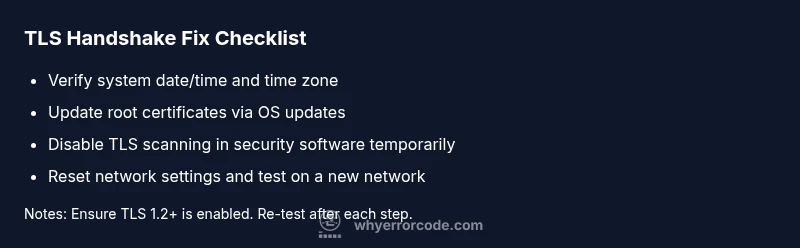
These fixes require no specialized tools and solve a large share of TLS handshake problems. Start with the simplest steps and move to targeted changes if needed. First, confirm the system date and time are correct and that the time zone aligns with your location; SSL checks rely on valid timestamps. Then, perform a quick network reset: disable VPNs or proxies temporarily, reset the network adapter, and flush DNS. Ensure TLS 1.2 or higher is enabled where applicable and that firewall or antivirus software isn’t blocking outbound TLS connections to update domains or cloud services. If you’re on a corporate network, test on a home network to rule out enterprise controls. Finally, verify root certificates by running pending OS updates; stale roots can trigger handshake failures. These steps solve most immediate causes and give you a reliable baseline for deeper checks.
Diagnostic cues and likely causes (how to read the signs)
When 0x80072f8f 0x20000 appears, collect context: which app or service shows the error, and at what point in the connection flow? The symptom-specific clues help identify causes and ready-made fixes. Likely causes, ordered by probability: 1) System date/time drift causing certificate validity checks to fail (high). 2) A proxy, VPN, or firewall performing TLS inspection that disrupts the handshake (medium). 3) Outdated or corrupted certificate stores or missing intermediates (low). Less common: a mismatch in TLS protocols (e.g., server requires TLS 1.2+, client supports only older versions).
You’ll typically observe failures at the ClientHello/ServerHello stage or certificate chain validation steps. The objective is to isolate the bottleneck so you apply the correct remedy quickly and avoid unnecessary changes.
Step-by-step repair guide (most common fix)
This section translates the most frequent root cause into a practical, ordered repair path. Start with system time and certificate trust, then move to network and TLS settings, and finally consider app-specific repairs. After each major change, re-test the connection to verify progress. If you’re responsible for multiple devices, document which steps work on which machines to create a repeatable playbook. For enterprise environments, coordinate with IT to avoid conflicting policies.
The goal is a repeatable, safe workflow that restores secure connectivity with minimal downtime. Each step includes a quick validation check to confirm you’re moving in the right direction.
Other common causes and how to test them
Beyond time and certificate issues, you may encounter 0x80072f8f 0x20000 due to environmental factors. Try these checks: (a) Temporarily disable TLS scanning in antivirus or security suites and re-run the connection test; (b) verify DNS resolves correctly for the target domain and there’s no captive portal or DNS hijacking; (c) check for malware that tampers with TLS certificates or network settings; (d) ensure the host system supports required TLS versions (1.2/1.3) and that any required updates are installed. If you still see the error after these tests, escalate to a deeper certificate and key management audit.
These tests help you differentiate certificate-related problems from network path issues and set the stage for targeted fixes.
Advanced fixes if basics fail
If the basics fail to solve the problem, more advanced remedies are warranted. Consider repairing the Windows certificate store or macOS trust store with built-in tools, re-registering TLS libraries, and running system file checks to detect corruption. On Windows, running sfc /scannow and DISM can repair system components that impact TLS behavior. For developers, validate that your application uses modern TLS libraries and that your code doesn’t disable secure checks. In enterprise networks, review TLS inspection policies and ensure firewall devices support modern ciphers without breaking trust.
Precautionary notes: back up certificates and keys where appropriate, test changes on a non-production device, and avoid drastic changes without verifying rollback plans. If you’re unsure, consult a qualified IT professional.
Network hygiene and environment considerations
Your network environment strongly shapes TLS handshake outcomes. Ensure your DNS servers are stable, switches and routers aren’t dropping packets, and there’s no rate-limiting on TLS handshakes. If you’re behind a proxy, confirm it’s configured to allow direct TLS connections to update servers and cloud endpoints. Regularly refresh root and intermediate certificates on all devices, especially in environments with frequent OS updates. Finally, document your network topology so QA teams can reproduce handshake scenarios across devices and locations.
Enterprise considerations and group policy and security posture
In corporate settings, device configurations, Group Policy, and security baselines influence TLS behavior. Confirm that policies permit modern TLS protocols, disable weak ciphers, and don’t block essential update endpoints. If TLS inspection is used, ensure it preserves certificate chain validity and doesn’t alter trust anchors. Coordinate with IT and security teams to implement a tested, centralized remediation plan that minimizes user downtime while maintaining compliance. Regularly audit certificates, update cycles, and policy changes to prevent recurrence.
Steps
Estimated time: 60-90 minutes
- 1
Verify date/time and enable automatic sync
Open Date & Time settings, ensure Set time automatically is on, and select your correct time zone. If needed, re-sync manually and restart the device to apply changes.
Tip: Accurate time is critical for certificate validity checks. - 2
Update certificates and root stores
Run Windows Update (or your OS update tool) to refresh root/intermediate certificates. If available, run a certificate update utility or re-import trusted roots from a trusted source.
Tip: Always use official OS update channels for trust anchors. - 3
Test and adjust TLS settings
Ensure TLS 1.2+ is enabled in your browser or application and that security protocols aren’t disabled by policy. Temporarily disable TLS scanning in security software to test a clean handshake.
Tip: Encrypted traffic inspection can inadvertently break handshakes. - 4
Reset network stack and DNS
On Windows, run commands to reset network stack and flush DNS (e.g., netsh winsock reset; ipconfig /flushdns). Reboot and test the connection again.
Tip: Network stack resets are powerful but safe when done properly. - 5
Try a different network
Connect to a mobile hotspot or a trusted home network to determine if the issue is network-specific. If it works on another network, isolate the issue to the current network.
Tip: If corporate Wi‑Fi uses proxies, you may need a different route. - 6
Escalate if needed
If the error persists after these steps, collect logs and contact IT or a professional. Provide the exact error code, affected endpoints, and timing to speed up resolution.
Tip: Document steps already tried to avoid repeat testing.
Diagnosis: Machine shows error 0x80072f8f 0x20000 when attempting secure connections (e.g., Windows Update, cloud services)
Possible Causes
- highTLS handshake failure caused by incorrect system date/time
- mediumProxy, VPN, or firewall blocking or inspecting TLS traffic
- lowOutdated or corrupted certificate stores or missing intermediate certs
Fixes
- easyCorrect system date/time and timezone; enable automatic sync
- easyTemporarily disable VPN/proxy or adjust TLS inspection settings
- mediumUpdate root certificates via OS updates; repair certificate stores
- easyReset network settings and flush DNS; test on another network
- hardRun system integrity checks and repair tools (sfc/scannow, DISM)
Frequently Asked Questions
What does error code 0x80072f8f 0x20000 mean?
It signals a TLS/SSL handshake failure during secure connections, often due to time, certificate trust, or network issues.
It’s a TLS handshake error, usually from time, certs, or network problems.
Is this error specific to Windows Update?
No. It can appear with Windows Update, browsers, apps, or any service using HTTPS.
It can show up in Windows Update, browsers, or apps using HTTPS.
Can I fix this myself?
Yes. Many fixes involve date/time, certificates, and network configuration. Start with quick wins before deeper changes.
Yes, you can try the basic fixes yourself first.
When should I contact a professional?
If the issue persists after basic fixes or affects multiple devices in an enterprise environment.
If it continues after basics or in a business network, contact IT.
Will these fixes affect my data?
Most fixes don’t erase data, but changes to certificates or network settings may require additional steps.
Most fixes won’t erase data, but be mindful of security settings.
Are there costs involved?
DIY steps are free. Professional help typically ranges from about $50 to $250 depending on scope.
DIY is free; professionals may charge $50–$250.
Watch Video
Top Takeaways
- Address the root cause: time, certs, or network path.
- Use quick fixes first to restore basic TLS trust.
- Test across networks to isolate issues quickly.
- Know when to call IT or a pro to avoid data risk.