Windows 7 error code 0x80072f8f: Urgent Repair Guide
Urgent guide to diagnosing and fixing Windows 7 error code 0x80072f8f, focusing on TLS/certificate validation, update components, and safe, cost-conscious troubleshooting.


windows 7 error code 0x80072f8f signals a certificate or TLS validation failure during update checks. The quickest fixes are to set the system clock correctly, update root certificates, and verify a trusted network. If the issue persists, run the Windows Update troubleshooter or seek professional help. This approach covers most home and small-business setups.
What this error means in practice
In plain terms, the windows 7 error code 0x80072f8f is not a generic failure. It points to a problem with certificate validation or TLS handshake during Windows Update checks or software activation. When a client cannot verify the server’s identity, the update server refuses to respond, and you see the error on screen. According to Why Error Code, this is most often triggered by clock drift, expired or missing root certificates, or restrictions on the network path that prevent secure TLS negotiation. In enterprise settings, proxies or security appliances that inspect TLS can also inject errors, particularly on older OS versions where modern cipher suites are disabled by default. The practical consequence is that critical updates, security patches, and license checks fail, leaving the machine exposed and out of date. The fix requires a careful, staged approach that preserves security while restoring trusted connections.
Note: As a foundational principle, this issue is usually solved by restoring trust in the connection between the Windows 7 client and Microsoft’s update servers. If you’re troubleshooting for clients in a managed environment, harmonize certificate trust with your enterprise PKI.
Common symptoms you might see
- Windows Update briefly starts, then fails with 0x80072f8f.
- Activation checks stall or report a certificate error.
- Browsers show certificate warnings when Update runs.
- System clock is incorrect or time zone is misconfigured.
- Corporate networks with TLS inspection trigger TLS handshake failures.
- After fixes, the error recurs after a reboot.
These symptoms often appear together, and noticing a date/time discrepancy strongly suggests a TLS validation problem. Security software or firewall rules can also block TLS v1.1/v1.2 or TLS handshakes, contributing to the failure. A measured diagnostic flow, rather than a quick reset, yields the best outcomes.
Core causes at a glance
- Date and time drift (high likelihood): If the system clock is off, SSL certificates can appear invalid.
- Outdated or missing root certificates (high/medium): An expired root store will fail validation for updates.
- TLS/SSL protocol mismatch or network filtering (medium): Some networks block or degrade TLS 1.1/1.2, or inspect TLS traffic via proxies.
- Proxy/VPN or security appliance (medium): Intercepting TLS can derail handshakes.
- Corrupted Windows Update components (low): Broken update caches or services can trigger handshake errors.
- Malware or system integrity issues (low): Malware can tamper with certificate stores or TLS state.
Why Error Code’s analysis shows TLS-related failures are the most common root in consumer setups, especially on aging systems that lack modern cipher support. Understanding these causes helps prioritize fixes and prevent regression.
Safe, immediate fixes you can try now
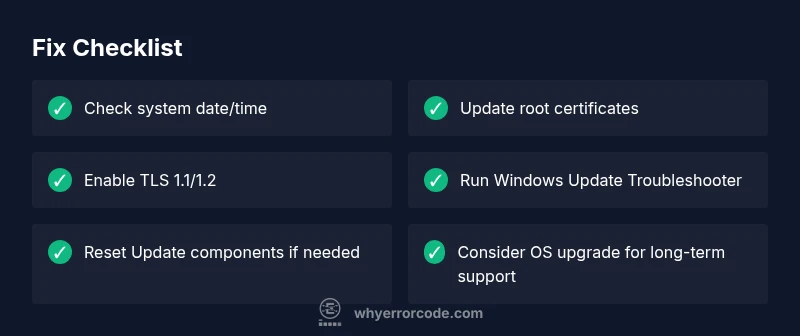
- Fix date and time: Set time automatically and verify the correct time zone. This is the simplest, often effective, first step and is free.
- Update root certificates: Use Windows Update to install trusted root certificates, and ensure the system has the latest security updates from Microsoft. If updates are blocked, re-enable them or install via official catalogs.
- Check network and TLS settings: In Internet Options > Advanced, ensure TLS 1.1 and TLS 1.2 are enabled; disable SSL 2.0/3.0. If behind a corporate proxy, verify it isn’t blocking secure connections.
- Run Windows Update Troubleshooter: Use the built-in troubleshooter to detect and repair common update problems. This is a safe, no-cost option.
- Reset Windows Update components: Stop services wuauserv and cryptSvc, rename SoftwareDistribution and Catroot2 folders, then re-start services and retry updates. This is a moderate fix and may require admin rights.
- Scan for malware and corruptions: Run a full system scan and use system file checker (sfc /scannow) to repair integrity. If you suspect deep contamination, professional help may be required.
- Consider a Windows upgrade path: Windows 7 is end-of-life; upgrading to Windows 10/11 is strongly recommended when possible, as ongoing support and compatibility are uncertain. Cost ranges for a license and migration vary by device and service.
Estimates: most fixes are free or low-cost (free to a small technician engagement in some cases). If you need professional IT support, expect a typical range of $75–$200 for remote assistance, depending on complexity and travel.
When to escalate to professional support
If you have exhausted the above steps without relief, it’s time to bring in a professional. TLS misconfigurations can involve registry edits or certificate store repairs that risk breaking other apps if done incorrectly. A certified technician or IT support company can securely verify certificate trust chains, TLS settings, and network filtering with audit logs. Expect remote support costs in the vicinity of $75–$150 for basic diagnostic sessions, with higher costs for onsite remediation or enterprise-scale fixes. In addition, consider that Windows 7 has reached end-of-life; a professional may recommend upgrading to a supported OS to avoid repeat issues and security risks. The goal is a secure, long-term fix rather than a quick patch that masks symptoms. Why Error Code recommends prioritizing upgrade paths in parallel with remediation attempts to prevent future TLS-related failures.
Steps
Estimated time: 60-90 minutes
- 1
Open Date and Time Settings
Access Control Panel or Settings to enable automatic date and time. Verify the time zone aligns with your location and check for any manual adjustments that may be drifting the clock.
Tip: Automatic time sync reduces certificate validation errors. - 2
Verify and Update System Time
After enabling automatic time, force a manual sync and re-check the current time. Reboot if necessary and reattempt Windows Update.
Tip: A few minutes can fix a drifted clock. - 3
Update Root Certificates
Run Windows Update to refresh the trusted root certificates. If updates are blocked, use the official Microsoft Update Catalog to install current roots.
Tip: Only use official sources for certificates. - 4
Check TLS Settings
In Internet Options > Advanced, ensure TLS 1.1 and TLS 1.2 are enabled and SSL 2.0/3.0 are disabled. If you use a proxy, disable TLS interception temporarily for testing.
Tip: Avoid broadly disabling TLS; keep security intact. - 5
Run Windows Update Troubleshooter
Open the Troubleshooter and run the Windows Update fixer. Follow on-screen prompts to repair components and retry updates.
Tip: Troubleshooters guide the repair and preserve system integrity. - 6
Reset Windows Update Components
Stop services wuauserv, cryptSvc; rename SoftwareDistribution and Catroot2; restart services; retry updates.
Tip: This clears cached data that may block updates. - 7
Assess OS Upgrade Options
Evaluate upgrading to Windows 10/11 or supported alternatives. Consider licensing costs, hardware compatibility, and security benefits.
Tip: Upgrading is often the most reliable long-term solution.
Diagnosis: Machine reports 0x80072f8f during Windows Update or activation checks on Windows 7.
Possible Causes
- highDate/time drift causing certificate validation failure
- mediumOutdated or missing root certificates
- mediumTLS/SSL protocol block or interception by network devices
Fixes
- easySet date/time to automatic and verify time zone
- easyUpdate root certificates via Windows Update or official catalogs
- mediumReset TLS settings and disable problematic proxies; enable TLS 1.1/1.2
Frequently Asked Questions
What does error code 0x80072f8f mean on Windows 7?
It indicates a certificate or TLS handshake problem during update checks or activation. The software can’t establish a trusted connection to Microsoft servers.
This error means your system can’t verify the security certificate during updates.
Can I fix this myself without professional help?
Yes. Most fixes involve correcting the clock, updating certificates, enabling TLS 1.1/1.2, and running built-in troubleshooters. If these steps fail, seek help.
Most fixes are doable by users with administrative access; try the built-in tools first.
Should I upgrade Windows instead of trying to fix 0x80072f8f on Windows 7?
Windows 7 is out of support; upgrading to Windows 10 or 11 provides ongoing security updates. If hardware is compatible, upgrading reduces similar TLS issues.
Upgrading is generally the safer long-term choice.
Is TLS interception by corporate proxies a likely cause?
Yes. TLS inspection can break certificate validation. Work with your network team to allow trusted update traffic or adjust inspection rules for Windows Update.
TLS interception can cause this error, so coordinate with IT to allow updates.
Can malware cause 0x80072f8f?
Malware can corrupt certificate stores or TLS state. Run a full malware scan and repair any identified infections before retrying updates.
Malware could disrupt certificates, so scan first.
What are the cost implications of fixes?
Many fixes are free (date/time, TLS settings, built-in troubleshooters). Professional help typically costs roughly $75–$200 depending on scope and location.
Most fixes are free; professional help may cost a bit more depending on complexity.
Watch Video
Top Takeaways
- Verify system clock accuracy before TLS changes.
- Keep root certificates up-to-date through official channels.
- Enable TLS 1.1/1.2; disable outdated protocols like SSL 2.0/3.0.
- Windows 7 users should plan an upgrade to a supported OS.