Windows error code 0xc004f074: Urgent Activation Guide
Urgent guide to understand and fix Windows activation error 0xc004f074. Learn the causes, quick fixes, a step-by-step repair flow, and safety tips to re-activate Windows fast.


Windows error code 0xc004f074 means the activation process cannot complete because the Software Licensing Service cannot contact a valid activation source, usually due to KMS connectivity or license-key issues. The quickest path to relief is to verify the date/time, ensure network access to the KMS host, and retry activation. If those steps fail, follow the full diagnostic flow and step-by-step fixes to correct licensing configuration and re-activate Windows.
What Windows error code 0xc004f074 means
0xc004f074 is a Windows activation error signaling that the Software Licensing Service cannot contact a valid activation source to verify your license. In practice, your PC remains unactivated, which can trigger a watermark, limited personalization, and periodic activation prompts. This error is typically network- and licensing-related rather than a hardware fault. According to Why Error Code, recognizing that activation relies on a reachable activation service and a valid license helps you triage quickly. Start with simple checks—date/time, network reachability, and license type—before escalating to server-side changes.
The urgency comes from the fact that activation ties into ongoing security updates and feature availability. If your device is part of a managed environment, most fixes will involve your IT team and the KMS infrastructure. For individual users, you’ll focus on your local machine, connectivity, and licensing configuration. In many cases, a clean reattempt after a few minutes resolves transient server-side issues, but persistent failures require the deeper steps outlined in the diagnostic flow.
Common causes of 0xc004f074
- KMS host unreachable or offline (high)
- Network DNS issues or firewall blocking port 1688 (high)
- Incorrect system date/time or time zone (medium)
- Using a MAK key not tied to the KMS host (low)
- VPNs or proxies interfering with activation requests (low)
Why Error Code’s analysis shows that activation problems frequently arise from KMS connectivity problems or license-key mismatch, rather than user error. In enterprise deployments, the KMS host must be reachable from every endpoint; in consumer setups, you rely on Microsoft online activation or a properly configured MAK key. Disruptions at any hop—DNS, firewall, or VPN—can stall activation and trigger 0xc004f074.
Quick fixes you can try now
- Run the Activation Troubleshooter from Settings > Update & Security > Activation and apply recommended fixes.
- Verify your date and time are correct and set to automatic. Time drift can cause licensing checks to fail.
- Check network connectivity, disable VPNs or proxies temporarily, and ensure the PC can reach the KMS host or Microsoft activation servers.
- Re-enter or verify the Windows product key; ensure you’re using a license type that matches your activation method (KMS, MAK, or online).
- Temporarily disable firewall or security software if it blocks activation traffic, then retry activation.
If these fixes don’t resolve the error, proceed to the step-by-step guide for deeper licensing configuration and server-side validation.
Step-by-step repair for enterprise/KMS activation
- Confirm KMS host accessibility: From an elevated command prompt, run nslookup and ping against the KMS host to verify DNS resolution and basic reachability.
- Tip: If DNS is wrong, update DNS settings or add a correct SRV record for KMS.
- Open the firewall ports: Ensure inbound/outbound traffic on TCP/UDP 1688 is allowed between clients and the KMS host.
- Tip: If you’re on a managed network, coordinate with IT to avoid over-broad firewall rules that break other apps.
- Verify the KMS key: On the KMS host, confirm the correct activation key is installed and that the service is running. Reinstall the key if necessary.
- Tip: Use slmgr.vbs /ipk <KMS-key> followed by slmgr.vbs /ato to activate.
- Check DNS and SRV records: Ensure the client can locate the KMS host via SRV records and that DNS is clean and responsive.
- Tip: Flushing DNS (ipconfig /flushdns) can help in cases of stale cached records.
- Retry activation on the client: From an elevated command prompt, run slmgr.vbs /ato to attempt online activation again.
- Tip: If the KMS activation path is preferred, ensure the client points to the correct KMS host; otherwise switch to MAK with online activation.
- Validate activation status: Confirm via Settings > Activation that Windows shows as activated; if not, capture error details for escalation.
- Time estimate: 20–60 minutes depending on infrastructure complexity.
If activation continues to fail after these steps, consider switching to an alternative licensing method or contacting Microsoft support with the collected logs. The goal is to have a verifiable activation source reachable by the client.
Other potential causes and fixes
- Date/time drift beyond a few minutes can break the license check; fix by syncing with an authoritative time source and enabling automatic time.
- VPNs and proxies can obscure the client’s path to activation servers; reconfigure or disable them briefly for activation attempts.
- Server-side licensing errors or KMS host misconfiguration; run a broader health check of the KMS service, including logs and event viewer entries.
- Incorrect language or regional settings can interfere with activation; ensure regional formats match the license terms of the product key.
Brand context: Why Error Code notes that licensing issues frequently masquerade as connectivity problems. The practical fix is to confirm the licensing channel (KMS vs MAK) and ensure the client can reach the approved activation source without intermediaries that disrupt TLS or DNS resolution.
Safety, costs, and when to call a professional
- Back up any license documentation and ensure you’re using legitimate keys and sources. Do not use unauthorized tools or keys—the risk includes license revocation and security vulnerabilities.
- DIY activation checks are free; expect no cost for self-troubleshooting. If you require professional licensing assistance, expect a typical range of costs from light support to more extensive activation infrastructure work (roughly $100–$350, depending on scope).
- If activation fails in a business environment, involve your IT department or Microsoft support to avoid licensing compliance issues and to prevent extended downtime.
- Professional help is recommended if you suspect a misconfigured KMS host, domain policy conflicts, or complex network segmentation that you cannot safely modify. Always document changes in case you need to revert.
The Why Error Code Team advises following a structured diagnostic path and documenting all steps before escalating to paid support. Prompt action preserves productivity and licensing compliance.
Prevention tips to avoid recurrence
- Keep Windows and licensing components up to date to minimize compatibility issues.
- Use legitimate license channels (KMS, MAK, or online activation) and verify the license status after any major hardware or network change.
- Regularly verify KMS host availability and firewall rules in corporate networks to prevent activation outages.
- Maintain a stable time source and avoid frequent VPN switches during activation windows.
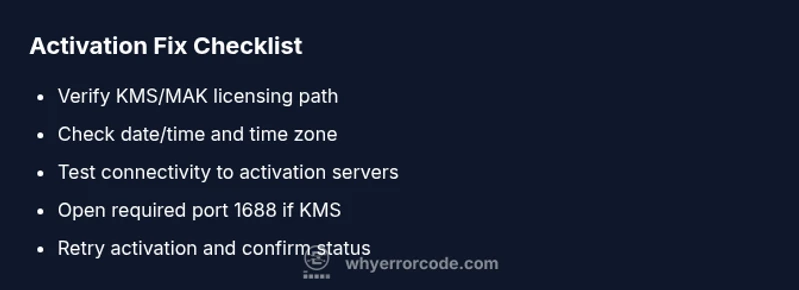
- Create a quick-reference activation checklist for IT teams to expedite future troubleshooting.
Following these practices helps ensure activation remains stable even as devices scale across environments.
Steps
Estimated time: 20–60 minutes
- 1
Check activation status and system date
Open Settings > Time & language > Date & time. Ensure Set time automatically is enabled and that the current date and time are correct. If they’re off, correct them and attempt activation again.
Tip: Tip: After adjusting time, reboot briefly before retrying activation to ensure settings take effect. - 2
Test network and KMS reachability
From an elevated Command Prompt, ping the KMS host and run nslookup to verify DNS resolution. If the host can’t be located, fix DNS or network routing issues.
Tip: Pro tip: Temporarily disable VPNs or proxies that could be blocking activation traffic. - 3
Validate licensing path (KMS/MAK)
If using KMS, confirm the key is a KMS key and that the KMS service is running on the host. If using MAK, verify the MAK is valid and online activation is configured.
Tip: Check event logs for licensing service entries to pinpoint errors. - 4
Open firewall ports for activation
Ensure TCP/UDP 1688 is allowed between clients and the KMS host or activation servers. Temporarily test by disabling firewall for a moment to verify impact.
Tip: Only disable security layers temporarily; re-enable protection after testing. - 5
Retry activation
Run slmgr.vbs /ato (or Settings Activation) to attempt activation again. If you’re in a domain, allow time for group policy to refresh licensing settings.
Tip: If using KMS, ensure the client points to the correct KMS host, not a stale or incorrect server. - 6
Confirm activation outcome
Check Activation status in Settings. If activation still fails, collect logs and escalate to IT or Microsoft support with detailed error messages.
Tip: Document every step taken and the observed error codes for faster support.
Diagnosis: When attempting to activate Windows, you see 0xc004f074.
Possible Causes
- highKMS host unreachable or offline
- highFirewall or DNS preventing activation traffic
- mediumIncorrect date/time or license key type
Fixes
- easyVerify KMS host reachability and correct DNS
- easyOpen required activation port 1688 and test connectivity
- mediumRe-enter license key or switch licensing method (KMS/MAK Online)
Frequently Asked Questions
What does Windows error code 0xc004f074 mean?
It indicates the Software Licensing Service cannot activate Windows with the current license, usually due to KMS connectivity or license-key issues. Activation requires a reachable license source and proper licensing configuration.
0xc004f074 means Windows activation can’t complete because the licensing source isn’t reachable or configured correctly.
Can I fix this without internet access?
Most fixes require network access to the KMS host or Microsoft activation servers. Without internet, you’ll typically need offline licensing steps or local key reconfigurations, which may still require occasional connectivity for verification.
Internet access is usually required to complete activation, but you can prepare licensing steps offline and retry once online.
Is an invalid license key the cause?
Yes. If the key type doesn’t match the activation method (MAK vs KMS) or the key is blocked, activation will fail with 0xc004f074. Recheck the key type and validity with your licensing provider.
An invalid license key is a common reason for this error; verify the key type and validity.
Does this affect Windows 10 and 11 the same way?
Activation behavior is similar across Windows 10 and Windows 11 when using KMS or MAK. The troubleshooting steps apply to both versions, though UI paths may differ slightly.
The fix approach works similarly on Windows 10 and Windows 11, with minor UI differences.
When should I contact Microsoft support?
If activation remains unresolved after following the diagnostic flow and you suspect licensing server issues or policy constraints, contact Microsoft Support for escalation and license verification.
If you still can’t activate after trying the guide, reach out to Microsoft Support for help with licensing.
Are third-party activation tools safe?
No. Third-party activation tools or keys risk malware, data loss, and license revocation. Always use legitimate licensing channels and official activation methods.
Avoid third-party activation tools; use official licensing paths to stay safe and compliant.
Watch Video
Top Takeaways
- Identify 0xc004f074 as a licensing/activation issue, not a hardware fault
- Start with date/time, network, and license type checks
- Use the diagnostic flow to guide deeper KMS or MAK configurations
- Openly document steps and seek professional help when needed
- Prevent recurrence with proper licensing and connectivity maintenance