Windows error code 0xc004f014: Activation troubleshooting guide
Learn how to diagnose and fix Windows activation error 0xc004f014 quickly. Step-by-step licensing checks, connectivity fixes, and safe troubleshooting to restore activation and minimize downtime.


Windows activation failed with error code 0xc004f014. This typically signals a licensing or activation service problem rather than a hardware fault. The quickest path to resolution is to verify your license, confirm key compatibility, and ensure your device can reach Microsoft activation servers. If the issue persists, follow the detailed steps in this guide.
What the error means for your PC
The Windows error code 0xc004f014 indicates the activation check could not complete successfully. Activation is the process that ties your Windows license to your hardware or Microsoft account, granting you a legitimate copy of the OS. When this code appears, you may see reminders like “Activate Windows” in Settings, or the system may continue to operate with limited personalization options. In many cases, the problem isn’t a broken hardware component; it’s licensing, connectivity, or configuration that prevents the activation service from completing. Understanding that distinction helps you apply the right remedies without unnecessary troubleshooting.
Quick checks before you dive in
Before you start deeper troubleshooting, perform a few fast checks to rule out obvious blockers. Confirm you have a valid license for the edition installed (Home, Pro, Enterprise). Ensure the device is connected to the internet with reliable DNS resolution, and temporarily disable VPNs or corporate proxies that could block activation endpoints. Check the system date and time; an incorrect clock can cause mismatches with activation servers. If you’re using a corporate or educational license, verify the license status with your IT administrator. These quick checks often resolve 0xc004f014 without invasive steps.
Common causes of 0xc004f014
- Invalid or mismatched product key: The key does not match the installed edition or has been flagged as invalid.
- License type mismatch: A digital entitlement or retail key might not align with the edition you’re attempting to activate (e.g., attempting to activate Pro with a Home key).
- Activation servers blocked or offline: Microsoft activation services may be temporarily unavailable or blocked by a corporate firewall/proxy.
- Clock and regional settings: An incorrect date/time or time zone can trigger activation failures.
- Network and DNS issues: DNS misresolution or restricted ports can prevent contacting activation endpoints.
- Using a volume license in consumer hardware: A KMS-based approach on consumer devices often causes 0xc004f014 if the host is unreachable.
Carrying out root-cause analysis with these categories helps you pick the right fix path and reduce downtime.
How licensing types affect activation
Windows licenses come in several forms, each with its own activation workflow. A Retail key typically activates directly with Microsoft servers; a MAK (Multiple Activation Key) ties activations to multiple devices, requiring periodic key management; a KMS (Key Management Service) activation depends on contacting a local or corporate host. Understanding which type applies to your license is crucial because the fix often involves re-entering keys, reconfiguring activation methods, or ensuring the KMS host is reachable. Inconsistent license terms or expired keys are frequent culprits for 0xc004f014.
How network and identity issues block activation
Activation relies on reliable network access to Microsoft activation endpoints. If a firewall, VPN, proxy, or DNS issue blocks these endpoints, the activation check will fail with 0xc004f014. Corporate networks may force traffic through proxies or require specific DNS settings; consumer networks can also experience interruptions due to ISP routing problems. Identity-related problems can include mislinked Microsoft accounts or stale device associations. Resolving these requires ensuring unblocked connectivity and validating account associations.
Step-by-step overview of the repair path
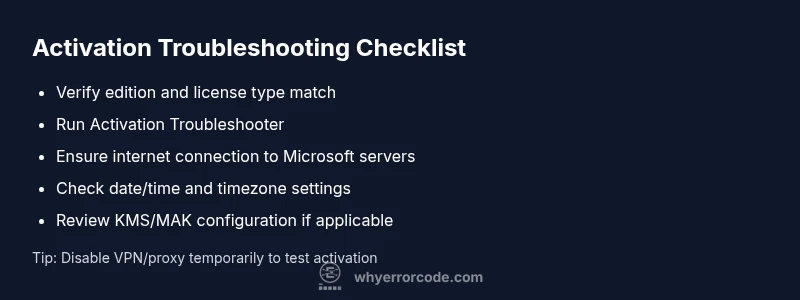
This section outlines a high-level repair path you can start with immediately. First, validate your license status and edition. Second, re-enter a valid product key or refresh your digital entitlement. Third, run the built-in activation troubleshooter and review any suggested actions. Fourth, confirm date, time, and time zone settings are automatic. Fifth, verify network connectivity and disable any VPN or proxy temporarily to test activation. Finally, if you use a volume license, check the KMS host reachability and DNS configuration. These steps set the stage for a successful reactivation without costly downtime.
Preventing future activation issues
To reduce the chance of recurring 0xc004f014, keep your license information up to date, maintain stable network access, and monitor activation service status in your environment. Regularly verify that your Windows edition matches your license type and that devices remain linked to the correct Microsoft account or licensing server. If you rely on corporate activation, establish a standard procedure for license revalidation and ensure your IT team has documented contact points for activation issues. Proactive license management lowers downtime and improves security.
Steps
Estimated time: 30-60 minutes
- 1
Open Activation Settings
Go to Settings > Update & Security > Activation. Check current activation status and note any error details or hints shown by Windows. Make sure you’re connected to a stable network before proceeding.
Tip: If you see a link to troubleshoot, click it to auto-detect common causes. - 2
Validate license and key
Verify that the installed edition matches your license. If you have a product key, re-enter it carefully and ensure there are no extra spaces or characters. For digital licenses, confirm the linked Microsoft account is correct.
Tip: Copy-paste the key from a trusted source and keep a secure backup. - 3
Run Activation Troubleshooter
In the Activation panel, run the built-in troubleshooter and follow prompts. It can detect server outages, account mismatches, or key issues and propose targeted fixes.
Tip: Run as administrator if prompted for permission. - 4
Check date/time and region
Ensure Windows is set to automatic date and time, and that the region matches your license terms. An incorrect clock can cause activation to fail validation.
Tip: Turn on automatic time updates; reboot after changes. - 5
Test network routes to activation servers
Temporarily disable VPNs or proxies and confirm that Windows can reach activation endpoints. Run a quick connectivity test to known Microsoft URLs or use a network diagnostic tool.
Tip: If you must use a proxy, add Microsoft domains to the allowlist. - 6
Review license type for KMS/MAK
If you’re using a volume license, verify that the KMS host is reachable and that DNS records resolve to the correct host. For MAK, confirm the key is still valid and not revoked.
Tip: Consult your IT administrator if you rely on enterprise licensing.
Diagnosis: Machine shows activation error 0xc004f014 when attempting to activate Windows
Possible Causes
- highInvalid product key or edition mismatch
- mediumActivation servers blocked or unavailable
- lowDate/time or network configuration issues
Fixes
- easyRe-enter a valid key or adjust license type to match edition
- easyRun Activation Troubleshooter and ensure connectivity to Microsoft servers
- easySynchronize date/time and test network configuration (disable VPN/proxy)
- hardFor KMS/MAK users, verify KMS host reachability or license assignment
Frequently Asked Questions
What does Windows error code 0xc004f014 mean?
It indicates activation could not complete due to licensing or connectivity problems. The fix typically involves validating the license, re-entering a valid key, and ensuring activation servers are reachable.
Activation failed because of licensing or connectivity issues.
Is 0xc004f014 a hardware problem?
No; this is typically software/ licensing-related and not caused by hardware components. However, hardware changes can trigger a need for re-activation.
Usually not hardware-related.
Can I fix it myself?
Often yes. Re-validate your license, re-enter keys, run the Activation Troubleshooter, and ensure network connectivity. If it persists, contact Microsoft support.
Yes, with the right steps.
When should I contact Microsoft support?
If activation remains blocked after troubleshooting, verify license status, and confirm there are no counterfeit keys. If unresolved, escalate to Microsoft support or your licensing administrator.
If it stays unresolved after steps, contact support.
Does this apply to Windows 11 and Windows 10 alike?
Activation handling is similar across recent Windows versions; steps may vary slightly by edition. Follow version-specific prompts in the Activation panel.
Mostly the same, with minor version differences.
What should I do after activation succeeds?
Restart the PC, sign in with the linked Microsoft account if applicable, and verify activation status under Settings > Activation.
Restart and verify activation status.
Watch Video
Top Takeaways
- Verify license and edition first
- Run built-in activation troubleshooter
- Check date/time and network connectivity
- Know whether you’re using Retail, MAK, or KMS
- Seek IT or Microsoft support if unresolved