Can't activate Windows error code 0xc004f074: Quick Fix & Diagnostics
Learn what error 0xc004f074 means and how to fix Windows activation quickly. Hands-on diagnostics, step-by-step repairs, and safety notes from Why Error Code to get you back online fast.


Error code 0xc004f074 means Windows activation has not succeeded due to licensing or activation service issues. The fastest route is to verify your license, check connectivity, and run the Activation Troubleshooter to apply a quick fix. According to Why Error Code, most users resolve this by reactivating with a valid key or contacting Microsoft support when needed.
What 0xc004f074 actually means
The Windows activation error 0xc004f074 indicates that the system cannot complete activation due to licensing or activation service issues. In practical terms, the Software Licensing Service could not verify a valid license against Microsoft servers, or the current license data is incompatible with the installed edition. This stops Windows from transitioning from a non-activated to an activated state and can display prompts such as "Activate Windows" with limited features until resolved. The Why Error Code team stresses that this error typically reflects licensing or connectivity problems rather than a corrupted file system, so the focus should be on licenses, keys, and network reach.
Key takeaway: activation issues often come from licensing mismatches, server reachability, or incorrect system configuration rather than random OS faults.
Common causes at a glance
- Invalid or blocked product key (high likelihood): The key may be blocked, already in use, or not match the installed Windows edition.
- Edition mismatch or digital license issues (medium likelihood): The installed Windows edition may not align with the licensed entitlement or a digital license may be missing.
- Activation servers unreachable or blocked (medium likelihood): Firewall, VPNs, or corporate proxies can hinder connectivity to Microsoft activation services.
- Incorrect date/time or time zone (low likelihood): Time drift can confuse activation checks.
- Persistent network issues (low likelihood): Intermittent connectivity can interrupt the activation handshake.
Quick fixes you can try now
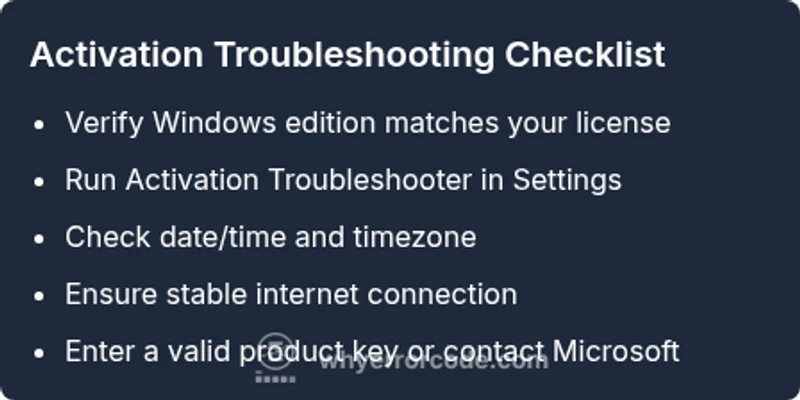
- Verify your license: confirm the edition matches the product key or digital license you own.
- Re-enter or change the product key in Settings > Update & Security > Activation.
- Run the Activation Troubleshooter: Settings > Update & Security > Activation > Troubleshoot.
- Check your internet connection: ensure stability and disable VPNs or proxies that may block activation.
- Confirm system date/time and timezone are correct.
- If you recently changed hardware or upgraded Windows, re-validate your license with Microsoft support.
Step-by-step repair for the most common cause
If the issue is caused by an invalid key or edition mismatch, follow these steps to re-activate:
- Open Settings > Update & Security > Activation. 2) Click Change product key and enter a valid key for the installed edition. 3) If the key is valid but not accepted, run Troubleshooter from the Activation page. 4) Ensure you have an active internet connection and retry activation. 5) If activation still fails, use the command-line options to reset licensing data (admin access required): slmgr.vbs /upk, slmgr.vbs /ipk <your-key>, slmgr.vbs /ato. 6) If problems persist, contact Microsoft Support for license verification and re-issuance.
Alternative causes and their fixes
Beyond key-related issues, activation can fail due to time drift, blocked activation servers, or regional license restrictions. To address these:
- Correct the system date/time and region settings, then retry activation.
- Temporarily disable firewall rules or security software that may block outbound activation requests, then re-enable once activated.
- If you have a corporate or enterprise license, check with your IT administrator on KMS setup or MAK activation status.
- For digital licenses, sign out and sign back in with the Microsoft account linked to the license, then retry activation.
Safety reminders and when to call a pro
- Never use unofficial or pirated keys; such actions violate license terms and can trigger legal and security risks.
- If activation continues to fail after all self-help steps, contact Microsoft Support or your licensed reseller for guidance and potential license re-issuance. Professional help is recommended when license validity or enterprise activation involves complex domain policies.
- Be prepared with purchase receipts, license details, and device information to speed up support.
Prevention tips and ongoing checks
- Keep Windows edition and license status in sync with your license provider; periodically verify activation status.
- Maintain a stable network environment and avoid risky VPNs during activation checks.
- Document error codes you encounter and corresponding steps taken; this speeds up future troubleshooting and support interactions.
- Schedule periodic licensing audits if you manage multiple devices to prevent activation drift across machines.
Steps
Estimated time: 20-40 minutes
- 1
Verify edition and license
Confirm you are using the correct Windows edition for your license. If the key does not match the edition, activation will fail. Gather your purchase proof and digital license details before proceeding.
Tip: Having proof of purchase speeds up verification with Microsoft. - 2
Re-enter or change product key
Open Settings > Update & Security > Activation, then choose Change product key and enter a new valid key for the installed edition. If you don’t have a key, obtain one from a legitimate source.
Tip: Avoid paste errors by copying the key directly from a trusted source. - 3
Run Activation Troubleshooter
Navigate to Activation settings and run Troubleshooter. Follow on-screen prompts to detect licensing issues and apply recommended fixes automatically.
Tip: If prompted, allow the troubleshooter to access network and account information. - 4
Check date/time and network
Ensure the system clock is accurate and your internet connection is stable. Disable VPNs temporarily if activation servers are being blocked.
Tip: A skewed clock can cause activation to fail unexpectedly. - 5
Use command-line reactivation (advanced)
Open an elevated Command Prompt and run: slmgr.vbs /upk, slmgr.vbs /ipk <new-key>, slmgr.vbs /ato. This resets licensing state and attempts activation again.
Tip: Only run these commands with a valid key and administrator rights. - 6
Contact Microsoft support
If activation still fails after all steps, contact Microsoft Support or your reseller for license verification and potential re-issuance.
Tip: Have your OEM or vendor details handy to speed up resolution.
Diagnosis: Windows shows 0xc004f074 activation error and Windows is not activated
Possible Causes
- highExpired or invalid product key
- mediumEdition mismatch or missing digital license
- mediumActivation services blocked or unreachable
- lowIncorrect date/time or time zone settings
Fixes
- easyVerify the product key and edition; re-enter a valid key.
- easyRun Activation Troubleshooter in Settings
- easyCheck date/time, timezone, and network reachability to activation servers
- mediumUse slmgr.vbs commands to re-arm activation (with a valid key)
- hardContact Microsoft Support for license verification or re-issuance
Frequently Asked Questions
What does error code 0xc004f074 mean?
This error indicates Windows activation cannot complete due to licensing or activation service issues. It usually means the license data or connectivity to activation servers is not resolving properly. Start with license verification and the Activation Troubleshooter.
Error 0xc004f074 means Windows can’t activate because the license or activation service isn’t resolving properly. Start with license checks and the activation troubleshooter.
Is my product key still valid if activation fails?
A failed activation doesn’t automatically invalidate your key, but the key may be wrong for the edition, blocked, or not linked to the device. Verify the edition and cross-check with Microsoft or your vendor.
A failed activation doesn’t always mean the key is bad, but it could be the wrong edition or blocked. Check the edition and verify with Microsoft.
How do I run the Activation Troubleshooter in Windows 10/11?
Go to Settings > Update & Security > Activation and select Troubleshoot. Follow on-screen prompts to diagnose licensing problems and apply recommended fixes.
Open Settings, go to Activation, and run Troubleshooter to diagnose licensing problems and apply fixes.
Can I activate Windows offline if the activation server is blocked?
Offline activation is generally not supported for consumer Windows activations. You typically need an internet connection or a valid digital license linked to your account.
Offline activation isn’t usually possible for consumer Windows; activation needs an online check against Microsoft servers.
What should I do if I bought a new PC with Windows preinstalled and still see 0xc004f074?
If Windows is preinstalled, contact the PC vendor for a license transfer or re-issuance. Ensure the preinstalled edition matches the license and that the device is eligible for activation.
If you bought a new PC and still see this error, contact the vendor for license transfer or re-issuance.
When should I contact Microsoft support about this error?
If the Activation Troubleshooter and license checks don’t resolve the issue, contact Microsoft Support or your license provider for assistance with re-issuance or activation path. Have your hardware details ready.
If troubleshooter and license checks fail, reach out to Microsoft Support with your device details.
Watch Video
Top Takeaways
- Verify license and edition before reactivation
- Run the Activation Troubleshooter first
- Check date/time and network connectivity
- Use official tools/keys for activation
- Contact Microsoft support if self-help fails