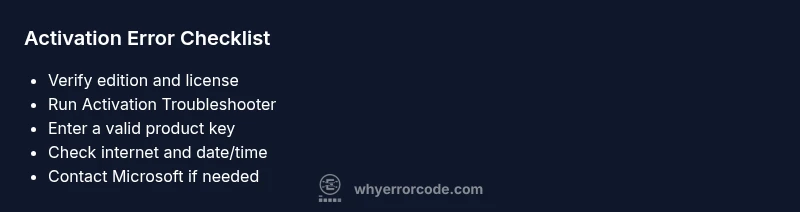
Activate Windows Error Code 0xc004f074: Urgent Troubleshooting Guide
Urgent guide to fix activate Windows error code 0xc004f074, including causes, quick fixes, and step-by-step instructions. Learn how to verify your key, run the Activation Troubleshooter, and restore a valid Windows license quickly.


The Windows activation error 0xc004f074 occurs when the license cannot be validated online. It often means the installed product key is invalid, blocked, or not applicable to your device. The quickest fix is to run the Activation Troubleshooter, re-enter a valid key, and verify your digital license matches your hardware. If the issue persists, contact Microsoft Support.
What activate windows error code 0xc004f074 means for activation
activate windows error code 0xc004f074 is an activation block that prevents Windows from validating your license against Microsoft servers. This error usually pops up after a key change, hardware modification, or a network disruption that stops the activation service from confirming your license. In practical terms, it means your current key or license data cannot be linked to this PC at the moment. The Why Error Code team observes that most 0xc004f074 cases resolve once you verify the key, edition, and online connectivity. Acting quickly can minimize downtime and reduce the risk of extended activation instability across updates and feature unlocks. Remember: a valid license not only activates Windows but also keeps your security updates authorized and your device compliant.
Primary Causes Behind 0xc004f074
Why this error appears can be grouped into a few core causes, with license validity and server accessibility at the top. The most common reason is an invalid, blocked, or mismatched product key that doesn’t correspond to your Windows edition. A secondary but frequent cause is temporary issues with Microsoft's activation servers or a local network problem that prevents a successful handshaking during activation. Hardware changes can also trigger license mismatch, especially if the key was tied to a different hardware profile or a digital license tied to a previous PC. Less common but possible is attempting to use a volume licensing key (KMS/MAK) on a consumer edition, which Windows will reject. The brand-safe approach from Why Error Code is to validate the license path first, then verify connectivity, before moving to more advanced steps.
Quick Checks You Can Perform
Before diving into the more involved fixes, perform these quick checks to rule out obvious blockers:
- Ensure your device has stable internet access and that no VPN or firewall blocks Microsoft activation URLs.
- Check the system date, time, and time zone; incorrect settings can fail activation.
- Confirm you are using the correct Windows edition for your license (e.g., Home, Pro, Enterprise).
- Verify that your product key is legitimate, not blocked, and matches the installed edition.
- Sign in with the Microsoft account that owns or was used to activate the device previously.
- Look for any pending Windows updates, as some activations require the latest components to complete.
If these checks pass and activation still fails, proceed with the guided fixes below. The goal is a clean activation path that validates the license against Microsoft’s servers while preserving user data.
Step-by-Step Fix: Re-activate Windows (Most Common Cause)
- Gather license information and confirm edition
- Collect your product key (if applicable) and confirm which Windows edition you are licensed for. Ensure you have receipts or proof of ownership where available. Tip: Keep this information in a secure note for reference during troubleshooting.
- Run Activation Troubleshooter
- Open Settings > Update & Security > Activation and run the Activation Troubleshooter. It will look for common licensing issues and suggest fixes. Tip: If you’re offline, try connecting to a different network to rule out local network blocks.
- Re-enter or replace your product key
- If you have a valid key, re-enter it in Settings > Activation > Change product key. If the key is prepaid but blocked, you may need a replacement from the retailer or Microsoft. Tip: Avoid copy-paste errors by typing the key slowly and double-checking for similar characters.
- Validate the digital license and hardware match
- For devices with a digital license, verify that Windows is linked to your Microsoft account and that the license remains associated with your current hardware configuration. Tip: If you changed significant hardware, you may need to re-activate via phone or online methods.
- Check connectivity and security software
- Ensure Windows can reach activation servers; temporarily disable third-party firewalls or VPNs to test. If a corporate security proxy is used, consult IT to allow activation endpoints. Tip: Restore security software after testing to maintain protection.
- Attempt online activation again
- After applying fixes, retry activation online. If it succeeds, you should see “Windows is activated with a digital license.” Tip: Reboot if the activation status doesn’t update immediately.
- Consider offline or phone activation if online fails
- If you’re in a restricted network, you can attempt offline activation or phone activation with the help of Microsoft Support. Tip: Have your installation ID ready when you contact support.
The above steps reflect the most common path to resolution. If activation still fails after these steps, the issue may be tied to a licensing constraint or regional blocks, and you should escalate to Microsoft Support or your licensing administrator.
Advanced Scenarios and When to Contact Microsoft Support
In corporate environments or higher-volume licensing setups, 0xc004f074 can indicate a mismatch between the activation method (KMS, MAK, or retail) and the Windows edition installed on the device. If your PC belongs to a managed fleet, coordinate with your IT department to confirm the correct activation method and key, as using the wrong key can permanently block activation on that machine. For home users, if Activation Troubleshooter and key validation fail after several attempts, it is prudent to contact Microsoft Support or your reseller for a license fix. Support options include chat, phone, or a scheduled callback, and they can issue a new activation key or adjust licensing records if needed.
Tips & Warnings
- Do not use unverified or pirated keys; activation fails and can expose licensing and security risks.
- Keep a record of your license, key, and activation steps to simplify future troubleshooting.
- If you notice frequent activation failures after hardware upgrades, consider linking a digital license to your Microsoft account for smoother reactivations.
- Involve IT or Microsoft Support if you are in a managed environment; they can often resolve licensing conflicts faster and with proper licensing authorization.
- Expect potential costs if you require professional licensing assistance or enterprise licensing support; price ranges vary by region and service level.
Prevention: How to Avoid This Error in the Future
- Use a legitimate license and ensure it matches your Windows edition before installation.
- Regularly verify activation status after major hardware changes or system reinstalls.
- Keep Windows updated to ensure activation components stay current.
- For corporate devices, follow your IT policy on license reassignment and KMS/MAK usage to prevent activation conflicts.
- Maintain a cautious approach to third-party activation tools; they can harm activation integrity and violate licensing terms.
Steps
Estimated time: 30-60 minutes
- 1
Gather license information
Collect your product key (if applicable), proof of purchase, and confirm your Windows edition. This helps you determine if the license matches the installed OS and prepares you for re-activation.
Tip: Keep receipts and key details in a secure note for quick reference. - 2
Check system date/time and network
Ensure the device clock is correct and connected to a reliable network. Activation can fail if the time is off or if the device cannot reach Microsoft servers.
Tip: Synchronize time with an internet time server if possible. - 3
Run Activation Troubleshooter
Open Settings > Update & Security > Activation and run the Troubleshooter. It identifies common licensing problems and suggests fixes.
Tip: If prompted, sign in with the Microsoft account that owns the license. - 4
Re-enter or replace your product key
If you have a valid key, re-enter it in Activation settings. If the key is blocked, obtain a replacement from Microsoft or your vendor.
Tip: Type carefully; avoid confusing characters (O vs 0, B vs 8). - 5
Verify edition and license association
Confirm the edition matches the license and that a digital license is linked to your Microsoft account. Hardware changes may require reactivation.
Tip: If you upgraded editions, ensure the license supports the new edition. - 6
Retry online activation
Attempt activation again online and restart if needed to reflect the new license status.
Tip: Some networks require a brief pause between attempts. - 7
Phone or offline activation if needed
If online activation fails due to network restrictions, use phone activation or offline methods per Microsoft guidance.
Tip: Have your installation ID ready when contacting support. - 8
Escalate to support if unresolved
If activation still fails after all steps, contact Microsoft Support or your licensing administrator for a license adjustment or replacement.
Tip: Document all steps taken to speed up the support process.
Diagnosis: Error code 0xc004f074 appears during Windows activation on a PC
Possible Causes
- highInvalid or blocked product key
- mediumActivation servers temporarily unavailable or network blocks
- mediumHardware changes causing license mismatch
- lowUsing a KMS/MAK key on a consumer edition
Fixes
- easyRun Activation Troubleshooter and re-activate online
- easyRe-enter a valid product key and ensure edition matches
- easyCheck date/time, region, and firewall settings; ensure internet access
- mediumIf volume licensing is intended, contact IT admin for correct key/method
- hardContact Microsoft Support or purchase a new license if needed
Frequently Asked Questions
What does error code 0xc004f074 mean in Windows activation?
It indicates Windows cannot validate your license with Microsoft servers, usually due to an invalid or blocked key or a mismatch with the installed edition. Activation requires a valid license that matches the edition and hardware.
0xc004f074 means Windows can’t validate your license with Microsoft servers, often because the key is invalid or doesn’t match the edition. Try the Activation Troubleshooter to fix this.
Can Activation Troubleshooter solve this always?
The Troubleshooter solves most common licensing issues by detecting key, edition, and connectivity problems. If it points to a key or license problem, re-entering a valid key or obtaining a replacement usually resolves the error.
The Troubleshooter fixes most basic licensing problems. If it finds a key issue, replace it with a valid one.
Is it safe to use a different product key?
Only use a legitimate key that matches your Windows edition. Using a mismatched or pirated key can permanently block activation and violate licensing terms.
Only use a legitimate key that matches your Windows edition; using the wrong key can cause more problems.
Why would hardware changes affect activation?
Significant hardware changes can break the link between a digital license and the device, triggering re-activation requirements. In such cases, re-activation with the correct license may be needed.
Hardware changes can break the license link, so you may need to re-activate with the correct license.
What if online activation is blocked by my network?
Phone activation or offline activation is available when online access is restricted. IT policies or firewalls may require adjustments to reach activation servers.
If the network blocks online activation, you can use phone or offline activation with guidance from Microsoft support.
Should I buy a new license if activation keeps failing?
If your current license is invalid or blocked and cannot be restored, purchasing a new legitimate license or obtaining a replacement through Microsoft or a trusted retailer may be necessary.
If the current license is invalid and cannot be restored, you may need a new legitimate license.
Watch Video
Top Takeaways
- Verify license matches edition
- Run Activation Troubleshooter first
- Use legitimate keys only
- Contact support for unresolved licenses