Xbox error code 0x87e10020 on Xbox Series X: Quick Fix Guide
Urgent troubleshooting guide for Xbox Series X error 0x87e10020. Learn causes, quick fixes, step by step repair, safety tips, and prevention to get back to gaming fast.


Xbox error code 0x87e10020 on Xbox Series X indicates a licensing or permissions issue that blocks game launch. It often stems from a corrupted cache, a faulty profile, or an interrupted update. The most reliable quick fix is to power cycle the console, verify a stable network, and re-sign into your account before re-testing the game.
What Xbox error code 0x87e10020 means
In plain terms, 0x87e10020 on the Xbox Series X signifies a licensing or permissions check that prevents the game from starting. When the console cannot verify ownership or an active license for a title, you’ll see this error instead of launching your game. According to Why Error Code, this is most often tied to cache corruption, an invalid or expired license, or a sign-in refresh issue. The result is a hard stop: you know you’re blocked from playing until the licensing check passes again. Since gaming depends on digital rights management (DRM) tokens, even a brief network hiccup or a corrupted cache can trigger the error and halt your session. In urgent troubleshooting mode, treat this as a licensing problem rather than a generic game crash, then apply steps that refresh licenses and re-establish a clean connection to the Xbox Live service.
Why this happens on Xbox Series X
Licensing failures can occur for several reasons. A cached license token may become corrupt after an update, a sign-in session can expire, or there may be a temporary hiccup with the Xbox Live service. Network instability, DNS changes, or a mismatched system clock can also disrupt the verification process. If a title is a digital entitlement rather than a physical disc, the console relies on online verification, so even short outages can trigger 0x87e10020. Additionally, profile issues or corrupted saved data can lead to stale license information being presented to the console. In short, licensing, cache, and connectivity are the top culprits, and addressing them in order of likelihood yields the fastest resolution. Why Error Code's analysis shows that many users resolve this with a clean reset and re-authentication.
Quick fixes you can try now
If you’re in a hurry, start with these fast tests that don’t require tools or service calls:
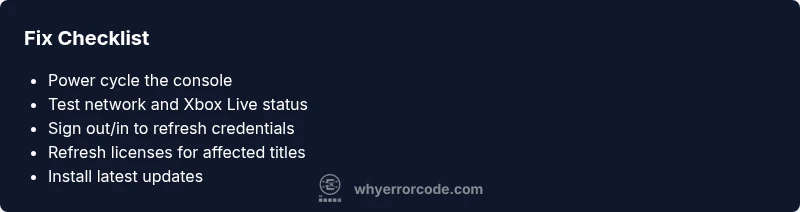
- Power cycle the console: fully shut it down for 30 seconds, then restart. This clears transient licensing tokens and refreshes the session.
- Check your internet connection and Xbox Live status: a stable wire or solid Wi‑Fi with a good NAT type reduces licensing hiccups.
- Sign out of your account and sign back in: a fresh authentication can restore the license verification for your games.
- Verify and refresh licenses for the affected title: Settings > Account > Licenses; remove and re-download if necessary.
- Update system software and the game: install the latest console and game updates to align licensing data.
- If you’re using external storage, re-seat it or try launching from internal storage to rule out a storage issue.
Step-by-step repair for the most common cause
- Power cycle the console to reset licensing state. Turn off the Xbox Series X completely, unplug for 30 seconds, then plug back in and power on.
- Test your network: run a quick network test and ensure your NAT type is open. Prefer wired Ethernet for stability if available.
- Sign out and sign back in: from Settings > Account, sign out, then sign in again with your Microsoft account.
- Refresh licenses: Settings > Account > Licenses, select all items and choose to reactivate or re-download licenses as needed.
- Check for updates: Settings > System > Updates can fix licensing tokens tied to older software.
- Reinstall the title if needed: uninstalling and re-downloading the game can replace corrupted license data. If the game is linked to DLC, reinstall any required add-ons as well.
Other possible causes and fixes
Beyond licensing, other factors can trigger 0x87e10020. A corrupted game cache or DLC data may masquerade as a license issue. A problematic profile can hold stale entitlement information, and a sudden service outage on Xbox Live can block validation. If the error persists after the standard fixes, consider testing on a different profile, or performing a controlled reset of networking settings. It is also prudent to check if a specific title or DLC is the offender by testing multiple games. In some scenarios, temporary outages resolve on their own as services recover, so rechecking status pages and trying again later is advised. Why Error Code’s research indicates that most users see a quick clearance after licenses are refreshed and sessions re-established.
Safety, warnings, and when to call a professional
Do not attempt hardware resets or opening the console to fix licensing issues. Personal data risk increases with aggressive troubleshooting. Always back up saved data to the cloud if possible before performing significant steps. If you notice hardware symptoms such as overheating, unusual smells, or physical damage, stop troubleshooting and contact official support. When licensing problems persist after all at‑home steps, professional assistance may be needed to diagnose deeper account or service issues.
Prevention tips to avoid recurrence
Maintain a stable network environment, use a consistent Microsoft account, and keep system and game updates current. Enable automatic sign-in when possible to reduce session timeouts. Regularly verify licenses after major updates and avoid frequent power cycles that can corrupt temporary licensing data. Keeping a clean cache and avoiding mixed storage configurations also helps prevent recurrence.
Steps
Estimated time: 25-40 minutes
- 1
Power cycle the console
Fully shut down the Xbox Series X, unplug the power cord for 30 seconds, then plug back in and power on. This clears transient licensing tokens and cache fragments.
Tip: A clean power cycle is often the fastest reset without data loss. - 2
Test network stability
Run a network test and ensure you have a stable connection with an open NAT. Prefer wired Ethernet for reliability when available.
Tip: Temporary Wi‑Fi interference can mimic licensing issues. - 3
Sign out and sign back in
Navigate to Settings, sign out of your Microsoft account, then sign back in to refresh authentication tokens.
Tip: If you have two-factor authentication, you may be prompted to re-verify. - 4
Refresh licenses
Go to Settings > Account > Licenses, refresh or re-download the licenses for the affected game and any required DLC.
Tip: Licenses can be per-title; don’t miss any related DLC entitlements. - 5
Check for updates
Install the latest console and game updates. Outdated software can cause mismatch in licensing data.
Tip: Enable auto-updates to reduce repeat issues. - 6
Reinstall if needed
If the error persists, uninstall and reinstall the game and related add-ons to replace corrupted files.
Tip: Back up save data if possible before reinstall.
Diagnosis: Xbox Series X shows error code 0x87e10020 when attempting to launch a game or access digital content
Possible Causes
- highLicensing token cache corruption or license verification failure
- mediumCorrupted profile or saved license data
- mediumIntermittent network connection or Xbox Live service issue
- lowOutdated system software or corrupted game update
Fixes
- easyPower cycle the console to refresh licensing state
- easySign out and sign back into the Microsoft account
- easyRefresh or reinstall licenses for affected titles
- mediumUpdate system software and game updates to align licensing data
Frequently Asked Questions
What causes Xbox error code 0x87e10020 on the Series X?
The error is typically caused by licensing or DRM verification failures, cached license data that has become corrupted, a signed-out or faulty profile, or a temporary Xbox Live service outage. Re-authenticating and refreshing licenses usually resolves it.
0x87e10020 is usually a licensing or DRM verification issue. Re-authenticate and refresh licenses to fix it.
Is this error related to Xbox Live service outages?
Yes, outages or degraded service can prevent license verification. Check the official service status page and retry after services resume. Most outages are temporary.
Yes, outages can block license verification; verify service status and retry later.
Can this error affect multiple games or only one title?
It can affect a single title or multiple titles that share a license. Refreshing the license for affected games and re-downloading entitlement often resolves the issue.
It can affect one or several titles sharing a license; refresh licenses for the affected games.
Will a factory reset fix this error?
A factory reset is usually not required for licensing issues and can lead to data loss. Try licensing refresh, sign-in, and updates first. Only consider a reset if all other steps fail and you have a full backup.
A factory reset is rarely needed and may erase data; try licensing and sign‑in fixes first.
How can I prevent this error from happening again?
Keep your system and games updated, maintain a stable network, sign in reliably, and monitor Xbox Live status during major updates to reduce licensing interruptions.
Stay updated, keep a steady connection, and monitor service status to prevent reoccurrence.
If I need professional help, what might it cost?
Home fixes cost nothing or a small amount for optional DLC re-downloads; professional service without hardware replacement typically ranges from a low to mid range, and hardware repair or replacement can increase costs. Always request a quotation before service.
Costs vary; expect modest fees for service calls and potential higher costs if hardware is involved.
Watch Video
Top Takeaways
- Refresh licenses to restore entitlement verification
- Secure a stable network and sign-in state
- Prioritize power cycling before deeper fixes
- Update system and game patches to align licensing data
- Seek professional help if hardware symptoms appear