Fix Xbox One Error 0x87e107e2 Fast: Step-by-Step Guide
Urgent guide to diagnose and fix Xbox One error code 0x87e107e2. Learn what it means, quick fixes, license restoration steps, and when to contact support for Xbox Live issues.


Xbox error code 0x87e107e2 on Xbox One usually signals a licensing or sign-in issue blocking access to digital games or apps. The quickest path to relief is verifying Xbox Live status, re-signing into your Microsoft account, and restoring licenses, followed by a secure network check. If the problem persists, prepare to reauthorize licenses or contact support.
What this error means on Xbox One
The error code 0x87e107e2 on Xbox One points to a licensing or account verification problem. When the system cannot confirm a digital license for a game or app, access is blocked until the license is validated. In many cases, it's not an issue with the game itself but with your Xbox Live sign-in, account status, or a temporary service hiccup. Network problems, region-related restrictions, or parental controls can also trigger this error. The first steps are simple: confirm you are signed in with the correct Microsoft account and check the Xbox Live status. If Live is offline or degraded, addressing the outage may resolve the issue without touching settings on your console.
This diagnosis matters because licensing remains the gatekeeper for most digital content. If licenses or sign-in can't be verified, digital purchases and subscriptions look unavailable, even if you own the content. The Why Error Code team emphasizes starting with the simplest, least invasive checks before diving into deeper troubleshooting. Quick wins often restore access without extensive repairs.
Quick checks you can perform before diving deeper
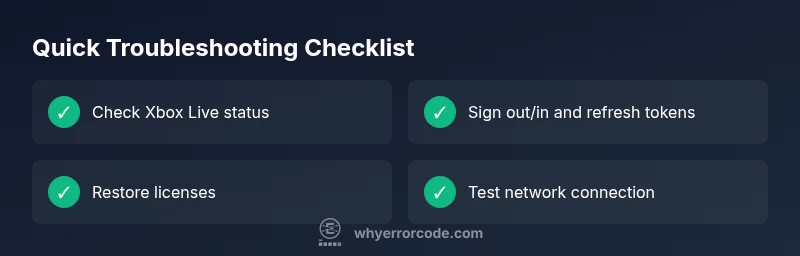
- Verify Xbox Live status at the official status page and check for outages in your region.
- Sign out of your Microsoft account on the Xbox, then sign back in to refresh tokens.
- Run a network test (Settings > General > Network settings) to ensure the console has a stable connection.
- If you’ve recently added or changed accounts, re-confirm the primary account and licenses for the games you’re trying to launch.
- Review any family safety or parental controls that might restrict access. If you use a guest or child account, switch to the primary account for a quick test.
Step-by-step quick wins (most users start here)
- Sign out of your Microsoft account and sign back in. This refreshes your connection to Xbox Live and often clears transient licensing tokens. 2) Check Xbox Live service status and run a network test to ensure the console can reach Microsoft servers reliably. 3) Restore licenses for your games and apps (Settings > Account > Your info > Sign out, then Settings > General > Personalization > My home Xbox > Remove & Restore licenses). 4) Power cycle the console: hold the power button for 10 seconds, unplug for 30 seconds, plug back in, and turn on. 5) If the problem persists, re-download your profile or perform a soft reset by holding the power button for 10 seconds and selecting Restart. 6) For stubborn cases, contact Xbox Support to reactivate licenses tied to your account.
License reactivation and account verification (the same cause, deeper action)
Licensing issues can be stubborn if a profile is partially cached or the license cache is corrupted. Start by removing and re-adding your Xbox profile, then re-download games and apps to rebuild licenses from the cloud. Ensure that you’re using the correct Microsoft account and that your subscriptions (Game Pass, Xbox Live Gold) are active. If a license still fails to verify, you may need to re-authorize purchases via the account’s security questions or two-factor authentication prompts.
Network, region, and controls considerations
A poor or unstable connection can interrupt license checks. Use a wired Ethernet connection when possible, or near a robust Wi-Fi signal. Verify your region settings align with your account, especially if you’ve moved countries or changed accounts. Parental controls or content restrictions should be temporarily disabled to test access. If you can load content on a different device using the same account, the problem is likely console-specific.
Advanced path and when to escalate
If licenses still fail after the above steps, a more advanced option is a soft factory reset (keeping games and apps, but removing settings and locally cached data) or a full factory reset as a last resort. Before resetting, back up any local saves that aren’t cloud-synced. If the issue persists, contact Xbox Support or your retailer for license reactivation assistance; you may need to provide your console serial number and proof of ownership.
Safety and professional help
Always use official Microsoft/Xbox support channels and never share your credentials. If you’re asked for sensitive information, verify the request is legitimate. Avoid third-party software that promises license fixes; these can pose security risks and may worsen the problem.
Prevention and best practices for the future
Keep the console firmware and games updated, monitor the Xbox Live status page during planned play sessions, and maintain a stable home network. Regularly review your account activity and enable two-factor authentication. If you share a console, confirm the primary account and license ownership to avoid future licensing conflicts.
Steps
Estimated time: 15-25 minutes
- 1
Sign out and back in to refresh license tokens
Sign out of your Microsoft account on the Xbox, wait a moment, then sign back in. This often refreshes authentication tokens and clears minor licensing hiccups that cause 0x87e107e2.
Tip: Have your Microsoft account password ready so you can sign back in quickly. - 2
Run a network test and confirm Xbox Live is reachable
Navigate to Settings > General > Network settings and run the test to ensure stable connectivity to Xbox Live. If the test shows latency or packet loss, address your router or try a different network.
Tip: If you are on Wi‑Fi, consider switching to a wired connection for reliability. - 3
Restore licenses for owned games and apps
Go to Settings > Account > Remove & Restore Licenses. This rebuilds the license cache from the cloud and can resolve mismatches between your account and content you own.
Tip: Do this while online and ensure your primary account is selected. - 4
Re-download your profile or perform a soft reset
If licenses continue to fail, remove your profile and re-download it from the Xbox servers. A soft reset (hold power for 10 seconds) clears temporary firmware glitches without affecting installed games.
Tip: Know your Microsoft account password before removing the profile. - 5
Power cycle the console and clear cache
Fully power off the console, unplug for 30 seconds, then plug back in and power on. This clears cached data that can block license checks.
Tip: Do not unplug during an update or during content installation. - 6
Escalate to official support when needed
If licensing remains unresolved, contact Xbox Support to reactivate licenses and verify ownership. Have your console serial number and proof of ownership ready.
Tip: Use official channels; avoid third-party tools that claim to fix licenses.
Diagnosis: Error code 0x87e107e2 appears when launching a digital game or app on Xbox One.
Possible Causes
- highLicensing/account licensing issue
- highXbox Live service outage or sign-in service disruption
- mediumCorrupted or missing license for the game/app on this console
- mediumNetwork connectivity problems affecting license verification
- lowRegion restrictions or parental controls limiting access
Fixes
- easySign out of your Microsoft account and sign back in
- easyCheck Xbox Live service status and run a quick network test
- easyRestore licenses (Settings > Account > Remove & Restore Licenses)
- easyRe-download the affected profile or perform a soft reset/power cycle
- hardIf the issue persists, perform a factory reset or contact support for license reactivation
Frequently Asked Questions
What does error 0x87e107e2 mean on Xbox One?
The error usually indicates a licensing or sign-in problem that blocks access to digital content. Start by checking Xbox Live status and refreshing licenses.
0x87e107e2 typically means a licensing or sign-in issue; check Live status and refresh licenses to fix.
Will signing out erase my data?
Signing out re-authenticates your account and refreshes tokens; it does not delete cloud-synced saves. Local saves may need re-sync.
Signing out won’t delete your saves; most data is saved in the cloud, but some local data could re-sync after sign-in.
Do I need to reset my network to fix this?
A network reset isn’t always needed, but testing and improving network stability helps. Poor connections can interrupt license verification.
Generally, test your network and fix any connectivity issues; a reset helps if you have unstable internet.
Can parental controls cause this error?
Yes, parental controls can restrict access to content. Temporarily disable them to test if access is restored.
Parental controls can block content; disable them temporarily to check if the error clears.
If it’s a service outage, how long until it’s fixed?
Outages vary. Check the official Xbox status page for updates and try again after the outage is resolved.
Outages differ in length; monitor the status page for updates and retry later.
When should I contact support?
If licensing cannot be restored after the steps above, or you notice unexpected account activity, contact Xbox Support for licensing assistance.
If licensing stays broken after the steps, contact Xbox Support for help with licensing.
Watch Video
Top Takeaways
- Verify Live service status and sign-in first.
- Restore licenses to fix most license-related errors.
- Test network connectivity to ensure license verification succeeds.
- If issues persist, escalate to official support for license reactivation.
- Maintain good account security to prevent future problems.