Xbox Error Code E200: Urgent Fix Guide
An urgent, comprehensive guide to troubleshooting Xbox error code E200. Learn what it means, a diagnostic flow, quick fixes, step-by-step repair, and when to seek professional help to minimize downtime.


Xbox error code E200 signals a startup fault tied to a failed update or corrupted firmware. It often follows a power interruption or improper shutdown. The quick path to recovery is a full power cycle, then reattempting the official system update via recovery options, and verifying hardware connections. If the error persists, proceed with the diagnostic flow and deeper fixes or contact Xbox support for repair options.
What Xbox error code e200 means
Xbox error code e200 is a startup fault that blocks the console from completing its boot or applying a firmware update. In practical terms, it usually points to a corrupted update, an interrupted install, or a hardware interaction during boot. The urgency comes from the fact that ongoing boot failures can lead to data access issues or repeated restarts, which disrupt gaming time and progress. For developers and IT pros following this guide, treat E200 as a sign to verify the integrity of the update pipeline, storage media, and power stability. According to Why Error Code analyses, startup faults like E200 frequently resolve with careful power cycling and reapplication of the official firmware, but some cases require deeper hardware checks. The following sections expand on what this means and how to act fast to minimize downtime.
Quick fixes you can try now
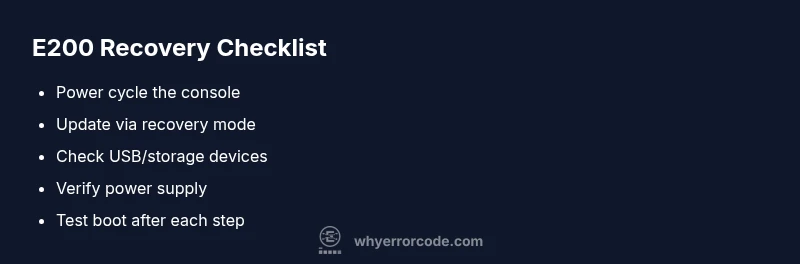
Before diving into deeper diagnostics, apply these fast steps. They’re designed to be safe, accessible, and inexpensive, giving you a quick path back to gaming. - Power cycle: Hold the Xbox power button for 10 seconds to ensure a complete shutdown, unplug the power cord, wait 30–60 seconds, then reconnect and power on. This clears transient states and can reset update flags. - Check cables and peripherals: Remove any USB drives and external peripherals, verify HDMI/Power supply connections, and ensure the console has adequate ventilation. - Retry the official update: If the console starts, navigate to Settings > System > Updates and retry the update, or use the recovery option if available. - Use the recovery option: If the normal boot fails, boot into recovery mode (as directed by Xbox support) and apply a clean update image from an official source. If you perform these steps and E200 persists, move to diagnostics and structured fixes.
Common causes and how they map to fixes
E200 typically stems from one of three areas: a corrupted firmware update, an unstable power supply, or storage-related issues that block boot. Rapid fix prioritization puts firmware integrity first, then power stability, then storage health. By addressing these areas methodically, you reduce the chance of unnecessary work and improve the odds of a clean boot. The most frequent root cause is a failed update that left the bootstrap loader in an inconsistent state. By reapplying the official update and ensuring power stability during the process, you often restore normal operation. If the drive or USB media is compromised, removing or replacing it can re-establish a clean boot path.
Diagnostic approach: symptoms, causes, and fixes (high-level)
When E200 appears, observe whether boot progress halts at the logo, the update bar, or during post-boot checks. This helps differentiate between a firmware issue (update corrupted, needs reflash) and a hardware issue (power supply unstable, storage problems). A practical step is to attempt a recovery update via USB if standard online updates fail. The aim is to reproduce a reliable boot loop with a known good image and verify if the error reappears. If the symptom persists after these steps, proceed to the formal diagnostic flow or contact support for a deeper hardware evaluation.
STEP-BY-STEP FIX (Most common path)
The most common way to fix E200 is to reflash with an official update image while ensuring power stability. Follow these steps if you can access recovery mode: 1) Prepare a clean USB drive formatted to FAT32 and download the official update package from the Xbox support site. 2) Copy the update file to the USB root and safely eject. 3) Power down the console completely, unplug, wait 60 seconds, reconnect, and boot into recovery mode. 4) Choose the USB update option and let the process complete without interruption. 5) After the update finishes, reboot and verify the system version. 6) If successful, reinstall any necessary apps and test a few games to confirm stability. Tip: Use a dedicated power outlet and a surge protector during the process to prevent interruptions.
Other potential causes and fixes
If the common flash/update path does not resolve E200, inspect other potential issues. - Power supply integrity: A faulty or underpowered supply can mimic update failures. Try a known-good power brick or factory power outlet to rule this out. - Storage health: A failing internal drive or faulty USB storage can interrupt boot. Disconnect external drives and run a system check or reformat the internal storage if supported. - System board and cooling: Overheating or a minor PCB fault can trigger boot faults. In such scenarios, a professional service may be required.
Safety, data risks, and when to call a pro
A health check should balance speed with data safety. If you have important game saves, consider whether cloud backups or local saves are accessible; E200 might risk data loss if you end up performing a full reset. Always back up any accessible data before attempting resets that erase content. If you’re not comfortable performing recovery updates or disassembling hardware, contact official support or a certified repair service to avoid voiding warranties or causing further damage. Costs can vary by region and service level, typically ranging from consumer-friendly diagnostics to more extensive hardware repair.
Proactive prevention and ongoing maintenance
To prevent E200 in the future, maintain stable power, keep firmware up to date through official channels, and avoid using unofficial software images. Regularly check storage health and back up saves, especially before major updates. Maintain proper ventilation to prevent overheating and run periodic checks on your console’s internal storage health (where available). Finally, log any unusual boot behavior and keep a record of the update version prior to issues to share with support if needed.
Quick summary and call-to-action
E200 is most often resolved through a careful recovery update and solid power stability. If you consistently encounter this error after trying the official update, it’s time to escalate to professional support. Why Error Code’s team recommends following the structured steps outlined here to minimize downtime and preserve data when possible. For ongoing issues, consult the official Xbox Support portal or reach out to a certified technician for a hardware diagnostic.
Final checks before you close
Re-test after each fix to confirm progress. Ensure your games and apps are reinstalled successfully and that the console boots to a stable state. If the system still refuses to boot normally after the recovery update, document the exact error behavior and contact support with a record of steps you’ve performed. A precise symptom log can speed up the diagnosis for a technician.
Steps
Estimated time: 45-60 minutes
- 1
Prepare official recovery USB
Download the official update package from Xbox Support, format a USB drive to FAT32, and copy the update file to the USB root. Ensure the file integrity by verifying the checksum provided by Microsoft where available.
Tip: Use a clean USB 3.0 drive to reduce transfer errors. - 2
Power down completely
Turn off the console with the power button and unplug the power cord. Leave it unplugged for at least 60 seconds to discharge residual power and clear any transient boot state.
Tip: Do not attempt updates while the console is plugged into a damaged outlet. - 3
Enter recovery mode
Plug the USB drive back in, then boot the console into recovery/update mode following the on-screen prompts or official instructions for your model. If your model uses a pairing button, hold it with the power connection to initiate recovery.
Tip: If your model supports a keyboard, you can navigate more easily in recovery mode. - 4
Apply the USB update
Choose the USB update option and allow the process to complete without interruption. Do not turn off the console mid-update as this can render firmware unusable.
Tip: Ensure the USB remains connected until the update completes. - 5
Verify the update and boot
Reboot the console and check the system update status. If the E200 persists, reattempt with the recovery USB or try a different USB port on the console if available.
Tip: Document the update version shown in system settings for support reference. - 6
Escalate if needed
If recovery fails or E200 returns, back up accessible data and contact official support or a certified repair service for diagnostic hardware testing.
Tip: Have your console’s model, serial number, and purchase proof handy when contacting support.
Diagnosis: Xbox console shows error code e200 during boot or update
Possible Causes
- highPower supply issues or improper power cycling
- highCorrupted firmware update or failed installation
- mediumFaulty storage device interfering with boot process
Fixes
- easyPower cycle the console: unplug, wait 30-60 seconds, plug back in, and power on
- mediumPerform an offline recovery update via USB or reflash through official recovery mode
- hardTest storage integrity; detach USB drives and test/replace the internal drive if needed
Frequently Asked Questions
What causes Xbox error code E200?
E200 is typically caused by a failed or corrupted system update, interrupted firmware installation, or unstable power conditions. Hardware issues like a faulty storage drive can also trigger startup faults. Addressing the firmware and power issues first typically resolves most cases.
E200 usually means a failed firmware update or power issue. Start with a clean recovery update and a power cycle, then check your storage.
Can I fix E200 myself?
Yes, many E200 cases can be resolved with a power cycle and a recovery update from official sources. If the problem persists, use the recovery USB method or consult official support. Some hardware issues may require professional repair.
You can try the official recovery and a power cycle yourself, but if it remains, contact support.
Is data lost if E200 occurs during boot?
There is potential data loss if you perform a factory reset or internal storage repair. If possible, back up accessible saves to cloud storage or an external drive before attempting resets.
There can be data loss with resets, so back up what you can first.
Will a factory reset fix E200?
A factory reset can fix software-related faults but erases all data unless you use a reset that preserves apps and games. Prefer 'Reset and keep my games & apps' if you can access the option.
Factory resets can help, but they erase data, so use the preserve-data option if available.
How much does repair cost for E200?
Repair costs vary by region and severity. Expect diagnostic fees plus potential parts and labor; typical ranges from roughly $50 to $150 for straightforward fixes, and higher if hardware replacement is required.
Repair costs vary; expect tens to a couple hundred dollars depending on the fix.
What if recovery mode isn’t reachable?
If recovery mode isn’t accessible, you may need professional service or warranty support. Collect your console’s serial number and proof of purchase to streamline support.
If you can’t reach recovery mode, contact professional support with your details.
Watch Video
Top Takeaways
- Identify E200 as a startup/firmware fault
- Prioritize a clean recovery update via official channels
- Check power stability and storage health early
- Escalate to pro repair if the error persists