Xbox Live error code 0x80072f8f: Causes, fixes, and prevention
Understand Xbox Live error code 0x80072f8f, its causes, and proven steps to fix it quickly on Windows and Xbox. Includes a diagnostic flow, step-by-step repair, and prevention tips for reliable gaming.


Xbox Live error code 0x80072f8f signals a failure to establish a secure connection to Xbox Live services, typically caused by certificate validation issues, incorrect system time, or network security blocks. In practice, the error appears when your device cannot complete TLS/SSL handshakes with Microsoft servers, which prevents sign-in, matchmaking, and access to the Store. The failure is often transient and solvable with user-side fixes, especially when you catch it early. The Why Error Code Team notes that this error is usually driven by local trust stores or time synchronization problems rather than a broad backend outage. By focusing on clock accuracy, certificate trust, and network routing, you can restore normal access in many cases.
What Xbox Live error code 0x80072f8f Means
Xbox Live error code 0x80072f8f signals a failure to establish a secure connection to Xbox Live services, typically caused by certificate validation issues, incorrect system time, or network security blocks. In practice, the error appears when your device cannot complete TLS/SSL handshakes with Microsoft servers, which prevents sign-in, matchmaking, and access to the Store. The failure is often transient and solvable with user-side fixes, especially when you catch it early. The Why Error Code Team notes that this error is usually driven by local trust stores or time synchronization problems rather than a broad backend outage. By focusing on clock accuracy, certificate trust, and network routing, you can restore normal access in many cases.
Symptoms and Impact
Typical signs include a persistent 0x80072f8f error while attempting sign-in, library or store loading failures, and intermittent sign-in prompts on Windows or Xbox. You may also see certificate warnings in browsers or apps when the Xbox Live app tries to authenticate with Microsoft services. The impact goes beyond a paused game session: it can block cloud saves, rewards, and cross-device progress, creating a frustrating interruption for players and developers who rely on reliable authentication. While some reports are tied to Windows updates or drive-by backend maintenance, many users recover by correcting the local environment, not waiting for a server-side fix.
Immediate Quick Fixes You Can Try Right Now
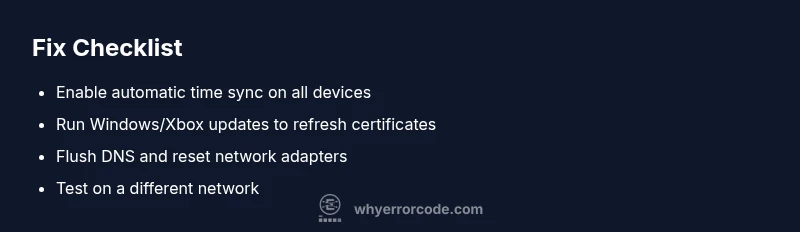
- Ensure your device date and time are correct and set to automatic. If the clock is off by more than a few minutes, certificates may appear invalid to the system.
- Run Windows Update (PC) or Xbox system updates (console) to refresh certificates and trust stores.
- Reset your network configuration: flush DNS, renew DHCP, and reboot the router if needed.
- Temporarily disable VPNs, proxies, or firewall rules that could block TLS handshakes with Microsoft services.
- Try a different network (mobile hotspot) to determine if the issue is network-specific.
- Sign out of Xbox Live and sign back in after updates are applied.
Deep Dive: Why This Error Occurs (Causes)
- Clock/time drift on the device: When the system clock diverges, certificates become invalid and secure connections fail. High likelihood.
- Expired or missing certificates in the trust store: If Windows certificate stores are out of date, TLS handshakes fail. High likelihood.
- DNS resolution or firewall blocking Microsoft services: DNS hijacking or strict firewall rules can prevent endpoint verification. Medium likelihood.
- Proxy/VPN interference: Some intermediaries alter TLS certificates or strip SNI, causing 0x80072f8f. Medium likelihood.
- Backend certificate problems or service outages: Rare, but possible during maintenance windows; verify service status.
- Cached app data or corrupted local caches: Bad cache can cause repeated handshake failures; Low likelihood but fixable.
Step-by-Step Fix for the Most Likely Cause
- Verify your device date/time and enable automatic synchronization.
- Update Windows/Console system and ensure certificate updates are installed.
- Check Windows Update history for failed updates and install any pending patches.
- Flush DNS and reset network adapters, then reboot.
- Test with a different network (mobile hotspot) to confirm whether the issue is network-specific.
- Disable VPN, proxy, or firewall temporarily to test TLS connectivity to Microsoft services.
- Sign out of Xbox Live, restart, and sign back in; if still failing, re-install Xbox Live components or the app.
Tip: Document any error messages during these steps to help pinpoint the exact cause.
Other Causes and How to Address Them
- Corrupted Xbox Live cache data: Clearing the app cache on Windows or Xbox can resolve handshake issues.
- Outdated game or app: Ensure the Xbox app and games are updated to latest versions.
- System date/time issues across all devices on the network: Check router's time settings and NTP; ensure all devices sync reliably.
Steps
Estimated time: 15-30 minutes
- 1
Check date and time
Open your device settings and ensure date/time are set to automatic. Correcting skew even by a few minutes can fix certificate validation failures.
Tip: If you travel across time zones, enable automatic time updates and verify the timezone is correct. - 2
Update system and certificates
Run Windows Update on PC or Xbox system updates to pull the latest certificate bundles and trust stores. Reboot after updates finish.
Tip: Look for optional updates specifically labeled security or certificate updates. - 3
Optimize network settings
Flush DNS, renew DHCP lease, and reboot your router. Consider switching to a known public DNS (e.g., 8.8.8.8) temporarily.
Tip: After changes, test sign-in before proceeding to the next step. - 4
Test across networks
Connect to a different network (mobile hotspot) to determine if the issue is network-specific or device-related.
Tip: If the issue disappears on another network, your primary network may be filtering TLS traffic. - 5
Disable VPN/Proxy temporarily
If you use a VPN or corporate proxy, disable it for a test to see if TLS handshakes succeed without it.
Tip: Do not leave security tools disabled longer than necessary; re-enable after testing. - 6
Re-sign into Xbox Live
Sign out of Xbox Live, restart the app or console, then sign back in. This forces a fresh authentication session.
Tip: Keep your credentials handy in case you’re asked to reauthenticate. - 7
Consider a reinstall
If all else fails, reinstall the Xbox Live components or the Xbox app and retry sign-in.
Tip: Back up game data or saves if possible before reinstalling.
Diagnosis: Xbox Live error code 0x80072f8f appears during sign-in
Possible Causes
- highClock/time drift on device
- highExpired or missing certificates in the trust store
- mediumDNS or firewall blocking Microsoft services
- mediumProxy or VPN interference
- lowBackend certificate problems or service outages
- lowCached app data or corrupted local caches
Fixes
- easySet correct date/time or enable automatic time sync
- easyRun Windows Update and install certificates updates
- easyFlush DNS and reset network settings
- easyTest on a different network to rule out local network issues
- mediumDisable VPN/proxy temporarily and verify TLS connectivity
- mediumSign out/in to Xbox Live or reinstall Xbox Live components
Frequently Asked Questions
What does 0x80072f8f mean in Xbox Live?
It indicates a failure to establish a secure connection to Xbox Live services, typically due to certificate validation or time synchronization problems.
0x80072f8f means the secure connection to Xbox Live couldn’t be verified, usually from clock or certificate issues.
Is this error limited to Windows devices or Xbox consoles too?
Both Windows devices and Xbox consoles can display 0x80072f8f when TLS handshakes fail, though the exact steps to fix may differ by platform.
Both PC and Xbox can show this error; fixes depend on your device.
Can I fix this without reinstalling anything?
Yes. In most cases, you can resolve it with time sync, certificate updates, DNS tricks, and a network test before considering reinstalls.
Usually, you can fix it with updates and network checks before reinstalling anything.
Should I call a professional if the error persists?
If backend certificate issues or service outages are suspected, contact official support with device details and service status checks.
If it keeps happening after all fixes, reach out to support with details.
How long does the fix typically take?
Most quick fixes take 15-30 minutes, with deeper issues potentially requiring longer investigations or backend status checks.
Fixes usually take a short time, but deeper problems may need more time.
Watch Video
Top Takeaways
- Verify date/time and update certificates first.
- Test across networks to localize source.
- Run through quick fixes before deeper repairs.
- Keep Xbox Live apps updated and monitor service status.
- Seek professional help if backend or certificate revocation is suspected.