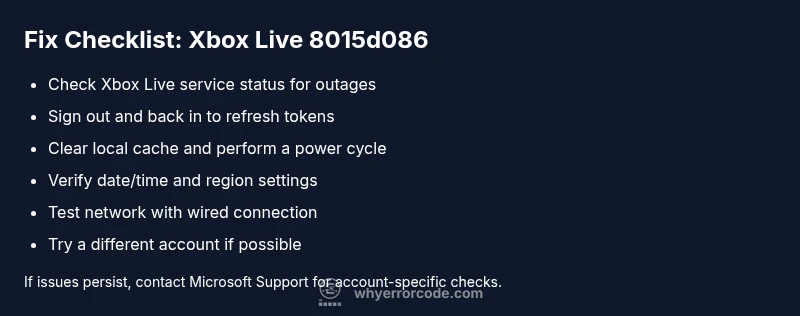
Xbox Live error 8015d086: Urgent fixes and troubleshooting
Urgent, step-by-step guide to diagnose and resolve Xbox Live error 8015d086—authentication issues, quick cache fixes, network checks, and escalation paths to get you back online fast.


According to Why Error Code, Xbox Live error code 8015d086 signals a network authentication issue on Xbox consoles. Quick fixes: sign out/in, clear cache, verify date/time, test your network, and retry after a short wait. If unresolved, contact support. These steps are designed to restore connectivity quickly for most users today.
What xbox live error code 8015d086 means
Xbox Live error code 8015d086 is an authentication/connectivity error that prevents you from signing into Xbox Live or launching online features. In plain terms, your console cannot validate your identity with Microsoft's authentication servers. Causes often include stale tokens in the local cache, DNS resolution hiccups, temporary service outages, or misconfigured system time. By recognizing that the problem is usually a mix of factors, you can prioritize fixes that remove the easiest blockers first (cache, sign-in status, and network reliability) before moving to deeper steps. The immediate goal is to re-establish a stable, authenticated session so you can resume gaming, streaming, or apps without interruption. This matters because authentication failures aren’t just a sign-in problem; they block controller input, matchmaking, and content downloads, which can ruin a gaming session.
Symptoms and impact you might notice
If you’re seeing 8015d086, you’ll likely encounter one or more of the following: a stuck sign-in screen, sudden disconnections from online multiplayer, failure to access Xbox Live apps, or intermittent prompts asking you to re-enter credentials. These symptoms can appear after a system update, a switch from wired to wireless networks, or a VPN/proxy change. While the issue often resolves on its own during short outages, most cases stem from locally stored tokens or misaligned date/time settings, making the fix both quick and repeatable when you follow a structured flow. Understanding the link between sign-in status and token validation helps you target the right fixes with confidence.
Quick, low-friction checks to try now
Before diving into long fixes, perform a few non-destructive checks. Verify your console clock is set to automatic and correct for your time zone. Reboot your router and test your network with a wired connection if possible. Sign out of your Xbox Live account on the console, then sign back in. Clear the local cache by power cycling the console (fully turn off, unplug for 30 seconds, and power back on). These actions reset transient states without risking data loss and often restore authentication without contacting support. If you also notice service outages on the Xbox Status page, wait 20–30 minutes and retry.
Diagnostic flow: symptoms → causes → fixes
When 8015d086 appears, the likely sequence is: you attempt sign-in, the token is rejected, the system fails to establish a session, and you’re redirected to a sign-in prompt. The causes map to token issues, DNS or network hiccups, and service-side outages. Fixes begin with the simplest and most reversible steps (sign-out/in, cache clear, reboot) and progress to network testing (cable vs Wi‑Fi, DNS settings) and service status checks. By following a flow that starts with quick wins and ends with escalation, you reduce downtime and avoid unnecessary resets or factory options. Remember: a stable, authenticated session is the foundation for all Xbox Live features, including multiplayer, Game Pass streaming, and store access.
Step-by-step fix: the most common cause
- Confirm service status for Xbox Live in your region and ensure no known outages. 2) Sign out of your account, then sign back in. 3) Power cycle the console: shut down completely, unplug for 30 seconds, plug back in, and boot. 4) Clear cache by holding power button for 10 seconds during a cold start. 5) Verify date/time is set to automatic and correct for your timezone. 6) If possible, switch to a wired Ethernet connection to eliminate wireless instability. 7) Test multiplayer/connectivity to verify the sign-in process repeatedly. 8) If issues persist, contact Microsoft Support.
Other possible causes and how to address them
Beyond cache and sign-in issues, 8015d086 can stem from DNS misconfiguration, VPNs or proxies interfering with traffic, or regional service constraints. Reconfigure DNS to a reliable resolver (e.g., a known public DNS), disable VPNs for Xbox Live, and ensure your router’s firmware is up to date. If you’re using a shared network (school, office, or guest network), ask the administrator about port restrictions that could affect authentication. In some cases, your account may have security flags or two-factor authentication prompts that require you to verify your identity on the Microsoft account page. Addressing these factors typically resolves the error without further intervention.
Safety, warnings, and when to escalate
If you’re tempted to perform a factory reset or reinstall the system software, note that these actions can erase local data and settings. Always back up Save data to the cloud where possible and be prepared for reinstall times. Do not disable essential security features or bypass account protections. If you’ve exhausted the standard flow and still encounter 8015d086, it’s time to contact Microsoft Support or your internet service provider for deeper network diagnostics. The goal is to re-establish authenticated access without compromising device integrity or data security.
Prevention and best practices after resolution
Once you’ve resolved 8015d086, set up a small maintenance routine: enable automatic updates for the console, router, and apps; monitor service status pages for outages; avoid mid-session VPN changes; and keep two-factor authentication configured for your account. Regular clears of the cache after major updates can also prevent token corruption. Document the steps you took so you can repeat a similar process quickly next time, minimizing downtime and frustration.
Steps
Estimated time: 60-90 minutes
- 1
Check Xbox Live service status
Open a browser and visit the official Xbox Live service status page for your region. If outages are reported, take note of the duration and plan to retry after the stated window. This step prevents chasing a problem you cannot fix locally.
Tip: Bookmark the status page for quick checks next time. - 2
Sign out and sign back in
From the Xbox Home, sign out of your account, wait 30 seconds, then sign back in. This refreshes the authentication token and re-establishes a trusted session with Microsoft servers.
Tip: Have your Microsoft account credentials ready. - 3
Clear cache and power cycle
Fully power off the console, unplug for 30 seconds, then plug back in and power on. If your console supports a cache-clear option, perform it as part of the startup sequence to purge stale data.
Tip: Avoid interrupting an update; ensure the device is fully off before restarting. - 4
Verify date/time and region
Check that the console clock is set to automatic and matches your local time zone. Incorrect time settings can affect token validation and security checks on authentication servers.
Tip: If you travel, re-sync time settings after returning home. - 5
Test network stability
If you have Ethernet, connect directly; if not, try a different Wi-Fi network or adjust your router settings to prioritize gaming traffic. Run a speed test and watch for spikes or dropped packets that could disrupt authentication.
Tip: Use a wired connection for the most stable results during troubleshooting. - 6
Try a different account or profile
If possible, sign in with a different Xbox Live profile or create a test local profile. If the new profile works, the issue may be account-specific and requires Microsoft account recovery steps.
Tip: Back up important saves to the cloud when possible. - 7
Consider a factory reset as last resort
Only if every other fix fails and you’ve backed up data. A factory reset will erase applications and settings; re-installation will take time and bandwidth.
Tip: This is a last-resort option; consult support before proceeding.
Diagnosis: Xbox Live error 8015d086 appears during sign-in or when launching online features
Possible Causes
- highCached authentication token expired or corrupted
- highDNS resolution or general network configuration issues
- mediumTemporary Microsoft service outage or account-related security check
Fixes
- easySign out of Xbox Live and sign back in
- easyClear local cache and perform a full power cycle
- easyVerify date/time settings and switch to automatic
- mediumTest network with a wired connection or adjust DNS
- easyCheck Xbox Live service status and wait for outages to resolve
Frequently Asked Questions
What does xbox live error 8015d086 mean?
Error 8015d086 indicates a failure in authenticating your Xbox Live session, usually due to token issues, DNS problems, or a temporary service outage. It prevents sign-in and online features until the session is refreshed.
Error 8015d086 means your Xbox Live authentication failed. Usually tokens or connectivity cause the issue, and signing back in or checking service status often fixes it.
Is this error caused by my account or Xbox servers?
Both can contribute. In many cases, local token corruption or network DNS issues trigger the error, while temporary server outages can also lead to authentication failures. Identifying the source requires checking service status and testing sign-in with a different profile.
It can be either. Start with local fixes and then check service status to determine if it’s server-related.
Will updates automatically fix this error?
Not automatically. Applying the standard troubleshooting steps—signing out/in, clearing cache, and verifying network settings—often resolves the problem without requiring a full update. Service outages may resolve on their own after maintenance periods.
Updates help, but you’ll usually fix this with targeted troubleshooting first.
How long does it typically take to fix?
A majority of cases resolve within 20–60 minutes when you follow the recommended quick fixes. If the issue is outage-related, it may take longer and require waiting for the service to restore.
Most fixes take under an hour. Outages can take longer depending on the service.
Should I reset my router or network settings?
Resetting network devices can help if the issue stems from DNS or local routing problems. Use wired connections when possible for stability, and reconfigure DNS back to your preferred resolver after testing.
A network reset can help if DNS routing is the issue, especially with a wired setup.
When should I contact Microsoft Support?
If you’ve exhausted all local fixes, confirmed there are no known outages, and still can’t sign in, contact Microsoft Support. They can verify account status, token validity, and assist with advanced troubleshooting.
If the issue persists after all steps, reach out to Microsoft Support for deeper help.
Watch Video
Top Takeaways
- Start with quick cache and sign-in fixes.
- Check service status before deep networking changes.
- Escalate to support only after exhausting local fixes.
- Maintain device and network updates to prevent recurrence.