YouTube Error Code 0: Quick Fix Guide
Urgent guide to diagnose and fix YouTube error code 0 across devices. Learn immediate fixes, diagnostic flow, step-by-step repairs, and prevention tips to restore smooth playback fast.


Error code 0 on YouTube usually signals a generic playback or app issue rather than a video problem. To fix fast, follow a layered approach: verify your network, update or reinstall the YouTube app, clear cache, sign out and back in, and test on another device or browser. If it persists, check for service outages.
What YouTube Error Code 0 Really Means
YouTube error code 0 is a catch‑all signal indicating a non-specific problem with playback, app data, or authentication rather than a particular video file. In practice, the root cause is almost always a local issue or a short service hiccup. The Why Error Code team notes that most cases resolve quickly once you address the common culprits: connectivity, outdated apps, cached data, and sign-in state. Treat this as a layered troubleshooting task rather than a single magic fix. By understanding that this error is a symptom, not a fixed condition, you can move efficiently through the steps and minimize downtime.
Common Symptoms and When It Occurs
Users typically see error code 0 during video playback, live streams, or while loading the YouTube app on mobile devices, desktops, or smart TVs. The message may appear after attempting to start a video, switch quality, or while the app runs in the background. Symptom patterns can help narrow the cause: inconsistent Wi‑Fi, sudden sign‑in prompts, or a spike in traffic on your device. If the problem happens only on one device, the issue is likely device‑side; if multiple devices are affected, you should check network or service status.
Quick Fixes You Can Try Right Now
Start with fast, non-destructive actions that cover most scenarios. These fixes are free and can be completed in minutes:
- Check your internet connection: try another site, switch from Wi‑Fi to mobile data or vice versa.
- Restart the device and the router/modem to refresh network state.
- Update the YouTube app or reinstall it if the update did not complete properly.
- Clear cache and, if available, clear app data (note: you may need to sign in again).
- Sign out of YouTube and sign back in; test in an incognito/private session to rule out account issues.
- Disable VPNs or proxies that could affect routing to YouTube servers.
Diagnostic Flow at a Glance
This section mirrors the diagnostic flow you’ll use when troubleshooting error code 0. Start by observing the symptom, then consider the most likely causes, and apply the corresponding fixes in order. If the issue remains, move to less common causes. The flow emphasizes quick wins first, then deeper checks.
- Symptom: Video won't play and error code 0 appears.
- Most likely causes (in order): poor network connection (high), outdated or corrupt app data (high), sign-in problems (medium), service outages or regional blocks (low).
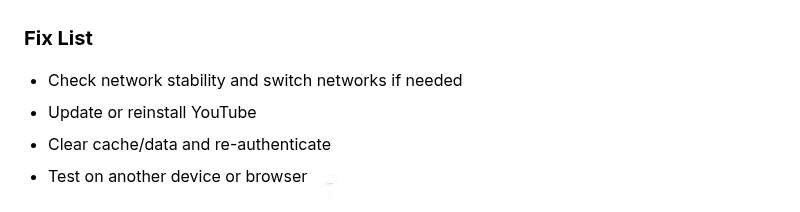
- Matching fixes: verify network, update/reinstall app, clear cache/data, re-authenticate, try another device, and check service status.
Deep Dive: Most Common Causes and Fixes
The top causes for error code 0 are usually network problems, stale app data, or sign-in issues. Clearing cache or data often resolves corrupted cached video metadata. Keeping the app up to date reduces incompatibilities with the YouTube servers. Your device clock should also be synchronized; large time discrepancies can affect authentication tokens. If the problem persists across devices on the same network, investigate router settings or ISP routing, and consider temporarily disabling firewall rules that might block YouTube.
Other Potential Causes and How to Address Them
Less common but plausible causes include: device software conflicts, regional restrictions or geo blocks, and a temporary YouTube service outage. To rule these out, test streaming on a different network, use a different browser, or try a different account. If a service outage is suspected, check official status pages or trusted update feeds. For hardware-associated issues, such as a failing router or modem, contact your provider or replace the hardware if tests indicate degraded performance.
Safety, Costs, and When to Seek Help
Most error code 0 incidents are fixable with free software actions (updates, cache clears, sign‑in refresh). If your device requires reinstall, you may incur nothing or a small service cost if you hire professional help. Hardware problems (router replacements or ISP issues) can involve costs in the range of a few dollars for a replacement part up to a few hundred dollars for service calls. If you’re uncomfortable performing steps, or if data loss is possible in the purge of app data, seek professional support.
Prevention Tips to Minimize Future Occurrences
- Keep YouTube and device software up to date.
- Use a stable network connection; prefer wired or high‑quality Wi‑Fi.
- Regularly clear cache for apps with heavy data usage.
- Avoid VPNs or proxies that disrupt routing to YouTube.
- Monitor device time and date accuracy to prevent token failures.
Appendix: What to Do If You Still See Error Code 0
If the error persists after the above steps, gather details for support. Note the device type, OS version, YouTube app version, network type, and whether other apps experience similar issues. Contact the platform’s help center or your device manufacturer for deeper analysis, and consider reporting the incident if it seems correlated with a broader outage.
Steps
Estimated time: 45-60 minutes
- 1
Test and stabilize the network
Move closer to the router, switch networks if possible, and run a quick speed test. If you’re on Wi‑Fi, try a wired connection if available. This confirms whether the issue is a network fault rather than an app problem.
Tip: Document current speed results to compare after fixes. - 2
Update or reinstall the YouTube app
Check for updates and install. If the problem persists, uninstall and reinstall the app to reset its data and cache, which often resolves deep‑rooted corruption.
Tip: Back up any offline videos or data that may be affected by reinstallation. - 3
Clear cache/data and sign back in
On mobile, go to app settings and clear cache or data; on desktop, clear cache in the browser. Sign out of YouTube and sign back in to refresh authentication tokens.
Tip: If your account is shared, ensure you’re signed into the correct profile. - 4
Try a different device or browser
Open YouTube on another device or in an incognito/private window to isolate whether the issue is device‑specific or network‑wide.
Tip: If the issue disappears on another device, focus on the original device’s settings and apps. - 5
Check for outages and regional blocks
Visit YouTube's official status page or social channels for updates. If it’s a known outage, you may need to wait and retry later.
Tip: Set a reminder to recheck after the outage window passes.
Diagnosis: Video won't play and YouTube shows error code 0
Possible Causes
- highWeak or unstable network connection
- highOutdated or corrupted app data
- mediumAccount or sign-in issues
- lowYouTube service outage or regional block
Fixes
- easyImprove network stability (switch to a wired connection, restart router)
- easyUpdate YouTube app or reinstall to replace corrupted data
- easyClear app cache/data and sign back in
- easyTest on another device or browser to isolate the cause
- easyCheck YouTube service status and regional restrictions
Frequently Asked Questions
What does YouTube error code 0 mean?
Error code 0 is a generic YouTube error indicating a non-specific playback or app issue. It usually resolves with network checks, app updates, or cache clearance.
YouTube error code 0 is a generic problem. Try the quick fixes like updating the app and clearing cache to fix it.
Is error code 0 the same on mobile and desktop?
In most cases, yes. The underlying causes are similar—network, cache, or sign‑in issues—though the exact steps may differ by platform.
Mostly the same causes on phones and computers; follow platform‑specific steps to fix.
Should I reinstall YouTube if I get error 0?
Reinstalling can fix corrupted data and cache. If you prefer not to, you can first clear cache/data and sign out/in, which often suffices.
Reinstall if cache clears don’t help; otherwise try sign-out and cache clearing first.
Can network issues cause error 0?
Yes. A poor or unstable connection commonly triggers error 0. Test on a different network to confirm and then fix your primary connection.
Weak networks are a frequent culprit; test on another network to verify.
Do I need professional help for YouTube issues?
Most cases don’t require professional help. If a device fault or persistent outages occur, contact your device manufacturer or an IT professional.
Usually not; seek professional help only for hardware or persistent, non‑resolved problems.
Why does signing out and back in help?
Signing out refreshes your authentication tokens, which can fix sign‑in related error 0 scenarios and reestablish a clean session.
Signing out refreshes your session and fixes token problems that trigger the error.
Watch Video
Top Takeaways
- Start with quick wins: restart, update, and clear cache.
- If it persists, verify service status and test across devices.
- Regular updates prevent recurring errors.
- Know when to seek help if data or hardware issues arise.