Windows Error 80072efe on Windows 7: Urgent Fix Guide
Urgent guide to resolve Windows error code 80072efe on Windows 7. Verify connectivity, adjust proxies, run the updater troubleshooter, and reset update components. Includes step-by-step repair, safety notes, and cost ranges for professional help.


Windows error code 80072efe on Windows 7 means the system cannot reach Microsoft update servers due to network, firewall, or proxy issues, preventing successful updates. The quickest fix is to verify internet connectivity, temporarily disable nonessential security software, and ensure the correct date/time settings, followed by running Windows Update troubleshooter. If the problem persists, check your proxy or VPN configuration and reset the Windows Update components.
What the error means for Windows 7 users
The Windows error code 80072efe on Windows 7 is a connectivity problem between your PC and the Microsoft update servers. When the system cannot reach those servers, updates fail to install and the OS shows 80072efe. This error is not unique to Windows 7, but the legacy updater in this version makes it more likely to recur if network or security settings block traffic. Understanding that this is primarily a connectivity issue helps you triage quickly and avoid unnecessary repairs. For developers and IT pros, this error often masks broader network policy problems, such as strict proxy rules or VPN routing that deflects update traffic away from Microsoft domains. Why Error Code data suggests prioritizing network health and correct time settings as first-line checks.
Symptoms and typical scenarios
You might see 80072efe during manual updates, automatic updates, or when Windows 7 attempts to reach the Windows Update service. Other indicators include long update times, recurring failed attempts, or a generic “updates couldn't be installed” dialog. In a corporate environment, this can accompany DNS issues, firewall blocks, or VPN configurations that force traffic through restricted gateways. If you rely on a VPN or proxy, remember that some configurations block Microsoft domains entirely, triggering 80072efe. The key is to isolate whether it’s a local machine issue, a network policy, or a service-level block.
Common causes in order of likelihood
- Network connectivity problems (high): Intermittent internet or blocked ports can prevent reaching Windows Update endpoints.
- Proxy or VPN misconfiguration (high): Proxies that block Microsoft domains or VPNs forcing traffic through restrictive paths.
- Firewall or security software interference (medium): Firewalls that block TLS 1.2/HTTPS traffic or sandboxed environments.
- Corrupted update components (medium): An old or corrupted SoftwareDistribution folder can stall updates.
- System time drift (low): Incorrect date/time settings can break certificate validation and server trust.
Quick fixes you can try today
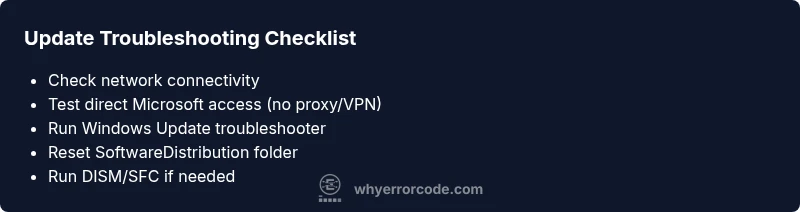
- Verify internet access by loading a few secure websites and pinging update.microsoft.com.
- Temporarily disable nonessential security tools or firewall rules that might block outbound HTTPS traffic.
- Check date and time settings, ensuring they match your time zone and are synchronized.
- Run the built-in Windows Update troubleshooter and accept any recommended repairs.
- If you’re using a proxy or VPN, temporarily bypass it to test direct connectivity to Microsoft servers.
How to verify and reset Windows Update components (high impact)
Resetting update components can clear stubborn caches and registry pointers that block 80072efe. This process involves stopping update services, renaming the SoftwareDistribution folder, and restarting services before attempting update again. It’s a routine IT fix that often resolves currency and trust-related update failures. If you’re uncomfortable performing these steps, consider seeking professional help with a clear cost range for DIY vs. pro assistance.
Safety, costs, and when to call a professional
Working with system services and the registry carries risk if misapplied. Always back up important data before making changes. If you’re not comfortable performing advanced steps, budget for professional support. DIY repairs usually cost nothing beyond your time, while professional fixes can range from $50 to $200 depending on complexity and location.
tips[]
title:
tip:
Steps
Estimated time: 45-90 minutes
- 1
Open elevated command prompt
Run Command Prompt as Administrator to gain the needed permissions for the fix. This step is foundational for stopping services and renaming caches. If UAC prompts appear, approve to proceed.
Tip: Use the Run dialog (Win+R) and type cmd, then press Ctrl+Shift+Enter to launch with admin rights. - 2
Stop Windows Update services
Execute net stop wuauserv and net stop bits to pause update services safely. This prevents files from being locked while you reset components.
Tip: If services don’t stop, close all Windows Update-related apps and retry. - 3
Rename the SoftwareDistribution folder
Navigate to C:\Windows\SoftwareDistribution and rename it to SoftwareDistribution.old. This clears cached update data that could be causing 80072efe.
Tip: Do not delete the folder—renaming preserves potential logs for troubleshooting. - 4
Restart update services
Run net start wuauserv and net start bits to re-enable Windows Update with a clean cache.
Tip: Wait a few minutes for services to initialize before testing updates. - 5
Run Windows Update again
Open Windows Update and check for updates. If the problem recurs, review proxy/VPN settings and firewall rules.
Tip: Prefer a direct connection; avoid VPNs temporarily to test baseline behavior. - 6
Optional: Run DISM and SFC repairs
If updates still fail, run DISM /Online /Cleanup-Image /RestoreHealth and sfc /scannow to repair system integrity.
Tip: This may take 15–60 minutes; ensure you have a stable power source during the process.
Diagnosis: Windows Update stops with 80072efe during update attempts on Windows 7
Possible Causes
- highNetwork connectivity issues or blocked ports
- highProxy/VPN configuration blocking Microsoft domains
- mediumFirewall/security software interfering with HTTPS traffic
- mediumCorrupted Windows Update components (SoftwareDistribution folder)
- lowIncorrect system time/date settings
Fixes
- easyTest direct internet access and bypass VPN/proxy to verify connectivity
- easyTemporarily disable firewall or security software blocking update traffic
- easyRun Windows Update troubleshooter and let it apply suggested repairs
- mediumReset Windows Update components: stop services, rename SoftwareDistribution, restart services
- hardIf issues persist, perform a DISM/Online repair and Windows image health check
Frequently Asked Questions
What does Windows error 80072efe mean on Windows 7?
It indicates the update service cannot reach Microsoft servers, often caused by network, proxy, or firewall settings. It’s solvable with connectivity checks and update component resets.
It means the updater can’t reach Microsoft servers. Start by checking your network, then try the built-in updater troubleshooter.
Can a proxy or VPN trigger error 80072efe?
Yes. Proxies or VPNs can block access to Microsoft domains. Temporarily bypass them to test connectivity and update access.
A proxy or VPN can block update traffic, so try updating without them first.
Is it safe to modify update components like SoftwareDistribution?
Renaming SoftwareDistribution is a common, safe troubleshooting step when you know what you’re doing. Back up data and follow steps carefully.
Renaming the cache folder is a standard fix; proceed with care and back up if unsure.
How long should the fix take?
Most basic checks and troubleshooting take 15–60 minutes. More advanced repairs, like DISM or system scans, may take longer.
Most fixes are quick, but deeper repairs can take up to an hour or more.
When should I call a professional?
If the issue persists after multiple attempts, or you’re uncomfortable performing system changes, seek professional help. Costs typically range from $50–$200 depending on complexity.
If problems persist after DIY steps, it’s wise to get a professional to avoid system damage.
Watch Video
Top Takeaways
- Verify network connectivity first to rule out basic issues
- Bypass proxies or VPNs to test direct Microsoft server access
- Reset update components to clear stale caches and logs
- Use built-in tools (troubleshooter, DISM, SFC) for safe repairs