Windows 7 Activation Key Error 0x80072f8f: Quick Fixes and Diagnostics
Urgent guide to fix Windows 7 activation key error 0x80072f8f with quick checks, diagnostics, and proven troubleshooting steps from Why Error Code Team.


0x80072f8f during Windows 7 activation means the activation request could not reach Microsoft servers securely. This typically stems from TLS/SSL handshake problems, certificate validation failures, or a clock that’s out of sync. Before pulling logs, try quick checks: verify date/time, confirm your network can reach activation endpoints, and ensure proxies or VPNs aren’t blocking TLS traffic. If these fail, proceed with the deeper diagnostic steps.
What this error means for Windows 7 activation
Activation of Windows 7 relies on contacting Microsoft's activation servers over a secure channel. The error code 0x80072f8f signals that the activation request could not reach or complete the TLS/SSL handshake due to certificate validation issues, a clock drift, or a blocked network path. According to Why Error Code analysis, this is most often a connectivity or trust problem rather than an invalid product key. If your system date/time is off, certificates may appear expired or not yet valid, and the activation service may reject the request. In corporate networks, proxies or VPNs can also interfere with TLS handshakes. Understand that while Windows 7 has reached end of support, activation issues still occur in isolated environments, and many fixes are still effective.
Why 0x80072f8f appears during activation
This error appears when the activation client cannot establish a secure channel to the activation servers, or when the certificate validation fails during the TLS handshake. The reasons are typically practical rather than mystical: clocks misconfigured by user or domain policies, a firewall or proxy that blocks TLS traffic, outdated TLS protocols disabled in Internet Options, or corrupted activation components. Why Error Code Team has observed that most cases are resolved by addressing network and time synchronization first, before delving into deeper system repairs. Given Windows 7’s legacy status, one-off network restrictions can be especially stubborn in corporate environments.
Quick fixes you can try now
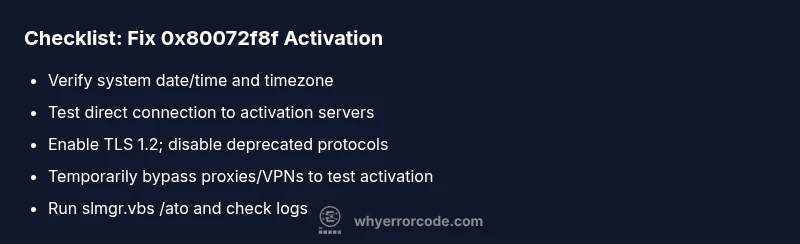
- Verify that the system date, time, and time zone are correct. A wrong clock is a common cause of certificate validation failures and activation timeouts.
- Check your internet connection and disable any VPNs or proxies temporarily to test a direct connection to activation servers.
- Ensure TLS 1.2 is enabled in Internet Options > Advanced (and avoid deprecated protocols). If you use a corporate proxy, configure it to allow TLS to Microsoft activation endpoints.
- Run a basic activation retry from an elevated command prompt: slmgr.vbs /ato
- If you still can’t reach activation servers, consider offline activation methods or contacting Microsoft Support for reissue or reassignment of your license. Since Windows 7 is out of mainstream support, rely on official channels for licensing.
Diagnostic: symptom-to-cause mapping
Symptom: Error code 0x80072f8f during activation.
Causes (likelihood):
- Date/time mismatch on the client machine — high
- Firewall, proxy, or VPN blocking TLS connections — high
- TLS settings or deprecated protocols disabled — medium
- Corrupted activation components or corrupted system files — low
Fixes (difficulty):
- Sync the clock and timezone, and verify NTP config — easy
- Temporarily disable proxies or adjust firewall rules to permit activation endpoints — easy
- Enable TLS 1.2/SSL protocols in Internet Options and registry (if needed) — medium
- Run system file checks and re-register activation components if corruption is suspected — hard
Step-by-step fix: most common cause
- Confirm date and time: Right-click clock, adjust automatically if possible; ensure time zone is correct. Tip: set to synchronize with an online time server.
- Test direct connectivity: Open a browser and load activation URLs; if blocked, note the proxy or firewall policy.
- Enable TLS 1.2: In Internet Options > Advanced, ensure TLS 1.2 is checked; apply and reboot if required.
- Disable/adjust proxies: Go to Control Panel > Internet Options > Connections > LAN settings; turn off proxy, test activation again.
- Run activation command: Open Command Prompt as administrator and run slmgr.vbs /ato; note any error messages and log details.
- Check for system file integrity: Run sfc /scannow and dism /online /cleanup-image /restorehealth (if available); repair any corrupted files.
- If still unresolved, contact Microsoft Support for activation reissue or licensing verification; prepare your product key and proof of license; costs vary by service level.
Other potential causes and fixes
- Network security appliances or corporate proxies that inspect TLS certificates: consult IT about adding activation endpoints to allowlist.
- DNS issues that misroute Microsoft activation servers: flush DNS (ipconfig /flushdns) and verify DNS settings.
- Recent updates or third-party software interfering with TLS handshake: perform clean boot to isolate software conflicts.
- Malware or security software restricting outbound connections: temporarily disable or configure exceptions for activation endpoints.
- Activation limit reached on the product key: verify license status and consider a new key from Microsoft Volume Licensing or retail channels.
Safety, support, and when to escalate
- Always back up important data before making changes to activation or network configurations.
- Activation issues on Windows 7 can expose your system to security risks; consider upgrading to a supported OS or applying the latest security patches within supported options.
- If the problem persists after all standard fixes, escalate to Microsoft Support or a trusted IT professional. Provide logs and exact error code 0x80072f8f to expedite troubleshooting. Where possible, seek official licensing assistance rather than using third-party keys.
Prevention strategies and best practices
- Maintain accurate system time and reduce drift by enabling automatic time synchronization.
- Keep network settings and TLS configurations aligned with current security standards; avoid deprecated protocols.
- Use reliable networks and verify that activation endpoints are reachable from corporate networks.
- Plan for OS lifecycle transitions; Windows 7 is out of support, and several activation issues can be mitigated by moving to a supported operating system.
- Document activation steps and error patterns to speed future troubleshooting. Regularly review activation logs and update security software to minimize false positives on TLS handshake.
Steps
Estimated time: 60-90 minutes
- 1
Verify date/time and timezone
Open the Date and Time settings, ensure automatic time synchronization is enabled, and confirm the correct time zone. This prevents certificate validity mismatches during the TLS handshake.
Tip: If your network uses NTP, ensure it is reachable and not blocked by a firewall. - 2
Test network connectivity to activation endpoints
Open a browser and try to load activation-related Microsoft URLs. If pages fail to load, note any DNS or proxy issues that could be blocking TLS traffic.
Tip: Use a direct wired connection if possible to rule out Wi‑Fi instability. - 3
Enable TLS 1.2 and disable deprecated protocols
In Internet Options > Advanced, ensure TLS 1.2 is enabled and disable SSL 3.0/SSL 2.0. This secures the handshake with Microsoft activation servers.
Tip: If you use Group Policy, apply the setting domain-wide to prevent local overrides. - 4
Review proxy/VPN configuration
If your network uses a proxy or VPN, temporarily bypass it to test activation. If activation works, adjust the proxy/VPN rules to allow Microsoft activation endpoints.
Tip: Document current settings before changes in case you need to revert. - 5
Run activation commands with elevated privileges
Open an administrator Command Prompt and run slmgr.vbs /ato to attempt reactivation. Note any errors in the console or event logs.
Tip: Running as administrator is required for proper activation commands. - 6
Check system files and activation components
Run sfc /scannow and, if available, DISM commands to repair corrupted files and re-register activation components.
Tip: Back up important data before deep system repairs. - 7
Escalate if necessary
If activation still fails, contact Microsoft Support or your licensed vendor for reissue or verification of the product key, especially on legacy Windows 7 systems.
Tip: Provide precise error codes and logs to speed up resolution.
Diagnosis: Error code 0x80072f8f during Windows 7 activation
Possible Causes
- highDate/time mismatch on the client
- highFirewall, proxy, or VPN blocking TLS connections
- mediumTLS settings or deprecated protocols disabled
- lowCorrupted activation components or system files
Fixes
- easySync clock/time settings and verify time zone
- easyCheck and temporarily disable proxies or VPNs to test activation
- mediumEnable TLS 1.2/SSL protocols in Internet Options (and registry if needed)
- hardRun sfc /scannow and re-register activation components if corruption suspected
Frequently Asked Questions
What does error 0x80072f8f mean during Windows activation?
It signals a secure connection problem during activation, often caused by time drift, TLS settings, or network/proxy blocks.
It means the activation can’t establish a secure connection to Microsoft’s servers due to TLS or clock issues.
Can Windows 7 be activated offline if I see this error?
Offline activation options exist in limited scenarios, but Microsoft generally guides users toward online activation or upgrading to a supported OS.
Offline activation is limited; upgrading is often the recommended path.
Should I upgrade Windows instead of trying to fix activation?
Yes. Windows 7 is end of life; upgrading to a supported OS reduces activation issues and improves security.
Upgrading is usually the safer, longer-term choice.
Is activation still possible on Windows 7 in 2026?
Activation can sometimes work through official channels, but support is limited and licensing options may require upgrading.
It may work in some cases, but upgrading is recommended.
What logs should I check to diagnose this error?
Check the Windows Activation logs, Event Viewer entries, and slsvc activation logs for detailed error messages.
Look at activation logs and Event Viewer for details.
Will this affect security updates?
Windows 7 no longer receives mainstream updates; resolving activation won’t fix security gaps—upgrading is advised.
Security updates aren’t guaranteed on Windows 7; upgrading helps.
Watch Video
Top Takeaways
- Verify clock/time first to resolve cert issues.
- Test direct connectivity to activation endpoints.
- Enable TLS 1.2 and cleanly bypass proxies temporarily if needed.
- Upgrade to a supported Windows version for ongoing support.