Server Error Code 80072ee2: Quick Diagnosis and Fixes
Urgent guide to diagnose and fix server error code 80072ee2. Learn quick checks, step-by-step fixes, and prevention tips for Windows Update and network issues.


Server error code 80072ee2 typically means the client cannot reach Windows Update servers, often due to network blocks, TLS/SSL issues, or Microsoft Update service disruptions. The quickest fixes are to check internet connectivity, verify date/time and proxy settings, flush DNS, and temporarily disable VPNs or firewalls that block Microsoft domains. If the problem persists, use the automated troubleshooter and check Windows Update service status.
Why server error code 80072ee2 matters
The error code 80072ee2 is a critical signal that a device, application, or service cannot reach Microsoft’s update servers. For developers, IT pros, and everyday users, the urgency is real: a failed Windows Update can block security patches, feature upgrades, and essential app deployments. In practice, this error appears during routine updates, software installs, or when a client tries to contact Microsoft Update or Windows Update endpoints. The impact is not merely cosmetic—outdated patches leave systems vulnerable and non-compliant in many environments. According to Why Error Code, understanding the root cause—ranging from basic network connectivity to TLS inspection by security appliances—helps to pinpoint the fix quickly and avoid unnecessary changes. The overarching goal is to restore a healthy update channel while maintaining strong security controls.
Quick context for triage
When 80072ee2 shows up across devices, start with the simplest checks to validate that the endpoint is reachable and that the clock and network settings aren’t blocking the handshake. Do not rush to rewrite policies or replace components—start with network reachability, then move to TLS and proxy considerations. Why Error Code analysis highlights that most cases resolve after addressing DNS resolution, time synchronization, or VPN/proxy-related blocks. A systematic, urgent approach reduces downtime and preserves security posture.
Core checks before deep fixes
In any environment, the first line of defense is a repeatable, transparent check list. Confirm that the device can reach update domains, verify that system time matches the current time, and test connectivity with a direct browser hit to update URLs. If you’re in a corporate network, validate that your TLS inspection or proxy rules are not intercepting legitimate update traffic. Document each change and revert temporary adjustments once testing completes to avoid creating new vulnerabilities or lockouts.
Step-by-step flow for resolution
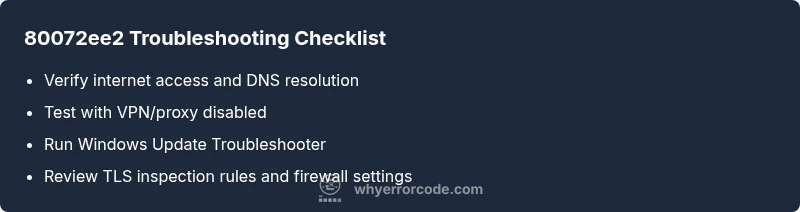
This section expands into a practical flow: quick wins, safer intermediate steps, and deeper networking checks. Start with DNS and connectivity tests, then validate time settings and certificate trust. If the problem remains, inspect VPN/proxy configurations and firewall TLS inspection rules, and Finally, run Windows Update Troubleshooter and verify Windows Update service status. Each action reduces the scope of possible causes and accelerates a fix, which is essential for a high-stakes error like 80072ee2.
Prevention and long-term resilience
After restoring service, focus on prevention: set up reliable DNS, ensure consistent time synchronization, and maintain up-to-date root certificates. Review update policies if operating in an enterprise environment and consider separating update traffic from other traffic to avoid bottlenecks. Regularly monitor service status pages from Microsoft and implement alerting for update failures so your team can respond before user impact grows.
Steps
Estimated time: 30-60 minutes
- 1
Verify basic network connectivity
Confirm the device has internet access and can resolve update domains. Use a browser to reach https://update.microsoft.com and run a DNS lookup (nslookup) for update domains. If these fail, fix the local network or router settings before proceeding.
Tip: Test on a different network (for example a mobile hotspot) to isolate local network issues. - 2
Check date, time, and certificate trust
Ensure the system clock is accurate. TLS handshakes depend on valid certificates; an incorrect clock can cause 80072ee2. Verify time zone settings and sync with an internet time server if needed.
Tip: If time is off by more than a few minutes, resync and retry the update. - 3
Flush DNS and reset network stack
Open an elevated command prompt and run: ipconfig /flushdns, ipconfig /release, ipconfig /renew, and netsh int ip reset. Reboot after these commands to ensure changes take effect.
Tip: Note the outputs from ipconfig; if you see unusual DNS servers, switch back to your preferred resolver. - 4
Test with VPN/proxy disabled
Temporarily disable any VPN, proxy, or TLS inspection rules that could interfere with update traffic. Attempt the update again to see if the error persists.
Tip: Only disable for testing; re-enable security controls after testing completes. - 5
Run Windows Update Troubleshooter
Open Settings > Update & Security > Troubleshoot > Additional troubleshooters > Windows Update, and run the tool. It will attempt to fix common issues and reset update components if needed.
Tip: If the troubleshooter suggests resetting components, allow it and then retry the update. - 6
Review services and logs; attempt repair or escalation
Check that the Windows Update service is running and that related services (BITS, cryptographic services) are enabled. Review Windows Event Logs for specific error messages around 80072ee2 and plan next steps or escalate to IT if needed.
Tip: Capture timestamps and logs for incident reports or escalation.
Diagnosis: Server error code 80072ee2 observed during Windows Update or software deployment
Possible Causes
- highDNS resolution or proxy issues blocking update domains
- mediumTLS/SSL inspection or firewall rules blocking update traffic
- lowOutdated root certificates or corrupted Windows Update components
Fixes
- easyCheck internet connectivity and DNS resolution to update domains
- easyTemporarily disable VPN/proxy or adjust firewall TLS inspection to allow update traffic
- easyFlush DNS and reset TCP/IP stack; ensure date/time are correct
- easyRun Windows Update Troubleshooter and check Windows Update service status
- mediumReview and adjust corporate proxy/firewall rules to permit Microsoft update endpoints
Frequently Asked Questions
What does error code 80072ee2 indicate?
80072ee2 indicates Windows Update cannot reach update servers. Causes include network DNS blocks, proxy or VPN interference, TLS inspection, and outdated certificates. A structured triage usually resolves the issue without invasive changes.
80072ee2 means Windows Update can’t reach update servers. Focus on network connectivity, proxies, and TLS settings to fix it.
Is 80072ee2 specific to Windows Update?
Yes, it primarily affects Windows Update or Microsoft Store update flows, but symptoms can appear in any client trying to reach Microsoft update endpoints. The fix approach is network- and TLS-focused.
Mostly Windows Update related, but other update clients can show the same code if they can’t reach Microsoft endpoints.
Can corporate proxies cause this error?
Absolutely. Proxies and TLS inspection can block or alter update traffic. Ensure update domains are allowed and TLS inspection doesn’t interfere with Microsoft endpoints.
Yes, corporate proxies can trigger this if they block or inspect update traffic.
What is the quickest fix for 80072ee2?
The fastest route is to verify connectivity, disable VPN/proxy if present, flush DNS, verify system time, then run the Windows Update Troubleshooter. If needed, adjust firewall rules to permit update domains.
Check connectivity, pause VPN, flush DNS, fix time, and run the troubleshooter.
Should I reinstall Windows to fix this?
Reinstalling Windows is rarely required for 80072ee2. Most fixes involve network, DNS, time, and TLS settings. Reserve reinstallation for more persistent, non-network related issues.
Reinstalling is usually unnecessary for this error.
How long does it typically take to fix?
A typical fix takes 30–60 minutes if you follow a structured flow and don’t need to escalate. In complex networks, it may take longer or require coordinated changes.
Most teams resolve it in under an hour with a methodical approach.
Watch Video
Top Takeaways
- Identify the root cause quickly with targeted checks
- 80072ee2 often stems from network/TLS or firewall blocks
- Use Windows Update Troubleshooter as a first step
- Document changes and escalate when needed
- Prevent future failures with stable network configurations