Activation error code 0xc004f211: Quick Fix Guide
A practical, urgent guide to diagnosing and fixing activation error code 0xc004f211 in Windows. Learn causes, quick fixes, step-by-step repairs, and prevention tips to restore genuine activation and keep devices compliant.


Activation error code 0xc004f211 means the Windows activation service blocked the product key or determined it invalid for your device. The fastest path to restore activation is to verify your license, ensure you have internet access, run the built‑in Activation Troubleshooter, and contact your vendor or Microsoft support if the key remains blocked. Avoid using counterfeit or pirated keys as a precaution.
What activation error code 0xc004f211 means
Activation error code 0xc004f211 indicates that Windows' Software Licensing Service has determined the product key is blocked or invalid for this device. This isn't a random hiccup; it typically means the key was reported as counterfeit, previously used on too many devices, or deployed outside its license scope. When this error shows up, Windows will prevent activation, affecting access to full features and periodic updates. The urgency is real: without proper activation, your system may face limited functionality and compliance issues. In practice, you'll see messages such as 'The activation server determined that the specified product key could not be used' or similar, and the system may revert to a non-genuine watermark. The Why Error Code team emphasizes that resolving 0xc004f211 quickly requires validating the license type (retail, OEM, or volume), confirming integrity of the license, and following official channels for remediation. Do not rely on unverified keys or third-party cracks; using them risks data security and further penalties from Microsoft.
Immediate steps you can take now
Time is critical when you see activation error code 0xc004f211. First, verify your license status in Settings > Update & Security > Activation. If your device shows a valid license but is not activated, try the Activation Troubleshooter. Ensure your device has a stable internet connection and that the date and time are correct, as skewed clocks can block activation. If you purchased a retail key, locate the original key and confirm it matches the edition installed. If your key is blocked or invalid, obtain a new key from an authorized vendor. For enterprise scenarios, confirm MAK/SCCM deployment rules and ensure the key is not tied to a different hardware profile. If all else fails, contact Microsoft Support or your OEM for guidance—the issue is often resolved by license reissue rather than complex repairs.
Common causes of 0xc004f211
- Blocked or counterfeit key: This is the most common reason for 0xc004f211. If Microsoft detects the key as invalid or compromised, activation will be blocked.
- Key used on multiple devices: A single license cannot be active on more devices than allowed by its terms; exceed limits triggers 0xc004f211.
- Hardware changes or OEM key scope issues: Replacing major hardware or moving an OEM key to a different machine can cause activation failures.
- Digital license tied to an account not signed in: If the device isn’t signed into the Microsoft account associated with the license, activation may fail.
- Activation server issues or regional blocks: Rare, but service problems or regional restrictions can produce activation errors.
Each scenario has a distinct remediation path, which is why the diagnostic flow below helps pinpoint the most likely cause.
Step-by-step fix: the most likely cause
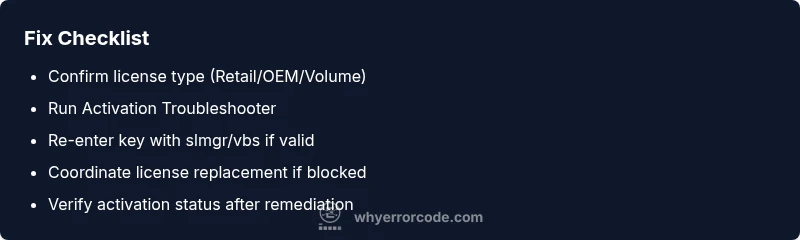
- Confirm the license type (Retail vs OEM vs Volume) to choose the correct remediation path. 2) Open Settings > Update & Security > Activation and run the Troubleshooter. 3) If the troubleshooter suggests, re-enter a valid product key via Settings or use the command line: slmgr.vbs /ipk <your-key> followed by slmgr.vbs /ato to attempt online activation. 4) If the key remains blocked, contact the vendor for a replacement key or license transfer options. 5) For volume licenses, consult your IT admin about MAK reactivation or reallocation. 6) After changes, recheck activation status; a successful activation will show a valid license and full feature access. Pro-tip: keep evidence of purchase and licensing so support can verify quickly.
Alternative fixes if the key is blocked
If the primary key is blocked, alternatives include requesting a licensed replacement from the vendor, pursuing a new consumer license, or using a valid volume license with proper deployment, depending on your scenario. Some users recover activation by reissuing a fresh key through official channels; others require a formal license transfer. Expect potential costs in the form of a new license or service fees, typically ranging from a low amount for consumer licenses up to higher tiers for enterprise agreements. Always verify that the source is official to avoid further activation issues.
Prevention tips to avoid 0xc004f211 in the future
- Buy licenses only from authorized vendors and keep proof of purchase. 2) Record the exact edition and license type (Retail, OEM, or Volume) to prevent mismatch. 3) Avoid hardware changes that break license scopes without reactivation planning. 4) Regularly check activation status and keep digital licenses linked to your Microsoft account when possible. 5) Use official activation channels and avoid third-party tools or cracks.
When to contact a professional
If activation remains blocked after following official remediation steps, contact Microsoft Support or your OEM's technical assistance. A licensed agent can verify the license, check for regional blocks, and determine whether a license reissue or a new key is required. Expect verification of purchase history and, in business environments, coordination with IT administration. Costs for professional help vary by support plan but typically start with a basic diagnostic fee and may include a new license cost if issued.
What to expect after successful activation
Once activation succeeds, Windows will display a genuine license status, full feature access, and the ability to receive updates normally. You should not see watermark prompts and should be able to verify activation in Settings > Update & Security > Activation. If activation fails again, re-check the license and hardware compatibility, and consider re-issuing the license or seeking enterprise support. Maintaining current licensing documents helps prevent future 0xc004f211 issues.
Steps
Estimated time: 30-60 minutes
- 1
Identify license type
Determine whether your Windows copy uses Retail, OEM, or Volume licensing. This guides the remediation path and helps avoid unnecessary replacements.
Tip: Check the original purchase details or contact the seller if you’re unsure. - 2
Check activation status and network
Go to Settings > Update & Security > Activation and confirm current status. Ensure internet access is working and the system clock is accurate to avoid activation blocks.
Tip: A small clock skew can cause activation to fail even with a valid key. - 3
Run Activation Troubleshooter
Launch the built-in Activation Troubleshooter and follow on-screen prompts to fix common issues related to 0xc004f211.
Tip: If the troubleshooter suggests re-activating, perform the recommended steps before trying a manual key re-entry. - 4
Re-enter key or reactivate
If you have a valid key, re-enter it via Settings or use Command Prompt: slmgr.vbs /ipk <key> and slmgr.vbs /ato to attempt online activation.
Tip: Use the exact edition key that matches the installed Windows edition. - 5
Seek official license remediation
If the key remains blocked, contact the vendor for replacement or a license transfer. For enterprises, coordinate with IT for MAK/SCCM options.
Tip: Keep purchase receipts and license documents ready for support. - 6
Confirm activation status again
After remediation, navigate to Activation to verify status. A successful activation shows a valid license and full features.
Tip: Document the resolution steps in case the issue recurs.
Diagnosis: Windows shows activation error 0xc004f211 and refuses to activate
Possible Causes
- highBlocked or invalid product key (most common)
- mediumKey used on more devices than license allows
- lowOEM hardware changes or license scope mismatch
Fixes
- easyVerify license type and status in Activation settings
- easyRun Activation Troubleshooter and apply suggested fixes
- mediumRe-enter a valid key via Settings or slmgr/vbs commands
- mediumRequest a new key or license transfer from vendor/microsoft
Frequently Asked Questions
What does 0xc004f211 mean in Windows activation?
0xc004f211 means the activation key has been blocked or is invalid for the current device. It typically requires a legitimate license reissue or a new, valid key from an authorized source.
It means your activation key is blocked or invalid and you’ll need a legitimate license to reactivate Windows.
Can I activate Windows for free if I have this error?
Not legally. Activation requires a valid, properly issued license. The quickest path is to obtain a legitimate key or license transfer from the vendor or Microsoft.
No, you should obtain a valid license from an official source to activate Windows.
What should I do first when I see 0xc004f211?
First, verify your license and run the Activation Troubleshooter. Check network connectivity and system time, then consider re-entering a valid key if required.
First verify the license and run the activation troubleshooter, then re-enter a valid key if needed.
Will my data be affected by license issues?
Activation issues primarily affect licensing and update access; personal files are usually unaffected, but you may lose some features until activation is resolved.
Your files stay intact, but some features may be restricted until activation is resolved.
What about enterprise licenses or MAK?
For volume or MAK licenses, work with IT to verify deployment rules and reallocate keys if necessary. Enterprise scenarios often require admin action to resolve 0xc004f211.
In enterprise setups, coordinate with IT for MAK or SCCM reactivation steps.
If I suspect a regional issue, what should I do?
Check Microsoft's service status pages or contact support to confirm whether a regional activation service outage could cause 0xc004f211.
Check service status or contact support to confirm regional outages.
Is there a risk of penalties for using a blocked key?
Using blocked keys can violate license terms and expose you to penalties or restricted updates; always pursue legitimate licensing options.
Yes—use legitimate licenses to avoid penalties.
What should I expect from professional support?
A professional will verify license authenticity, check activation logs, and advise on reissue options or new licensing, with potential cost implications.
Support will verify your license and guide next steps, possibly with fees.
Watch Video
Top Takeaways
- Verify your license type and status before reactivating.
- Use the Activation Troubleshooter as the first fix.
- Only obtain keys from authorized sources to avoid 0xc004f211.
- Enterprise users should involve IT for MAK/SCCM remediation.
- Professional help is recommended if the issue persists.