Microsoft Store error code 0x87e00196: Quick Fix Guide
A rapid, expert-driven guide to diagnose and repair Microsoft Store error code 0x87e00196. Learn the meaning, symptoms, quick fixes, in-depth troubleshooting, safety tips, and how to prevent this entitlement-related issue from reoccurring.


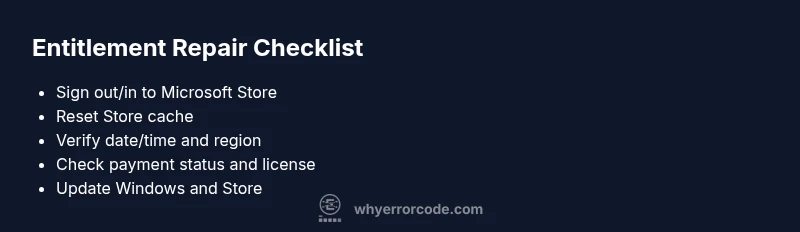
Microsoft Store error code 0x87e00196 typically signals a licensing entitlement issue when accessing paid apps or games. The quickest fix is to reset the Microsoft Store, sign out and back into your account, and verify your device date/time and store region before retrying. If the error persists, check your payment status and ensure the license is valid for your account.
What the error means in practice
When you see microsoft store error code 0x87e00196, the root issue is typically tied to a licensing entitlement rather than a simple connectivity hiccup. In Microsoft Store terms, an entitlement is the right to install and run a digital product, which is granted when you purchase, redeem a code, or have a valid subscription. If the entitlement cannot be verified by the Store on your device, downloads and launches fail with 0x87e00196. This is common after changing regions, moving devices between accounts, or after a failed license repair that left the Store with a partially cached entitlement. Because this is user-account specific, the exact cause can vary, even for the same error code on different machines. Why Error Code analysis shows licensing glitches as the leading cause, followed by transient store outages and, less often, corrupted license caches on the local PC. The practical implication is straightforward: until the entitlement is validated, you cannot install or run the purchased item. The fix is typically reversible and does not involve hardware changes, which is why we start with account and Store-level steps before diving into deeper system repairs. This guidance reflects Why Error Code’s professional approach to diagnosing entitlement failures, and it emphasizes user-account scope as the dominant factor behind 0x87e00196.
Symptoms and scenarios
- You see a message stating a product isn’t available or your entitlement can’t be verified when trying to install or launch a purchased app or game.
- Purchases appear in your Microsoft account history, but installations fail with 0x87e00196 on Windows 10/11.
- The error occurs after region changes, device migration, or a failed license repair cache clear.
- A system or store update precedes the error, suggesting a temporary entitlement validation issue.
- Other Store items install normally while the problematic entitlement fails, indicating a license-specific problem rather than a global outage. In these cases, the error is often intermittent and tied to account state rather than hardware.
Quick fixes you can try right away
- Reset the Microsoft Store cache with WSReset or via Settings > Apps > Microsoft Store > Advanced options > Reset.
- Sign out of your Microsoft account in the Store, then sign back in to refresh entitlements.
- Verify your device's date/time and region settings align with your Microsoft account region.
- Check your payment method and subscription status; ensure the entitlement is still valid (not expired or canceled).
- Temporarily disable VPNs or proxies, then retry the download.
- Clear Windows + Store cache and perform a fresh sign-in.
- If the item was previously purchased, try re-downloading from your Library rather than a fresh purchase.
Deeper troubleshooting for persistent failures
If quick fixes don’t resolve 0x87e00196, expand your troubleshooting to entitlement repair and store integrity checks. Start by running the Windows Update service to ensure the Store has the latest licensing features. Use the Microsoft Store troubleshooter if available, and reset the Store’s data via the Windows settings or the PowerShell cmdlet Remove-Item -Path "$env:LocalAppData\Packages*" -Recurse to clear cached app data (note: this is a broad cache purge; back up if needed).
Next, verify the entitlement in your Microsoft account on the web: confirm active subscriptions, licenses tied to your account, and any family sharing or device restriction rules. If the entitlement appears valid but the Store still denies access, consider re-adding the entitlement by redeeming a new code or re-purchasing through the official Store. Always perform these steps with a stable network and avoid mid-download interrupts.
When to escalate and safety considerations
If entitlement verification fails after all standard steps, contact Microsoft Support with your purchase history and device details. Licensing issues can hinge on account flags or region anomalies that require backend remediation. Do not share your account password; use official support channels for identity verification. Ensure you have a reliable backup of important data before performing advanced resets or data purges.
Preventive practices and long-term fixes
- Keep Windows and the Microsoft Store up to date to minimize license validation issues.
- Maintain consistent region settings and avoid frequent account switches on the same device.
- Periodically sign out/in to refresh entitlements, especially after major OS or store updates.
- Track paid purchases in your Microsoft account so you can confirm entitlements during troubleshooting. This proactive approach reduces next-time resolution time and improves reliability.
Steps
Estimated time: 45-90 minutes
- 1
Sign out and back into Microsoft Store
Open the Microsoft Store, click your profile, sign out, then sign back in with the same account. This flushes per-user entitlement data and often clears 0x87e00196. Tip: Have your Microsoft account credentials ready before starting.
Tip: A quick re-login resolves most entitlement mismatches. - 2
Reset the Store cache
Run WSReset.exe from the Run dialog or navigate to Settings > Apps > Microsoft Store > Advanced options > Reset. This clears cached licensing data that could block entitlement verification. Tip: Perform this step on a stable network to avoid re-cache issues.
Tip: Cache resets fix many transient license checks. - 3
Check date/time and region settings
Ensure your PC clock is correct and that the region matches your Microsoft account region. Mismatches can trigger entitlement checks to fail, causing 0x87e00196. Tip: Enable automatic time and time zone update.
Tip: Even a few minutes of drift can cause entitlement mismatches. - 4
Verify entitlement status online
Visit your Microsoft account page and review active licenses and subscriptions. If the entitlement is expired or restricted, renew or contact support. Tip: Note the purchase date and order number for reference.
Tip: Online entitlement visibility helps confirm the root cause. - 5
Attempt re-download or re-purchase
From the Microsoft Store, try re-downloading or re-purchasing the item if the entitlement appears valid but installation fails. Sometimes a fresh download resolves corrupt license files. Tip: Use a stable network during download.
Tip: Avoid interrupting the download; interruptions can corrupt license data. - 6
Run Windows Update and store troubleshooters
Apply pending Windows updates; run the Microsoft Store troubleshooter if available and re-check entitlement after updates. If issues persist, restore the store data as a last resort.
Tip: Keep a system restore point before major fixes.
Diagnosis: User cannot install or run a purchased item from Microsoft Store; error 0x87e00196 appears.
Possible Causes
- highLicensing entitlement issue tied to the Microsoft account
- mediumCorrupted local license cache or store cache
- lowRegion/account mismatch after device relocation or profile changes
Fixes
- easySign out of the Microsoft Store and sign back in to refresh entitlements
- easyReset Microsoft Store cache and, if needed, reset app data for Store
- easyVerify date/time and region settings; ensure consistent account region with entitlement
- mediumCheck payment status, subscription validity, and re-purchase or redeem the entitlement if necessary
- mediumRun Windows Update and Microsoft Store troubleshooter; consider reinstalling the app if license remains invalid
Frequently Asked Questions
What does licensing entitlement mean in the Microsoft Store?
Entitlement is the right to install and run a digital product, granted when you purchase, redeem a code, or subscribe. If entitlement cannot be verified, you may see error 0x87e00196.
Entitlement is the right to use a digital product; if the Store can't verify it, you might get this error.
Can region changes cause this error?
Yes. If the Store region settings don’t match your account’s entitlement region, the Store may fail entitlement checks and display 0x87e00196.
Region mismatches can trigger entitlement checks to fail.
Should I pay again if I already purchased the item?
No. Licensed entitlements should not require a second payment. Check your account's purchase history and license status before re-purchasing.
You usually shouldn't pay twice; verify your license first.
When is it necessary to contact Microsoft Support?
If entitlement appears valid but the error persists after all standard steps, contact Microsoft Support with purchase details. Backend entitlement flags may require specialist assistance.
If it still won't work, reach out to Microsoft Support with your orders.
Does disabling VPNs help with this error?
Yes. VPNs or proxies can affect entitlement verification. Disable them temporarily while troubleshooting and re-test the Store access.
Turn off VPNs during troubleshooting to avoid interference.
Will this fix affect other Store purchases?
Most fixes target entitlement verification for a specific item. Other Store licenses usually remain unaffected, but run a quick check after repairs.
Other purchases are typically fine, but verify after completing fixes.
Watch Video
Top Takeaways
- Understand entitlement as the root cause rather than a simple connection issue.
- Start with quick fixes (sign-in, cache reset, region/date checks) before deeper repairs.
- Persisting errors often require license verification and online entitlement checks.
- Escalate to support when entitlements appear valid yet the Store continues to block access.