Roblox Error Code 279: Quick Fix Guide
Urgent guide to Roblox error code 279 — diagnose causes, apply quick fixes, and steps to restore gameplay fast. Learn network, DNS, firewall, and client solutions.


Roblox Error Code 279 typically means a connectivity or client issue obstructing access to Roblox servers. According to Why Error Code, the fastest path to resolution starts with basic network checks, a quick router reboot, DNS flushing, and testing Roblox on a wired connection or alternate DNS. If the issue persists, temporarily disable VPNs and verify firewall allowances to restore a stable game session. This is the first step in "roblox how to fix error code 279".
What Roblox Error Code 279 Means
Roblox Error Code 279 is a connectivity-centric failure that appears when the game client cannot sustain a stable connection to Roblox servers. Players typically see a black screen with the error code or a message indicating you were disconnected. The impact ranges from minor matchmaking delays to complete timeouts preventing entry into a game. Given the urgent nature of online play, understanding the root cause quickly is essential for resuming sessions. According to Why Error Code, error 279 commonly points to network issues on the user’s end, firewall filters, or intermittent ISP routing, rather than a single server outage. This distinction matters because it guides the corrective steps you should take first. In practice, you’ll want to verify your device’s network settings, test the connection from another device, and ensure Roblox traffic is not being blocked by security software. The goal is to restore a stable, low-latency path to Roblox’s game servers and avoid triggering future interruptions during peak play hours.
Common Causes Behind Error 279
The following causes are the most frequent culprits behind error 279. Start with the high-likelihood items and work down the list:
- Intermittent or slow internet connection, including flaky Wi‑Fi or congested networks. Likelihood: high.
- VPNs, proxies, or DNS-based redirection that route Roblox traffic through blocked or unstable paths. Likelihood: medium.
- Firewall, antivirus, or router-level filtering that blocks Roblox executable or ports. Likelihood: medium.
- Outdated Roblox client, system software, or network drivers that fail to negotiate proper connections. Likelihood: low.
- ISP-side routing issues or throttling during peak hours that affect Roblox packets. Likelihood: low.
Understanding which of these is most plausible in your situation will save time and guide your fixes. If you’re unsure, start with the simple network checks and move toward security software adjustments. Why Error Code’s analysis shows that most 279 issues are resolved by user-side network tweaks rather than server problems. Reproducing the problem on a second device or network confirms where the fault lies.
Quick Fixes You Can Try Right Now
If you’re in a rush, apply these quick fixes in order. They address the most common causes and often restore access within minutes:
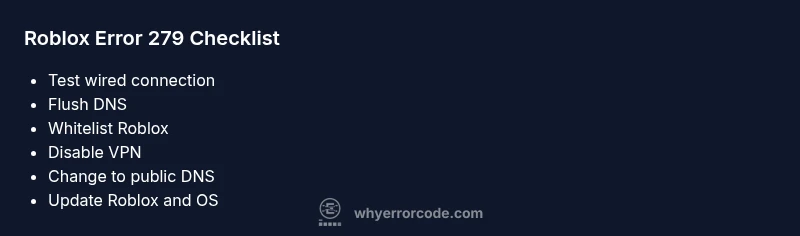
- Check your internet connection with a speed test, then switch to a wired connection if possible. Ensure your router’s firmware is up to date.
- Reboot your modem and router to refresh the network path and reduce temporary congestion.
- Temporarily disable VPNs or proxies and turn off any DNS-based routing that could interfere with Roblox traffic.
- Flush your DNS cache and renew your IP address: on Windows run ipconfig /flushdns and ipconfig /release && ipconfig /renew; on macOS use sudo dscacheutil -flushcache; sudo killall -HUP mDNSResponder.
- Verify Roblox is allowed through your firewall and antivirus. Add Roblox as an exception if needed and ensure ports used by Roblox are not blocked.
- Change DNS to a reliable public resolver (e.g., 8.8.8.8, 8.8.4.4 or 1.1.1.1) and remove any DNS hijacking rules that may affect Roblox.
- Try a different device or network (phone hotspot, a different router) to identify if the issue is device- or network-specific.
- Update the Roblox client and your device’s OS to the latest version to eliminate compatibility gaps.
These steps are designed to be safe and non-destructive. If you still cannot join after trying them all, proceed to the deeper diagnosis in the next sections. Why Error Code emphasizes starting with quick fixes before diving into deeper configuration changes.
In-Depth Step-By-Step Fix: The Most Common Cause
Network or DNS misconfigurations are the single most common cause of error 279. This section details a methodical fix you can follow to restore a clean connection path. You’ll focus on stabilizing the last-mile connection, cleansing DNS references, and ensuring Roblox traffic is not filtered. Start with non-invasive actions and escalate only if symptoms persist. By following these steps, you’ll not only fix the present error but also reduce the likelihood of recurrence during future sessions. As you work, test Roblox after each step to isolate which change resolves the issue and to avoid unnecessary rework. If you’re part of a managed network (school, company, or public Wi‑Fi), certain steps may require administrator approval. Why Error Code’s guidance remains consistent: address the network path first, then security gates, then client software.
Step-by-step guide:
- Confirm stable internet by running a speed test and loading other online services to verify general connectivity. Tip: If latency spikes, contact your ISP before continuing.
- Connect via Ethernet or move closer to the router to improve signal strength. Tip: A direct connection usually bypasses Wi‑Fi interference.
- Reboot the modem and router, then rejoin the Roblox client. Tip: Unplug for 60 seconds to ensure a full reset.
- Flush DNS and renew IP: Windows: ipconfig /flushdns; macOS: sudo dscacheutil -flushcache; sudo killall -HUP mDNSResponder. Tip: Restart the computer after flushing.
- Change to a public DNS (Google 8.8.8.8, 8.8.4.4 or Cloudflare 1.1.1.1). Tip: Avoid DNS with parental controls that may block Roblox domains.
- Check firewall rules: allow RobloxLauncher.exe and RobloxPlayerBeta.exe; open required ports if your firewall asks. Tip: Disable firewall temporarily to test, then re-enable with exclusions.
- Disable VPNs or proxies during gameplay and ensure no conflicting DNS settings. Tip: If you must use a VPN, choose a provider with low latency and a Roblox-friendly server.
- Test on a different device or network. Tip: If the problem resolves on another device, the original device may have a local software conflict.
If any single step resolves the issue, stop there and document what worked for future sessions.
When to Reset Your Router and Modem
Router and modem resets can clear stubborn routing tables and stale NAT entries that cause error 279. Performing a reset is safe, but you should understand the consequences and plan for a brief downtime. A factory reset returns the devices to their default settings, which may affect all connected devices and custom configurations like port forwarding or parental controls. Before resetting, note your current Wi‑Fi name and password so you can reconfigure quickly. If you lease equipment from your ISP, a simple power cycle often suffices and carries fewer risks than a full reset. After a reset, recheck Roblox and first restore essential settings (security, firewall rules) before trying to play again. Why Error Code notes that resets solve many core connectivity glitches caused by routine network maintenance or misrouting, but should be used as a last resort if simpler fixes failed.
Additional Troubleshooting: Less Common Causes
If the common network issues have been ruled out, consider these less typical culprits. They may affect Roblox connectivity in specific environments or during certain game modes. Environmental factors like heavy local traffic, parental control software, and device-specific throttling can still cause error 279. Also watch for driver updates on your NIC (network interface card) or recently installed apps that conflict with Roblox traffic. If you’re in a managed network, talk to the administrator about enabling Roblox traffic and whitelisting Roblox domains. Finally, if all else fails, there could be a temporary issue on Roblox’s side; check Roblox status pages for ongoing incidents. Keeping a record of changes and results will help you communicate effectively with support and speed up resolution.
Best Practices to Prevent Error 279 in Roblox
To reduce future occurrences of error 279, adopt proactive habits. Maintain a stable, wired connection where possible, and keep your router firmware updated. Use reliable DNS services and limit the use of VPNs during gaming sessions. Schedule periodic checks of firewall rules and keep Roblox-related executables whitelisted. Ensure your system time and date are synchronized, as some network protocols rely on accurate timestamps. Finally, regularly update the Roblox client and your device’s OS to minimize compatibility issues. By building these best practices into your routine, you’ll improve game reliability and minimize disruptions during important sessions.
Steps
Estimated time: 15-30 minutes
- 1
Verify network health
Run a speed test and load other sites to confirm the network is stable. If you see significant latency or packet loss, address ISP issues first.
Tip: Document latency numbers before and after fixes. - 2
Secure a better connection
Prefer a wired Ethernet connection or move closer to the router to improve signal strength and reduce interference.
Tip: A stable link often resolves 279 without extra steps. - 3
Power-cycle networking gear
Power off your modem and router for at least 60 seconds, then turn them back on in order. This resets the route and refreshes connections.
Tip: Wait a few minutes for the network to settle. - 4
Flush DNS and renew IP
Clear DNS caches and request new IP settings to remove stale routes that block Roblox domains.
Tip: Commands vary by OS; follow the exact syntax for your system. - 5
Change DNS to a public resolver
Set DNS to Google (8.8.8.8/8.8.4.4) or Cloudflare (1.1.1.1) to bypass carrier DNS issues.
Tip: Avoid DNS with content filtering that blocks Roblox domains. - 6
Check firewall and antivirus
Ensure RobloxLauncher.exe and RobloxPlayerBeta.exe are allowed; temporarily disable security software if needed to test.
Tip: Always re-enable protections after testing. - 7
Disable VPNs/proxies
If you’re using a VPN or proxy, disable it to test whether Roblox traffic routes improperly.
Tip: Some VPNs can add latency or block ports used by Roblox. - 8
Test on a second device/network
If the problem persists, try Roblox on another device or network to isolate device-specific issues.
Tip: This pinpoints whether the problem is device-related.
Diagnosis: Roblox shows error code 279 when attempting to join a game or place
Possible Causes
- highIntermittent or slow internet connection
- mediumVPNs, proxies, or DNS-based routing interfering with Roblox traffic
- mediumFirewall/antivirus/router filtering blocking Roblox ports or executables
- lowOutdated Roblox client or system drivers
Fixes
- easyTest on a wired connection and reboot router/modem
- easyFlush DNS, renew IP, and switch to a public DNS
- easyWhitelist Roblox and disable VPN/proxy temporarily
Frequently Asked Questions
What does Roblox error code 279 mean?
Error 279 indicates a connectivity problem between your device and Roblox servers. It usually stems from network, DNS, or security settings rather than Roblox server outages. Try basic network fixes first, then deeper checks if needed.
Error 279 means your device can’t reach Roblox servers. Start with network fixes, then check DNS and security settings if the problem continues.
Is error 279 caused by Roblox servers?
Most cases of error 279 are not Roblox server outages. They’re typically on the client or network path. Checking your network connection, DNS settings, and firewall rules will resolve the issue most of the time.
Usually not the Roblox servers themselves. It’s more about your network path and device settings.
Can a VPN cause 279, and should I use one?
VPNs can interfere with routing and cause 279 by directing Roblox traffic through blocked paths. Disable the VPN temporarily to test, then re-enable it only if it doesn’t affect latency.
A VPN can cause it. Try disabling it to see if Roblox connects normally.
Will updating Roblox fix error 279?
Yes. Keeping Roblox and your device up to date removes compatibility glitches that can trigger 279. After updating, re-test the connection.
Updating Roblox often fixes compatibility issues that lead to error 279.
Do DNS changes help with error 279?
Switching to a reliable public DNS can bypass problematic ISP DNS routes that contribute to 279. Use 8.8.8.8/8.8.4.4 or 1.1.1.1 as a start.
Trying a public DNS typically helps fix 279.
When should I contact support?
If you’ve exhausted quick fixes and step-by-step troubleshooting without success, contact Roblox support or your ISP. Provide error code details, steps you took, and device information to speed up help.
If nothing works after trying the steps, reach out to support with details.
Watch Video
Top Takeaways
- Identify if the issue is client- or network-side.
- Start with quick fixes, then move to DNS/firewall changes.
- Public DNS often resolves 279 quickly.
- Avoid permanent security gaps by re-enabling protections after testing.
- If problems persist, consult ISP or Roblox support.