What is Roblox Error Code 279 and How to Fix It
Learn what Roblox error code 279 means and how to fix it quickly. Actionable steps cover network checks, firewall adjustments, cache resets, and step-by-step repairs to get you back in-game fast.


Error code 279 in Roblox signals a failed connection between the Roblox client and game servers, usually caused by network or security blocks. The fastest fixes are to reboot your router, temporarily disable VPNs, update the Roblox client, and allow Roblox through your firewall. If it persists, try a different network or reach out to support for guidance.
What is error code 279 in Roblox and how to fix it
What is error code 279 in roblox and how to fix it? In practical terms, this code signals that your device cannot establish a stable handshake with Roblox servers during a game join. The root cause is almost always a local network or security setting rather than a problem with Roblox itself. According to Why Error Code, understanding the error hinges on isolating connectivity problems from game-specific issues. This makes it essential to test across networks, devices, and security layers before assuming a platform-wide fault. By framing the problem this way, developers, IT pros, and everyday players can apply targeted fixes quickly and minimize downtime.
When you see 279, you should assume urgency but follow a methodical process. Start with simple checks that don’t require tools, then advance to configuration changes or software updates. This approach aligns with Why Error Code’s methodology: identify the symptom, validate probable causes, and execute fixes with safety in mind. The goal is to restore a stable, repeatable connection so you can join games without repeated disconnections.
In most cases, resolving 279 restores access without risking account data or progress. If you’re troubleshooting on a school or work network, remember that educational institutions often implement stricter firewall rules that can trigger this code. Always ensure your home setup is well maintained, but be prepared to escalate if corporate or public networks are involved.
Common causes of error 279 in Roblox
Error code 279 can stem from several overlapping issues. The most common causes, listed in order of likelihood, include: unstable or congested home networks; firewall or antivirus blocking Roblox traffic; VPNs or proxies interfering with the Roblox handshake; outdated or corrupted Roblox client or local cache; and DNS or router-related problems that misroute traffic. The exact mix varies by user, device, and network environment. It’s important to test across devices and networks to confirm the root cause. Why Error Code notes that many 279 incidents are resolved by tightening security allowances or refreshing network paths rather than altering game settings.
Another frequent factor is server-side congestion or maintenance. While this isn’t a user configuration issue, it can mimic a local fault. Always check Roblox’s official status pages before delving into device changes, because a temporary Roblox-side outage can produce a 279-like symptom. If your other devices or apps can reach the internet normally but Roblox cannot, the problem is almost certainly network- or device-related rather than an account issue.
Quick fixes you can try now
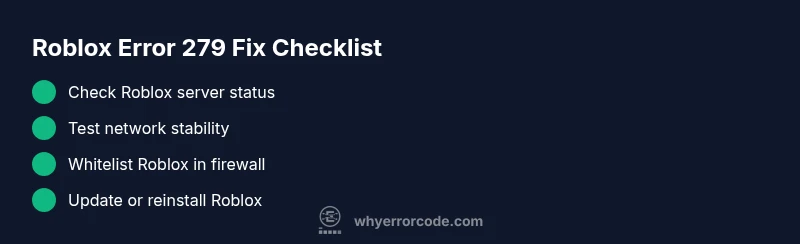
- Restart your router and modem to refresh your network path and reduce congestion.
- Temporarily disable VPNs, proxies, or ad blockers that could interfere with the Roblox handshake.
- Update the Roblox client to the latest version and restart your device.
- Make Roblox an exception in your firewall/antivirus software so it can establish connections without being blocked.
- Clear the Roblox cache or reinstall the app if cache corruption or a partial install is suspected.
- Test on a different network (mobile hotspot or another Wi‑Fi) to determine whether the issue is local to your primary network.
- Check date/time settings on your device; incorrect system time can cause secure connection issues.
- If you’re on a school or public network, contact the network administrator to verify that Roblox isn’t blocked and that essential ports are accessible.
Step-by-step repair for the most common cause
- Identify the primary source: If other online apps work but Roblox shows 279, focus on Roblox-specific blocks (firewall, antivirus, or router settings).
- Update or reinstall Roblox: Go to the official site/app store, install the latest version, and relaunch.
- Create a clean cache: On Windows, delete the Roblox cache folder; on macOS, clear container data and re-launch.
- Adjust firewall rules: Add Roblox as an allowed program and ensure it isn’t blocked by automatic scanning.
- Allow Roblox through antivirus: Temporarily disable shields or add Roblox to the exclusions list, then re-enable protections.
- Disable VPNs/proxies: If you must use one, ensure it’s configured to allow Roblox traffic and try connecting without it.
- Test on another network: If the error clears on a different network, the issue is likely router or ISP-related; contact your provider if needed.
- Reboot devices: After applying changes, restart your computer or device to ensure all settings take effect.
Other causes and how to verify them
Beyond the primary network issue, consider DNS problems, router NAT types, or ISP-level blocks. To verify, run a traceroute to Roblox servers, switch to Google DNS or another public DNS, and observe whether the route improves. If only one device is affected, the problem is device-specific (outdated drivers, corrupted install, or local firewall rules). If multiple devices fail on the same network, the network path or ISP is the likely culprit. When verification points to the device, focus on drivers and software configurations; when it points to the network, pursue router, modem, or provider settings.
Safety, expectations, and when to seek professional help
The steps above are non-destructive and designed to minimize data loss. Always back up important settings before changing firewall or router configurations. If you rely on a corporate or school network, you may need approval from the administrator before modifying security policies. If the issue persists after core checks (network, firewall, updates, and cache), consider reaching out to Roblox support or a local IT professional for advanced diagnostics. In rare cases, persistent 279 errors may indicate deeper network misconfigurations or hardware faults that require expert intervention.
Monitoring and prevention tips for Roblox error codes
- Maintain updated software and drivers to reduce compatibility issues.
- Create a simple network health routine (reboot router weekly, check for outages).
- Document changes you make so you can backtrack if problems recur.
- Use a separate, reliable network for gaming when possible to isolate issues.
Steps
Estimated time: 60-90 minutes
- 1
Check connectivity and status
Verify that your internet connection is stable by running a quick speed test and loading a few non-gaming websites. If you see packet loss or high latency, fix your network first. This helps determine if 279 is a local issue before touching Roblox settings.
Tip: Document your baseline speeds to compare after fixes. - 2
Update and restart Roblox
Ensure you’re on the latest Roblox client. If needed, reinstall the app to replace any corrupted files. A clean restart often clears transient errors that cause 279.
Tip: Always back up any saved settings if applicable. - 3
Whitelist Roblox in security software
Add Roblox to the allowed list in your firewall and antivirus. This prevents legitimate Roblox traffic from being blocked by security features.
Tip: Do not disable security software permanently; re-enable protections after testing. - 4
Check VPN/Proxy and network path
If you’re using a VPN or proxy, disable it temporarily to see if the error resolves. Also review your router settings or DNS to ensure traffic can reach Roblox servers.
Tip: If you must use a VPN, choose a trusted service and configure it for gaming. - 5
Test on alternative networks
Connect via a different network (e.g., mobile hotspot) to confirm whether the issue is network-specific. If Roblox works on another network, your primary network likely needs fixes.
Tip: Switch back to your main connection after testing. - 6
Collect logs and seek support
If the issue persists, capture screenshots of error messages, network tests, and system specs. Share these with Roblox support or a local IT professional for deeper diagnosis.
Tip: Include device model, OS version, and Roblox version.
Diagnosis: Error code 279 persists when joining Roblox games
Possible Causes
- highUnstable or blocked internet connection
- highFirewall/antivirus blocking Roblox traffic
- mediumVPN/proxy interfering with connection
- mediumOutdated Roblox client or corrupted cache
- lowRouter NAT or ISP DNS issues
Fixes
- easyTest on a different network (mobile hotspot) to confirm if local network is the issue
- easyTemporarily disable VPN/proxy and allow Roblox through firewall/antivirus
- mediumUpdate Roblox and clear cache/reinstall to repair corrupted files
- easyReset router or adjust DNS settings (flush DNS)
- hardContact ISP if outages or blocks are suspected
Frequently Asked Questions
What does Roblox error code 279 mean?
Error 279 usually indicates a failure to connect from the Roblox client to the game server, often caused by network or security blocks rather than an account issue.
279 means your device can’t connect to Roblox servers due to network or security blocks; try the quick fixes first.
Is error 279 related to my Roblox account or progress?
No, 279 is typically a connection problem rather than an account issue. It affects the ability to join games rather than your account data.
It’s usually a connection problem, not an account problem.
What is the fastest way to fix error 279?
The quickest fixes are to reboot your network gear, disable VPNs, update Roblox, and ensure Roblox is allowed through firewall/antivirus.
Restart your router, disable VPNs, update Roblox, and allow Roblox through security software for a fast fix.
Could Roblox be down if I see error 279?
Yes, Roblox outages can cause 279-like symptoms. Check Roblox’s status page or social channels before performing extensive local changes.
Roblox outages can cause 279; check the status page before changing your setup.
When should I contact support for 279?
If you’ve exhausted quick fixes and verified network conditions across devices and networks, contact Roblox support with your logs and steps taken.
If fixes don’t help after trying the basics, reach out to Roblox support with details.
Watch Video
Top Takeaways
- Identify whether the issue is network- or device-related
- Whitelist Roblox and update software before deeper fixes
- Test on multiple networks to localize the problem
- Escalate with logs if fixes fail