Windows 10 Pro Error Code 0xc004f211: Quick Fixes and Deep Troubleshooting
A practical guide to diagnose and fix Windows 10 Pro error code 0xc004f211 activation failures, with quick fixes, a diagnostic flow, and expert tips from Why Error Code to restore a genuine license fast.


Windows 10 Pro error code 0xc004f211 signals a licensing activation failure. It typically means the product key or activation data is invalid or blocked, and Windows cannot verify a genuine license. Quick fixes include checking your key, ensuring the system date/time are correct, and running the Activation Troubleshooter before contacting Microsoft Support if the issue persists.
What the error means and why it happens
According to Why Error Code, the Windows 10 Pro error code 0xc004f211 is an activation failure that prevents the system from confirming a legitimate license. In practice, this error typically means the product key or activation data is invalid, blocked, or not recognized by Microsoft’s activation services. The immediate impact is that Windows operates with reduced features until activation succeeds. The root causes commonly include key misuse, expired licenses, or issues with the activation servers. The specific message windows 10 pro error code 0xc004f211 signals that activation cannot complete, often due to license data mismatch or connectivity problems.
Quick fixes you can try before you dive deeper
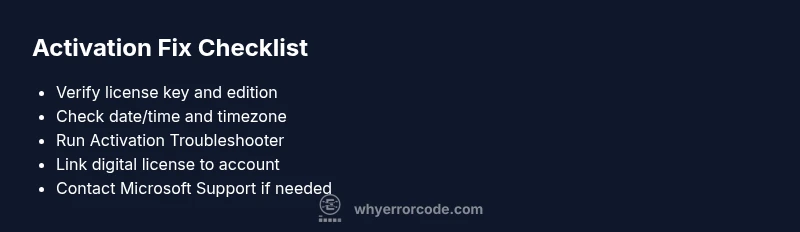
Try these low-friction steps first: verify the exact edition and product key, ensure date and time settings are correct, sign in with a Microsoft account that already has a linked license, and run the built-in Activation Troubleshooter. If you recently hardware-upgraded or moved the key between devices, re-enter or re-link the license on the activation screen. These fixes often resolve the issue without requiring service calls.
Diagnostic factors and realistic causes
Common causes for this error include an invalid or blocked product key, activation server outages, and license data mismatches after hardware changes or key reassignments. Additional factors such as incorrect time zone settings, VPN or proxy interference, and using a volume license in a non-compliant setup can contribute. Understanding these possibilities helps prioritize fixes in a structured way rather than guesswork.
License verification and activation prerequisites
Before attempting activation, confirm you are using the correct Windows 10 Pro edition for your license type (retail, OEM, or volume). Check your Microsoft account for linked licenses and confirm the key state in the Microsoft portal. If you rely on a digital license, ensure the PC is associated with the same Microsoft account. Having proof of purchase and license details handy speeds up the process when you contact support.
Using the Activation Troubleshooter and related steps
The Activation Troubleshooter is your first-line tool. Open Settings > Update & Security > Activation and choose Troubleshoot. If it reports purchase or license mismatch, sign out and back into your Microsoft account, or re-enter the product key. For advanced users, using the command-line helper (slmgr.vbs) can reset activation state and reattempt activation, but follow official guidance to avoid accidental deactivation.
Escalation path when activation remains blocked
If automated tools fail, collect your system URL, the exact error code, and your license type, then contact Microsoft Support or your licensing administrator. Expect prompts to verify ownership or provide purchase details. In enterprise scenarios, your IT admin can request a license reassignment or volume license service request to restore activation.
Preventive practices to avoid 0xc004f211
Keep licenses organized with clear records of keys and activation dates, avoid swapping keys between machines without reactivation checks, and maintain accurate system time settings. Regularly verify activation status after major OS updates or hardware changes. Finally, enable automatic Windows updates to keep activation components current and secure.
Steps
Estimated time: 60-90 minutes
- 1
Verify your license key and edition
Confirm you are using the correct Windows 10 Pro edition for your license type (Retail, OEM, or Volume). Check your Microsoft account for linked licenses and ensure the key matches your product packaging or purchase record. Re-enter the key carefully to avoid typos and save your changes.
Tip: Keep proof of purchase handy in case the key needs verification by Microsoft support. - 2
Check date, time, and time zone
Open Date & Time settings and ensure automatic time is enabled. Manually sync if the server time appears off. An incorrect clock can cause license checks to fail and trigger error codes like 0xc004f211.
Tip: After adjusting, run the activation check again to see if the issue clears. - 3
Run Activation Troubleshooter
Navigate to Settings > Update & Security > Activation and run the built-in Troubleshooter. Follow on-screen prompts; the tool may detect key mismatches, account linkage issues, or need for reactivation.
Tip: If the troubleshooter suggests signing in, use the same Microsoft account that holds the license. - 4
Use command-line activation reset if comfortable
For advanced users, open an elevated command prompt and run slmgr.vbs /upk, then slmgr.vbs /ipk <your-key>, followed by slmgr.vbs /ato to reactivate. Do not run these commands casually; incorrect keys will cause further failures.
Tip: Always run as an administrator and back up your key before you begin. - 5
Link digital license to your Microsoft account
If your license is digital and tied to a Microsoft account, sign in with the same account on the activation page and ensure the device is registered under that account.
Tip: Consider adding the device to your account’s trusted devices list for smoother future activations. - 6
Escalate to Microsoft Support if needed
If activation still fails after the above steps, gather the error code, purchase proof, and device details, then contact Microsoft Support or your licensing administrator for license reassignment or validation.
Tip: Ask for a case number and how long activation remediation typically takes.
Diagnosis: Activation fails with 0xc004f211 after entering a valid-looking key or during Windows activation
Possible Causes
- highInvalid or blocked product key
- mediumActivation server outage or licensing service issue
- lowDate/time mismatch or time zone issues on the PC
Fixes
- easyVerify product key status in the Microsoft account and re-enter if needed
- easyRun the Activation Troubleshooter from Settings > Update & Security > Activation
- easyCheck and correct the system date/time and time zone
- mediumIf licensed via digital license, sign in with the linked Microsoft account and re-link the device
- mediumIf the license is volume-based, contact your admin or use the Volume Licensing Service Center
Frequently Asked Questions
What does error code 0xc004f211 mean in Windows 10 Pro?
This error indicates Activation failed due to license verification problems, typically involving an invalid or blocked product key or license data. You’ll need to verify your key, date/time, and account associations to restore activation.
0xc004f211 means activation failed due to a license verification problem. Check your key, date, and account linkage to fix it.
Can I fix 0xc004f211 myself quickly?
Yes, many cases resolve with key verification, date/time correction, and using the Activation Troubleshooter. More complex licensing issues may require re-linking the digital license or contacting Microsoft.
You can usually fix it with key checks, correct date and time, and the activation troubleshooter. More involved cases may need Microsoft support.
Is this error specific to Windows 10 Pro?
0xc004f211 is commonly seen on Windows 10 Pro licenses but can appear on other editions when activation fails due to licensing issues or data mismatches.
It’s often seen on Windows 10 Pro, but activation failures can affect other editions if licensing data is problematic.
Will this activation error affect installed apps or data?
No, activation errors do not erase apps or personal data. They restrict nonessential features until activation succeeds, but your files remain intact.
No, your apps and data stay safe. Activation only limits features until activation is completed.
How long does it take after fixes to activate?
Most activations complete within minutes after applying the fixes, but some cases may require additional verification from Microsoft and could take longer.
Usually minutes, but some cases need extra verification from Microsoft and could take longer.
When should I call a professional for activation help?
Call a professional if activation remains blocked after all standard steps or if you suspect a volume licensing or corporate policy issue that requires admin access.
If activation stays blocked after all steps or you suspect licensing policy issues, seek professional help.
Watch Video
Top Takeaways
- Verify your license key and edition before deep fixes
- Check system time and Microsoft account links
- Run Activation Troubleshooter as a first resort
- Contact Microsoft Support if activation remains blocked