ESET Windows.1601 Error Code: Troubleshooting and Fix Guide
Urgent guide to diagnose and fix the ESET Windows.1601 error quickly. Learn causes, step-by-step repairs, and prevention tips to get ESET back online without delays.


eset error code windows.1601 signals a problem with the ESET installation or update caused by the Windows Installer service. The quickest fixes are to restart the Windows Installer service, run the ESET installer as an administrator, and temporarily disable other security software that might conflict. If problems persist, follow the detailed, step-by-step guidance below to diagnose and repair the install.
Understanding eset error code windows.1601
The string eset error code windows.1601 refers to a failure during the installation or update process of the ESET product that is tied to the Windows Installer service. For developers and IT pros, this error often indicates that the installer cannot access the Windows Installer service, or that a conflict prevents the installer from completing its tasks. The tone of this error is urgent because it blocks protection updates and leaves systems exposed. By recognizing it as a Windows Installer-related issue, you can apply a focused set of remedies that address service state, registration, and common conflicts without wading through unrelated OS problems. Throughout this article, the brand Why Error Code provides practical, verified steps to regain control of the installation process and reduce downtime. According to Why Error Code analysis, addressing installer service health is a reliable first move when encountering Windows.1601 errors during security software deployments.
Symptoms and Triggers
- Error dialog appears during ESET installation or update with code windows.1601 or a related message
- Installer fails to initialize or pauses with a generic Windows Installer error
- ESET components show as not installed or not functioning after attempted install
- System logs indicate Windows Installer service access issues or registration problems
- Occasional system reboots or security software changes precede the error
These symptoms commonly occur on machines with a misconfigured Windows Installer service, corrupted MSI caches, or when another security product blocks installer activity. The urgency stems from blocked AV updates, which can leave endpoints vulnerable until resolved.
Core Causes (Most Likely First)
- Windows Installer service is disabled, not running, or set to an inappropriate startup type
- Corrupted Windows Installer cache or a damaged MSI database
- Conflicting antivirus, endpoint protection, or VPN software interfering with installation
- Outdated Windows components or pending updates that affect installer operations
- User permissions or UAC settings restricting installer actions
Understanding these causes helps you prioritize fixes without resorting to broad OS changes. Why Error Code notes that most users resolve the issue by restoring the Windows Installer service and re-registering the installer, followed by a fresh installer download.
Quick Fixes You Can Try Right Now
- Restart the Windows Installer service and ensure its startup type is set to Manual or Automatic. This often resolves transient access issues.
- Run the ESET installer as an administrator to bypass permission constraints that block installation tasks.
- Temporarily disable other security software that could conflict with ESET during installation; re-enable after the install completes.
- Re-download the ESET installer from the official site to ensure a clean, uncorrupted package.
- Run Windows Update and apply any pending patches that might affect installer behavior, then attempt the install again.
If you perform these steps and the error persists, proceed to the step-by-step repair section for deeper diagnostics.
Step-by-Step Repair for Windows Installer Issues
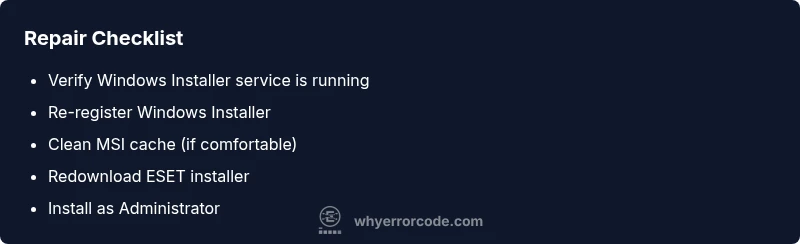
- Verify Windows Installer Service is Running: Open Services (services.msc), locate Windows Installer, ensure Status is Running and Startup Type is Manual/Automatic. If not, start the service.
- Re-register Windows Installer: Open an elevated Command Prompt and run "msiexec /unregister" followed by "msiexec /regserver". This resets the core installer components.
- Clean MSI Cache: Stop the Windows Installer service, delete contents of %windir%\System32\Config (only for advanced users), and restart the service. Alternatively, use DISM and sfc to repair system files if needed.
- Re-download ESET Installer: Get the latest installer from ESET’s official download page to avoid corrupted archives.
- Install with Admin Rights: Right-click the installer and choose Run as administrator. Ensure you agree to UAC prompts and firewall allowances.
- Check for Conflicts: Temporarily disable other security tools and VPNs that could block installer actions. Re-enable after successful installation.
- Review Logs: If the installer still fails, check Event Viewer (Windows Logs > Application) for MSI-related errors and address the specific codes.
Estimated time for this repair flow: 25–45 minutes depending on system response and access rights.
Other Causes and How to Address Them
- Conflicting security software: Some third-party AVs block installer activity. Temporarily disable or configure exclusions for the ESET installer and re-test.
- Outdated OS components: Run Windows Update, install all critical patches, then try again. If updates fail, use the Windows Update Troubleshooter.
- Corrupted user profile: Create a new local admin user and attempt installation from that account to rule out profile damage.
- Disk space and permissions: Ensure there is adequate free space (at least several hundred megabytes) and that the target drive isn’t write-protected.
These alternate paths help when the primary Windows Installer repair fails. In many cases, resolving a single conflicting component is enough to clear the 1601 code and install ESET successfully.
Safety, Warnings, and When to Call a Professional
- Always back up important data before making system changes, especially when altering installer services or registry state.
- If you are unsure about editing MSI or system files, contact a professional. High-risk steps can cause broader OS instability.
- If you rely on ESET for critical defense, prioritize resolving the installer issue promptly to restore protections.
- Expect that a professional visit may incur diagnostic and service fees, with costs varying by region and scope of work. A typical engagement might range from a modest diagnostic fee to several hundred dollars depending on complexity and location.
Prevention and Best Practices
- Keep Windows and ESET components up to date; enable automatic updates where possible.
- Run regular maintenance: sfc /scannow and DISM to repair system files that support installers.
- Establish a standard protocol for software installs, including admin rights checks and vendor-signed installers.
- Maintain a clean boot environment to isolate potential conflicts before major installations.
- Document and store installer hashes for future verifications to quickly detect corrupted packages.
Steps
Estimated time: 25-45 minutes
- 1
Check Windows Installer service
Open services.msc, locate Windows Installer, and verify it is running. If not, start it and set Startup Type to Manual or Automatic.
Tip: If the service won't start, note the error and proceed to re-registering MSI. - 2
Re-register Windows Installer
Open an elevated Command Prompt and run msiexec /unregister, then msiexec /regserver to refresh installers.
Tip: Run as administrator to ensure changes are applied. - 3
Clear MSI cache and repair
If possible, clear MSI cache and run DISM /Online /Cleanup-Image /RestoreHealth followed by sfc /scannow to repair system files.
Tip: Only perform cache clearing if you are comfortable with system directories. - 4
Redownload ESET installer
Download the latest installer from the official ESET site to avoid corrupted packages.
Tip: Verify the download checksum if provided by ESET. - 5
Install with elevated rights
Run the installer as Administrator and accept any UAC prompts, ensuring you have permission to modify the system.
Tip: Disable other security tools temporarily if they block the installer. - 6
Review logs if needed
If the error persists, check Event Viewer (Applications) for MSI errors and adjust steps accordingly.
Tip: Collect the error code and MSI logs for support.
Diagnosis: Error code windows.1601 appears during ESET install/update
Possible Causes
- highWindows Installer service not running
- mediumCorrupted Windows Installer cache or MSI database
- lowConflicting security software or tamper protection
Fixes
- easyEnsure Windows Installer service is running
- mediumRe-register Windows Installer (msiexec /unregister then msiexec /regserver)
- easyTemporarily disable conflicting software and re-run installer
Frequently Asked Questions
What does eset error code windows.1601 mean?
It indicates a failure during ESET installation or update linked to the Windows Installer service. It often points to service access issues, a corrupted MSI cache, or conflicts with other software.
The 1601 error means the ESET installer can't complete because of the Windows Installer service issue, often due to a conflict or cache corruption.
Is Windows Installer the only cause of this error?
Not always. While the installer service is the most common cause, conflicts with other security tools, outdated Windows components, or corrupted installer packages can also trigger the error.
While the installer is often the culprit, other security tools or outdated components can also trigger the error.
Can I fix this without admin rights?
Some steps require administrator privileges, such as restarting services or re-registering Windows Installer. If you don’t have admin access, contact your IT admin to perform these actions.
Most fixes need admin access. If you don’t have it, ask your IT administrator to help.
How long should the repair take?
A targeted Windows Installer repair can take 20–45 minutes depending on system configuration and response times of services.
Most repairs take about 20 to 45 minutes, depending on your system.
When should I contact ESET support?
If the error persists after all troubleshooting steps, or if you suspect a deeper system issue, contact ESET support for assisted diagnostics.
If the error keeps recurring after fixes, reach out to ESET support for help.
Will this affect my antivirus protection?
Until the install/update completes, ESET protections may be unavailable. Completing the fix promptly restores protection and update capabilities.
Protection may be down until the installer finishes, so fix it quickly to restore security.
Are there safety risks in modifying system services?
Yes. Modifying services and registry can affect system stability. Follow official guidance, back up data, and avoid non-official tools.
Modifying services can affect stability; proceed carefully and back up first.
Watch Video
Top Takeaways
- Identify Windows Installer issues as the root cause
- Restart/re-register Windows Installer first
- Use administrator rights for installation
- Check for conflicts with other security software
- If needed, consult professional help