What is error code 1603 during Java install: urgent troubleshooting guide
Discover what is error code 1603 java install, its top causes, quick fixes, and a proven step-by-step repair. Expert guidance for developers and IT pros.


What is error code 1603 java install? It’s a Windows Installer fatal error that appears during Java setup, usually caused by conflicting Java components, a blocked Windows Installer service, or a corrupted installer state. The quickest fixes: run the installer as administrator, use the offline installer, clear temp files, and temporarily disable antivirus to allow the install.
What this error means in practical terms
When you encounter what is error code 1603 java install, you’re facing a Windows Installer failure that prevents Java from being properly registered on your system. In practical terms, the Java runtime cannot be installed or updated, leaving dependent applications unable to run. This error is intentionally generic, but in most environments the root cause isn’t the Java code itself; it’s how the Windows installation framework interacts with your system. The best way to resolve is to triage three core areas: the installer package, the Windows Installer service, and the state of your machine, including remnants from prior Java versions. Recognizing that distinction helps you choose the most efficient path to a fix. For developers and IT professionals troubleshooting error codes, treating this as a triage of installer integrity, service availability, and user permissions speeds resolution and reduces downtime.
Common causes of error 1603 during Java install
There are several frequent culprits behind error 1603 during Java install. The most common is an incomplete or conflicting uninstall of a prior Java version, which leaves behind registry keys or file handles that block the new installer. Another widespread cause is a Windows Installer service that isn’t running correctly, is disabled, or is corrupted, preventing transactional installs. User account permissions and UAC restrictions matter: lacking admin rights can surface 1603 even if you double-click the setup. In some cases, antivirus or endpoint protection interferes, quarantining components or blocking network access to the installer. Finally, a corrupted temp folder or MSI cache can throw 1603 when the installer cannot extract required files. Each scenario has a different remediation path, so start with the simplest fix and escalate only as needed.
Quick fixes you should try first
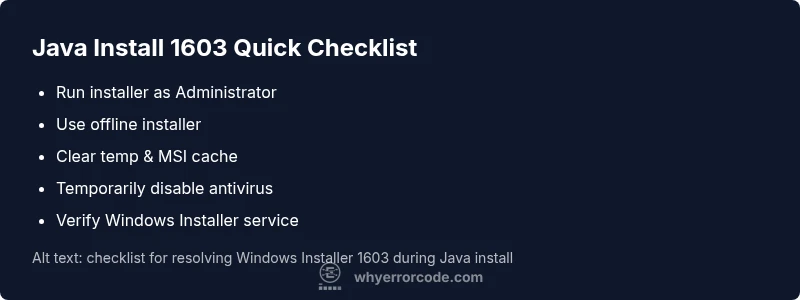
- Run the installer as Administrator: right-click the setup file and choose Run as administrator. This ensures the installer has sufficient privileges to modify system state.
- Use the offline installer: download the standalone Java installer from Oracle’s site to bypass partial downloads and launcher issues.
- Clear temporary files and MSI cache: clear both the user temp folder and Windows temp, then restart. This helps if a stuck temp file or corrupted cache blocks installation.
- Temporarily disable antivirus/endpoint protection: some security tools block installer activities; re-enable after the install completes.
- Ensure Windows Installer is running: confirm the service is set to Manual/Automatic and is started before retrying the install. If these steps don’t resolve the issue, move to the more involved fixes described below.
Step-by-step fix for the most common cause
- Verify admin rights and prepare the environment: log in with an administrator account, close unrelated apps, and disable security software briefly.
- Remove existing Java remnants: uninstall all Java versions from Programs and Features, then delete residual Java folders (if safe to do so) and reboot.
- Prepare for a clean install: download the offline installer that matches your OS and architecture; verify the file integrity if a checksum is provided.
- Re-run with elevated privileges: right-click the installer and select Run as administrator, then follow the on-screen prompts without multitasking.
- If it fails again, re-register Windows Installer: run msiexec /unregister and msiexec /regserver in an elevated command prompt, then reboot and retry.
- Clear MSI cache and temp folders: delete contents of C:\Windows\Temp and C:\Windows\Installer cache as appropriate, then retry the installation.
- Reboot and verify: after installation completes, open a command prompt and run java -version to verify the runtime is installed correctly.
- Collect logs if failure recurs: enable verbose logging for the installer and save the log file; search the log for MSI-related error codes to guide further steps.
- Document the resolution: note the exact OS, Java version, installer type, and the fixes that worked for future reference.
More robust fixes and cleanup strategies
If the quick fixes fail, a deeper cleanup can be required. Begin by repairing the Windows Installer service to ensure the core MSI engine is healthy. Use built-in tools like sfc /scannow to fix system file integrity and DISM to repair component store corruption. Clean up registry remnants left by older Java installations only if you have experience editing registry keys; create a restore point beforehand. Ensure that your environment variables (JAVA_HOME and PATH) are updated to point to the correct Java version after a successful install. Consider disabling non-essential startup programs that might conflict with the installer and testing the install on a clean user profile to rule out profile-specific issues. In corporate environments, a centralized image or deployment script may be required to avoid these gaps across multiple machines.
Alternative causes and their fixes
Beyond the common culprits, several alternative factors can trigger error 1603. A corrupted user profile can misreport permissions, so testing on a new profile may help isolate the issue. A misconfigured group policy could block installer operations; check policy settings related to software installation. Network restrictions or proxy configurations can prevent the installer from fetching required components. If you’re installing on a company-managed machine, ensure there are no IT-imposed restrictions, such as software restriction policies or app whitelisting rules. If the problem is isolated to one machine, consider performing a clean OS reinstall in extreme cases where the installer engine itself is compromised. These alternatives require caution and, in some cases, professional IT support to avoid unintended consequences.
Safety, backups, and when to call a professional
Always create a backup before making changes to system settings or the registry. Working with installer services and registry entries can inadvertently affect other software. If you’re unable to resolve the issue after following the guided steps or if the error recurs across multiple machines, it’s time to contact IT support or a software deployment professional. When you call a pro, expect costs to vary based on the scope and your location; typical rates range roughly from $50 to $150 per hour for on-site or remote assistance, and the total engagement may be 1–3 hours depending on complexity. Have logs, OS version, Java version, and steps you’ve already tried ready for review.
Cost ranges and time expectations for repairs
Resolving Windows Installer 1603 during Java install can involve several layers of work. For simple, self-directed fixes, you may spend 20–60 minutes per attempt, with no direct monetary cost beyond the time you invest. If you engage a professional, price ranges often fall between $50 and $150 per hour, with a typical job taking 1–3 hours for a thorough cleanup, logs review, and a clean install. In some cases, a longer remediation or a reimage may be recommended, which could increase costs. Always request a written estimate before authorizing a repair, and ask for a summary of actions and expected timelines so you can track progress and avoid repeat visits.
Steps
Estimated time: 60-90 minutes
- 1
Prepare admin access and pause protections
Log in as an administrator, close other apps, and temporarily disable antivirus/firewall to minimize interference. This creates a clean environment for the Java installer to run.
Tip: Plan the downtime and re-enable protections right after install. - 2
Remove old Java remnants
Uninstall all previous Java versions from Programs and Features, then delete leftover folders if safe. Restart to ensure no stale components linger.
Tip: If you see remaining registry entries, avoid manual editing unless you know exactly what you’re removing. - 3
Download the offline installer
Get the offline Java installer corresponding to your OS and architecture from the official Oracle site. Verify the file name and, if provided, check the checksum.
Tip: Offline installers reduce network-related failures during setup. - 4
Run the installer with elevated privileges
Right-click the installer and choose Run as administrator. Do not run from network shares or non-elevated accounts. Follow prompts without multi-tasking.
Tip: Avoid launching other installers during this process. - 5
Re-register Windows Installer if needed
If the error persists, open an elevated Command Prompt and run msiexec /unregister then msiexec /regserver, then reboot. This refreshes the MSI engine.
Tip: Be sure to save work before rebooting. - 6
Clear temp files and MSI cache
Delete contents of C:\Windows\Temp and clear the installer cache to remove corrupted fragments that can block extraction of files.
Tip: A clean cache reduces the chance of reuse of bad data. - 7
Retry installation and validate
Run the offline installer again with admin rights. After it completes, open a new cmd window and run java -version to confirm a successful install.
Tip: If version output is blank or incorrect, double-check PATH and JAVA_HOME. - 8
Analyze logs if it fails again
Enable verbose logging for the installer and save the log file. Search for MSI errors or specific component failures to guide next steps.
Tip: Logs guide troubleshooting and help when seeking professional support. - 9
Document the resolution
Record OS version, Java version, installer type, and the exact steps that worked. This helps prevent recurrence on future machines or deployments.
Tip: Create a reproducible checklist for your team.
Diagnosis: Error code 1603 appears during Java install
Possible Causes
- highConflicting or leftover Java versions from a previous install
- highWindows Installer service is not running or is corrupted
- mediumInsufficient permissions (UAC/admin rights)
- mediumAntivirus/endpoint protection interfering with the installer
- lowCorrupted MSI cache or temp files
Fixes
- easyRun the installer as Administrator
- easyUse the offline Oracle Java installer
- easyTemporarily disable antivirus and retry
- easyRepair Windows Installer service and re-register MSI
- mediumClear MSI cache and temp folders, then reattempt install
- mediumUninstall all Java versions and clean registry remnants (only if comfortable)
Frequently Asked Questions
What is error code 1603 during Java install?
Error 1603 is a Windows Installer fatal error indicating the Java installation cannot complete. It often stems from permissions, conflicting Java remnants, or installer state issues.
Error 1603 is a Windows Installer fatal error during Java install—usually due to permissions, leftovers, or installer state.
Why does 1603 occur specifically with Java?
Java installations interact with Windows Installer, so conflicts from older Java versions, blocked services, or security software can trigger 1603.
It happens because the installer and system components clash during Java setup.
Is 1603 fixable without admin rights?
Admin privileges are typically required for writes to system folders and registry. Without them, you’re unlikely to complete the install.
Usually you need admin rights to fix this.
Should I remove all Java versions before reinstalling?
Yes—uninstall all existing Java versions and then perform a clean install with the offline installer to reduce conflicts.
It helps to remove older Java versions first.
When should I seek professional help?
If repeated attempts fail across multiple machines or a corporate environment, consult IT support. Expect costs in the typical consulting range depending on scope.
If it keeps failing, it’s time to get professional help.
Watch Video
Top Takeaways
- Run install as admin
- Use offline installer
- Clear temp and MSI cache
- Document the resolution and keep logs