Java Download Error Code 1603: Quick Fix Guide (Windows)
A practical guide to diagnosing and fixing Java download error code 1603. Learn common causes, quick fixes, step-by-step repair, and prevention tips for developers and IT pros.


Java download error code 1603 means the Windows Installer failed during the Java setup. The quickest fix is to run the installer as Administrator, verify the Windows Installer service is healthy, and use the offline Java installer to avoid network problems. If the issue persists, temporarily disable antivirus and remove old Java remnants. This approach targets the most common causes first.
What Java Download Error 1603 Really Means
Java download error code 1603 is a generic Windows Installer failure. It does not reveal a specific root cause, which is why many users see it as a painful, opaque stop in the installation flow. In practice, this error during the Java install on Windows can be triggered by a handful of high‑level factors: a corrupted MSI package, remnants of a prior Java installation, insufficient permissions, an overwhelmed Windows Installer service, or security software interference. Recognizing this pattern helps you triage more efficiently. For developers and IT pros, treating 1603 as a symptom rather than a standalone fault is the key to a fast repair. Throughout this guide we’ll outline a diagnostic flow, concrete fixes, and safety precautions so you can restore Java functionality without guesswork. The keyword java download error code 1603 will appear multiple times as a reference point to keep context clear for troubleshooting.
Symptoms and Triggers
Common signs of the 1603 failure include an abrupt halt to the installer process with little to no descriptive text, a generic “INSTALLATION FAILED” message, and logs that reference MsiExec returning 1603. In many environments, this happens after a recent Windows update, a partially removed earlier Java version, or when system protections block new files from being written to Program Files. Heavy users may notice multiple attemps fail in sequence, prompting a shift to an offline installer. The trigger is often environmental rather than the JRE/JDK binary itself, so focus on system state and software conflicts first. Costly outages occur if you skip straight to reinstalling the OS or applying aggressive registry edits without a plan.
Quick Fixes You Can Try Right Now
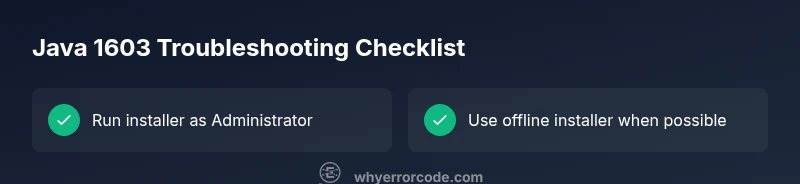
If you’re facing java download error code 1603, start with the simplest remedies. Run the installer as Administrator to ensure you have full write permissions. Use the offline installer to bypass potential network issues that interrupt MSI downloads. Reboot the machine to refresh the Windows Installer service and clear transient locks. Check that there is ample disk space in the target drive and that antivirus or Windows Defender isn’t blocking the installer. Finally, remove any evidence of prior Java versions completely before attempting a fresh install. These quick fixes address the most common causes and often resolve the problem without advanced steps.
Diagnostic Flow: Symptom → Causes → Solutions
Symptom: The Java installer halts with error 1603 during setup. Causes (ordered by likelihood):
- Prior Java remnants blocking a clean install (high)
- Corrupted Windows Installer or blocked service (high)
- Antivirus or security suites interfering (medium)
- Insufficient permissions or non-admin context (high)
- Insufficient disk space or path length issues (medium)
Fixes (applied in order):
- Run the installer as Administrator (easy)
- Use the offline installer (easy)
- Ensure Windows Installer service is running and repair it if needed (easy/medium)
- Temporarily disable antivirus, then re-enable after install (easy)
- Free disk space and avoid long installation paths (easy)
Step-by-Step Fix: Most Common Cause — Old Java Remnants
- Uninstall all existing Java versions from the system via Add/Remove Programs. 2) Reboot to clear locked files and services. 3) Use the official Java uninstall tool (if available) to remove leftover registry entries. 4) Download the offline installer from the official source and run as Administrator. 5) If installation still fails, run Windows Update to ensure that the OS components are up to date. 6) Reboot and verify with java -version.
Other Causes and How to Address Them
Beyond old remnants, a corrupted MSI package can trigger 1603. Always verify the integrity of the installer by re-downloading or using the offline installer. Windows Update remnants, a misconfigured registry key, or a failing Windows Installer service can also cause 1603. In these cases, use the official Windows Installer Repair tool, ensure the service is set to Manual or Automatic and starts, or perform a clean boot to isolate software conflicts. If network security policies or group policies are in play, coordinate with IT to allow MSI installations. For enterprise environments, consider using deployment tools that manage Java installation centrally to avoid per-machine conflicts. The core idea is to isolate whether the fault is with the package, the installer, or the environment, then apply the corresponding remediation.
Safety, Backups, and When to Call a Professional
Always back up important data before major software installations or registry edits. Create a system restore point if you’re modifying critical settings. Do not disable security features permanently; re-enable them after the install completes. If you’re in a corporate environment or cannot alter system services, contact your IT team or a professional technician. Expect professional fixes to cost in a broad range depending on region and scope, typically from a low to mid range for a standard reinstall task. For complex environments (virtualized or locked-down devices), scheduling a remote session or on-site visit may be necessary.
Prevention: How to Avoid 1603 in the Future
Proactively manage Java installations by cleaning up old versions before new ones, keeping Windows Installer updated, and avoiding mixed environments with multiple JRE/JDK variants. Use standardized deployment practices for Java in your organization to minimize conflicts. Regularly check for malware or security software that could block MSI operations. Maintain disk health and ensure adequate disk space for installations. By following a repeatable process and documenting any exceptions, you’ll reduce the likelihood of encountering java download error code 1603 in future updates.
Steps
Estimated time: 45-60 minutes
- 1
Back up and prep
Create a system restore point and ensure you have admin rights. Close all browsers and background installers to prevent file locks during the Java install.
Tip: A restore point saves you from missteps during cleanup. - 2
Uninstall all Java versions
Go to Settings > Apps, remove every Java entry, and reboot after the uninstallation completes.
Tip: Reboot ensures no lingering processes hold files. - 3
Use the offline installer
Download the official offline installer from the Oracle/official source and run as Administrator.
Tip: Offline installers bypass download-related MSI failures. - 4
Check Windows Installer service
Open services.msc, locate Windows Installer, ensure it’s running, and set to Manual/Automatic with a proper startup.
Tip: A hung service commonly causes 1603 failures. - 5
Disable conflicting security software
Temporarily disable antivirus or endpoint protection, then retry the install. Re-enable afterward.
Tip: Security software often blocks new MSI files. - 6
Verify post-install
Open a new command prompt and run java -version to confirm a successful installation.
Tip: If you don’t see the expected version, review logs for MSI errors.
Diagnosis: Error code 1603 occurs during Java install on Windows
Possible Causes
- highClutter from previous Java installations
- highCorrupted Windows Installer service
- mediumAntivirus/security software interference
- highInsufficient admin privileges
- mediumInsufficient disk space or long install path
Fixes
- easyRun installer as Administrator
- easyUse the offline Java installer
- easyRepair or restart Windows Installer service
- easyTemporarily disable antivirus during install
- mediumClear old Java remnants and retry
- easyFree disk space or shorten install path
Frequently Asked Questions
What does error code 1603 mean when installing Java?
Error 1603 is a generic Windows Installer failure that stops the Java installation. It doesn’t specify the root cause, so you must check logs and related system factors to identify the culprit.
Error 1603 means the installer failed; review logs and system factors to pinpoint the cause.
Can I fix 1603 without admin rights?
Admin rights are typically required for writing to Program Files and modifying system services. Without admin rights, some fixes may fail. Request elevated access or use a machine where you have admin control.
Admin rights are usually needed for a full fix; without them, some steps may not work.
Is there a Java installer that avoids 1603?
Using the offline installer often avoids network-related MSI failures. If consistent, use the offline package from the official source and ensure system prerequisites are met.
Offline installer from the official source often helps avoid 1603.
How do I verify Java is installed after fixing 1603?
Open a command prompt and type java -version to confirm the expected Java version. If the command succeeds, the installation is complete.
Run java -version to confirm the installation succeeded.
When should I contact a professional for 1603?
If you’re in a managed environment, or the installer repeatedly fails after all standard steps, seek professional help to avoid data loss or prolonged downtime.
If standard fixes fail or you’re in a managed environment, consider a professional.
Does antivirus software cause 1603 errors?
Yes, real-time protection can block MSI installations. Temporarily disable it during installation, but remember to re-enable afterward.
Security software can block MSI installations; disable temporarily during install and re-enable later.
Watch Video
Top Takeaways
- Verify admin rights before installing
- Use offline installer to avoid download issues
- Clean up old Java before fresh install
- Check Windows Installer health if 1603 recurs
- Consult a pro when in doubt