Java Install Error Code 0 Troubleshooting Guide
Urgent troubleshooting guide to diagnose and fix java install error code 0 across Windows, macOS, and Linux. Learn common causes, fast fixes, diagnostics, and prevention strategies to ensure a smooth Java installation.


Java install error code 0 usually signals a generic install failure caused by a corrupted installer, architecture mismatch, or insufficient permissions. Quick fixes include re-downloading the official installer, running it with administrative privileges, and verifying that JAVA_HOME and PATH point to the correct locations. If issues persist, inspect logs for specific error messages and consider a clean reinstallation of the latest JDK.
What java install error code 0 means
Java install error code 0 is not a single culprit; it’s a generic signal that the installer could not complete. In practical terms, this often points to environmental or packaging problems rather than a single missing file. The Why Error Code team has observed that most occurrences stem from using the wrong installer for the system architecture (e.g., 32-bit vs 64-bit), a mismatch between JRE/JDK components, or restricted permissions during installation. To resolve swiftly, ensure you’ve downloaded the correct installer for your OS and architecture, run with elevated privileges, and verify the installer’s integrity before running the setup. If you continue to see code 0, collect the installer log and system event messages for deeper analysis.
Key factors that influence the error
- System architecture mismatch: Attempting to install a 32-bit package on a 64-bit OS (or vice versa) commonly triggers a generic failure. Ensure you’ve matched the installer to your OS and processor type.
- Incomplete downloads: A partial or corrupted installer will fail during extraction or setup, producing a generic error code instead of a precise message.
- Permissions and path access: On Windows, macOS, and Linux alike, lack of write access to program directories or restricted environment variables can abort the installer mid-way.
- Conflicting or pre-existing Java components: Residual files from older Java installations can confuse the installer and surface as error code 0.
- Antivirus or security software: Overzealous protection can quarantine installer components, leading to a failed install.
If you’re unsure which factor applies, start with the simplest fix (re-download and verify the installer) and then move to environment checks and log review.
Quick fixes you can try now
- Re-download the official Java installer from the Oracle/OpenJDK site and verify its checksum if available.
- Run the installer with administrative privileges (Run as administrator on Windows, sudo on Linux/macOS when appropriate).
- Ensure your environment variables are clean: JAVA_HOME should point to the JDK folder; PATH should include the bin directory from that JDK.
- Temporarily disable non-essential antivirus/security tools during installation, then re-enable them after setup.
- If you have multiple Java versions installed, uninstall older versions to avoid conflicts, then perform a clean install of the latest LTS release.
- Check the installation logs (often in the user temp directory or /var/log) for specific error messages and address those first.
If the error persists, consider a different distribution method (e.g., a package manager on Linux or a native package for macOS) and ensure compatibility with your OS version.
Deep dive: diagnosing environment and installer integrity
Begin by verifying the installer’s integrity and compatibility:
- Confirm you downloaded the correct package for your OS and architecture (e.g., Windows x64, macOS x64, Linux x86_64).
- Compare the installer’s size and checksum against the publisher’s published values; any mismatch indicates corruption.
- Check console output during installation for errors that mention permissions, path issues, or missing dependencies.
- Inspect system logs for security software blocks or denied access events that coincide with the install attempt.
- Verify Java-related environment variables post-install to ensure other tools (Maven, Gradle, IDEs) can locate Java reliably.
If you suspect a system-specific block (antivirus, firewall, or policy), temporarily adjust those settings or perform installation in a minimal environment (e.g., a user account with standard permissions) to isolate the cause.
Preventing future failures and best practices
- Always use the official distribution channel and verify checksums to avoid tampered installers.
- Match the installer to your OS and architecture; never force a mismatch to force compatibility.
- Establish consistent environment variables across shells and sessions; document JAVA_HOME and PATH changes for future audits.
- Regularly update to the latest LTS Java version and remove stale or conflicting JRE/JDK versions.
- Create a standard installation checklist for teams to reduce recurrence of error code 0 across machines, including logs capture steps and post-install verification commands.
Steps
Estimated time: 45-90 minutes
- 1
Verify system requirements and current Java status
Check your OS version, processor architecture, and whether any older Java versions are present. Run java -version to confirm current java state and verify you meet minimum requirements for the chosen distribution.
Tip: Document your OS version and architecture before reinstalling. - 2
Download a fresh installer from the official source
Go to the Oracle or OpenJDK official site and download the correct installer for your OS and architecture. Prefer a direct, secure download over mirrors to avoid corrupted files.
Tip: Always verify the file size and checksum if published by the vendor. - 3
Run the installer with elevated privileges
On Windows, right-click and choose 'Run as administrator'. On macOS or Linux, use sudo if required and ensure you have write access to the installation directory.
Tip: Disable antivirus temporarily only if you trust the source and re-enable after installation. - 4
Configure environment variables correctly
Set JAVA_HOME to the JDK folder and append its bin directory to PATH. Open a new terminal or command prompt and verify with java -version and javac -version.
Tip: Keep a copy of the environment variable values for auditing. - 5
Perform post-install verification
Run a simple Java program or a one-liner to confirm the installation works (e.g., java -version; javac -version). If errors show up, consult the installer log for precise messages.
Tip: If verification fails, analyze logs for permission or path errors. - 6
Escalate if needed
If error code 0 persists after all steps, contact the vendor’s support with your logs, your system details, and the exact installer version used.
Tip: Having a reproducible report speeds up resolution.
Diagnosis: Error code 0 appears during Java installation
Possible Causes
- highCorrupted or incomplete installer file
- highArchitecture mismatch (32-bit vs 64-bit)
- mediumPermissions or access path restrictions
- lowConflicts with pre-existing Java components
- lowSecurity software blocking the installer
Fixes
- easyRe-download the official installer and verify its checksum
- easyRun the installer with elevated privileges and ensure write access to the target directory
- easyVerify and correct JAVA_HOME and PATH to point to the new JDK
- mediumUninstall older Java versions to avoid conflicts, then reinstall
- mediumCheck logs for specific errors and adjust security settings if blocked by antivirus
- hardIf issues persist, contact official support for platform-specific guidance
Frequently Asked Questions
What does error code 0 mean during Java installation?
Error code 0 is a generic installation failure indicating the installer could not complete. It often points to environment or packaging issues rather than a specific missing component. Review installer integrity, architecture compatibility, and permissions to resolve it.
Error code 0 means the installer couldn't complete. Check the installer integrity, architecture compatibility, and permissions to fix it.
How can I tell if the installer is corrupted?
Compare the downloaded file against the publisher’s checksum and re-download if there’s any mismatch. A partial download or a virus-scan interruption can also corrupt the installer and trigger error 0.
Compare the checksum and re-download if it doesn’t match. A partial download can cause the error.
Should I uninstall older Java versions before installing a new one?
Yes, removing older Java versions can prevent conflicts that lead to error codes. After cleanup, perform a clean install of the latest LTS release.
Yes—uninstall old versions to prevent conflicts, then reinstall the latest LTS Java.
What role do JAVA_HOME and PATH play in this issue?
JAVA_HOME and PATH tell your system where Java lives. If they point to a non-existent or wrong directory, the installer or tools may fail or misbehave.
JAVA_HOME and PATH tell your computer where Java is; incorrect values can cause failures.
When should I contact professional support?
If you’ve exhausted checks, logs, and environment adjustments without resolution, contact vendor support with your system details and log excerpts for targeted guidance.
If you’ve tried everything and it still fails, reach out to support with your logs.
Are there any safety considerations during installation?
Only install from trusted sources and temporarily disable security software if you’re certain the installer is legitimate. Re-enable protection immediately after installation.
Install from trusted sources and re-enable security tools after installation.
Watch Video
Top Takeaways
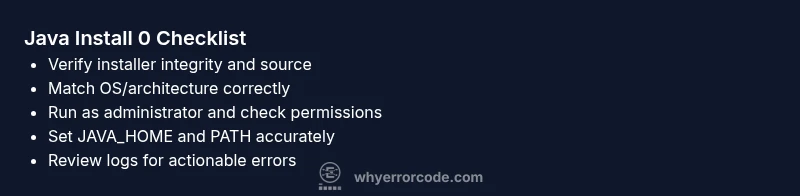
- Verify installer integrity before install
- Match installer to OS and architecture
- Set JAVA_HOME and PATH correctly
- Check logs for targeted errors
- Escalate to support when needed