Java Install Error Code 1603: Urgent Fix Guide
Urgent guide to Java install error 1603—what it means, common causes, and fast, safe fixes to get Java installed on Windows again. Learn diagnostics, step-by-step repairs, and when to seek help.


Java install error code 1603 signals a generic Windows MSI failure during Java setup. Quick fixes include running the installer as administrator, closing other MSI processes, temporarily disabling antivirus, using the offline installer, and rebooting before retrying.
What Java Install Error Code 1603 Means
Java install error 1603 is a Windows MSI failure that stops the Java setup process. It’s not a Java version problem; rather, the Windows Installer service reports a generic error when the installer cannot complete. Common triggers include permission issues, a blocked msiexec process, a corrupted installer, or conflicting remnants from a previous Java version. According to Why Error Code, addressing 1603 effectively requires a structured approach, not guesswork. In practice, most users recover quickly by validating the installer source, ensuring admin rights, and eliminating background interference before retrying.
Common Causes Behind 1603 During Java Installations
The majority of 1603 failures during Java installation fall into a few well-worn categories. First, permission or UAC restrictions prevent the installer from writing to system folders or the registry. Second, background MSI processes (msiexec.exe) running concurrently can lock files and abort the install. Third, a corrupted or incomplete Java installer file can trigger the fatal error. Less common, but worth checking, are out-of-date Windows Installer services, insufficient disk space, and active security software blocking the install. Why Error Code analysis shows that these causes are often environmental rather than a Java-specific bug.
Quick Fixes You Can Try Right Now
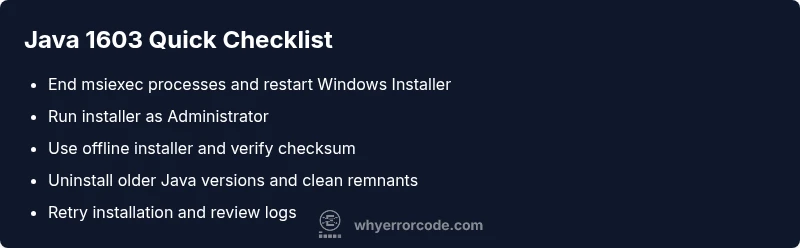
Start with the least invasive steps and work downward. Run the Java installer as Administrator and, if possible, use the offline installer to avoid network issues. Close all other MSI-related processes, then restart the Windows Installer service and retry. Temporarily disable antivirus or firewall protection only for the install attempt, and re-enable afterward. Finally, uninstall any existing Java versions, clean up remnants from the registry and program files, and try a fresh install. If the error persists, check the installer’s checksum and re-download from the official source.
When to Seek Professional Help and Potential Costs
If you have tried the quick fixes and the error still appears, it’s time to escalate. Professional support can safely edit registry entries, reset the Windows Installer service, and verify system integrity. Cost ranges for professional remediation vary by region and scope but typically fall into a basic troubleshooting package ($100–$300) or more comprehensive repair ($300–$800). The risk of data loss is low but present when registry edits are involved, so consider a backup before engaging a pro.
Steps
Estimated time: 45-90 minutes
- 1
Prepare the environment
Back up important data and close unrelated applications. Ensure a stable network and an administrator account is ready. This prevents misconfigurations during the install and makes troubleshooting easier if something goes wrong.
Tip: Have your admin credentials handy and save a system restore point before installing. - 2
Close conflicting MSI processes
Open Task Manager and end any msiexec.exe processes. If you have multiple installations queued, stop them as well. Then restart the Windows Installer service to clear locks.
Tip: Avoid rebooting between steps unless prompted by Windows. - 3
Run installer as Administrator
Right-click the Java installer and choose Run as administrator. If you’re prompted by User Account Control, approve the action. This ensures the installer can modify system folders and registry keys.
Tip: If you’re on a corporate device, check group policies that may restrict installer privileges. - 4
Use the offline installer
Download the offline Java installer from the official source and verify its integrity with a checksum if provided. Offline installers avoid network-related blocks and partial downloads that can trigger 1603.
Tip: Prefer the offline bundle that matches your OS architecture (32-bit vs 64-bit). - 5
Remove remnants of older Java versions
Uninstall any existing Java versions from Programs and Features. Delete remaining Java folders in Program Files and delete related registry entries only if you are confident editing the registry.
Tip: Back up the registry before making changes. - 6
Clear temp files and reset Windows Installer
Run Disk Cleanup or delete temp files in %TEMP% and C:\Windows\Temp. If needed, re-register or reset the Windows Installer service to a clean state.
Tip: A clean temp folder reduces installation conflicts. - 7
Retry installation and review logs
Attempt the install again. If it fails, capture the error log (often in the installer directory or %TEMP%) and search for the specific MSI error code to guide further fixes.
Tip: Saving logs early makes troubleshooting faster.
Diagnosis: Error code 1603 appears during Java installation on Windows
Possible Causes
- highStale or conflicting MSI processes (msiexec.exe) running in the background
- highInsufficient user permissions or registry access restrictions
- highCorrupted or partial Java installer download
- mediumOutdated Windows Installer service or missing prerequisites
- mediumInterfering antivirus/endpoint protection software
Fixes
- easyEnd conflicting MSI processes and restart the Windows Installer service
- easyRun the installer as Administrator and verify admin rights
- easyUse the offline installer and verify checksum if available
- easyTemporarily disable antivirus/firewall during install, then re-enable
- hardUninstall existing Java versions and clean remnants from program files/registry
- easyCheck disk space and update Windows/Windows Installer prerequisites
Frequently Asked Questions
What triggers error code 1603 during Java installation?
1603 is a generic MSI failure that occurs when the installer cannot complete, often due to permissions, background MSI processes, or corrupted installers. Following a structured troubleshooting flow typically resolves it.
1603 is a general Windows MSI error during Java setup; fix by checking permissions and background installers.
Is Java 64-bit vs 32-bit relevant to 1603?
Architectural mismatches can cause failures if you install the wrong Java package for your OS. Always download the correct 32-bit or 64-bit installer for your system.
Make sure you download the right 32-bit or 64-bit installer for your OS.
Should I run the offline installer for 1603?
Using the offline installer helps isolate network issues and ensures a complete package is used for installation, which often resolves 1603.
Yes—try the offline installer to avoid network problems.
Can Windows Installer service issues cause 1603?
Yes. If the Windows Installer service is disabled or corrupted, Java setup can fail with 1603. Resetting or re-registering the service often fixes it.
Yes, MSI service problems often trigger 1603; resetting it helps.
When should I seek professional help for 1603?
If standard fixes fail, or you suspect registry damage or system integrity issues, contact a qualified IT professional to perform safe registry edits and deeper checks.
If fixes fail, consider contacting an IT pro.
Watch Video
Top Takeaways
- 1603 is environmental, not version-specific.
- Start with admin privileges and a clean environment.
- Offline installers reduce network-related failures.
- Remove old Java remnants before a fresh install.